Employer Time Off Feature
The Time Off feature under Payroll > Employer > Employer Profile, allows you to set up and manage paid and unpaid time off for your team. You can have multiple time-off policies to accommodate different needs.
Time off is a period of time where employees are not working. Employers offer time off as a type of perk that allows employees to take a break from work to travel, rest, take care of personal tasks, etc. Employers can offer a combination of paid or unpaid time off and set different policies/rules for different groups of employees. Common examples of time off are Vacation, Sick, Holiday, and Bereavement. Employers determine time off policies for their business and can add multiple policies to their payroll account.
Salaried workers are defaulted to working 40 hours a week, 8 hours per day over a five day period. Employers have the flexibility to determine how the time off is accrued and what the total number of hours granted can be.

As the name implies, employees that are on a paid time off policy will receive compensation for time they take off. Employers track the hours of time off taken and input that information during the run payroll flow. The paid time off compensation is calculated and added as earnings to the employee’s pay stub. Paid time off is taxed like any other regular compensation received by the employee and is reported as part of the gross earnings on the employee’s W-2 at year end.
Employees that are on unpaid time off do not receive any compensation for the days off they take. Employers might still set policies and rules to track how much time off an employee is allowed, how much has been used, and how much is remaining. Time off hours are recorded during the payroll run and are reflected on the pay stub for record keeping only. No additional compensations are added to the employee’s wages in this case.
To add time off, follow these steps:
-
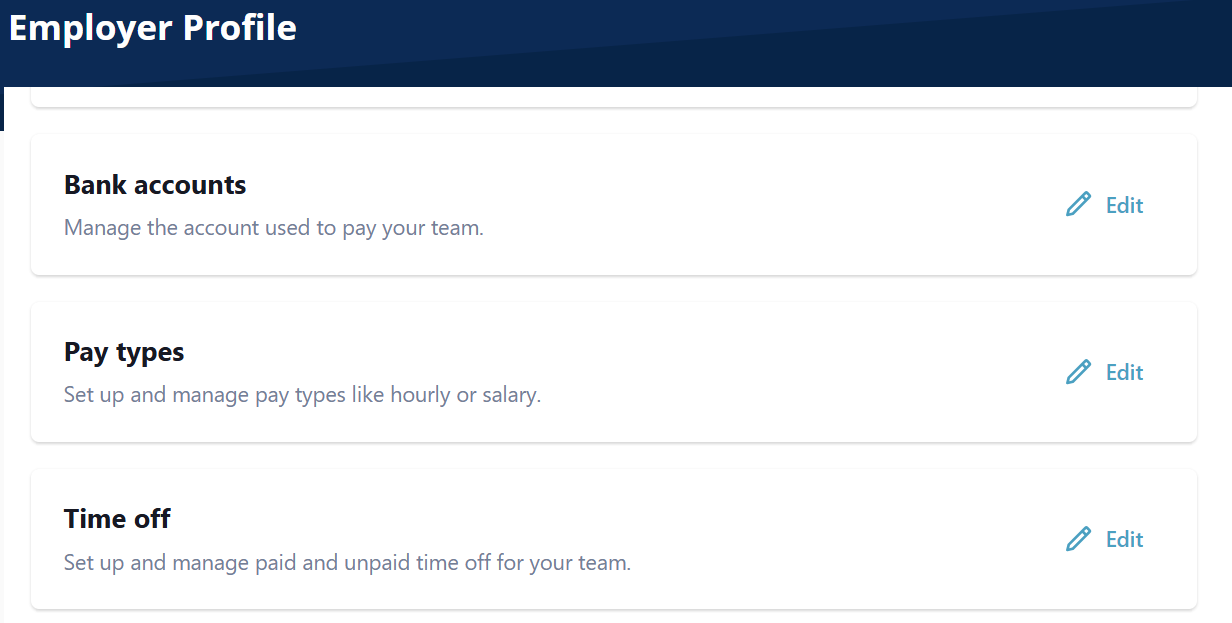
Go to Payroll > Employer > Employer Profile.
-
On the Time off tile, select Edit.
-
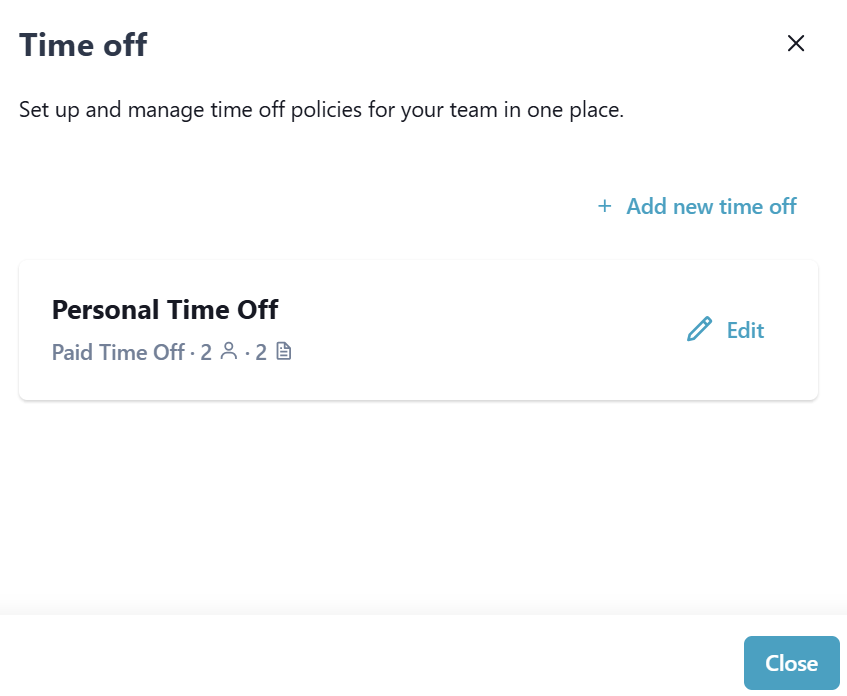
On the Time off window, select Add new time off.
-
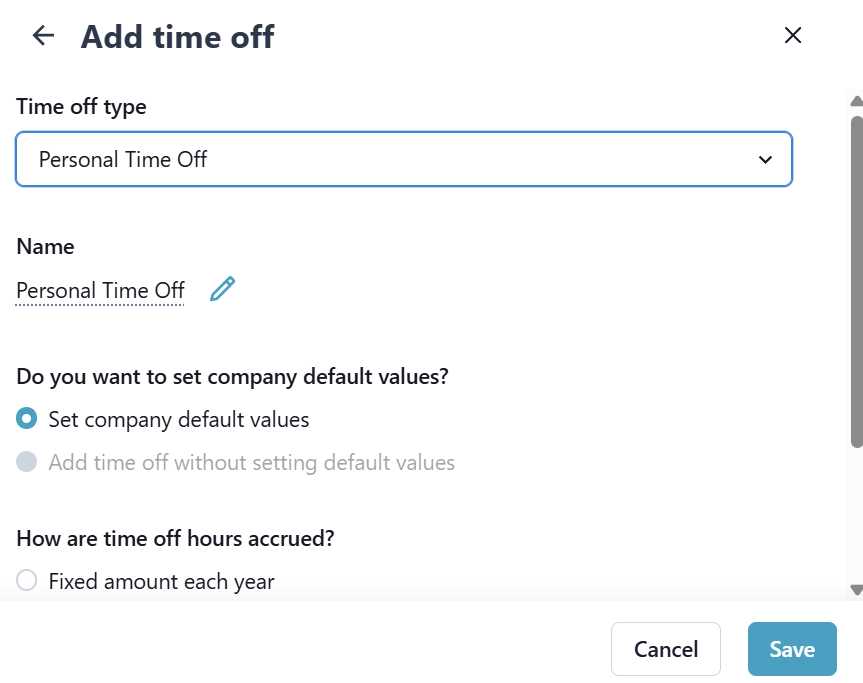
Select the desired time off type
It is optional to add a custom name. The name appears on worker's pay stubs.
-
Select Set company default values (most common).
-
Select how the time off hours are accrued – choose one of the following:
-
Based on hours worked – using this accrual method, an employee earns time off hours based on how many hours they work.
-
Fixed amount each year – using this accrual method, an employee earns all their time off on a specific date like at the beginning of the year or on their hire date.
-
Manual – this is not common, but allows an employer that has a very custom method or is tracking accruals using a different tool to manually enter the accrued hours for each employee manually by adding their time off balance.
-
No accrual – this is used for employers that have an unlimited time off policy. No hours of time off are accrued.
-
-
Indicate when hours should be accrued - choose one of the following:
-
At the start of the calendar year - using this method, an employee earns the total amount of allotted time off hours starting January 1 of each new year.
-
On the anniversary of the worker's hire date - using this method, an employee earns the total amount of allotted time off hours on their work anniversary per the hire date entered into their worker profile.
-
Per pay period - using this method, an employee earns time off hours each pay period until they reach the total number of hours allotted in the policy.
-
-
For the accrual types above, enter the following settings:
-
Accrual rate/total time off hours per year - total number of time off hours to be accrued per chosen accrual method chosen.
-
Max carry over hours (optional) - maximum number of hours a worker can carry over to the next year. Leave blank for unlimited carry over.
-
Max hours allowed (optional) - maximum number of hours a worker can accrue for this time off type. Leave blank for no limit.
-
-
Select Save.
When adding an employer time off for the first time, you are effectively adding a default time off policy. Employers sometimes have a need for more than one policy.
As an example, they might have one time-off policy for new employees where they earn 2 weeks of time off a year and another policy for tenured employees where they earn 4 weeks of time off a year. Here are the steps to add a policy:
-
Go to Payroll > Employer > Employer Profile.
-
On the Time off tile, select Edit.
-
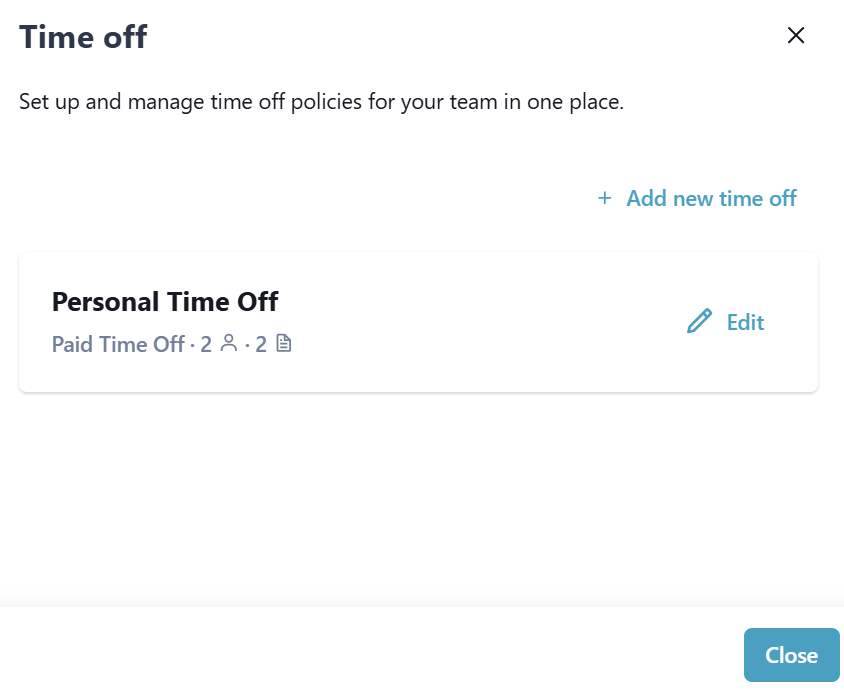
On the specific time off, select Edit. If there are any policies added, they appear here.
-
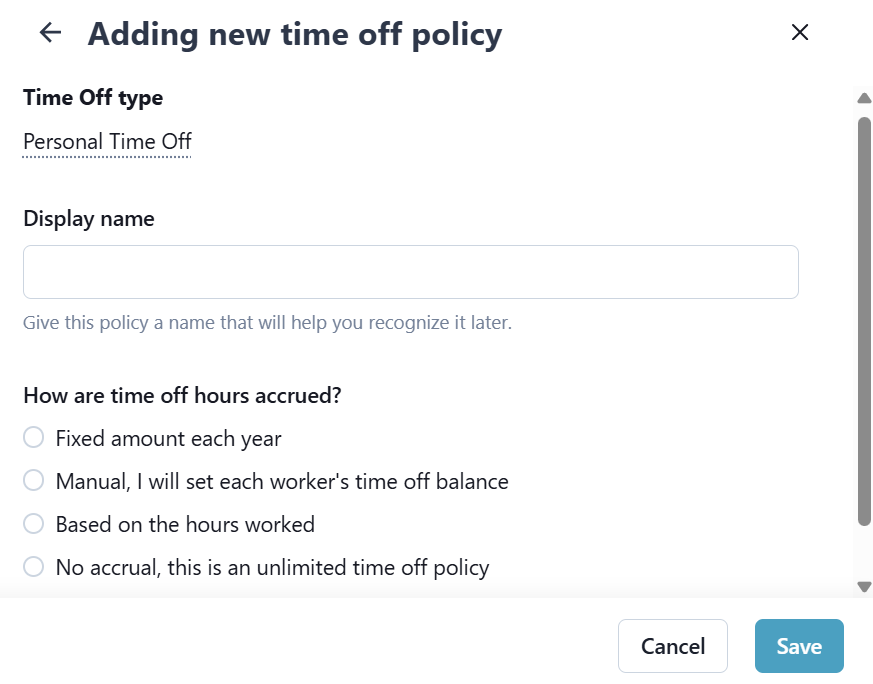
Select Add a policy.
-
Enter a display name to help you recognize it later. This name is only visible to the company admins and is not shown on worker pay stubs.
-
Select the accrual method and any other configuration settings
-
Select Save.