Authorizations Page
When a case is accepted in the Non-Homecare Portal, it moves to the Recent Authorizations section on the Home page. Only the five most recent authorizations are shown on the Home page.
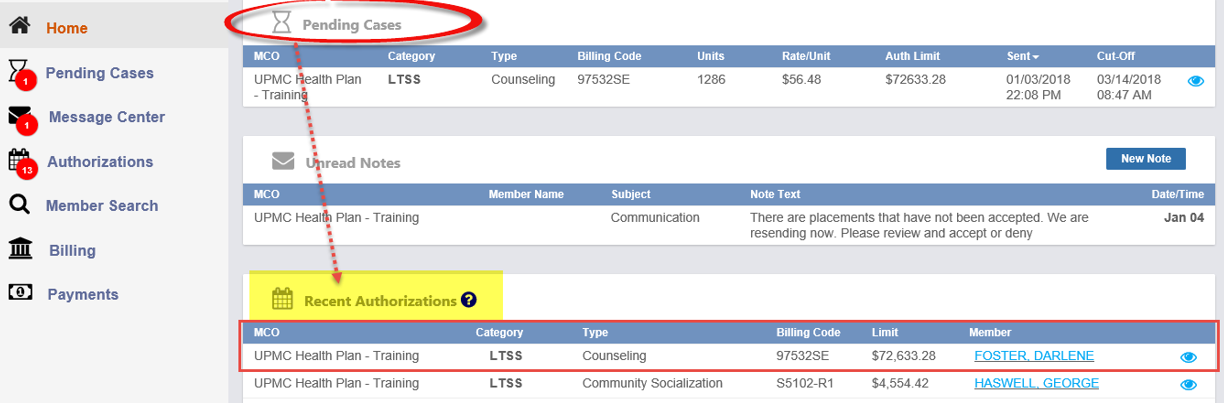
To view all authorizations:
-
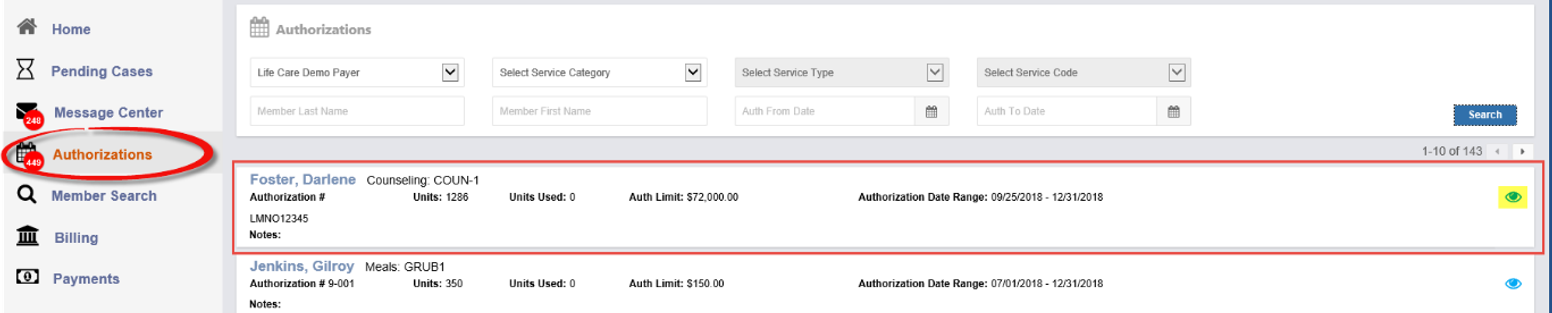
Click Authorizations in the left navigation menu.
-
Select a Payer from the Select MCO dropdown.
-
Click Search.

To view details for a specific authorization, click the Eye icon next to the authorization.
Only accepted authorizations with completed services can be invoiced. Future invoicing is not supported in this portal.

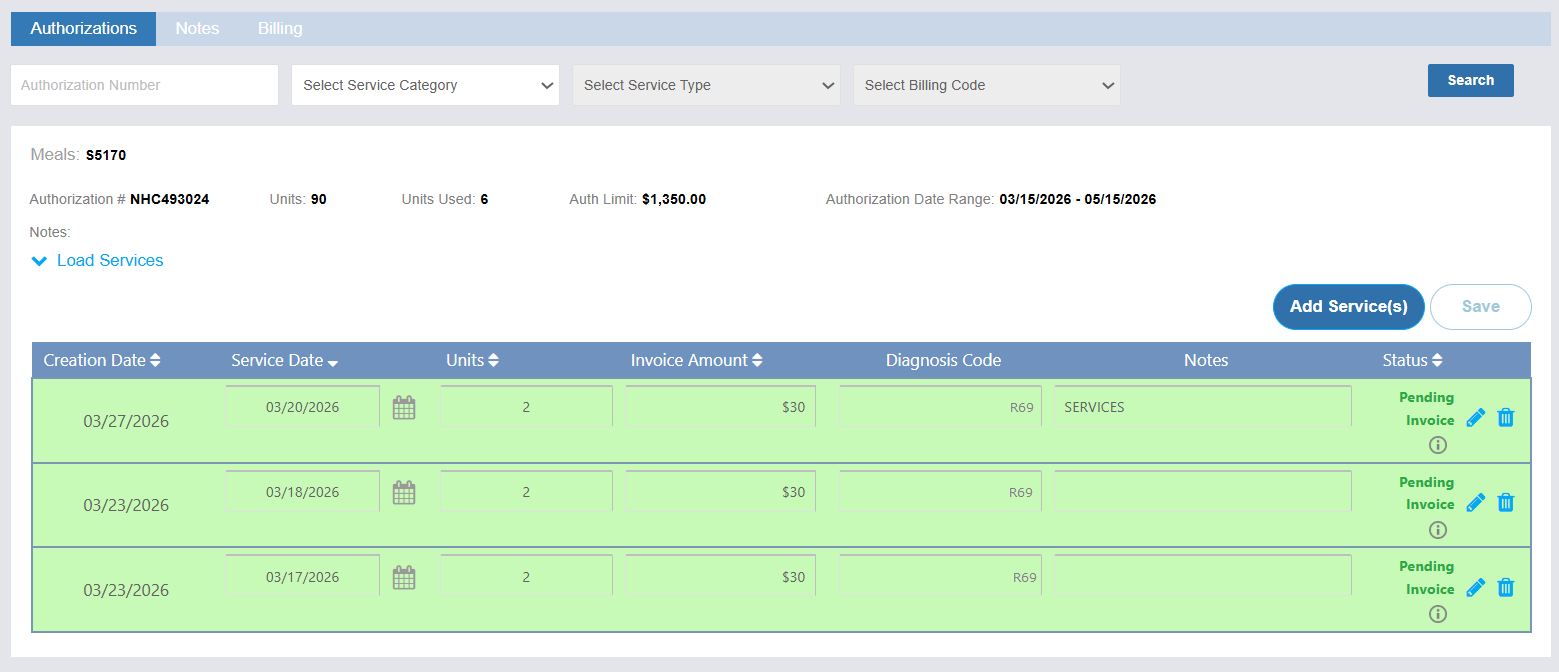
At the top of the Authorization page, Member information is displayed, followed by authorization details, including:
-
Authorization #: The authorization number provided by the Payer
-
Units: The total number of authorized units
-
Units Used: The number of units already invoiced
-
Auth Limit ($): The total dollar limit for all services under the authorization, if applicable
-
Authorization Date Range: The approved date range for services
As services are invoiced, these values automatically update to show remaining balances.
The Payer controls the total number of units and any dollar limits when issuing an authorization. Provider billing rates may also be defined by the Payer.
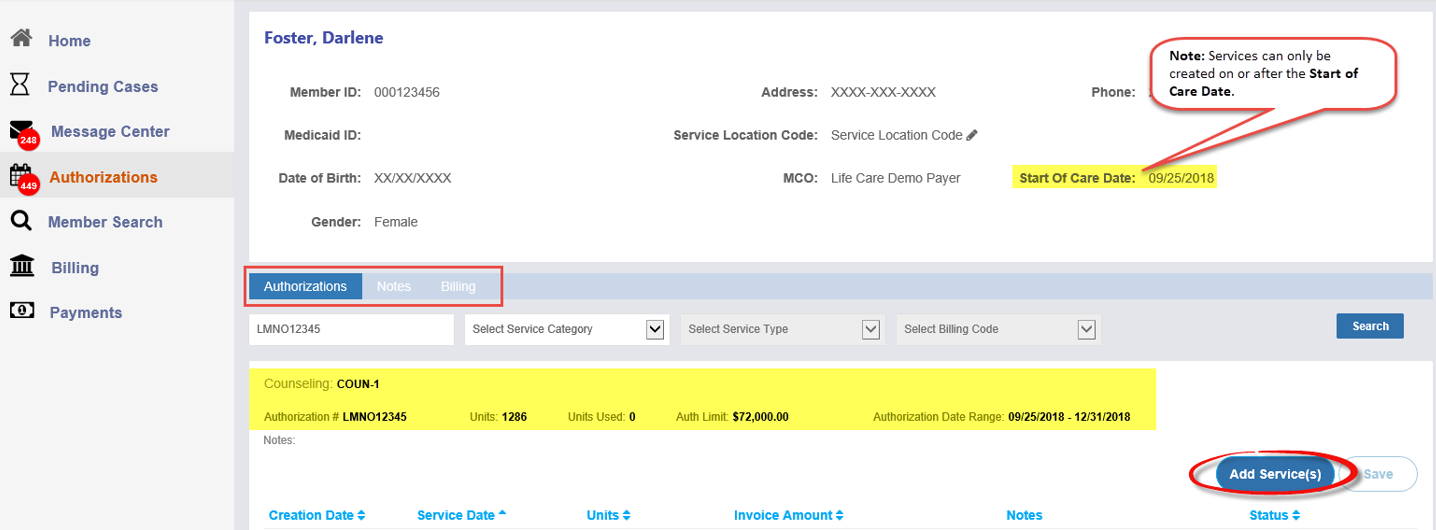
Services cannot be added before the Start of Care Date.
The Member details are displayed at the top of the Authorization page followed by the authorization details.
To add services:
-
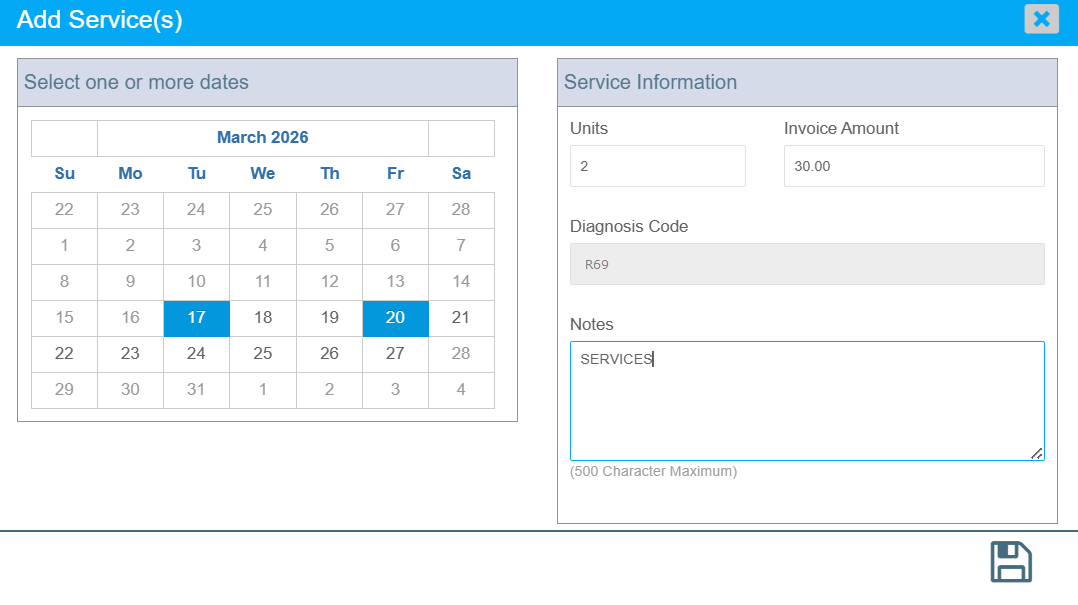
Click Add Service(s).
-
In the Calendar section, select the service date(s).
-
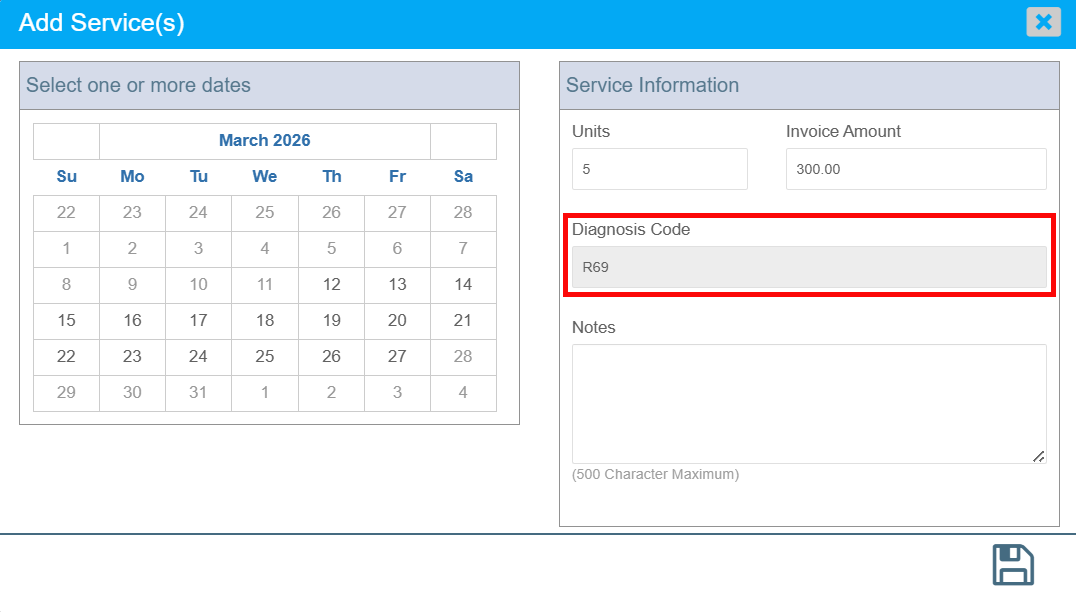
For Amerihealth Caritas and Keystone First only:
Adult Day Service providers must update the diagnosis code from the default R69 code during the billing process.
-
In the Service Information section, enter the number of units. The Invoice Amount is calculated automatically.
-
Optionally, enter a Note describing the service.
-
Click Save.
All authorization rules must be met to create a service invoice, including:
-
The service date must fall within the Authorization Date Range.
-
Total units invoiced cannot exceed the authorized units.
-
The authorization dollar limit cannot be exceeded.
-
Service dates cannot be in the future.
If selected dates fall partially inside and outside a fixed-rate period, the Invoice Amount field is disabled and a warning appears. In this case, invoice amounts must be edited manually after saving, using the Pencil icon.
Once saved:
-
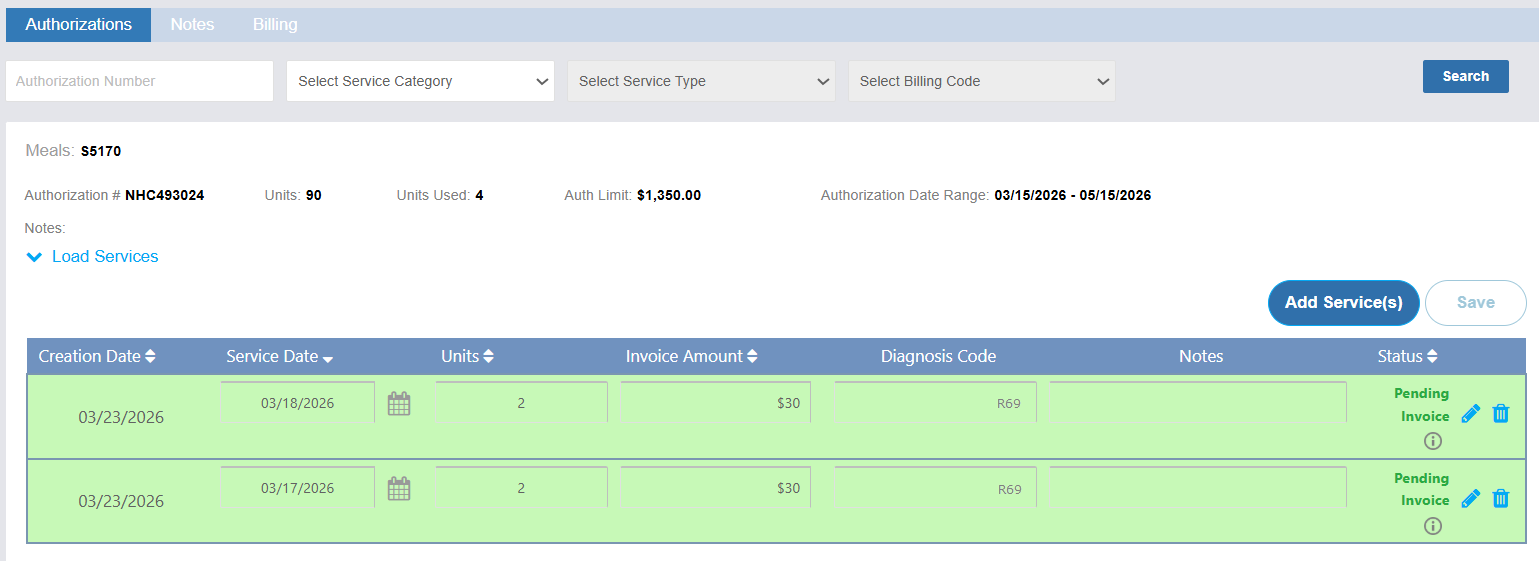
Authorized services appear in green.
-
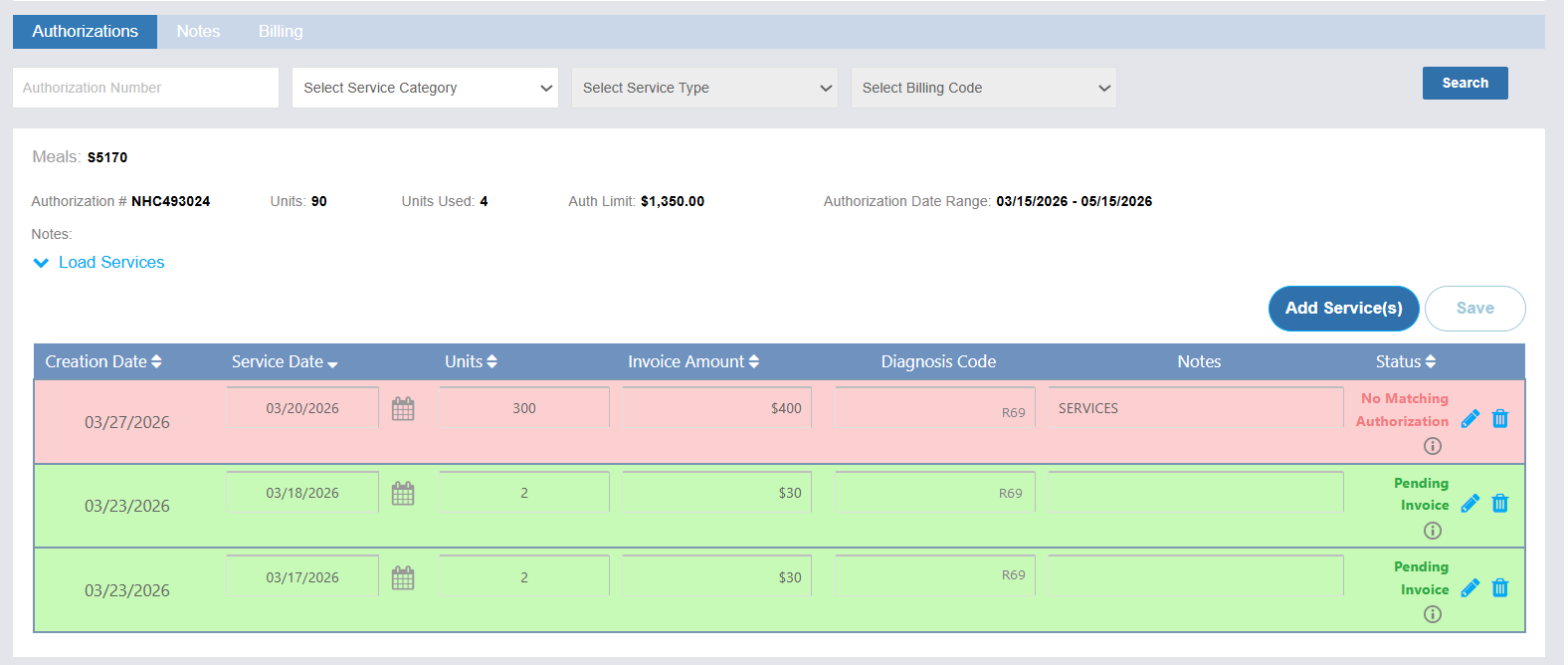
Services exceeding authorization limits appear in pink.
-
Columns (except Notes) are sortable.
-
Creation Date shows when the invoice was created.
-
Service Date shows when the service occurred.
To edit an existing invoice:
-
Locate the authorization and service invoice.
-
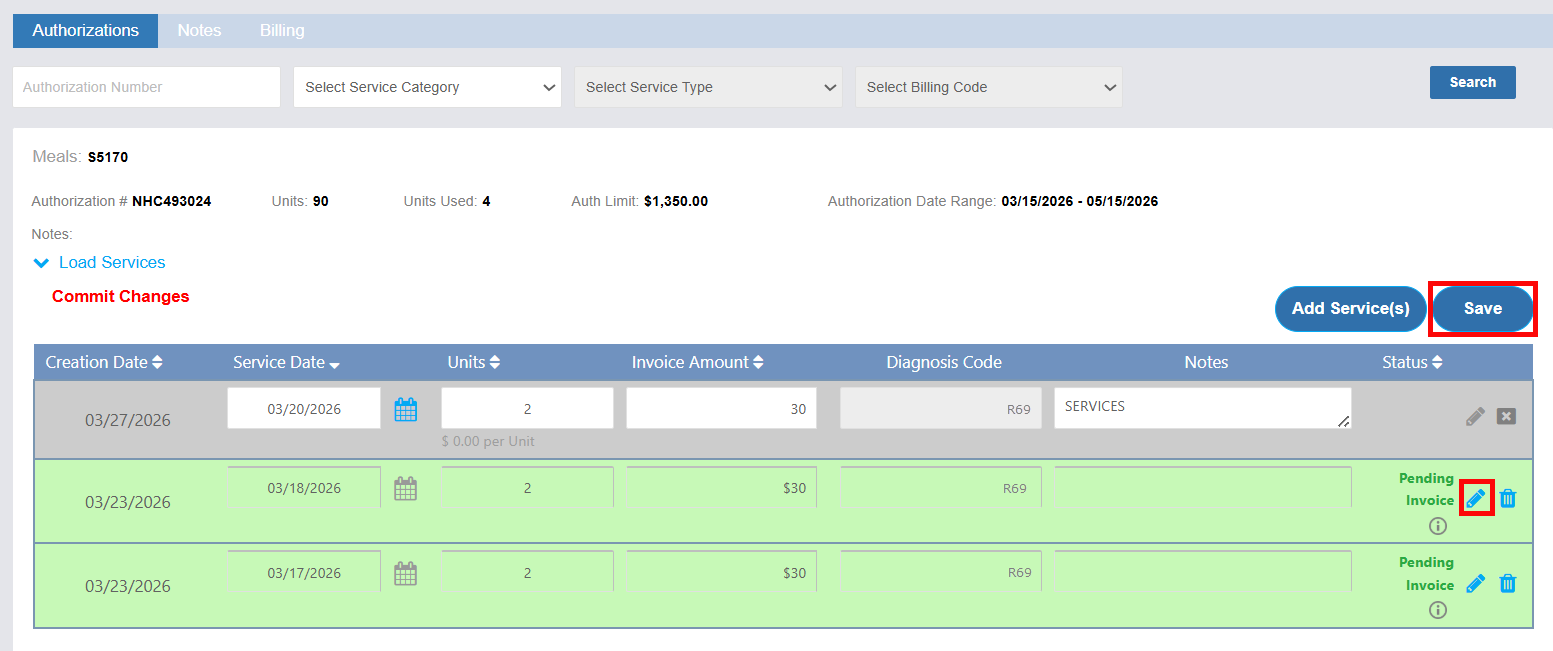
Click the Pencil icon on the invoice row. The row turns gray to indicate edit mode.
-
Update the information as needed, making sure it stays within authorization limits.
-
Click Save to commit your changes.
If you try to leave the page without saving, a warning appears:
-
Select Yes to save your changes.
-
Select No to discard them.
Once saved, the updated information is displayed immediately.