Billing Page
The Billing page is used to track invoices and payments in the Non-Homecare Portal.
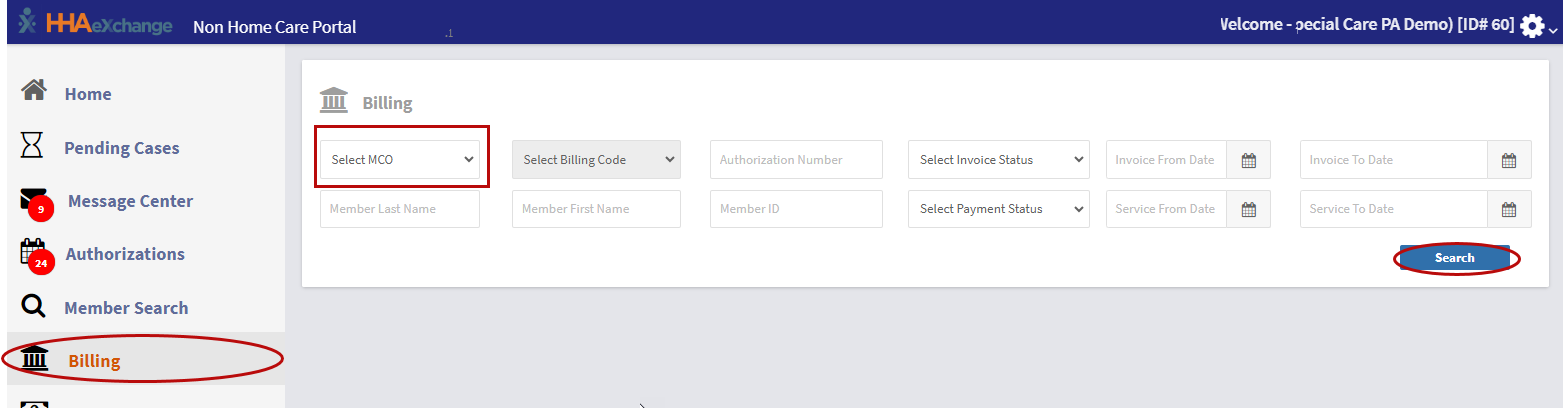
To access the Billing page, click Billing in the left navigation menu.
To view invoices, select an MCO/Payer from the Select MCO dropdown, and click Search.

The Billing page includes three main areas:
-
Summary totals:
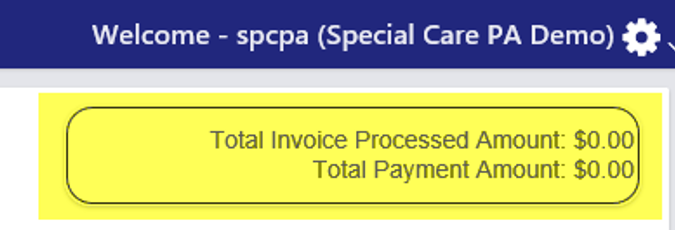
At the top of the page, you can see:
-
Total Invoice Processed Amount: The total amount billed
-
Total Payment Amount: The total amount paid to the Provider
This helps you quickly compare what has been billed versus what has been paid.
-
-
Search filters:
Use filters to find specific invoices or check the status of billed services. You can filter by:
-
Payer / MCO
-
Member Names
-
Billing Code
-
Authorization Number
-
Member ID
-
Invoice Status
-
Invoice Payment Status
-
Invoice From/To Date
-
Service To/From Date

-
-
Invoice list:
This is the main panel of the Billing Page. The main panel shows individual invoice line items, including:
-
MCO / Payer
-
Member Name
-
Service Date
-
Billing Code
-
Invoice Amount
-
Authorization Number
-
Invoice Status
-
Invoice Number
-
Invoice Date
-
Payment Status
-
Payment Amount
- Claim Status
- More Info: Click the Profile icon to see the Office, NPI and Address associated with this invoice.

-
The Billing tab within an Authorization shows billing details for a specific Member and authorization. You can use search filters here as well.
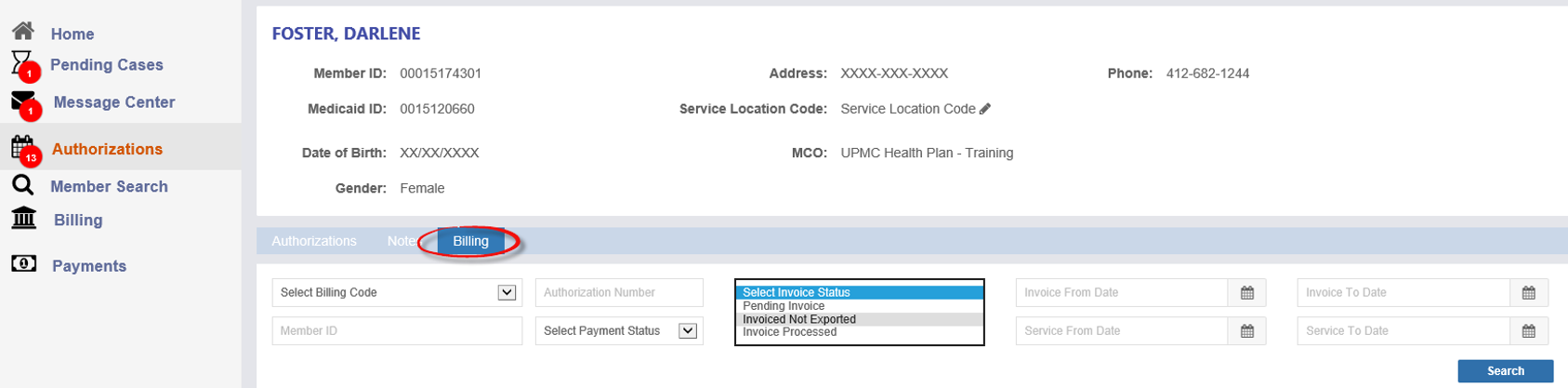
Invoice statuses are shown with an Information icon. Hover over the icon to see a description of the status.
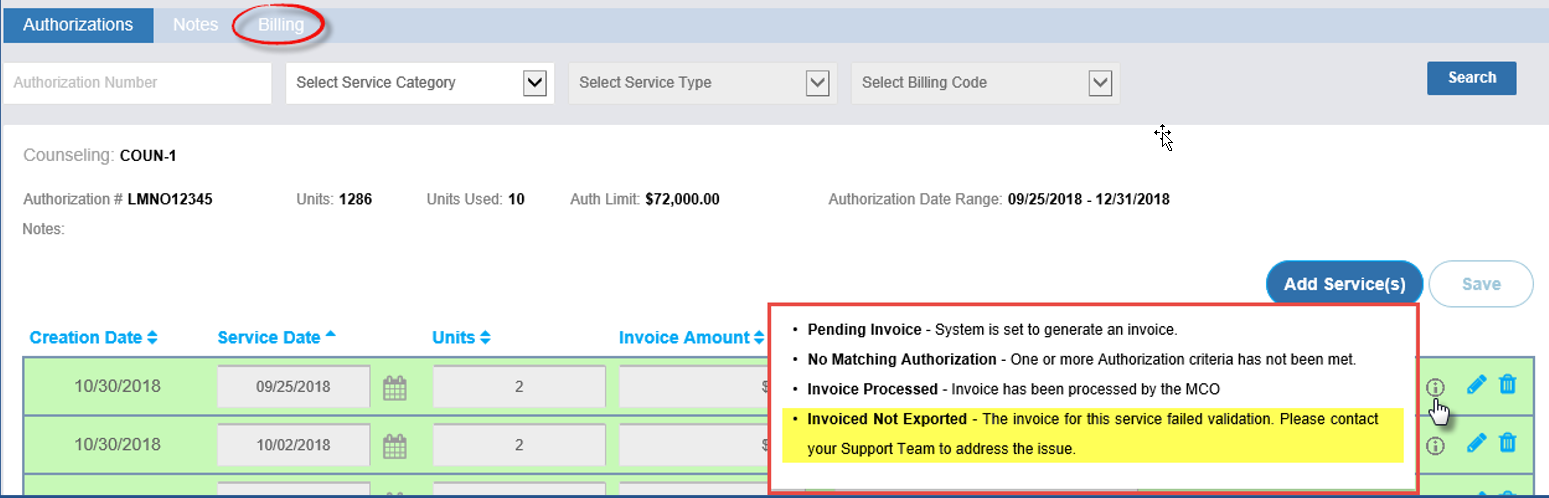
Common invoice statuses include:
-
Pending Invoice: The service has been entered and is waiting for the nightly system process.
-
No Matching Authorization: The service does not meet authorization requirements. The service must be edited before it can be billed.
-
Invoiced Not Exported: Required information is missing from the service or Member profile. The Provider must contact Support.
When this status appears, hover over it to see one or more reason messages, such as:
-
Missing Member name, address, date of birth, or gender
-
Missing authorization number or diagnosis
-
Duplicate service on the same day
-
Admission ID missing
-
Invoice waiting for overnight processing

Provide your reason messages to Support so the issue can be corrected.
-
Once an invoice is submitted to a Payer, Providers can view the claim status. This helps identify issues early and reduce duplicate billing.
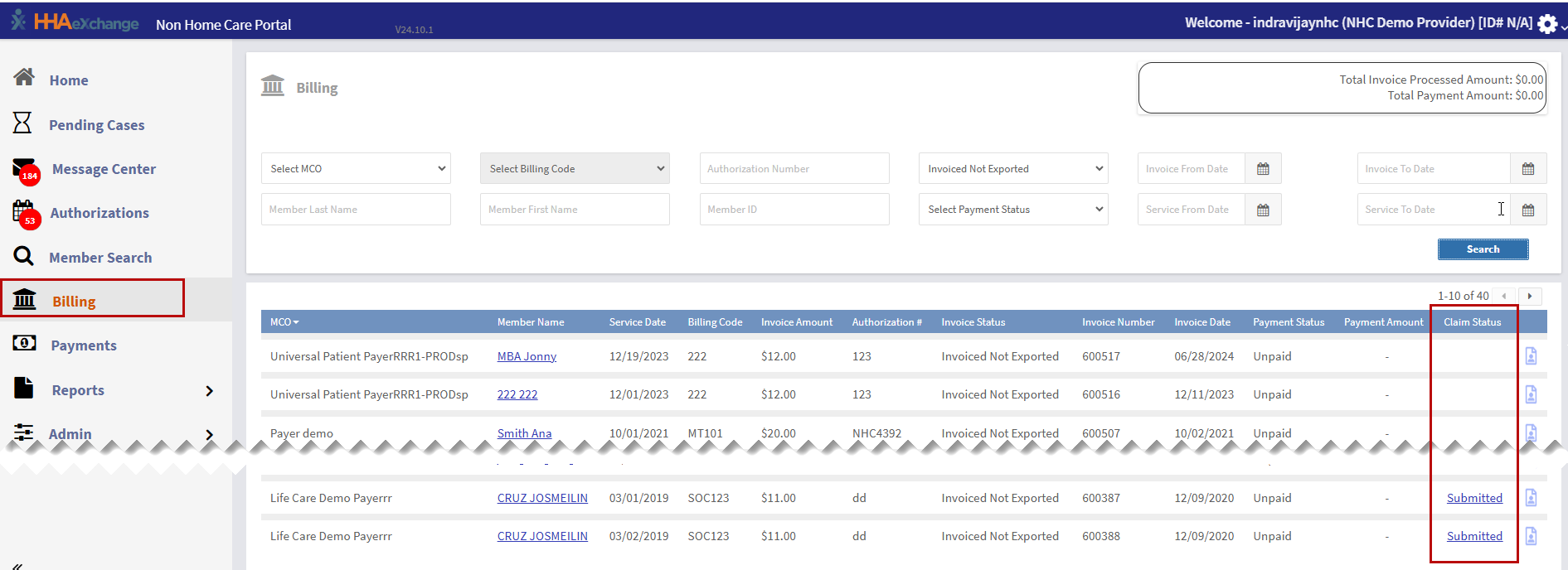
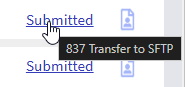
The claim status appears as a link in the Claim Status column. Hover over the link to view more details, or click it to see the full claim history.
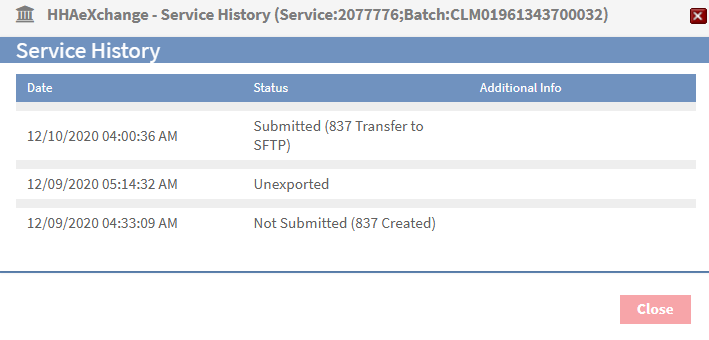
Common claim statuses include:
-
Submitted: File sent successfully and waiting for a 999 response
-
Not Submitted: Waiting for nightly processing or a technical issue occurred
-
Unexported: Claim is being prepared for resubmission
-
Resubmission: Claim has been reprocessed and sent again
-
999 Accepted: Claim format accepted by the Payer system
-
999 Rejected: Claim format rejected due to missing or invalid information
-
277CA Accepted: Claim accepted for processing
-
277CA Rejected: Claim rejected due to missing information or eligibility issues