Message Center Page
The Message Center Page in the Non-Homecare Portal lets Providers communicate with the MCO through the Non-Homecare Portal. Messages are organized into three tabs:
-
Unread
-
Sent
-
Read
The selected tab is highlighted in orange.
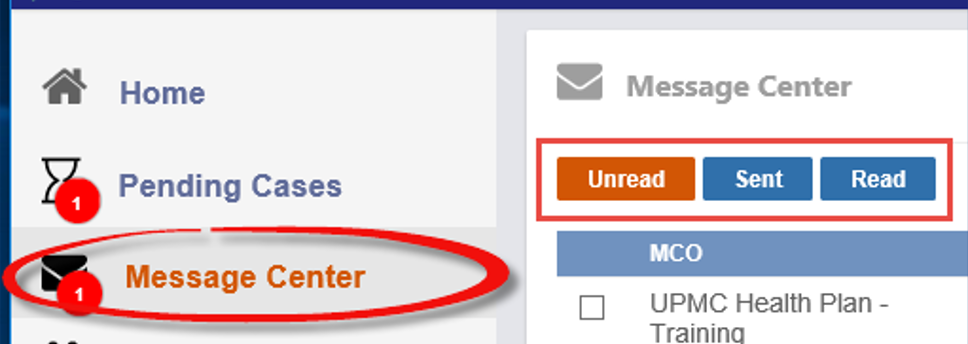
Unread messages appear on the Home screen under Unread Notes until they are opened. Click an unread message to view it.

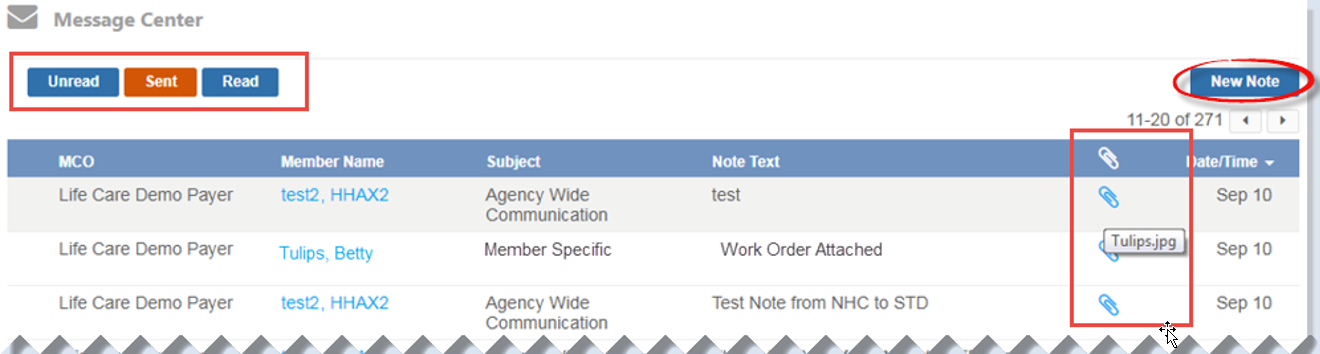
Messages with a paperclip icon include an attachment.
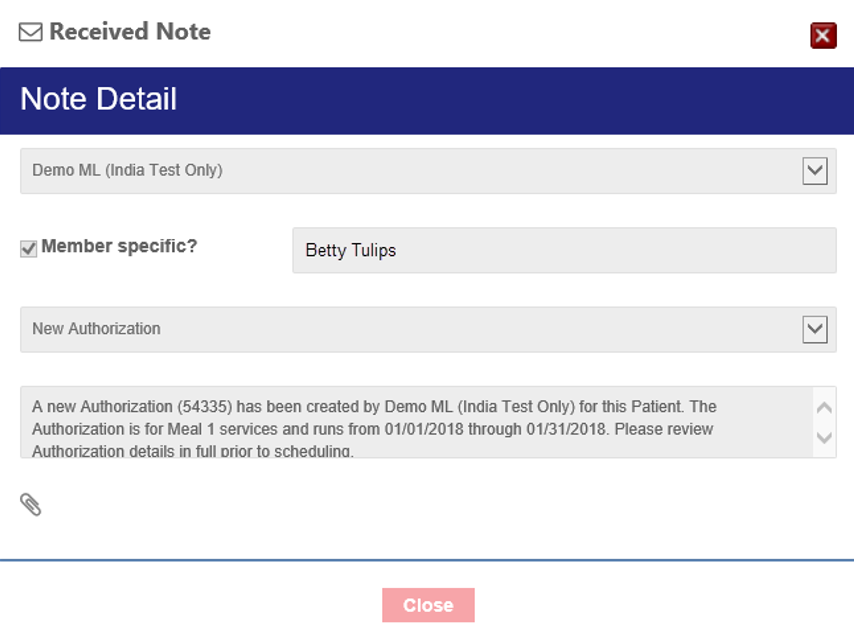
When a message is opened, it opens in a pop-up window, which shows details such as the sender and whether the message is related to a specific Member, as well as the message itself.
Messages are read-only. You cannot reply to or forward received messages. Once opened, the message moves to the Read tab.
To send a message from the portal, click New Note.
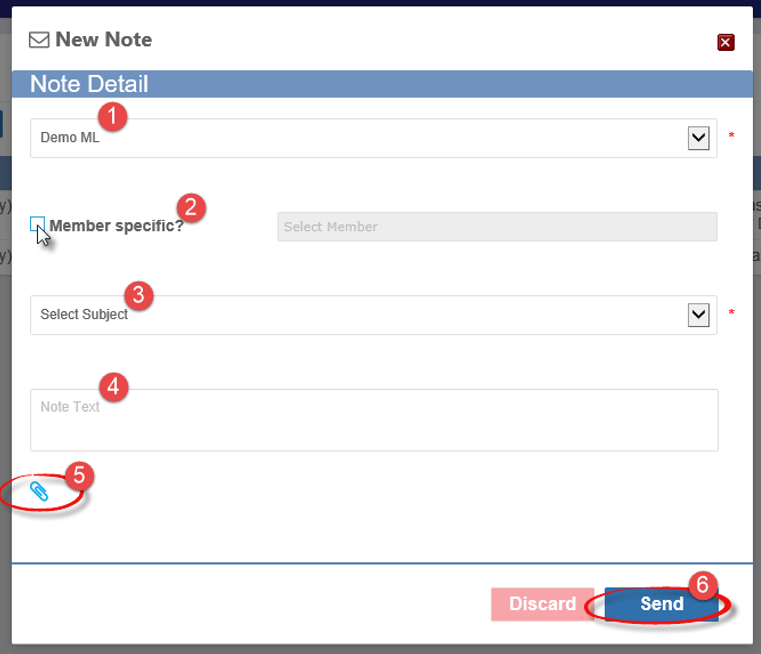
In the New Note window, complete the following fields, then click Send:
-
Recipient: Select who will receive the message.
-
Member specific: Select this checkbox if the message relates to a specific Member, then choose the Member from the dropdown list.
-
Subject: Select a subject from the available options.
-
Note Text: Enter your message.
-
Attachment: Click the Paperclip icon to attach a document.
Sent messages remain in the Sent tab for reference. Read messages are stored in the Read tab.
