System Notifications
System notifications appear in the Non-Homecare Portal to share important updates or actions that may require your attention. Some notifications must be reviewed before you can continue using the portal.
System notifications display automatically when you log in. The number shown next to the Notifications header indicates how many unread messages you have. The first ten notifications are shown by default. Use the arrow controls to move between pages.
Use the search fields to find specific notifications, then click Search to view the results.
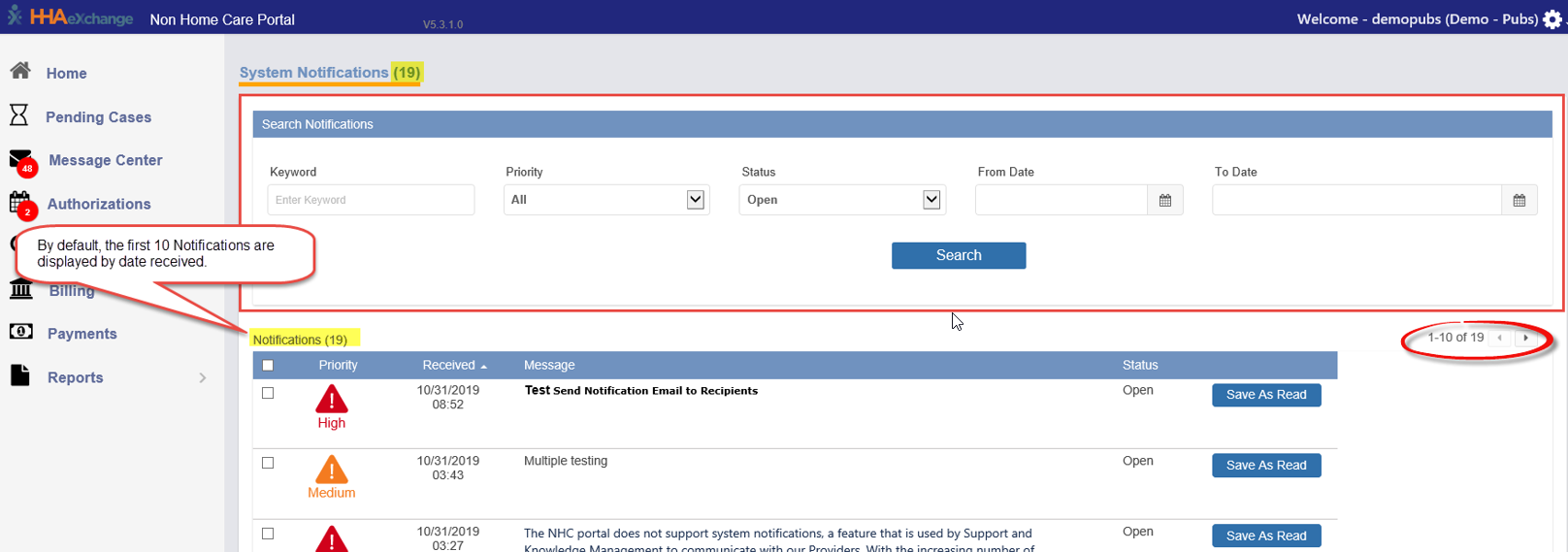
You can search by:
-
Keyword: Enter a word or phrase from the notification
-
Priority: All, High, Medium, or Low
-
High = red icon
-
Medium = orange icon
-
Low = black icon
-
-
Status: All, Open, or Closed
-
Open = unread
-
Closed = marked as read
-
-
From / To Date: Select a date or date range
Search results are shown with the most recent notifications at the top. Each notification includes its priority, received date, message title, status, and a Save as Read button. You can select multiple notifications using the checkboxes and mark them as read at the same time.
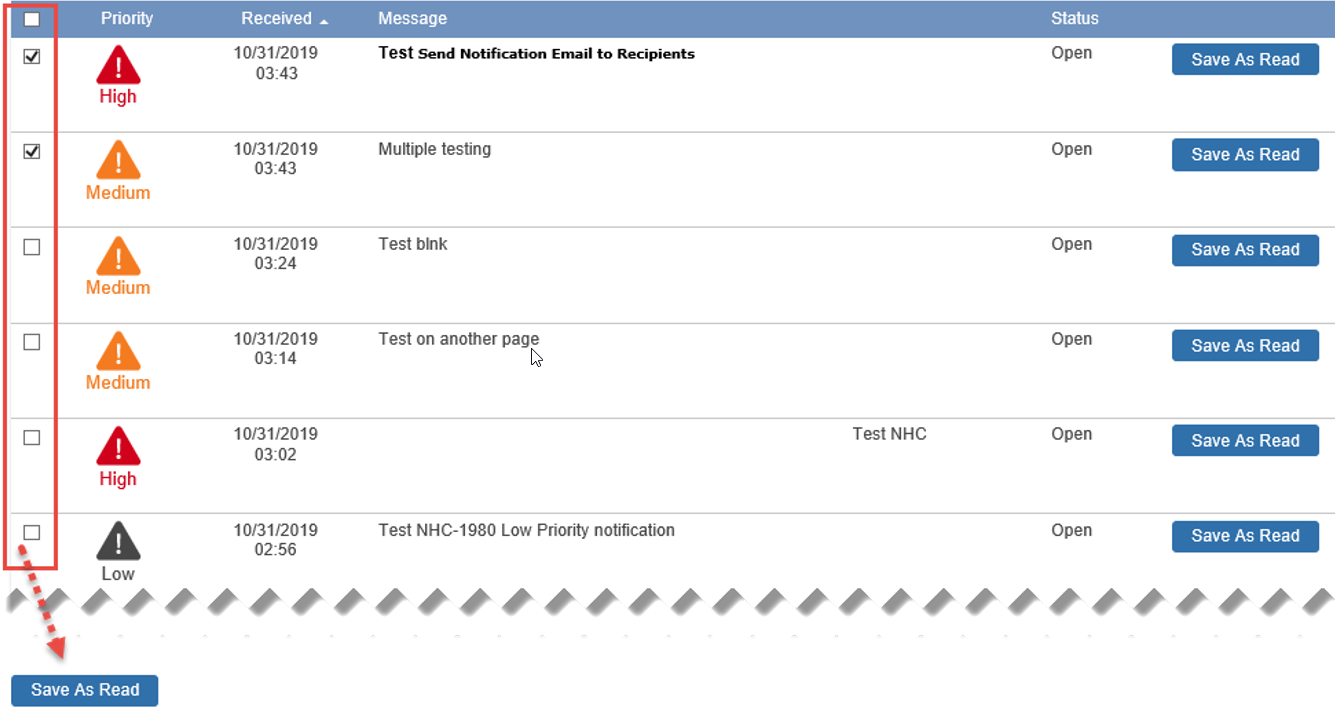
Notifications marked as Save as Read are removed from the default list but can still be found by searching for Closed notifications. The Priority, Received, Message, and Status columns can be sorted.
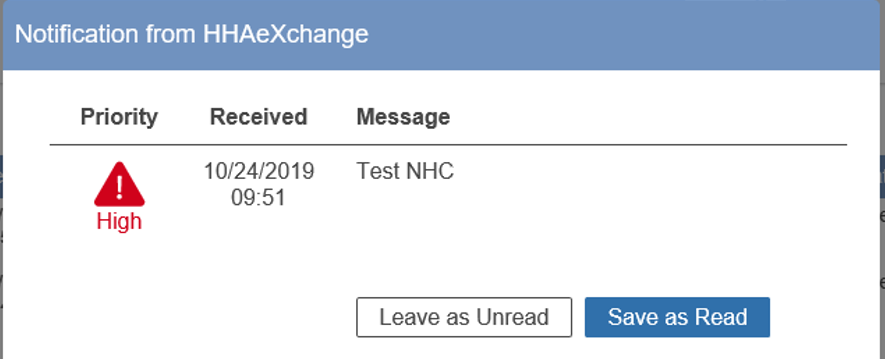
Some notifications appear as pop-ups when you log in and must be reviewed before you can continue. Select Leave as Unread to keep the notification open and available in the System Notifications list. Select Save as Read to close the notification and remove it from the default list. Closed notifications can still be viewed by searching with the All or Closed status.