System Menu
The System Menu is at the top-right corner of the Shifts page. Click the Person icon  to view the menu options: System Settings, Change Password, and Logout.
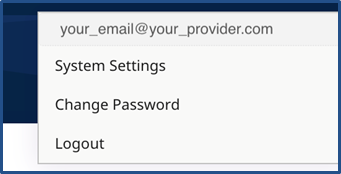

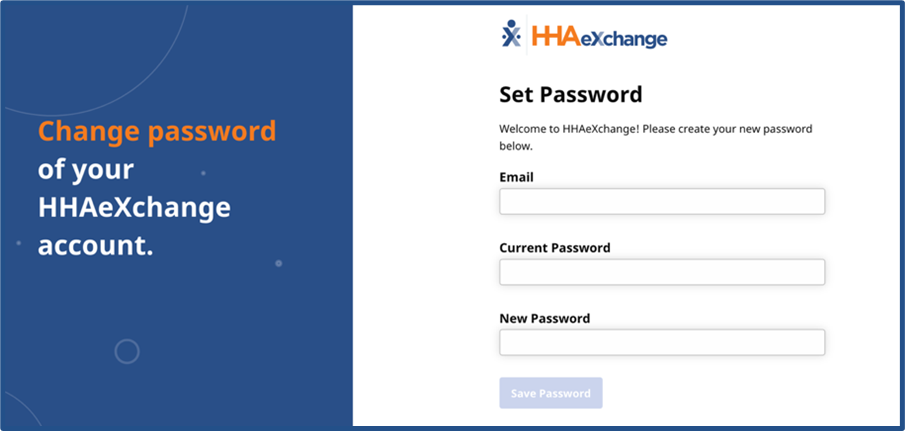
From the System Menu, click Change Password to open the Change Password page. You must know your Email address and Current Password to change your password. If you have forgotten your Current Password, you can Reset Your Password.
From the System Menu, click Logout to log out of the Services Portal and return to the Log in page.
From the System Menu, click System Settings to view and change Services Portal settings. You can select your preferred Language, Time Zone, Patient Keyword Preference, Caregiver Keyword Preference, and Notification Preferences for Email from the Services Portal.
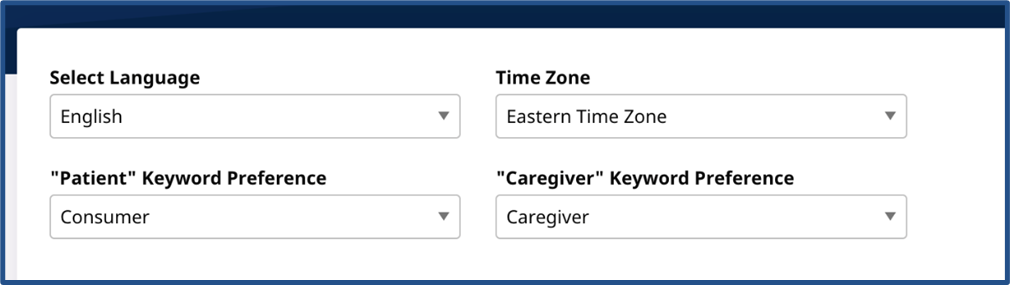
In Select Language, select your preferred language from the list. When you save System Settings, the selected language is used throughout the Services Portal. In some cases (such as the names of Service Codes), the language of words cannot be changed from English.
In Time Zone, select the time zone where you work.
Patient Keyword Preference lets you select the term the system uses for the person who receives Home and Community-Based Services.
Caregiver Keyword Preference lets you select the term the system uses for the person who provides Home and Community-Based Services.
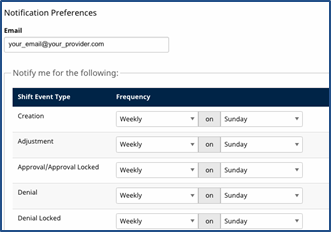
In the Notification Preferences section, you can select how often (Frequency) to receive system emails at the listed address (Email). These emails alert you to any actions taken on shifts. You can be notified on a different frequency for each Shift Event Type.
-
Selecting the Real-Time frequency may mean receiving multiple emails in one day as events occur.
-
Selecting Off for the frequency means the system does not issue any notifications for that Shift Event Type. If you use Off, be sure to check the Services Portal regularly to act on your shifts.
To change any setting in System Settings, make selections and click Save at the bottom of the page.