Filters / Parameters Section
The Filters / Parameters section is used to set parameters for the set report Fields. Setting up filters and parameters ensures that only relevant information is collected in the report.
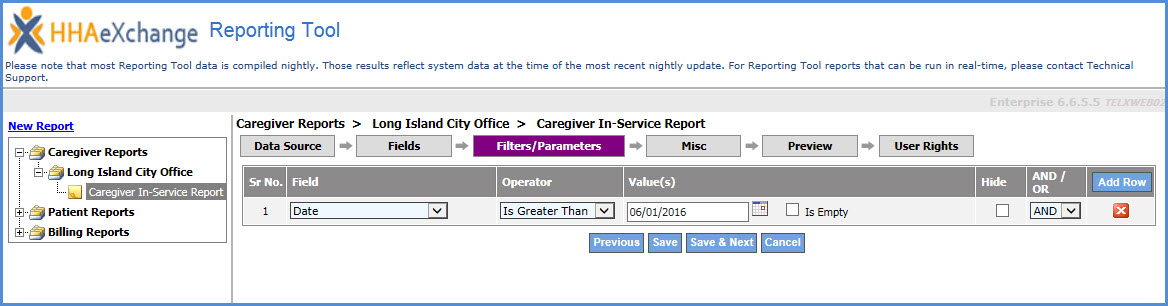
Define the following to set up a new Filter / Parameter.
|
Field |
Description |
|---|---|
|
Field |
Select a Field from the dropdown. This dropdown allows the selection of any field associated with the Data Source, even if not used by the report. |
|
Operator |
Define the relation between the selected Field and the set Value. |
|
Value(s) |
Enter the Value of the selected Field. Depending on the selected Field, enter a date, select a predefined value, or manually enter. Once the Value is set, the new parameter can be saved. The following image illustrated the selected Value for a report that provides all Caregiver In-Services dating back to 06/01/2016:
|
|
Is Empty |
Select this checkbox to return empty results for the Field when there is no value. For example, to run a report to review Alt. Caregiver Codes and see Caregivers who are missing a value for this field. |
|
Hide |
Select this checkbox to hide the parameter; does not appear under the Preview Tab. |
|
AND / OR |
Link multiple parameters using the AND / OR values. Linking two or more parameters with the AND value means all the parameters must be satisfied to return results. If the parameters are linked with an OR, then the report yields either one parameter OR the other. |
|
Add Field |
Click the Add Row button to add more Fields. |
|
Remove Field |
Click the delete icon to remove unwanted Fields from the report. |
