Pennsylvania FFS EVV Aggregation Report and Most Common Failed Responses
To ensure your Pennsylvania MCO EVV visits are accepted by the state, you must run the State Aggregation Report before billing. This report confirms whether each visit was successfully received by the PA EVV Aggregator. If you skip this step (or do not resolve any failed records), the affected visits will not be accepted by the state, and payment will not be issued.
Use this topic to learn how to generate the report, interpret record statuses, and resolve the most common PA MCO EVV failed responses.

Before billing, it is necessary to run the State Aggregation Report in order to verify that visits are successfully sent to the state. If you skip this step or do not resolve any failed records, those visits will not be accepted by the state, and you will not receive payment for them. This report is available under Reports > Exception Reports > State Aggregation Report.
To generate the report:
-
In the pop-up window that appears, select PA from the State dropdown.
-
Set your Visit From Date and Visit To Date.
-
Select FFS from the Report Type radio buttons.
-
Click Generate Report. and then select Excel.
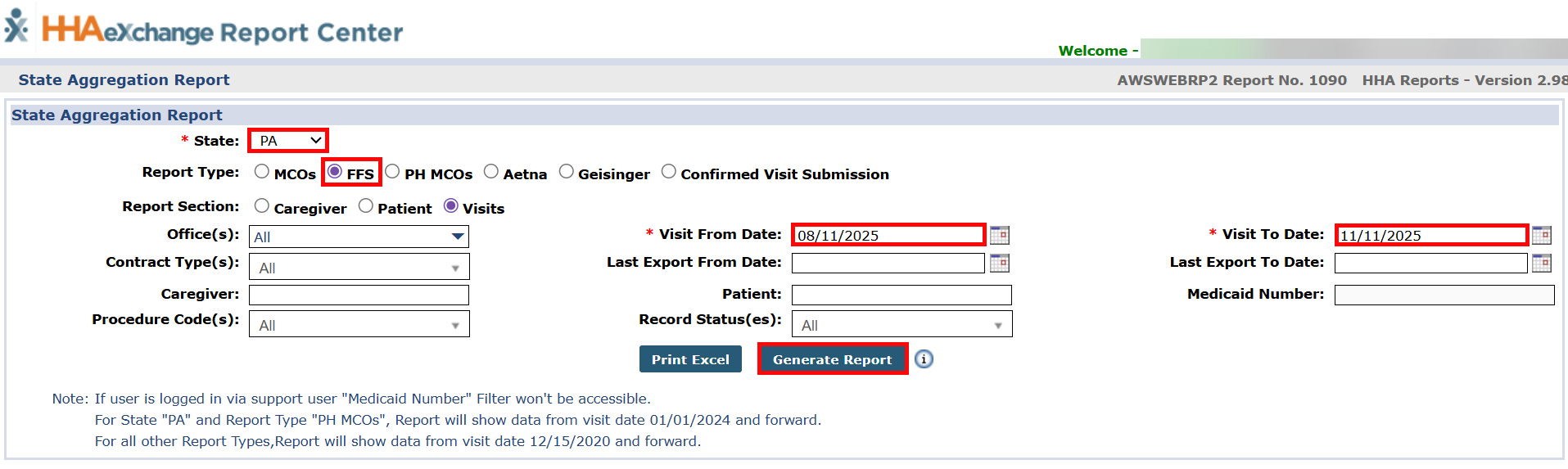
The report begins to generate. Depending on the amount of data you have, this may take a few minutes.
-
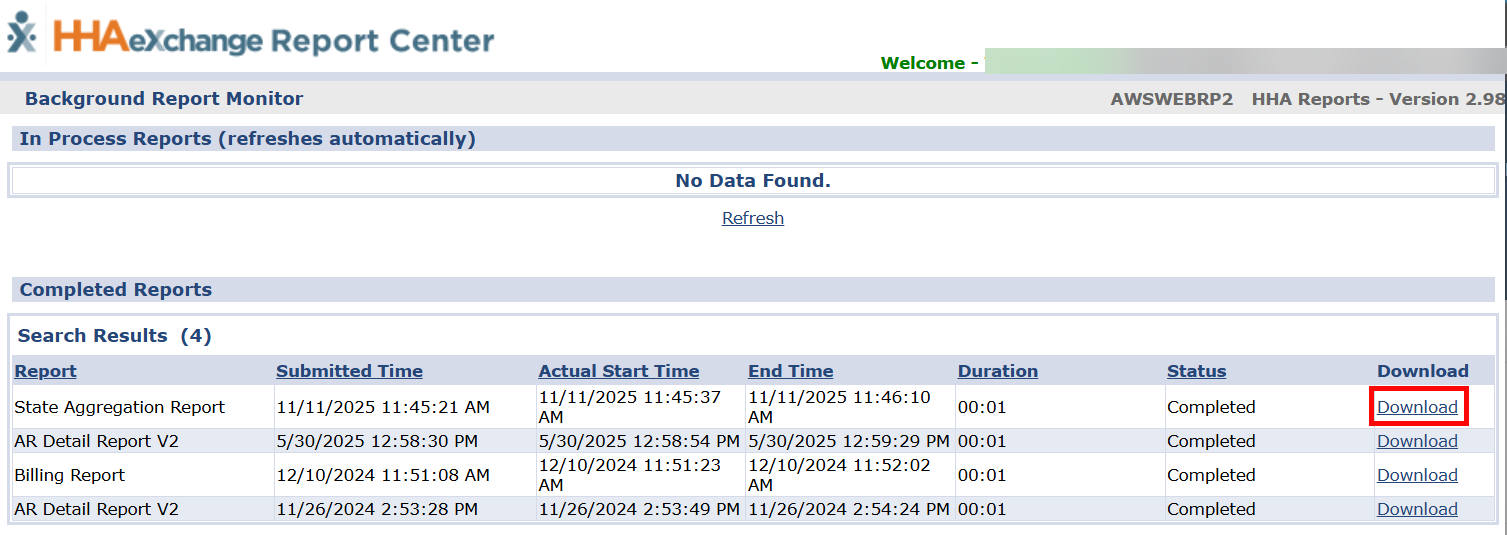
Once the report has generated, it appears in the Completed Reports section of the Report Center pop-up window. Click the Download link to download the Excel file of the report.
-
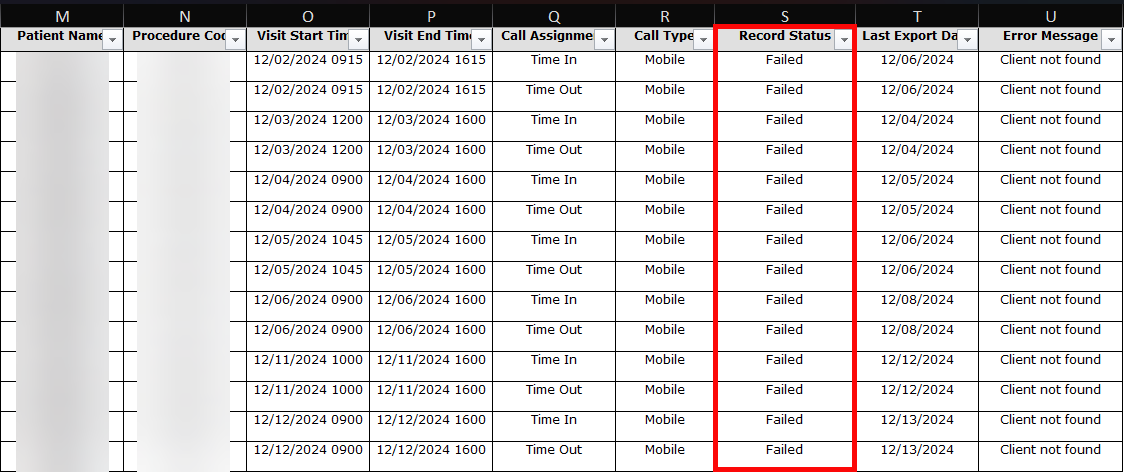
Open the downloaded Excel file. The Record Status column shows one of the following for each record:
-
Success: The record successfully imported into the Aggregator. No further action is required.
- Pending: The record is pending in the Aggregator. Record updates with a Success or Failed status when the Aggregator completes processing the record. No further action is required.
If a record is Pending for more than 48 hours, open a Support Ticket with the HHAeXchange Support Team. Select EVV Aggregation Support for the category and attach a copy of the State Aggregation Report.
- Failed: The record failed to import into the Aggregator. Action required.
Filter the Record Status column so that only records set to Failed display.
-
-
Look at the Error Message column for the Failed records.
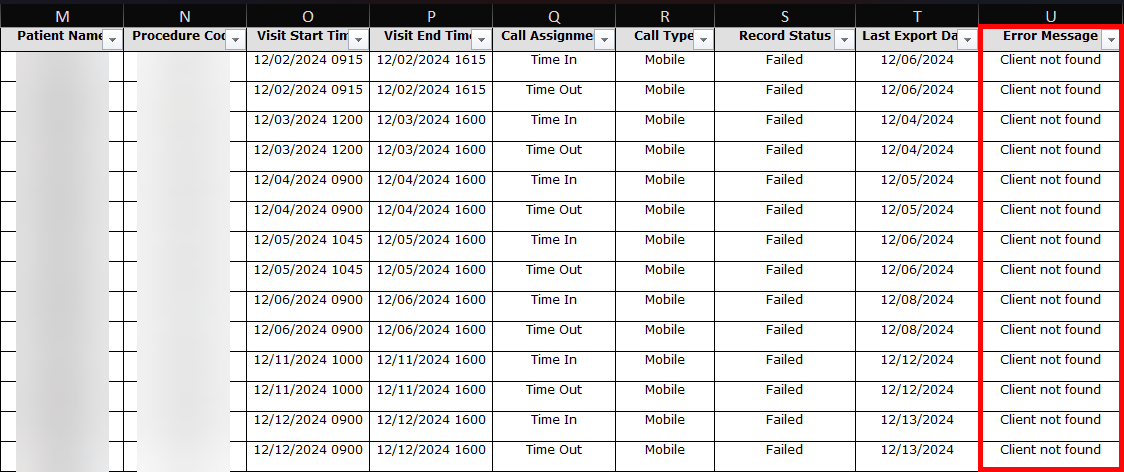
Look for the Error Message in the tables provided in the dropdowns below for instructions on how to resolve your issue.
A single record can contain more than one failed response. Each failed response is separated by a pipe delimiter (|).
Click the dropdowns below to learn about the most common rejections and how to fix them.
The aggregator cannot match the Caregiver on the Visit to a Caregiver in their system. To fix this:
-
Run a Caregiver State Aggregation Report by going to Reports > Exception Reports > State Aggregation Report.
-
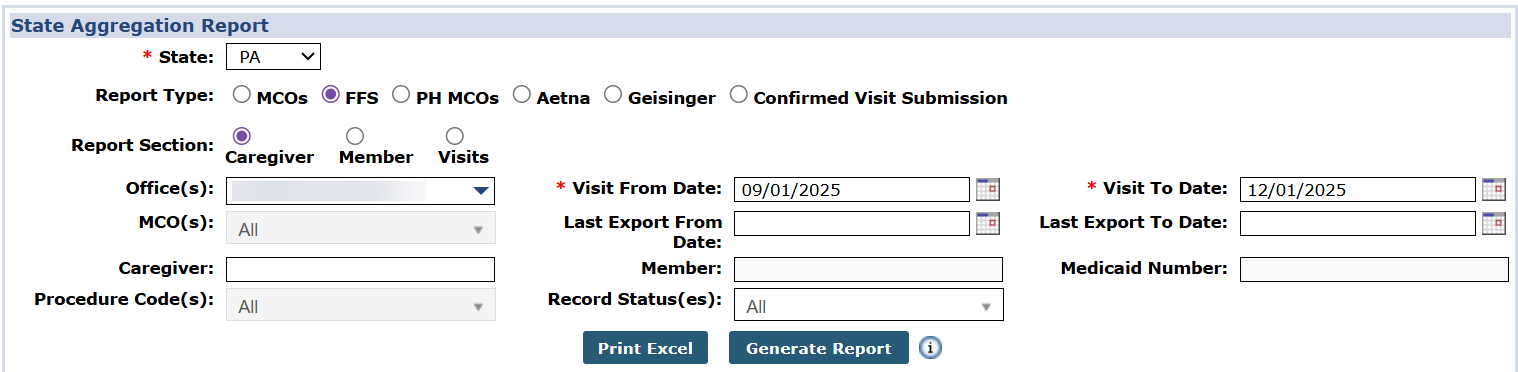
Select the following parameters for the report:
-
State: PA
-
Report Type: FFS
-
Report Section: Caregiver
-
-
Select Print Excel.
-
Once the report has generated, it downloads automatically. Find the Caregiver record.
-
Check the Record Status column:
-
If the record says Success, open a support ticket to have the data resent to the aggregator.
-
If the record says Failed, check the Error Message column for an explanation of what is wrong with the record.
Make any necessary corrections to the Caregiver or Visit record, and then open a support ticket to have the data resent to the aggregator.
-
The aggregator cannot match the Member on the Visit to a Member in their system. To fix this:
-
Run a Member State Aggregation Report by going to Reports > Exception Reports > State Aggregation Report.
-
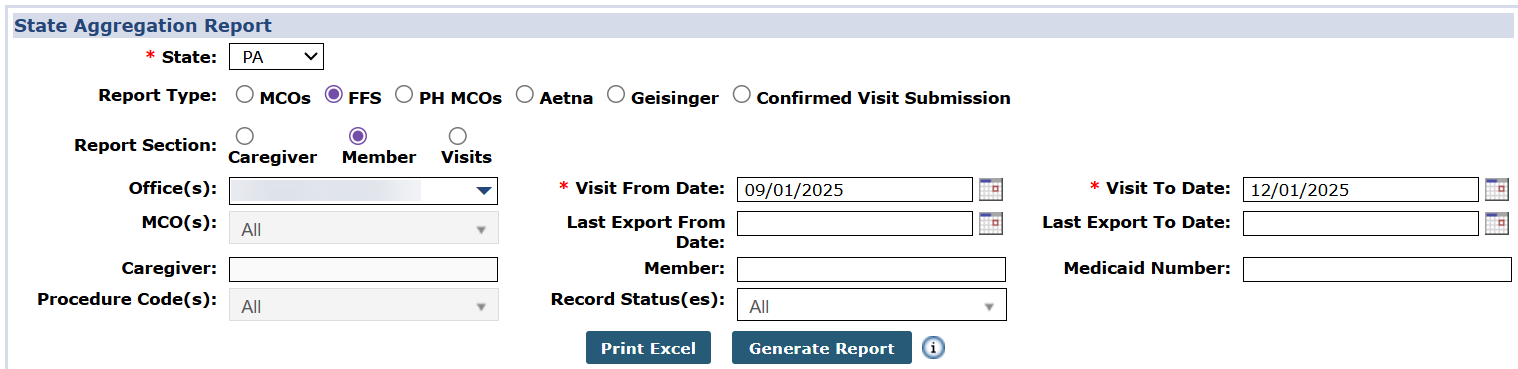
Select the following parameters for the report:
-
State: PA
-
Report Type: FFS
-
Report Section: Member
-
-
Select Print Excel.
-
Once the report has generated, it downloads automatically. Find the Member record.
-
Check the Record Status column:
-
If the record says Success, open a support ticket to have the data resent to the aggregator.
-
If the record says Failed, check the Error Message column for an explanation of what is wrong with the record.
Make any necessary corrections to the Member or Visit record, and then open a support ticket to have the data resent to the aggregator.
-
The tables in the dropdowns below contain common failed responses found in the PA FFS EVV Aggregator interface, and the recommended actions to take for successfully addressing those responses in the HHAeXchange system.
|
Error Message |
Who Can Fix It? |
Description / Recommended Resolution |
|---|---|---|
|
ERROR: Client Not Found. Clients must have been previously received from Payer to be updated via Alt-EVV. |
Provider Aggregator |
Member Medicaid ID is not found in the Aggregator. Steps to resolve:
|
|
ERROR: The ClientMedicaidID value is incorrect. |
Provider |
Member Medicaid ID must be 10-digits long. Review member’s Medicaid ID in the member profile. |
|
ERROR: The ClientFirstName format is incorrect. |
Provider |
Member first name is missing or incorrect length. Review and update the Member Name. |
|
ERROR: The ClientLastName format is incorrect. |
Provider |
Member last name is missing or incorrect length. Review and update the Member Name. |
|
ERROR: The ClientAddressLine1 value is incorrect. The length should be between 1 and 30. |
Provider |
Member address is missing or incorrect length. Review and update the Member Address. |
|
ERROR: The ClientAddressLine1 format is incorrect. |
Provider |
Member address has invalid special characters. Review and update the Member Address. |
|
ERROR: The ClientPhone format is incorrect. |
Provider |
Member phone number must be 10-digits long. Review and update the Member Phone Number. |
|
ERROR: The EffectiveStartDate format is incorrect. |
Aggregator |
Configuration issue in the Aggregator Provider Portal. Contact HHAeXchange via Client Support Portal, select EVV Aggregation Support. HHAeXchange contacts the Aggregator to resolve. |
|
Error Message |
Who Can Fix It? |
Description / Recommended Resolution |
|---|---|---|
|
ERROR: The EmployeeIFirstName format is incorrect. |
Provider |
Caregiver First Name has invalid characters. The Aggregator only allows the following characters in the Caregiver Name: alpha letters, hyphens, periods, apostrophe. All other special characters are rejected. Remove all unallowed values. |
|
ERROR: The EmployeeLastName format is incorrect. |
Provider |
Caregiver Last Name has invalid characters. The Aggregator only allows the following characters in the Caregiver Name: alpha letters, hyphens, periods, apostrophe. All other special characters are rejected. Remove all unallowed values. |
|
ERROR: The EmployeeEmail expected format is not correct. |
Provider |
Caregiver email has invalid characters. Review and update the email ID. |
|
Account not active. |
Aggregator |
Provider Portal in the Aggregator system is suspended. Steps to resolve:
|
|
Caregiver not sent to Sandata due to duplicate SSN |
Provider |
Caregiver Social Security Number (SSN) is incorrect. Provider must confirm each Caregiver Profile contains the accurate SSN in the following format XXX-XX-XXXX. DHSS requires last 5-digits of each Caregiver’s SSN (000-0X-XXXX). |
|
ERROR: The EmployeeSSN cannot be NULL. |
HHAeXchange |
HHAeXchange export issue. Contact HHAeXchange at HHAeXchange EVV Aggregation Support Support to resolve. |
|
Error Message |
Who Can Fix It? |
Description / Recommended Resolution |
|---|---|---|
|
ERROR: The EmployeeIdentifier cannot be null. The record is being rejected. |
Provider |
Visit cannot be confirmed with a TEMP Caregiver. Update the visit with valid Caregiver Profile. |
|
Worker not found |
Provider |
Caregiver record is not found in the Aggregator Portal. Check the Caregiver rejections and correct any issues with the Caregiver Profile. |
|
Client not found |
Provider |
Member record is not found in the Aggregator Portal. Check the Member rejections and correct any issues with the Member Profile. |
|
ERROR: The CallDateTime cannot be null. The record is being rejected. |
HHAeXchange |
HHAeXchange export issue. Contact HHAeXchange via Client Support Portal, select EVV Aggregation Support to resolve. |
|
ERROR: The ChangeReasonMemo cannot be null for some values of ReasonCode. The record is being rejected. |
HHAeXchange |
HHAeXchange export issue. Contact HHAeXchange via Client Support Portal, select EVV Aggregation Support to resolve. |
|
ERROR: The Call In cannot be greater than the Call Out. The record is being rejected. |
HHAeXchange |
HHAeXchange export issue. Contact HHAeXchange via Client Support Portal, select EVV Aggregation Support to resolve. |
|
ERROR: The OriginatingPhoneNumber value is incorrect. The length should be between 0 and 10. |
Provider |
HHAeXchange export issue. Contact HHAeXchange via Client Support Portal, select EVV Aggregation Support to resolve. |
|
ERROR: Visit Date out of range. |
Aggregator |
Configuration issue in the Aggregator Provider Portal. Contact HHAeXchange via Client Support Portal, select EVV Aggregation Support. HHAeXchange contacts the Aggregator to resolve. |
|
ERROR: visit_date field is empty, it is a required field |
HHAeXchange |
HHAeXchange export issue. Contact HHAeXchange via Client Support Portal, select EVV Aggregation Support to resolve. |
|
ERROR: The VisitOtherID cannot be duplicated in list. |
HHAeXchange |
HHAeXchange export issue. Contact HHAeXchange via Client Support Portal, select EVV Aggregation Support to resolve. |
|
ERROR: If CallType = Telephony (IVR), TelephonyPIN and OriginatingPhoneNumber are required. |
Provider |
HHAeXchange export issue. Contact HHAeXchange via Client Support Portal, select EVV Aggregation Support to resolve. |
| ERROR: If CallType = Mobile (MVV), MobileLogin, CallLatitude and CallLongitude are required. | Provider | GPS coordinates are required for mobile EVV confirmation. EDI/Integrated Providers must send these values from their 3rd party vendor to HHAeXchange. |
|
ERROR: The ProcedureCode format is incorrect. |
Provider |
Enter or update the valid HCPCS Code under Admin > Reference Table Management > Contract Service Code > Export Code. Refer to the latest Addendum for the HCPCS Codes. |
|
ERROR: The ProcedureCode length is invalid. |
Provider |
Enter or update the valid HCPCS Code under Admin > Reference Table Management > Contract Service Code > Export Code. Refer to the latest Addendum for the HCPCS Codes. |
|
Error during retrieving service service_id entered |
Provider Aggregator |
Make sure to have correct HCPCS Code under Admin > Reference Table Management > Contract Service Code > Export Code. Refer to the latest Addendum for the HCPCS Codes. If HCPCS Code is correct, then it may be a configuration issue in the Aggregator Provider Portal. Contact HHAeXchange via Client Support Portal, select EVV Aggregation Support. |
|
ERROR: Total visit time cannot exceed 25 hours. |
Provider |
Visit cannot exceed 25 hours. Update the confirmed visit times. It is recommended for overnight shifts to be split into two shifts. |
|
Pay/Bill Hours exceed maximum hours allowed |
Provider |
Visit cannot exceed 25 hours. Update the confirmed visit times. It is recommended for overnight shifts to be split into two shifts. |
|
ERROR: The ClientIdentifierOnCall value is incorrect. The length should be between 1 and 10. |
Provider |
Member Medicaid ID must be 8-digits long. Review Member’s Medicaid ID in the Member Profile and update the correct ID. |
|
A visit row exists in stx.visits table (by account/visit_id) and no changes are specified in current import of account/visit_id. |
Aggregator |
Technical interface error from the Aggregator. HHAeXchange automatically resends this record. |
|
Records uploaded failed, please check errors/warning and try again. |
Aggregator |
Technical interface error from the Aggregator. HHAeXchange automatically resends this record. |
If a duplicate Visit has accidentally been created, the system is not able to match the Payer's record to the correct Visit, leading to an eventual rejection. That's why it's important to delete the duplicate.
This process should only be followed for deleting Visits created accidentally due to administrative errors. Missed Visits should be handled according to the instructions found here.
To delete the duplicate Visit:
-
If the Visit has not been billed:
-
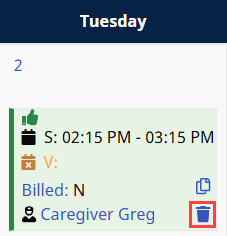
Find the Visit on the Calendar and select the Trash Can icon.
-
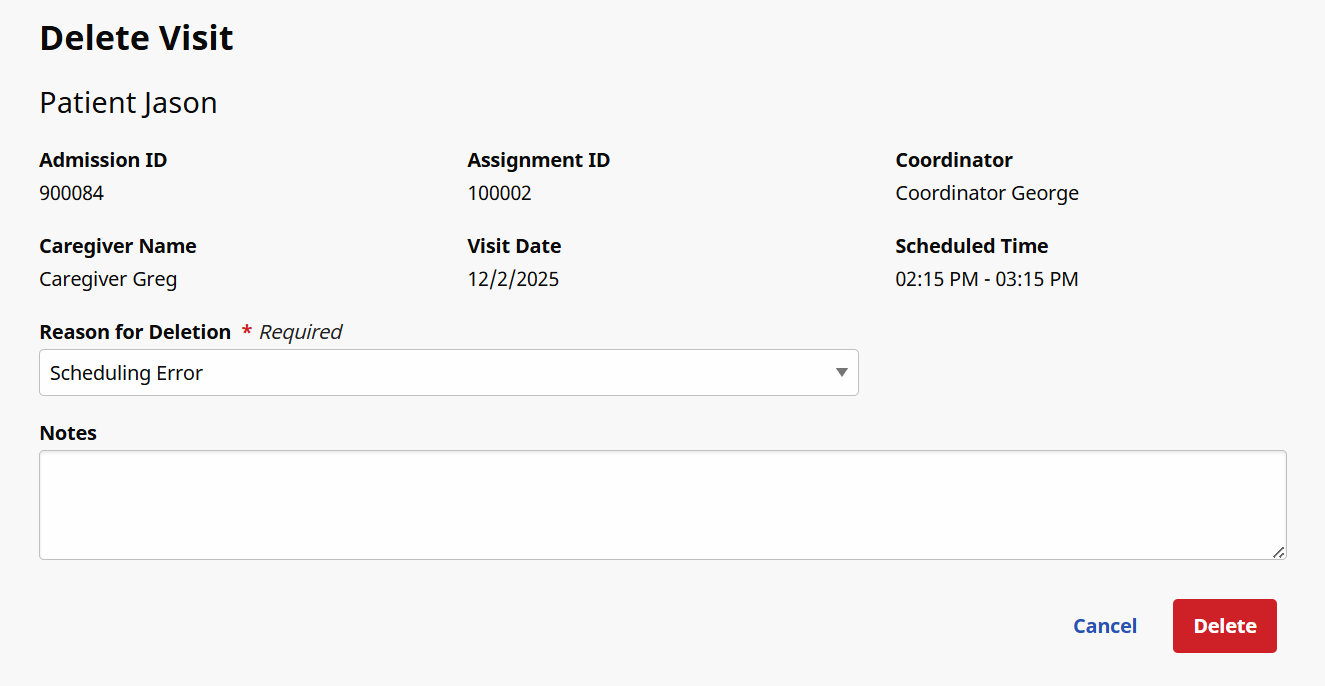
The Delete Visit window opens. Select Scheduling Error from the Reason for Deletion dropdown, and enter Notes if needed. Select Delete.
-
A confirmation popup appears. Select Delete.
-
-
If the Visit has already been billed:
You must unbill the Visit before you are able to delete it.
-
Go to Billing > Invoice Search and locate the Visit.

-
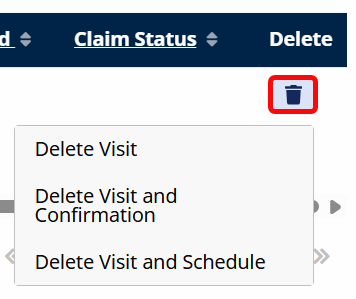
Scroll all the way to the right and click the Trash Can icon under the Delete column.
-
Select one of the following from the dropdown:
-
Delete Visit: This will unbill the visit, invoice, or batch.
-
Delete Visit and Confirmation: This will unbill the visit, invoice, or batch and remove all visit confirmation information.
-
Delete Visit and Schedule: This will unbill the visit, invoice, or batch and delete all visit information, both schedule and confirmation.
-
-
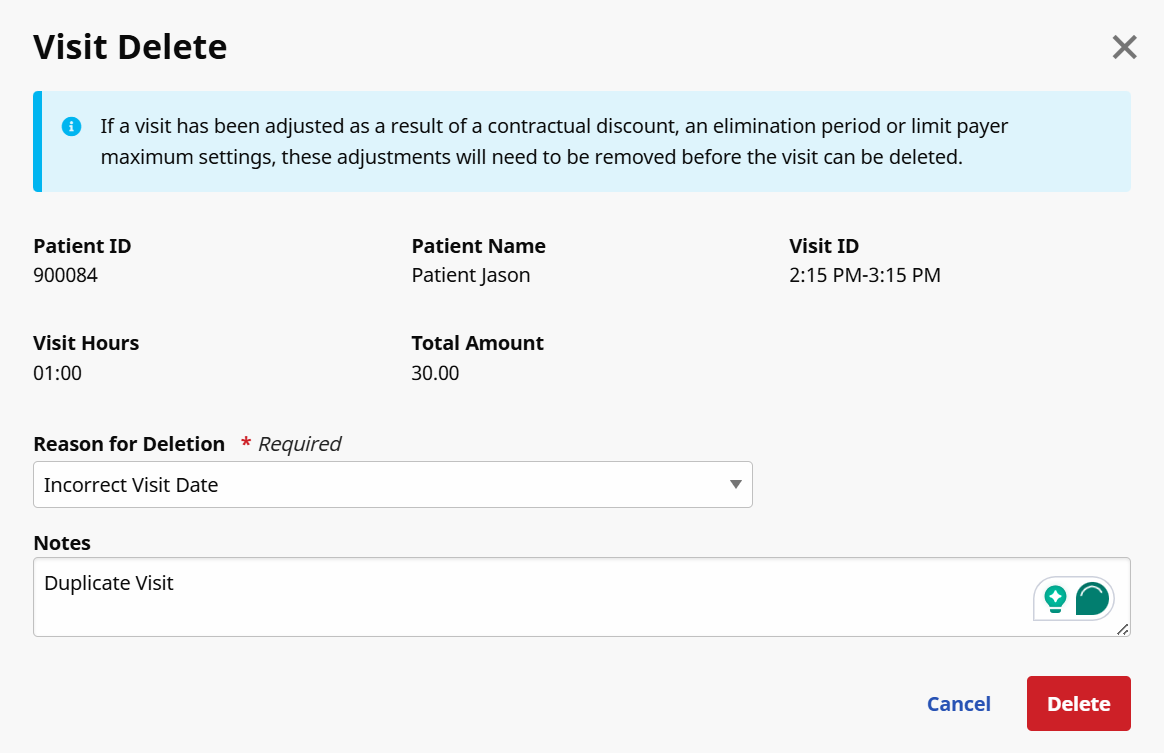
The Visit Delete window appears. Select a Reason for Deletion from the dropdown, and leave a Note if necessary.
-
Click the Delete button.
-