Multi-Factor Authentication (MFA)
This feature is activated by HHAeXchange System Administration. Contact HHAeXchange Support Team for details, setup, and guidance.
Multi-Factor Authentication (MFA) is an additional user security method that can be required at the Payer level and at the Provider Office level. When MFA is required, users must enter their Username and Password and an additional unique and random system-generated code. This code is sent to a secure location, such as a mobile phone text message or an authenticator app.
For this reason, shared accounts and accounts using Robotic Process Automation (RPA) are not compatible with MFA.
All users subject to MFA are asked to verify their identity using a unique MFA code every 30 days. Once the code is sent, you have 30 minutes to enter and submit the code on the Authentication page.
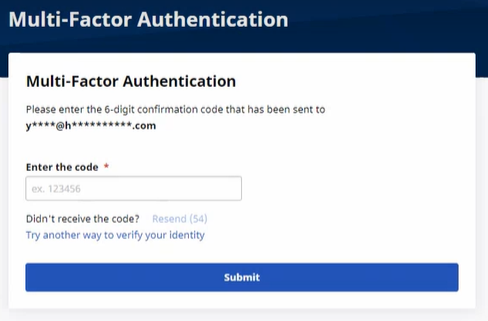

-
Once the MFA setup is complete, a first-time Setup Request page opens when the Username and Password are entered. Click the Set Up Now button to continue.
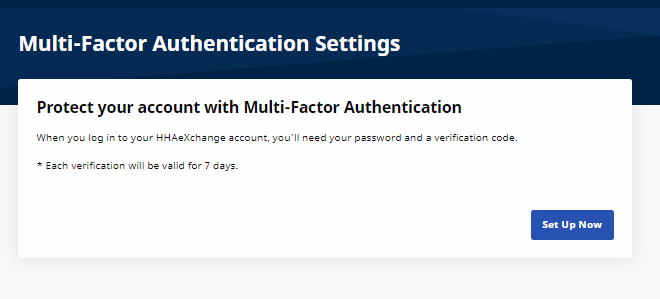
-
Select the method to verify your identity: Text or Email.
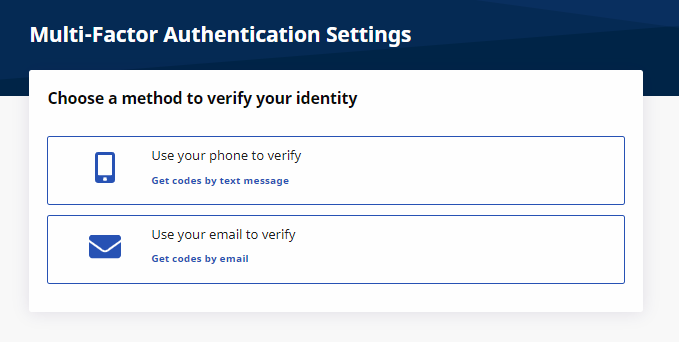
-
Email Method:
Depending on your market requirements, you may not have access to email as an authentication option. See Phone Method below for further instructions.
-
If Use your email to verify is selected, the system sends a unique six-digit code by email to the email address on the User Profile. This code is valid for 30 minutes from the time of issue. If a new code is needed, click the Resend link to receive a new code after 60 seconds.
-
On the Let’s set up your email page, enter the 6-digit code and click Confirm to log in.
If the email was not received, make sure to check you spam and junk folders for an email sent by help@hhaexchange.com. If you still can't find the email, click the Resend link after 60 seconds.
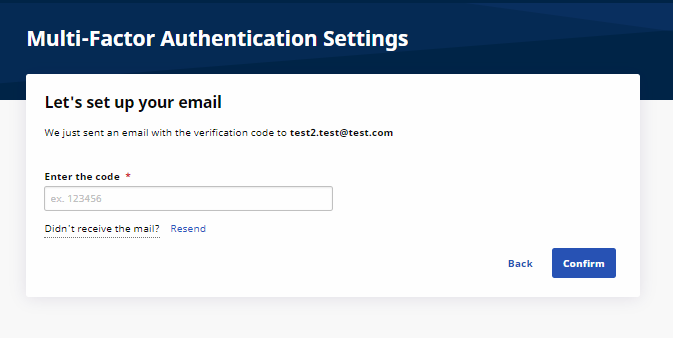
Reauthentication is required every 30 days, as well as when the browser is changed or the cache is cleared.
-
-
Phone Method:
-
If Use your phone to verify is selected, then the Let’s set up your phone page opens. Enter the mobile phone number in the Phone Number field and click Get code.
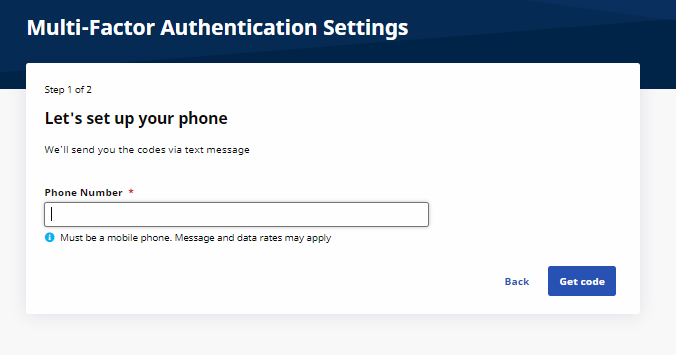
-
The system sends a unique six-digit code to the mobile phone number entered. This code is valid for 30 minutes from the time of issue. On the Confirm that it works page, enter the 6-digit code and click Confirm to log in.
-
If a new code is needed, wait 60 seconds and click the Resend link to receive a new code.
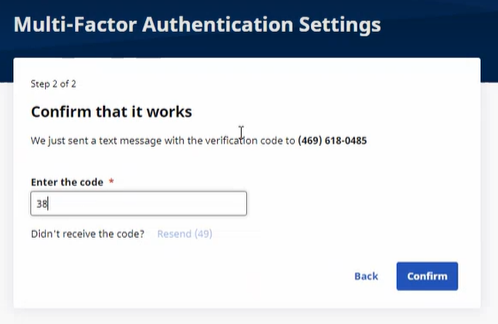
Reauthentication is required every 30 days. A random and unique MFA code is sent to log into the system.
-
-
What happens when the user chooses email during MFA setup?
The user is not prompted to enter an email address. The code is sent to the email address stored on their HHAX User Profile/account—not necessarily whatever identifier they typed to log in.
Therefore, an email typo cannot occur within MFA setup itself. If the profile email is incorrect or inaccessible, that profile information needs to be corrected; the MFA screen does not provide an email-edit field.
What if the user enters their phone number incorrectly?
There are two cases:
-
Invalid format: Validation prevents the user from proceeding.
-
Valid-looking but incorrect number: The system sends the code to the entered number. Setup cannot be completed without the correct code. The user can click Back, correct the pre-populated phone number, and request another code.
What if the phone number is a landline that cannot receive texts?
The user cannot complete phone verification without receiving and entering the SMS code. They should go back and provide an SMS-capable mobile number, or select Email where that method is permitted.
How does the system handle spam-clicking Resend?
Resend is disabled for 60 seconds after a code is generated, with a countdown. After another code is requested, it is disabled for another 60 seconds. Reopening the confirmation screen before the countdown finishes should preserve the remaining cooldown.
What limits exist for repeated resend requests?
Same destination: A 60-second resend cooldown.
Switching phone numbers during setup/change: Codes may be sent to only two different phone numbers within one minute. An attempt to send to a third is blocked with:
-
“Exceed the maximum number of allowed attempts. Try again later”
Sending to the third number becomes available once one minute has passed since the last code was sent.
What error appears for an incorrect code?
The documented setup-screen example shows:
-
“Unable to Proceed”
-
“Please enter a valid code”
-
Field-level message: “Invalid code”
After five incorrect attempts, the requirements say to deactivate the current code and display: “You enter too many wrong passcodes. Please Get a new code and try again.” The user must request a new code.
What if the code is unused but expired?
It is rejected even if it has never been used. The documented validity period is 30 minutes from code generation. The user is notified that the code has expired and must request a new one through Resend.
What if the user enters a previously used code?
It is rejected. MFA codes are single-use
What if the verification field is left blank?
The code field is required. Clicking Confirm/Submit without entering a code must display validation and prevent the user from proceeding.
What if the user enters the code just as it expires?
Expiration is checked when the user clicks Confirm/Submit, not when they start typing. If the code is expired when validated, it is rejected and a new code is required.
Can the user change the email address receiving MFA codes?
Not from MFA Settings. The email must be changed in the HHAX User Profile. The KB states that changing the profile email prompts the user to set up MFA again on their next login
Complete the following steps to add a mobile phone number when one has not been established.
You can add only one mobile phone number per user.
-
Click the Add a phone number link in the mobile phone section of Available MFA methods.
-
Enter the phone number in the New Phone Number field. Click Continue.
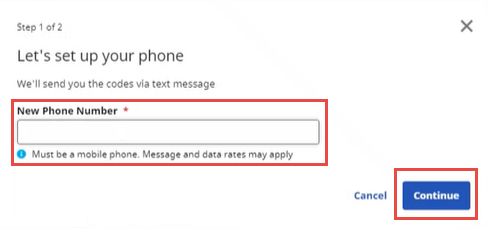
-
In the Enter the code field, type in the code sent to the mobile phone. Click Confirm to finalize.
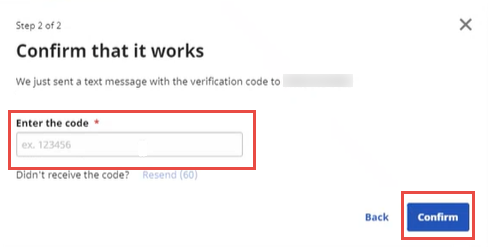
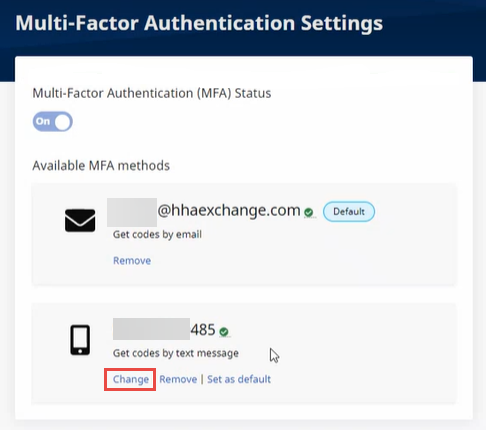
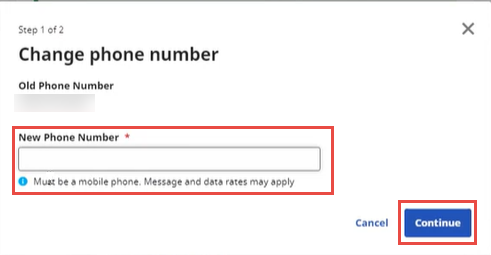
Complete the following steps to change a mobile phone number.
-
Click the Change link In the mobile phone section of Available MFA methods.
-
Enter the New Phone Number, and then click Continue.
-
In the Enter the code field, type in the code sent to the mobile phone. Click Confirm to finalize.
Users subject to MFA can view and change their own MFA settings from the Enterprise Portal.
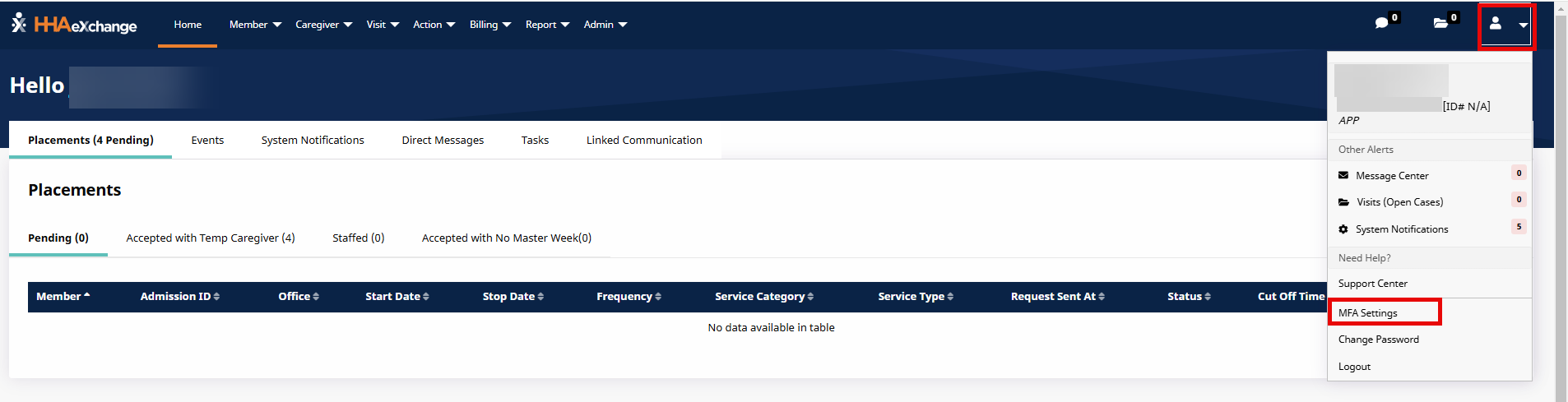
To change the MFA settings, click the MFA Settings link under the User Profile icon at top right. This link is only available to users who are subject to MFA.
The Multi-Factor Authentication Setting page opens. Changes can be made to the MFA Settings as explained below.
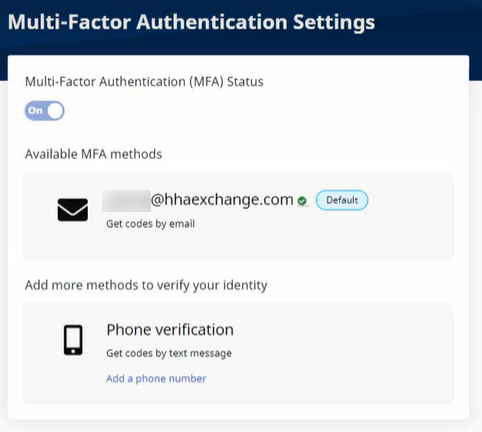
Users cannot disable Multi-Factor Authentication or change the email address from the MFA Settings page. When the email address is changed in the User Profile, the system prompts the user to set up MFA again on their next login.
Complete the following steps to remove a mobile phone number or email address from available MFA methods.
-
Click the Remove link from either the email address or mobile phone section of Available MFA methods.
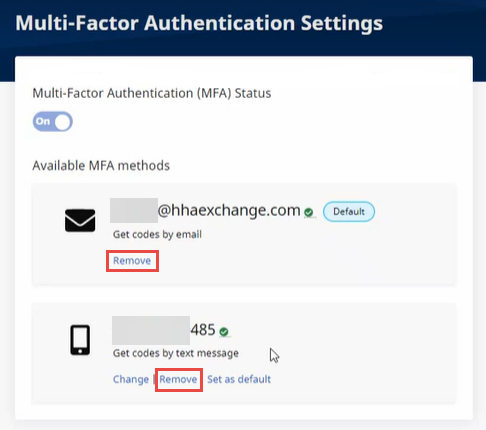
Only one method can be removed; either the email or mobile phone, not both.
-
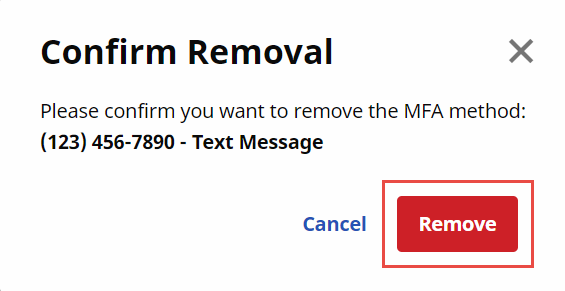
Click the Remove button when prompted to confirm the removal.
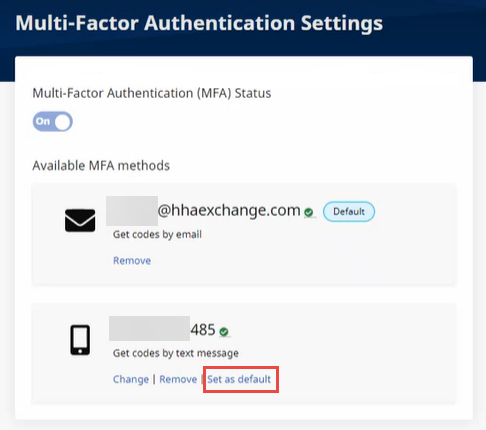
Complete the following steps to change the default MFA method.
-
Click the Set as default link in the email address or mobile phone section of Available MFA methods.
-
A banner at the top of the MFA Settings page indicates that the default setting has been changed.