Self-Service Password Reset
You can reset your password directly from the HHAeXchange Login page without having to contact Support or your Administrator.

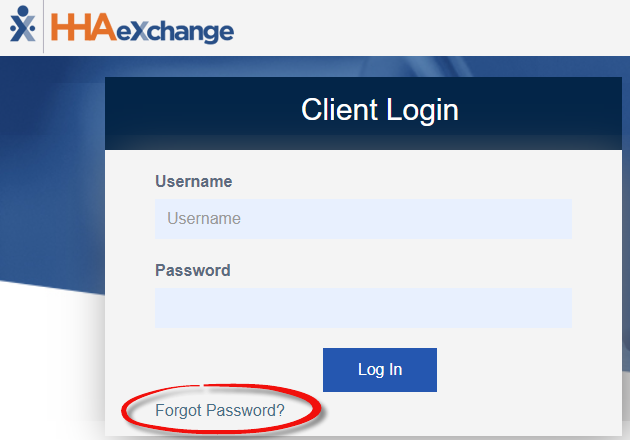
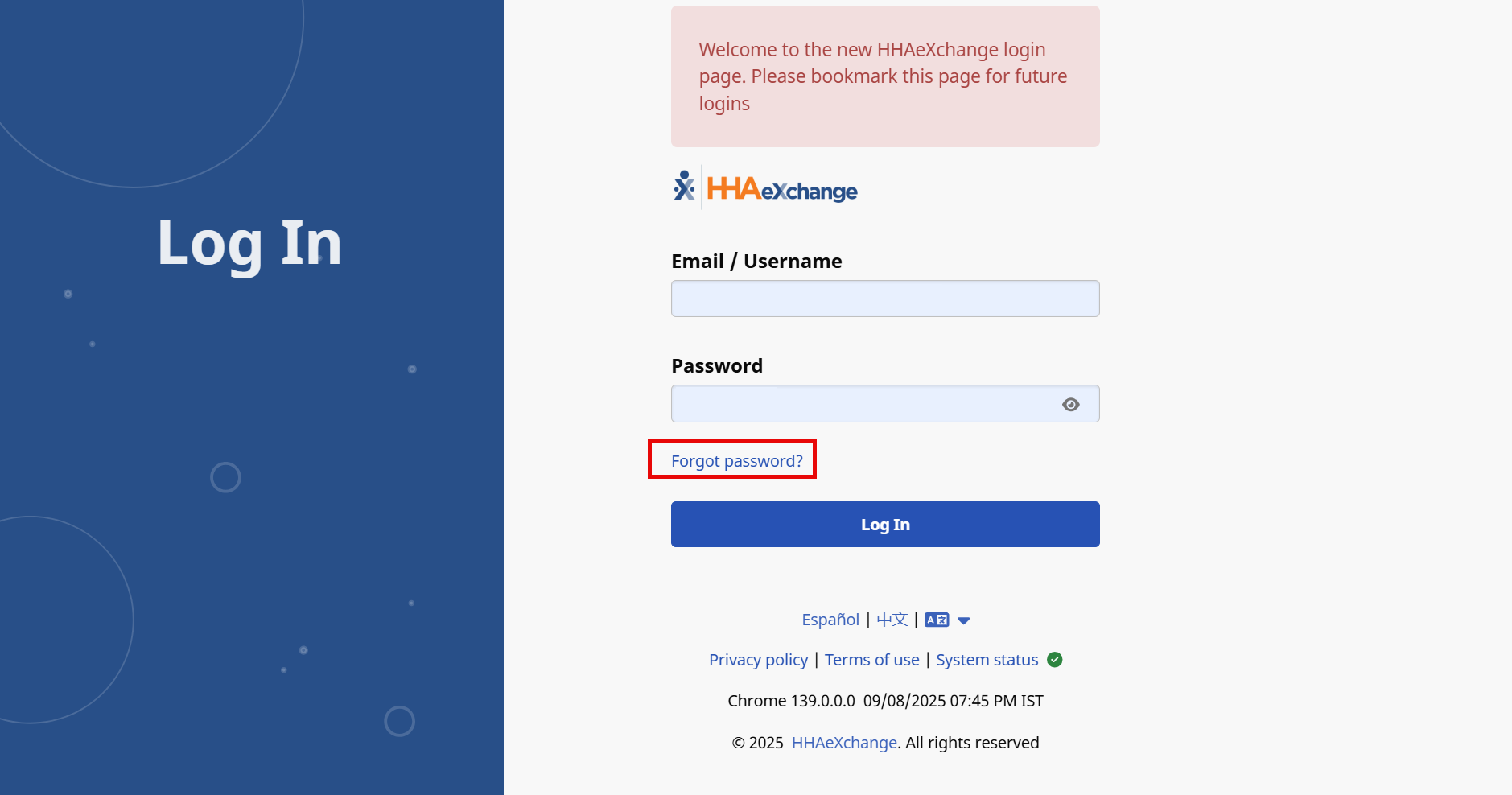
On the Client Login page, click Forgot Password? to start a password reset.
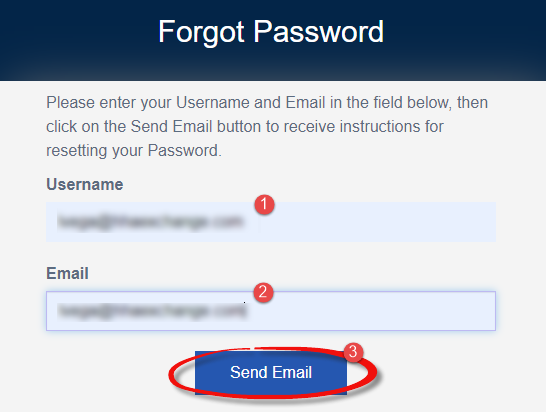
Enter your Username and Email address. Click Send Email.
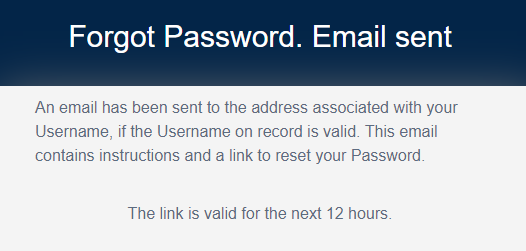
The system issues an alert when the email has been sent. The link sent is valid for the next 12 hours.
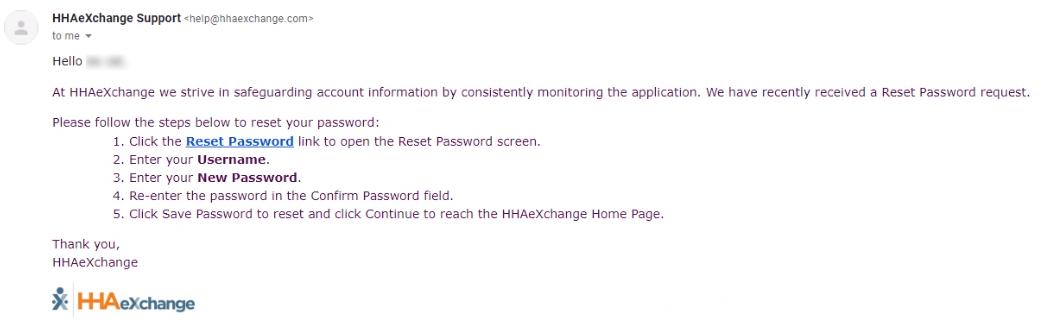
A system-generated email is sent to the user’s registered email address. This email contains a link, valid for 12 hours, and instructions for a user to reset (change) their password in the system. Click Reset Password and follow the prompts.
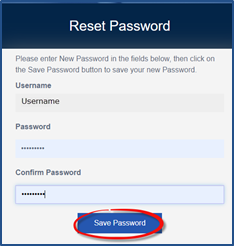
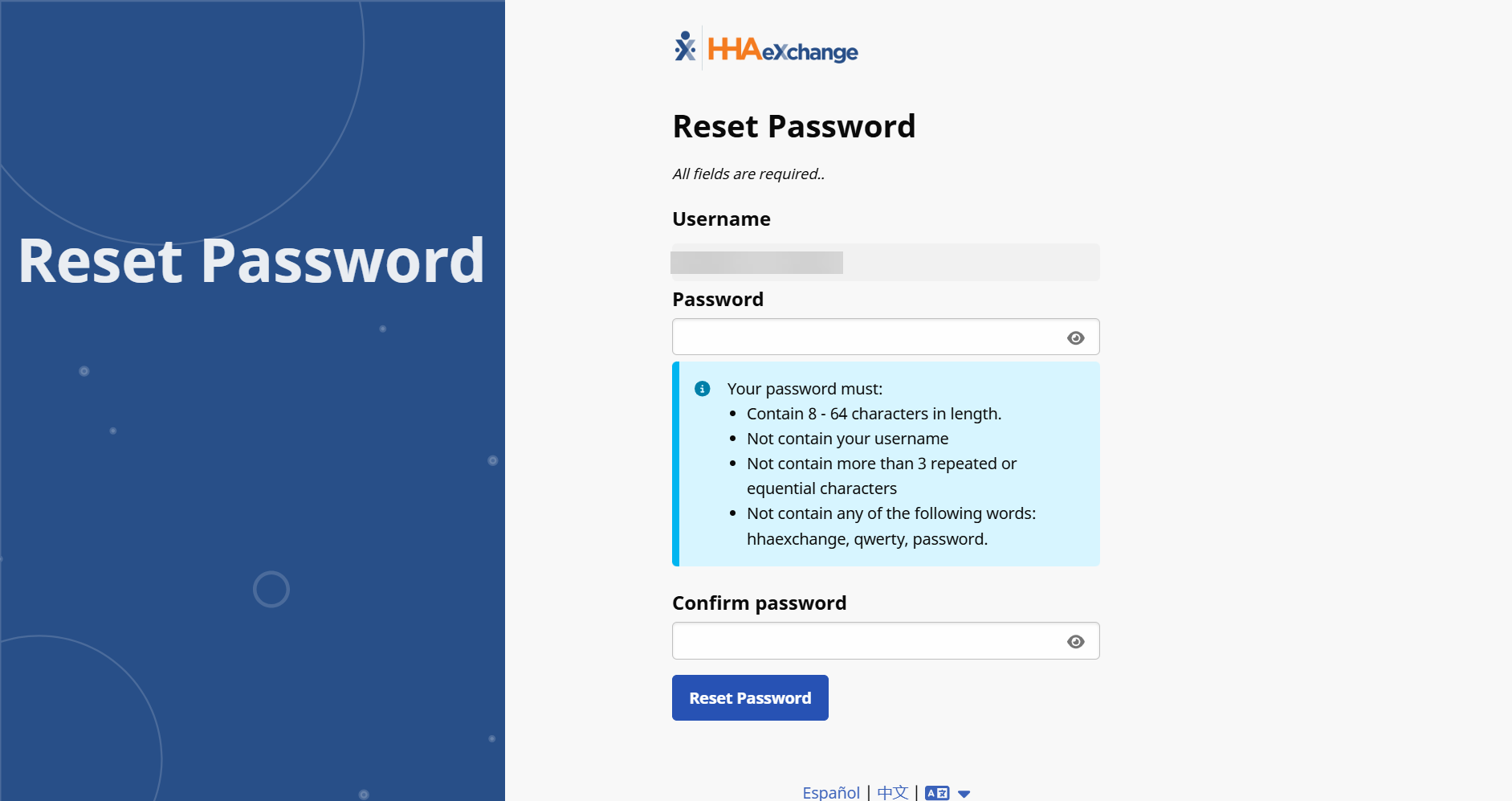
On the Reset Password page, the Username field is auto-filled. Enter a new Password, and reenter the new password in Confirm Password. Click Save Password to continue.
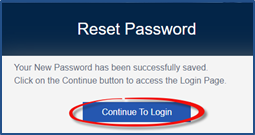
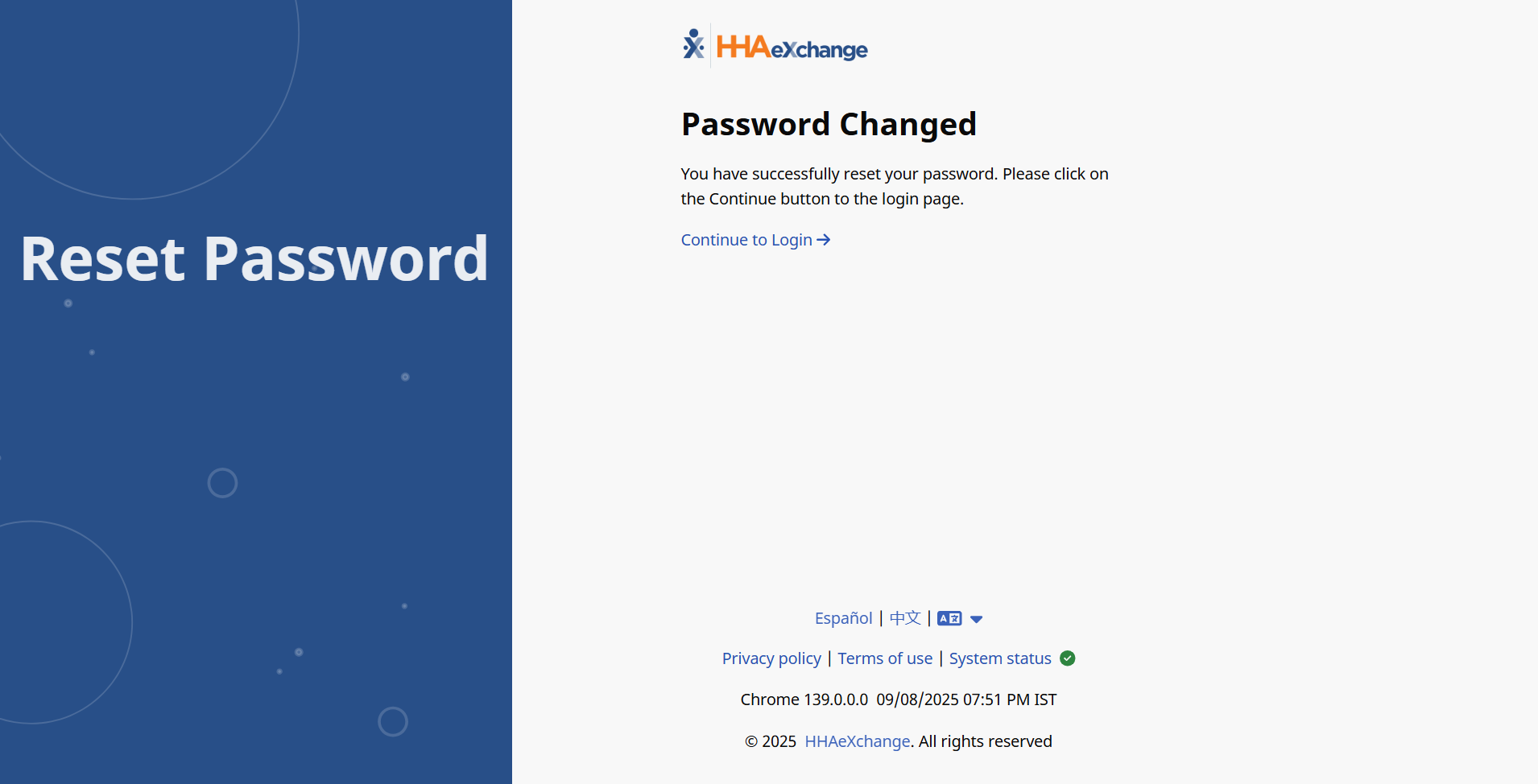
The system indicates a successful password reset. Click Continue to Login to route back to the Login screen.
Follow the instructions to reset your password,
-
On the Login page, click Forgot Password? to start a password reset.
-
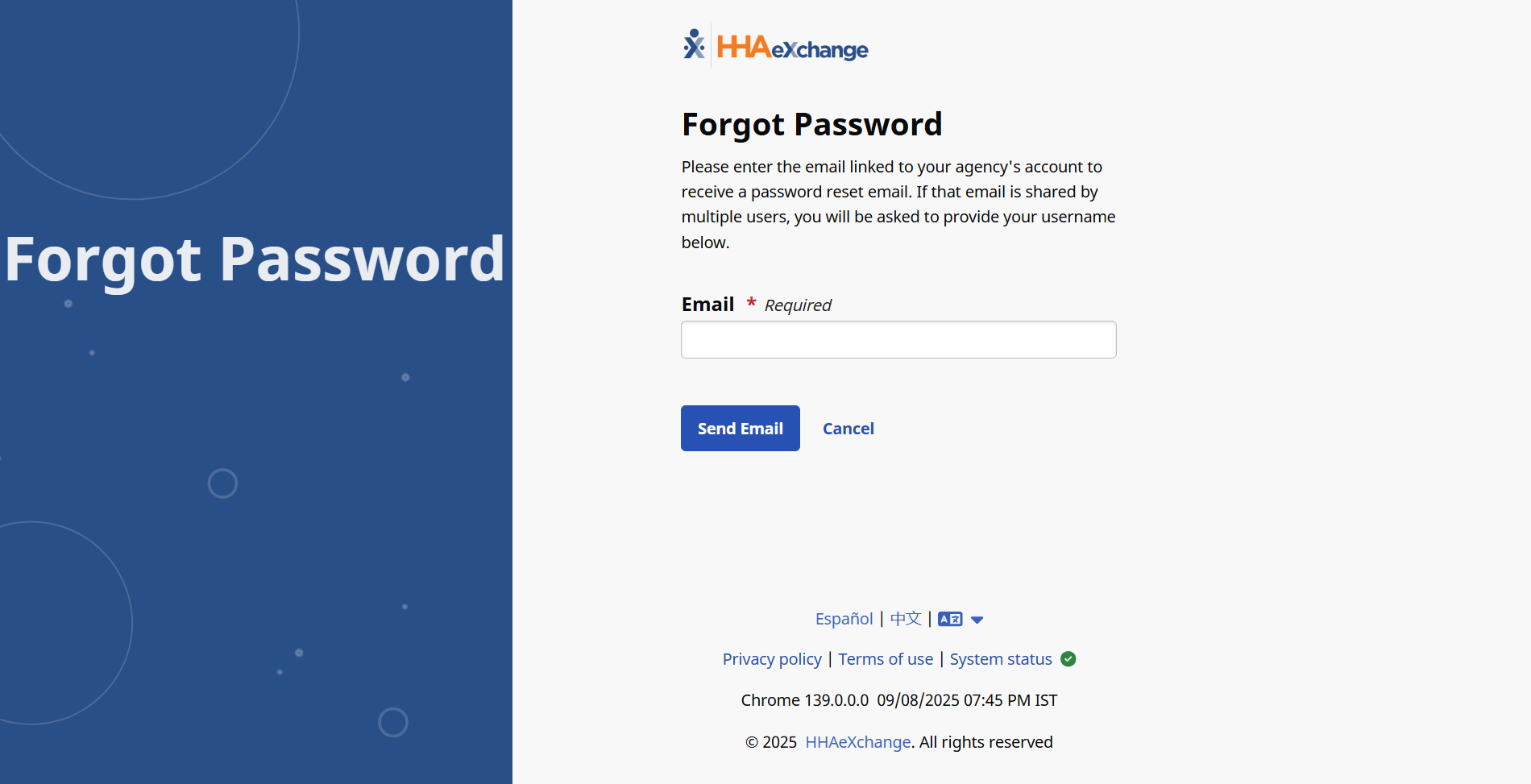
Enter your Email address and then select Send Email.
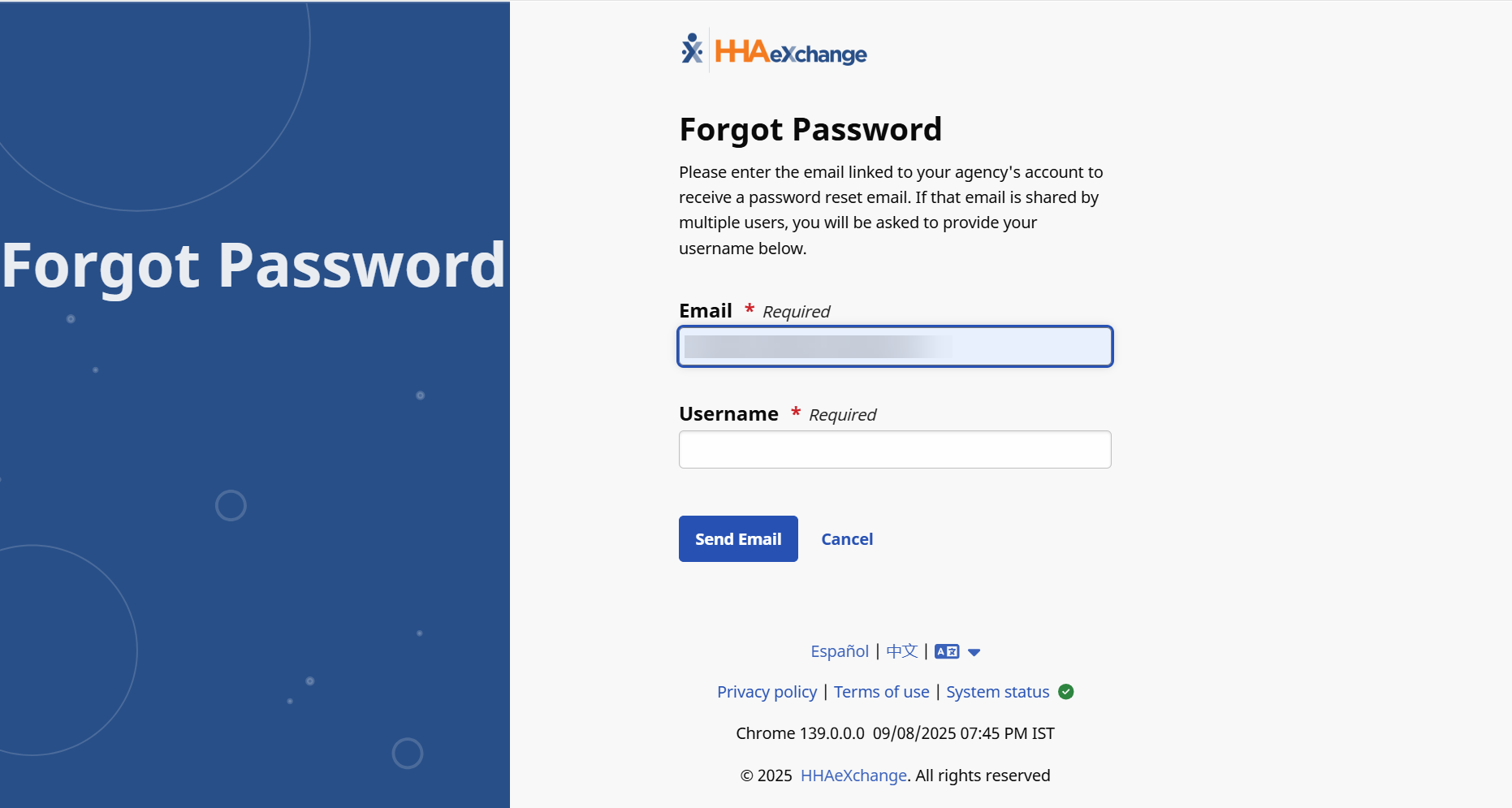
If there are multiple usernames associated with the email, the Username field displays. Enter your Username and then select Send Email.
-
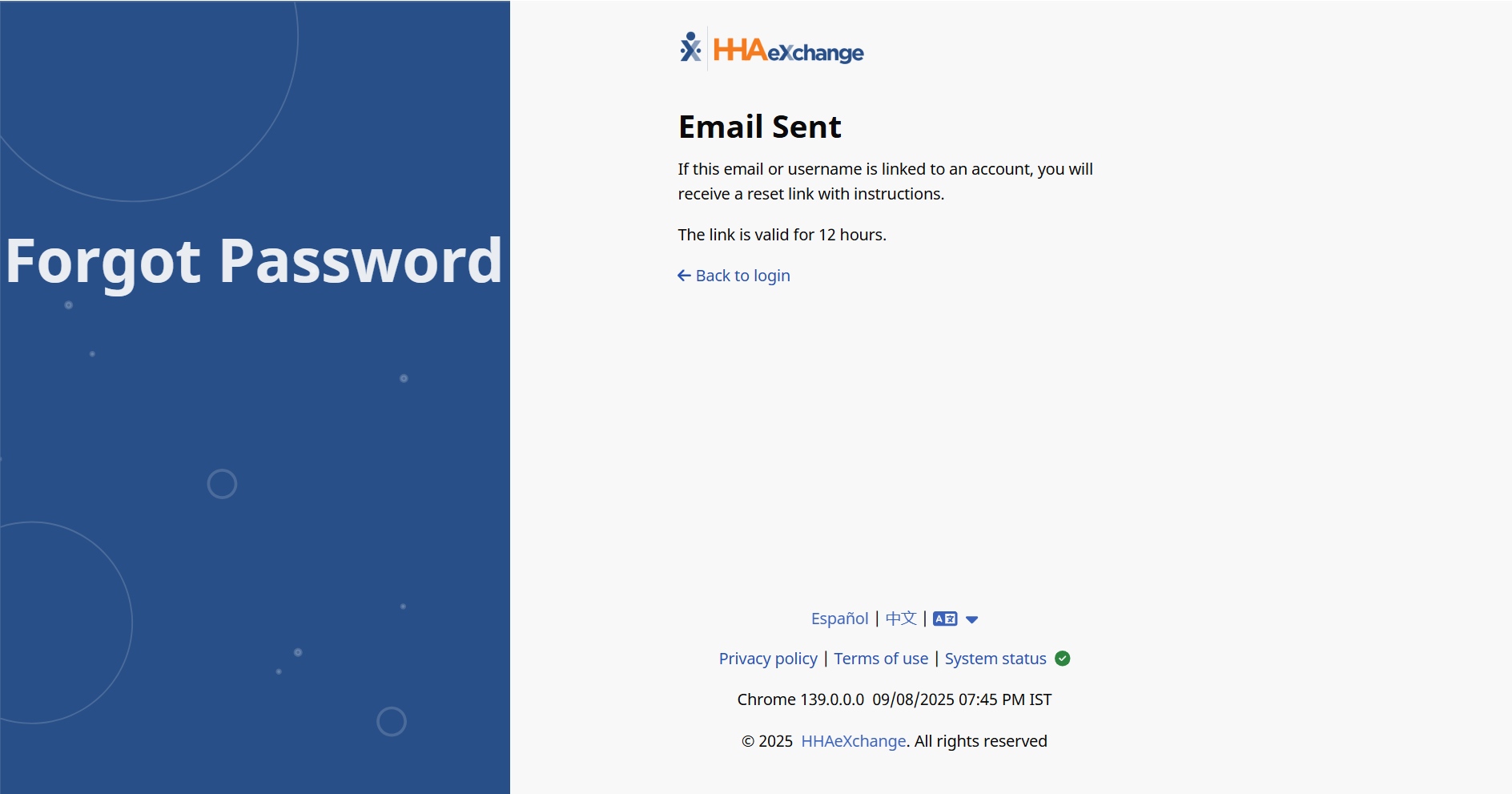
The system issues an alert when the email is sent. The link sent is valid for the next 12 hours.
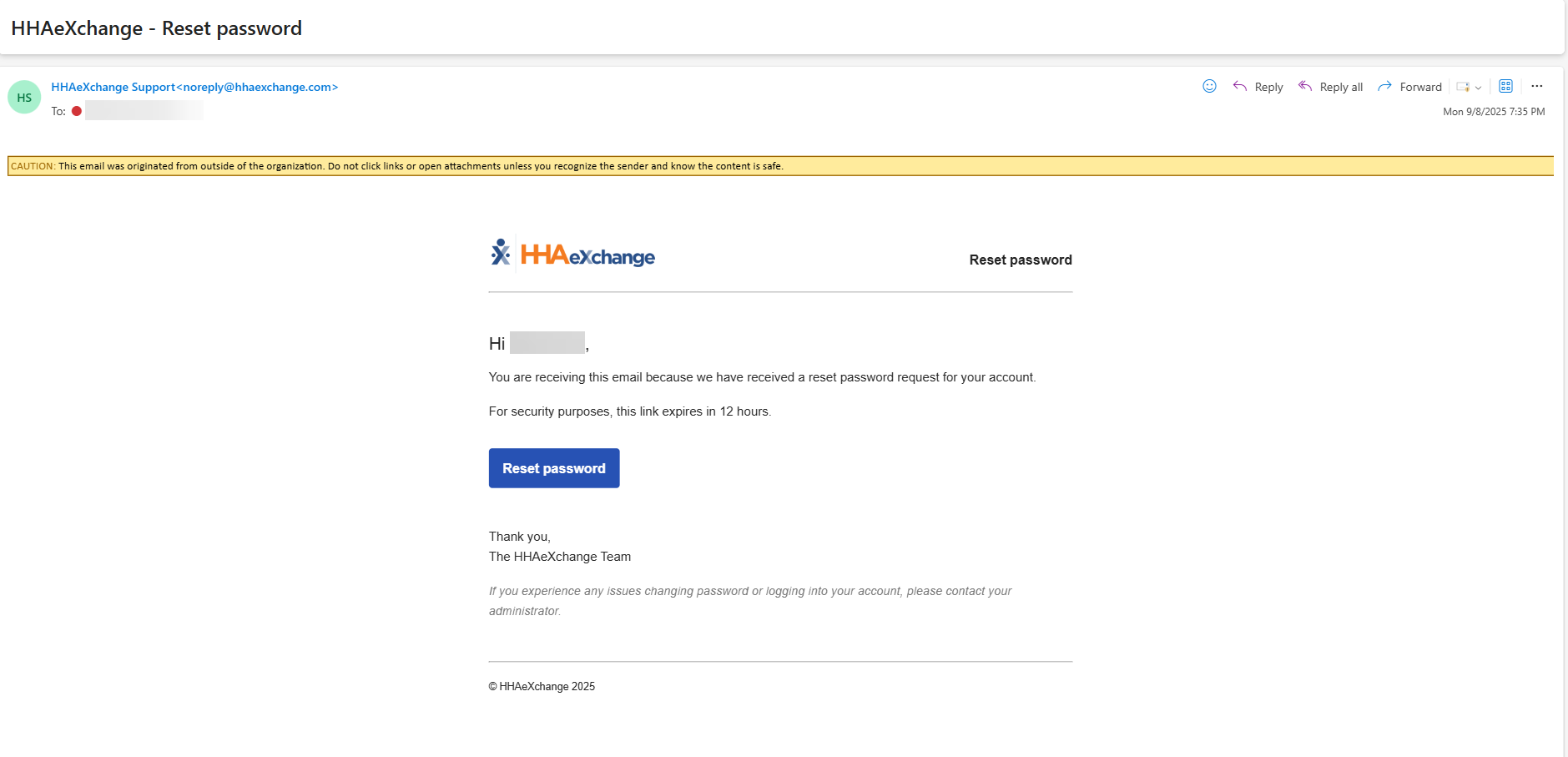
A system-generated email is sent to the registered email address. The email contains a link, and instructions to reset your password. Click the Reset Password link and follow the prompts.
-
On the Reset Password page, the Username field is auto-filled. Enter a new Password, and then reenter the new password in the Confirm Password field. Click Reset Password to continue.
-
A successful password reset message displays. Click Continue to Login to go back to the Login screen. Enter your Username and new Password to log in.
Passwords requirements are as follows:
-
Must be at least eight characters long.
-
Cannot:
-
Use more than three sequential or repeated characters
-
Valid: 123, ABC, aaa, 111, 333
-
Invalid: 1234, ABCD, aaaa, 1111, 3333
-
-
Include the following words/characters: username/hhaexchange/qwerty/password.
-
Password requirements are only enforced when a user modifies their password; existing passwords are not affected.
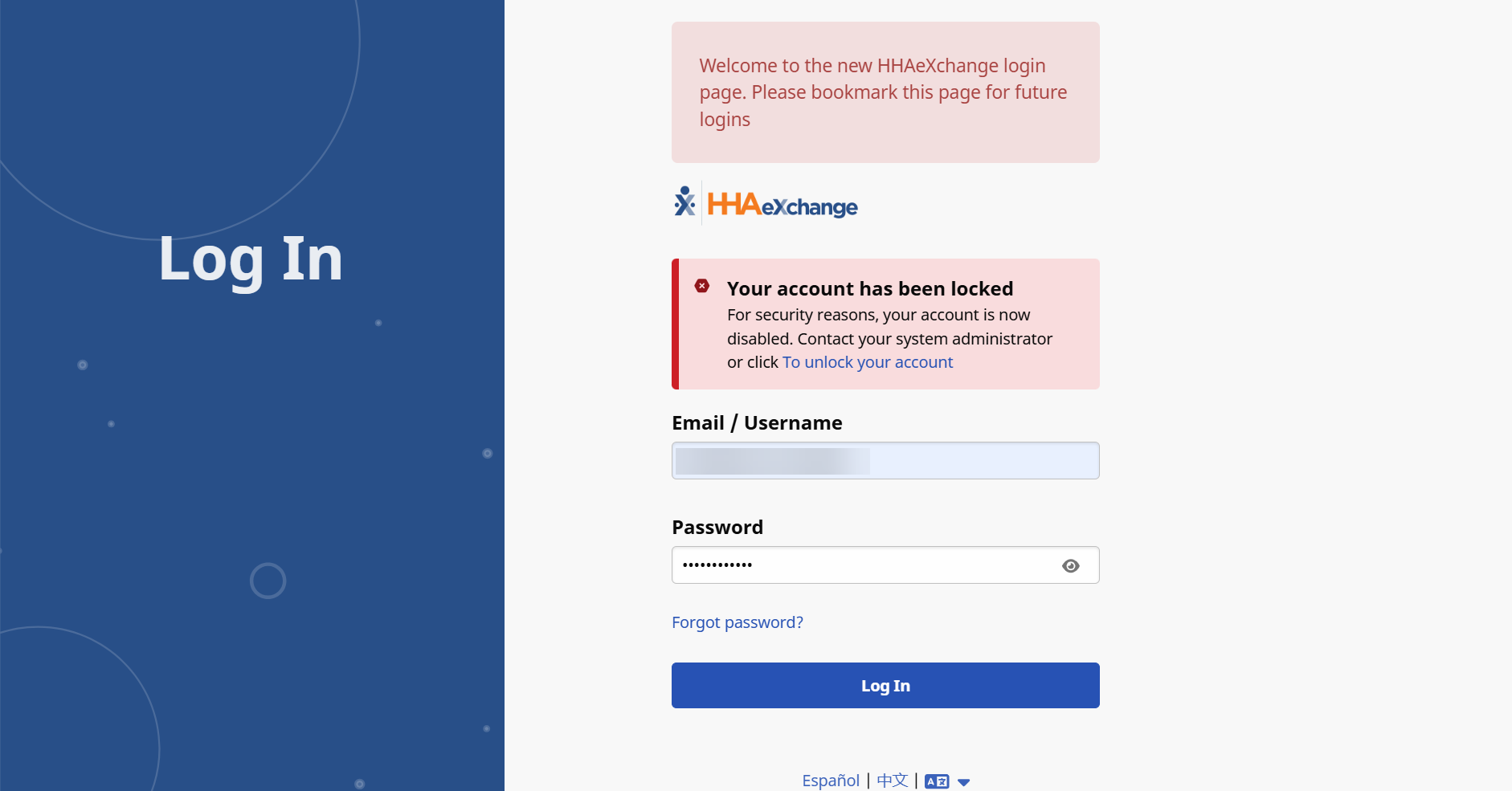
If your account is locked, Your account has been locked message displays. To unlock your account,
-
Click the link from the Your account has been locked message.
-
An email is sent to your email to reset your password.
-
On the Reset Password page, the Username field is auto-filled. Enter a new Password, and then reenter the new password in the Confirm Password field. Click Reset Password to continue.
-
A successful password reset message displays. Click Continue to Login to go back to the Login screen. Enter your Username and new Password to log in.
-
Once the password is changed, your account is now unlocked. Continue to the Log in page and login using your new password.
To select a language,
-
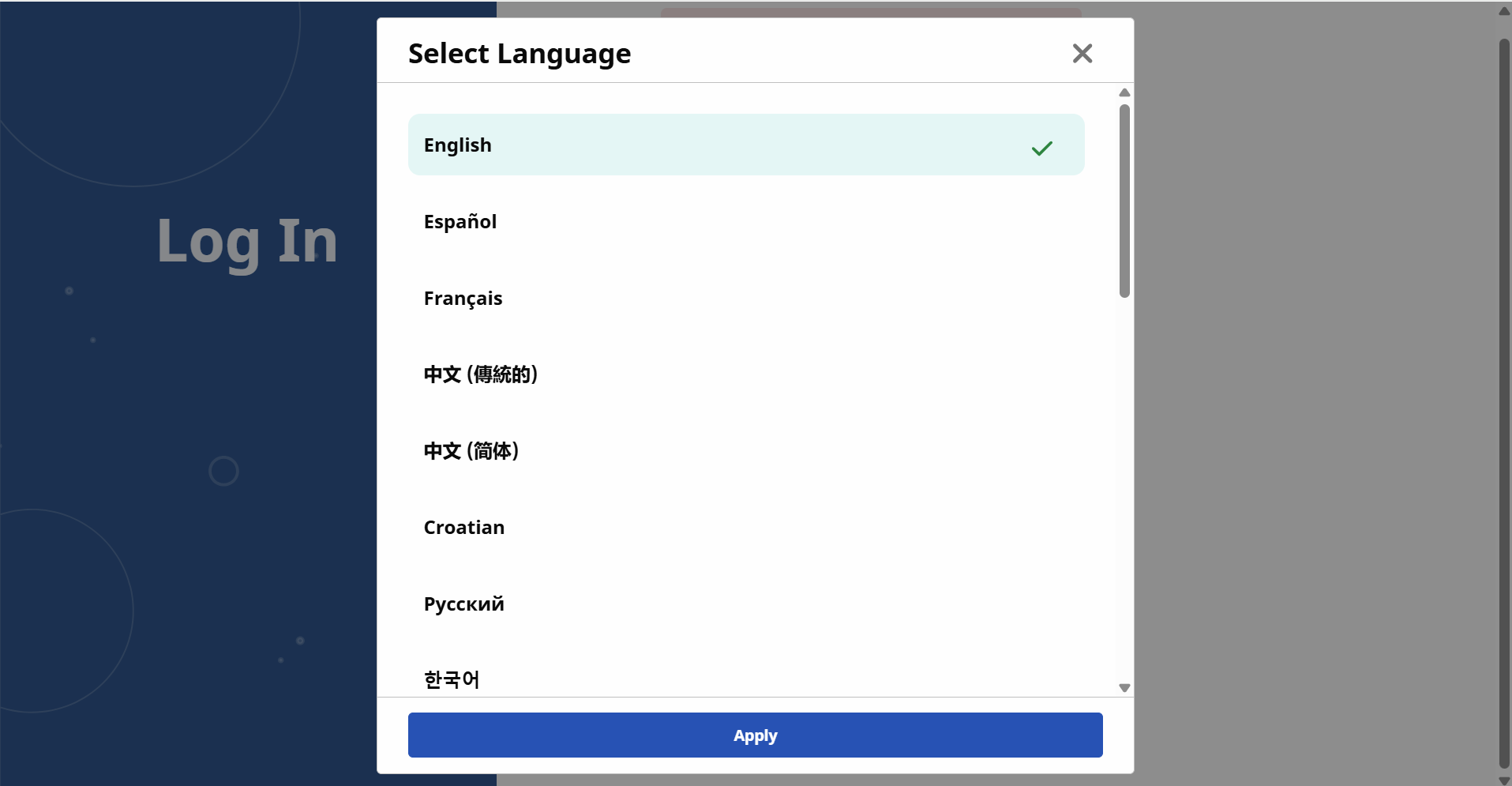
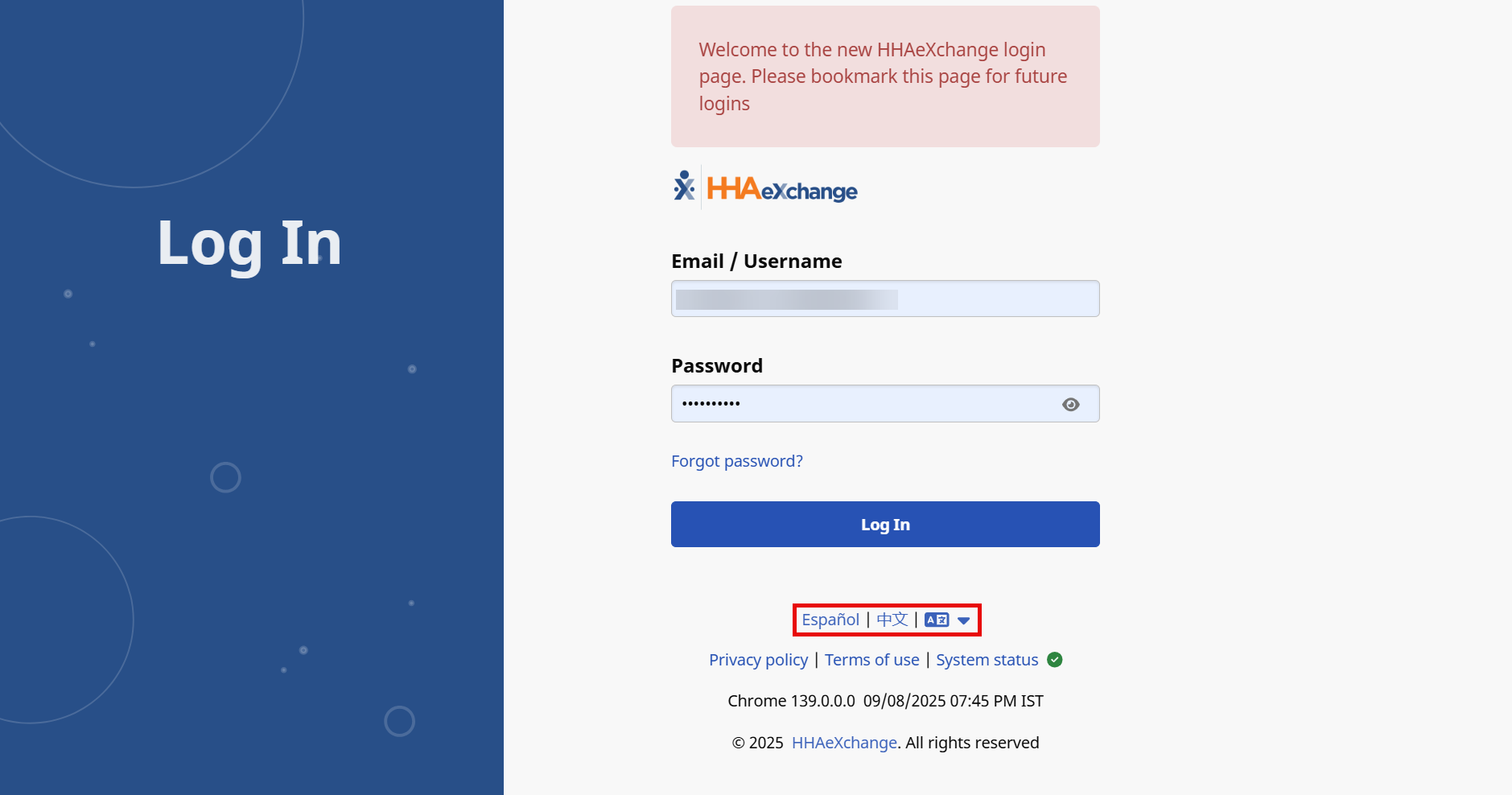
On the Log In page, select the dropdown by the languages.
-
The Select Language window opens. Select the language and then select Apply. The language changes.