Assign to Temp
If a Caregiver is not available to assign or unknown when scheduling a visit, select the Assign to TEMP option to place a temporary placeholder to save the visit.
-
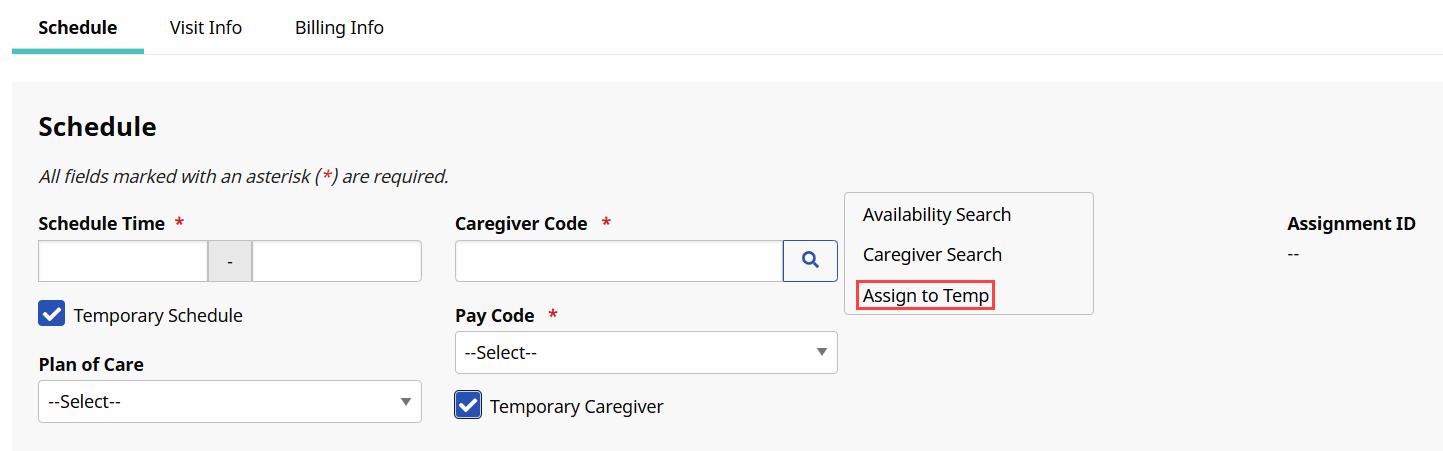
On the Schedule tab, click the Search icon and then select the Assign to Temp option.
-
The Caregiver Code field is populated by the Temp Code (with the Temp Temp name).
One can also manually enter 1000 or Temp in the Caregiver Code field to assign a temporary placeholder to the visit.

-
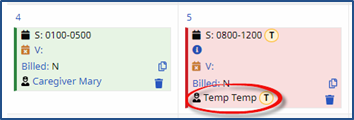
Once saved, the visit displays with a Temp Caregiver on the Calendar page.
-
Once an actual Caregiver is found, revise the visit and replace the TEMP Caregiver with the actual Caregiver.
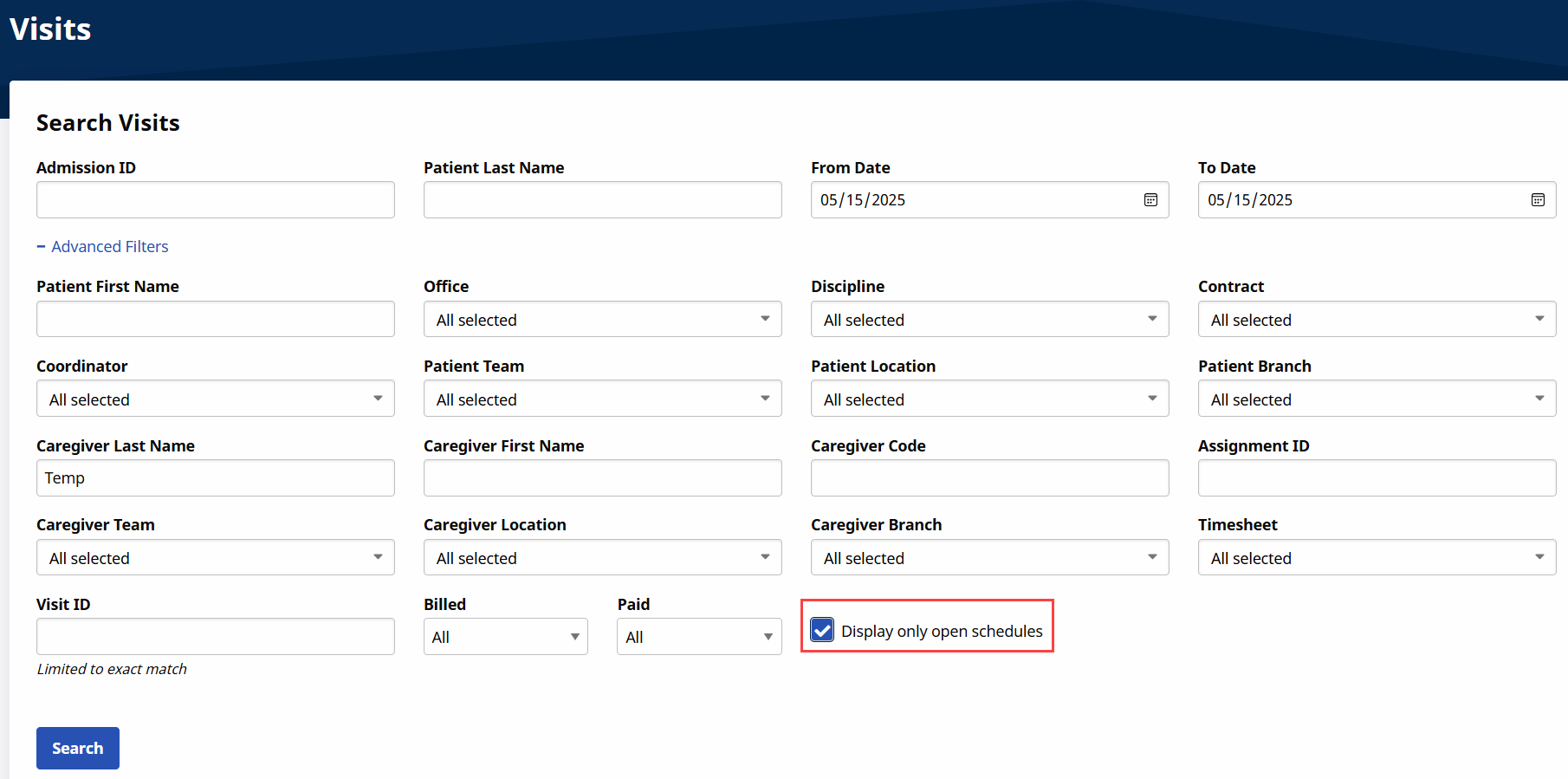
To see a list of all visits with assigned TEMP Caregivers, go to Visit > Visit Search and select Search Open Schedules field.
If the Caregiver Code field is not updated by the time of the visit, EVVs placed by the Caregiver do not sync to the visit. As a result, the visit is held on the Prebilling Exception page until the calls are linked to the visit and a user manually enters a real Caregiver in the Caregiver Code field.