Automatic Creation of Schedules
The Automatic Creation of Schedules function is used to link EVV held on the Call Maintenance tab of the Call Dashboard to Visits missing one or both confirmations.
Complete the following steps when using this method.
-
Go to Visit > Call Dashboard and select Call Maintenance.
-
On the Call Maintenance tab, click Create Automatic Schedules at lower right.
-
On the Automatic Creation of Schedules page, specify a date range using the Run Date Range From / To fields and click Search at lower left.
Use other search filters to narrow the search results. The Run From / To fields are required to perform a search.
-
The search returns EVV made within the specified date range and any values entered in the available filter fields.
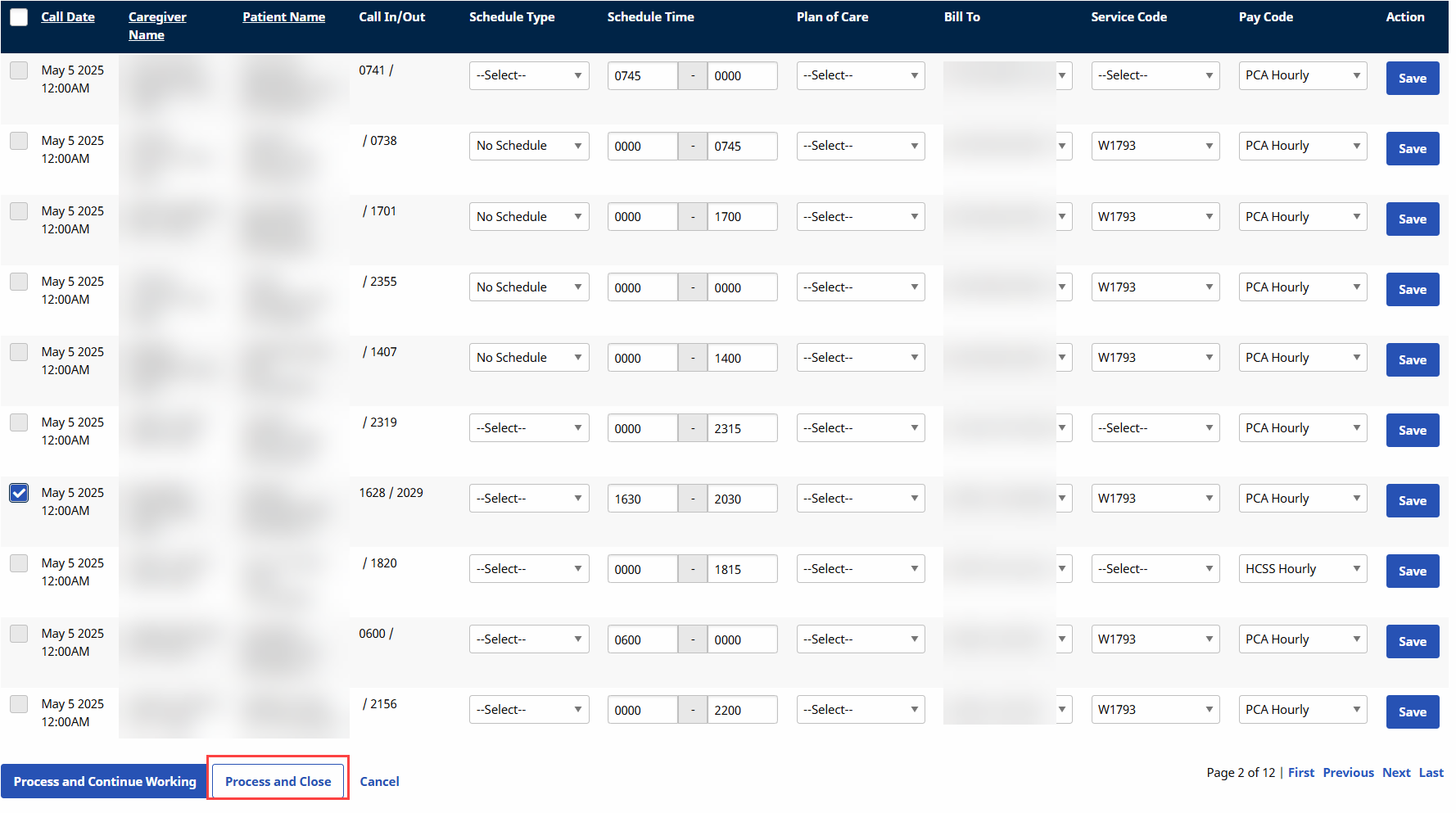
The value in the Call In / Out field represents the actual time the EVV was placed. The system rounds the time displayed in Call In / Out to the nearest 15-minute interval to create a Schedule time. The system automatically attempts to pair two EVVs.

-
To generate Visits using EVV, enter information in the following columns:
Column/Field
Description
Schedule
The system completes these fields by rounding the Call In and/or Call Out time of the EVV(s) to the nearest 15 minute interval.
Service Code
Insert the applicable Service Code.
Pay Code
Insert the applicable Pay Code.
-
When values for these fields are entered, the system highlights the EVV in orange, indicating that there is enough information entered to generate a Visit.
If all the Visit information is already populated, select the checkbox in the leftmost column. The row is not highlighted, but the checkmark means the Visit has been selected for processing.
-
When all the required information has been entered, click Process and Close to process the selected EVV and generate Visits.
-
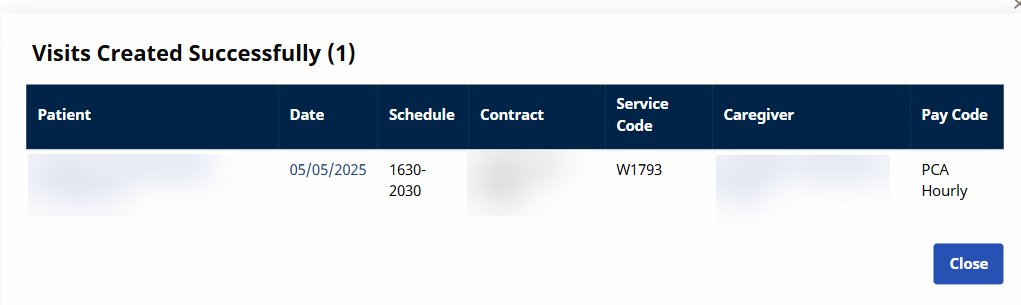
When the system completes the process the Automatic Creation of Schedules: Visit Creation Status window opens, detailing which Visits were successfully generated and which were not. Visits that cannot be created contain a Problem column, detailing why the system failed to create a Visit.
-
Click Close to exit.
-
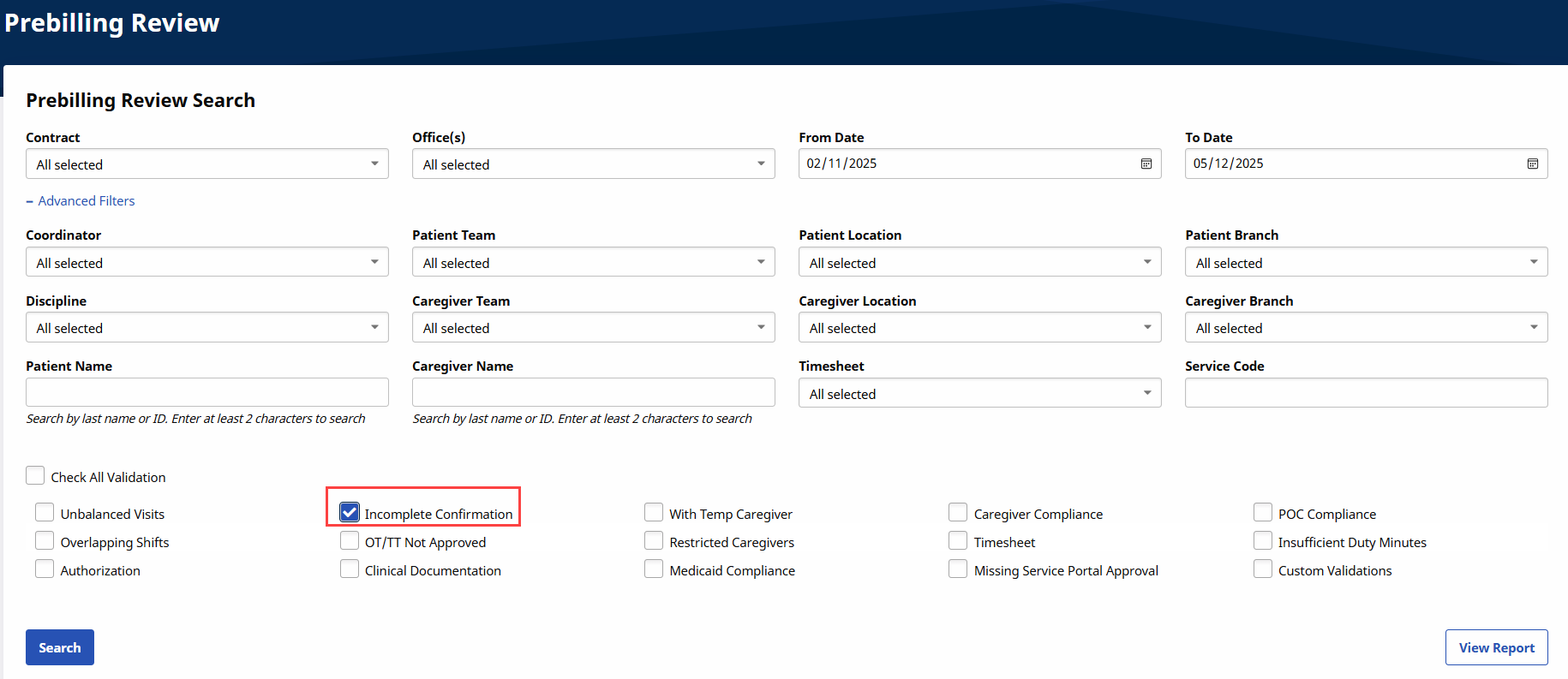
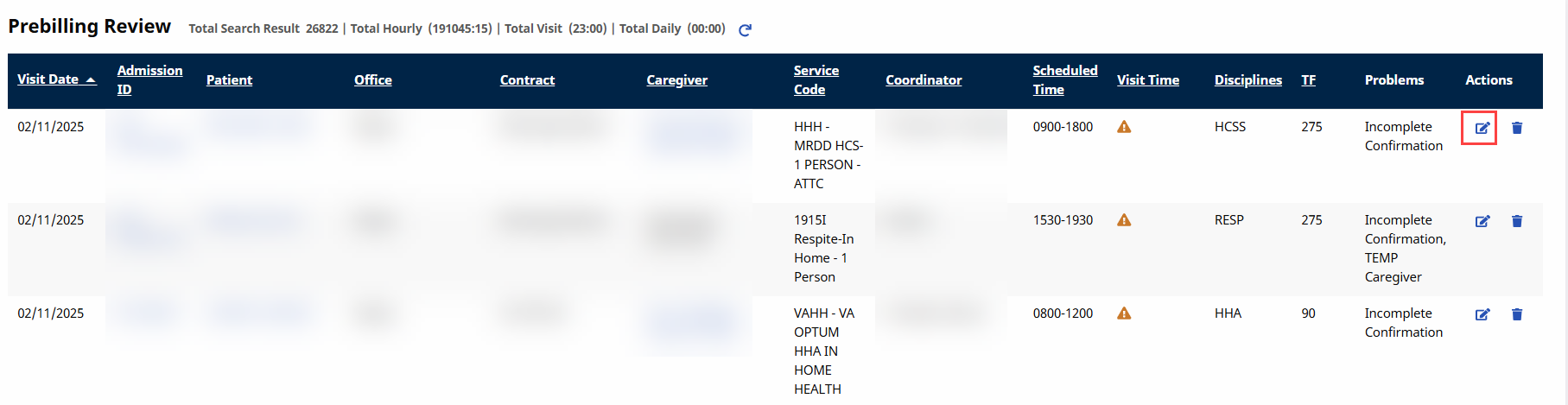
Go to Billing > Prebilling and search for Visits held in Prebilling due to an Incomplete Confirmation validation.
-
In the search results, locate the Visits generated by the Automatic Creation of Schedules function that are missing a confirmation, and click the Edit icon to open the Visit Window.
-
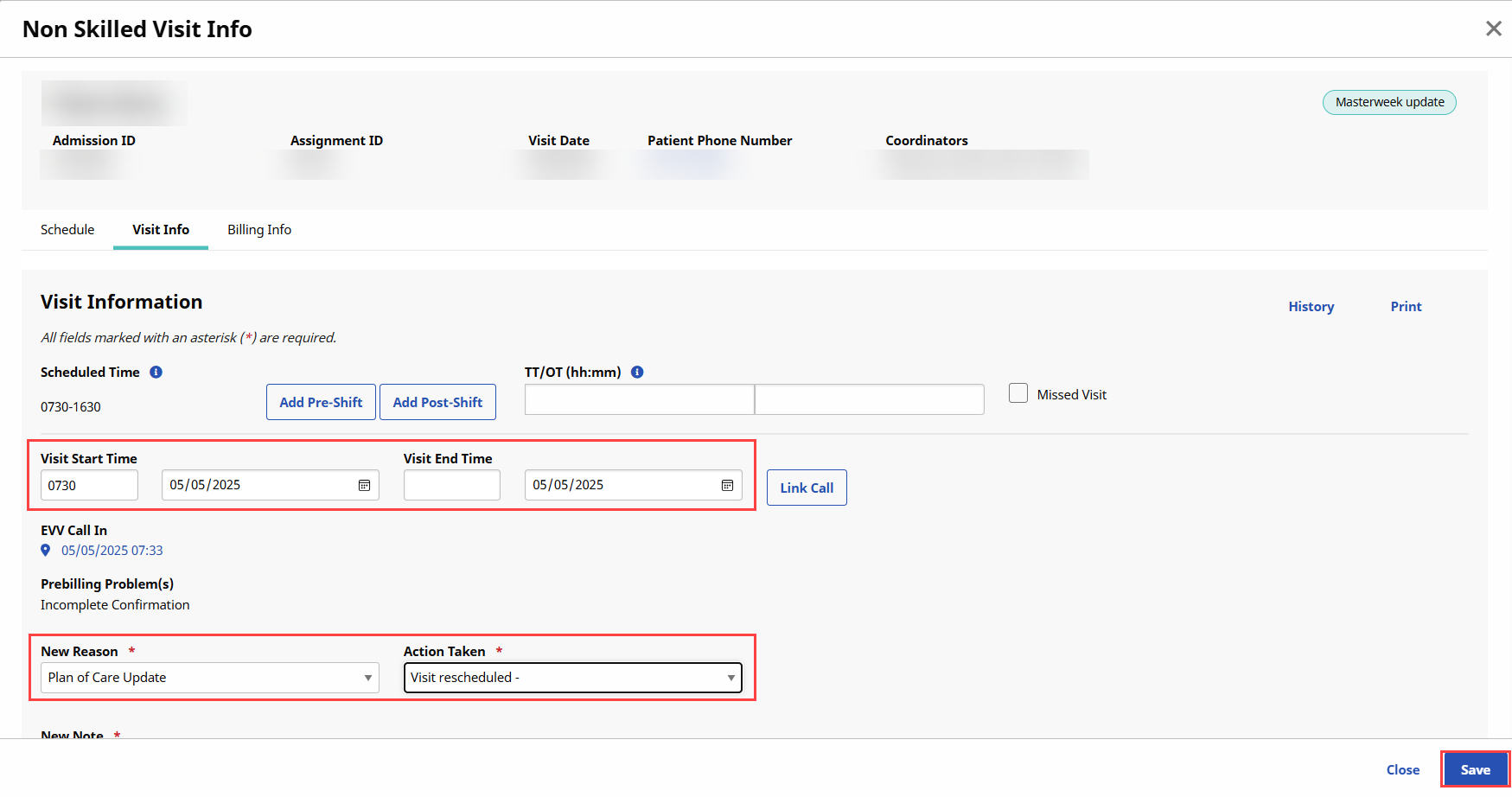
In the Visit Info window, select the Visit Info tab and enter either the Visit Start Time or Visit End Time, as well as values for the New Reason and Action Taken fields (if required).
-
Click Save to finalize. The Visit is now ready for invoicing.