Call Dashboard
The Call Dashboard is used to capture and track EVV failures and rejections.
There are only two outcomes for calls sent to the Call Dashboard:
-
Link calls that were made but never applied to a visit.
-
Reject calls that cannot be matched to any visits.
This section covers the Call Dashboard, linking calls, and rejecting calls.
This topic provides the general steps to review exceptions, link calls, and reject calls. Managing individual exceptions and polices is the responsibility of each individual Agency. Refer to the Call Dashboard Resolutions topic for steps in managing other exceptions.

The Call Maintenance tab is a real-time hub for tracking and reviewing Caregiver time and attendance. In this hub, EVV that cannot be matched to a visit is reviewed and held. All EVV held on this tab are assigned a Status that explains why the EVV was held, such as Call from Caregiver Number or Phone Number Not Found. Complete the following steps to review EVV held on the Call Maintenance tab.
-
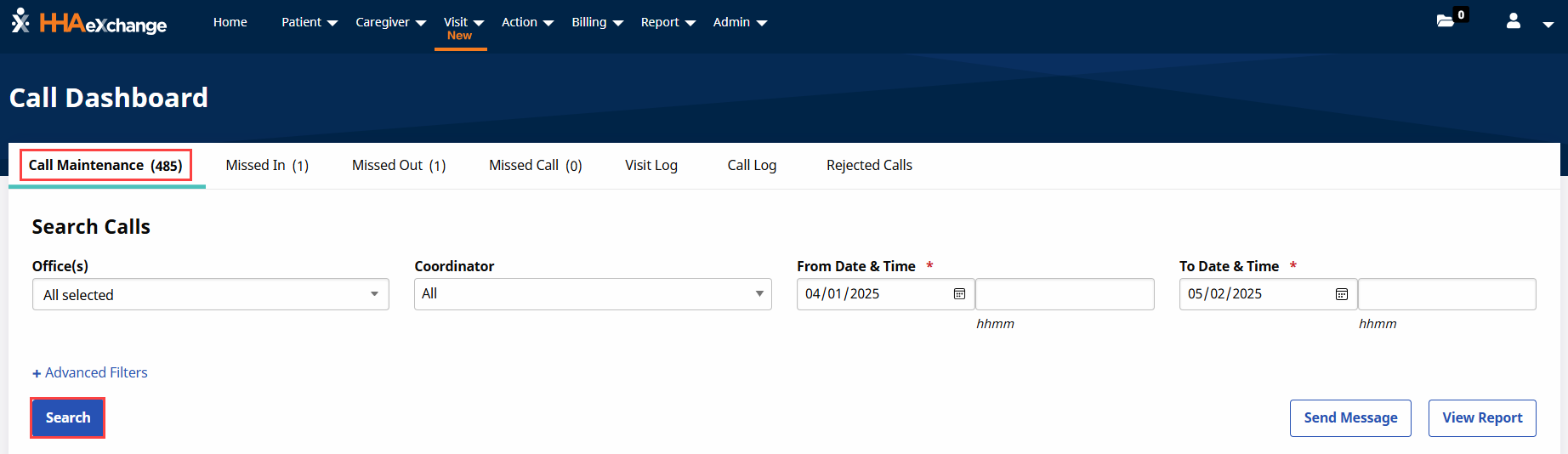
Go to Visit > Call Dashboard to open the Call Maintenance tab.
-
Use the search criteria and click Search to review unlinked calls.
-
Leave search criteria blank to see all held EVV on the Call Maintenance tab, or
-
Use available filters such as Coordinator and From/To Date to see specific EVV.
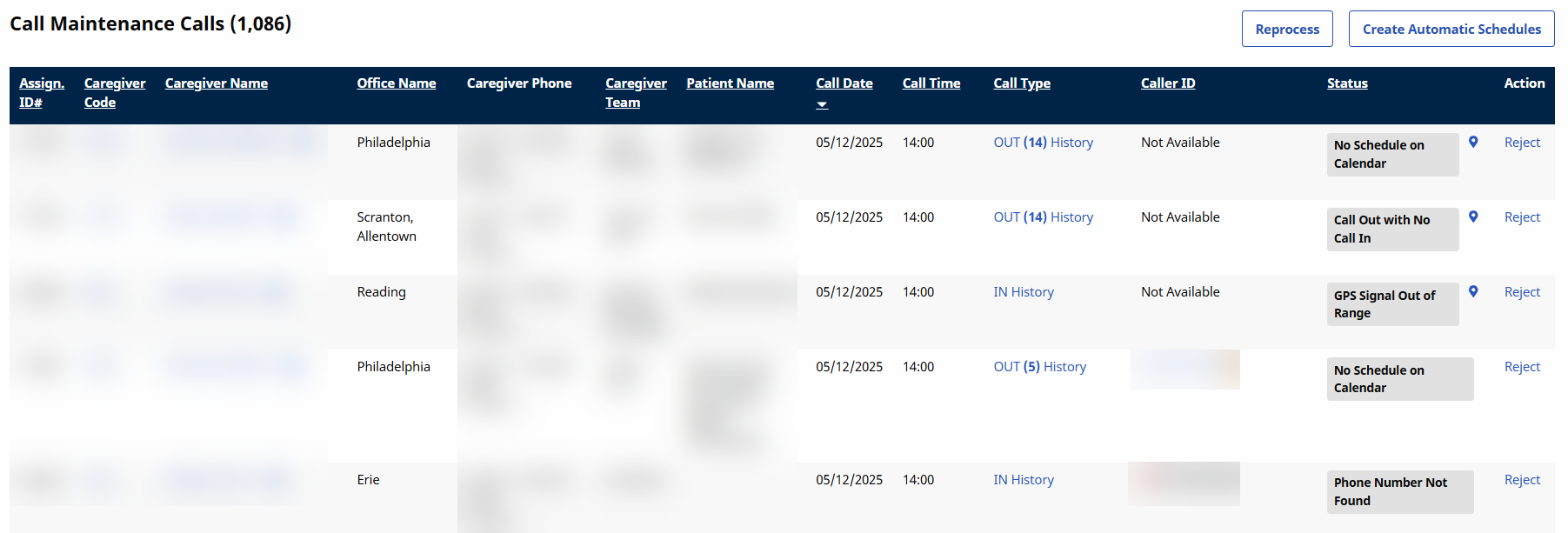
Each search result row displayed is an unlinked call; an EVV instance that could not be matched with a scheduled visit. Each row contains details about the Caregiver, Visit, and Call Status, as described in the following table.

Detail
Contents
Caregiver
Assignment ID, Caregiver Code, Caregiver Name, Office Name, Caregiver Phone, and Caregiver Team (if any), based on the Caregiver's Time and Attendance PIN.
Visit
Call details captured by the EVV including Patient Name, Call Date and Time, Call Type (In or Out), and the Caller ID used.
Call Status
Status explains why the Caregiver’s Clock In or Clock Out was not automatically linked to a scheduled visit.
-
-
Click the name in the Caregiver Name column to view the Caregiver’s scheduled visits for the day.
-
Click the number in the Caller ID column to view the Patient’s scheduled visits for the day.
On the Call Maintenance tab, EVV may be linked to a visit if enough information is available to determine the origin of the call and the associated visit. When linked, the EVV is removed from the Call Maintenance tab. The following steps demonstrate an example of linking an EVV.
As shown in the following example, the Caregiver placed an EVV with an unregistered phone number as seen in the Caller ID column for a visit on 8/15. The Status of Phone Number Not Found indicates that no Patient has this number listed on their profile.

HHAeXchange recommends consulting an Agency’s supervisor for best practices before linking an Unsuccessful EVV.
-
Click the Caregiver Name column to access the Caregiver schedule details.
-
On the Caregiver Schedule page, confirm that the Caregiver was scheduled for a visit on 10/11. As shown below, the Caregiver is scheduled for 10/11, but the Patient’s approved number is different.
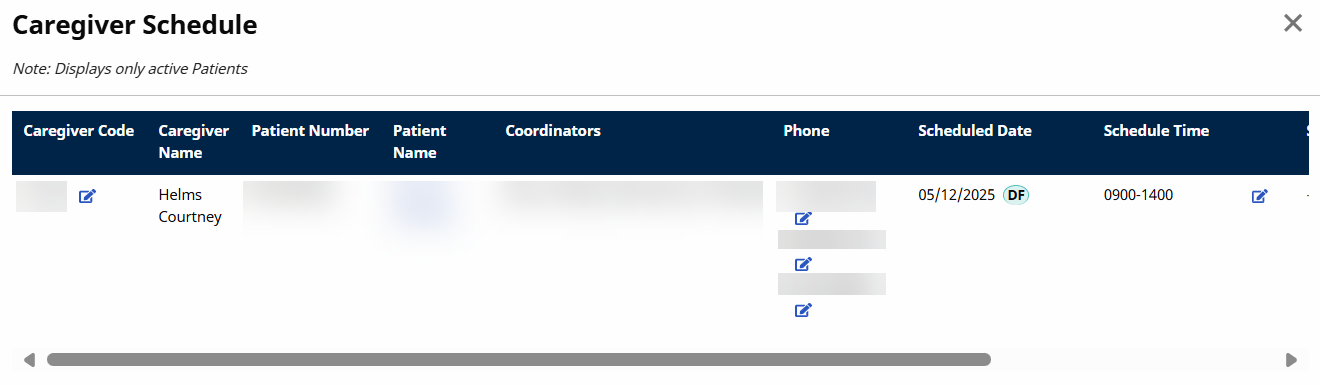
The Link option is not available to link this call.
-
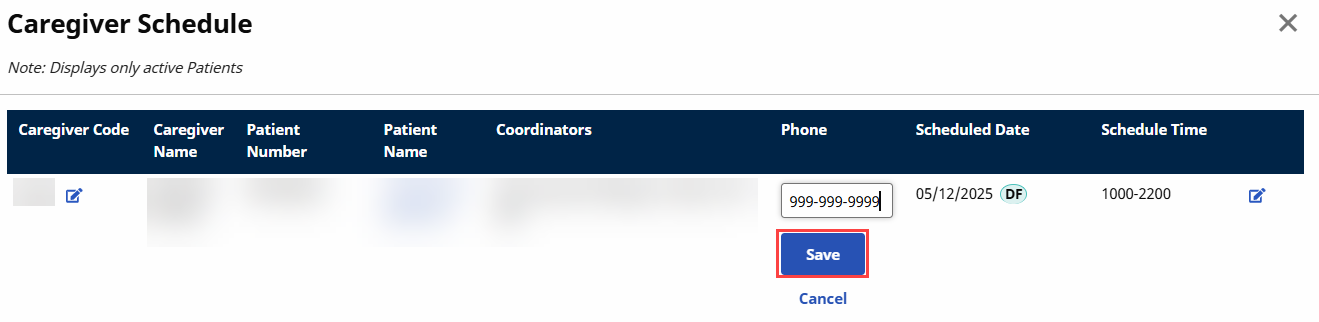
After determining that the Caller ID number is a legitimate second phone line for the Patient, click the Edit icon (Phone2) in the Phone column to edit the phone number for the Patient. Click Save to save the change.
-
The Caller ID now matches a number on the Patient’s Profile. The status on the Call Maintenance tab changes to Issue Fixed: Linkable Call, allowing the EVV to be linked.

-
Click Link to link the EVV with the visit. The exception is removed from the Call Maintenance tab.
To see a Patient’s Address GPS coordinates in the Call Maintenance tab, click the GPS icon to view the EVV location from any tab of the Call Maintenance tab (such as Rejected Calls).
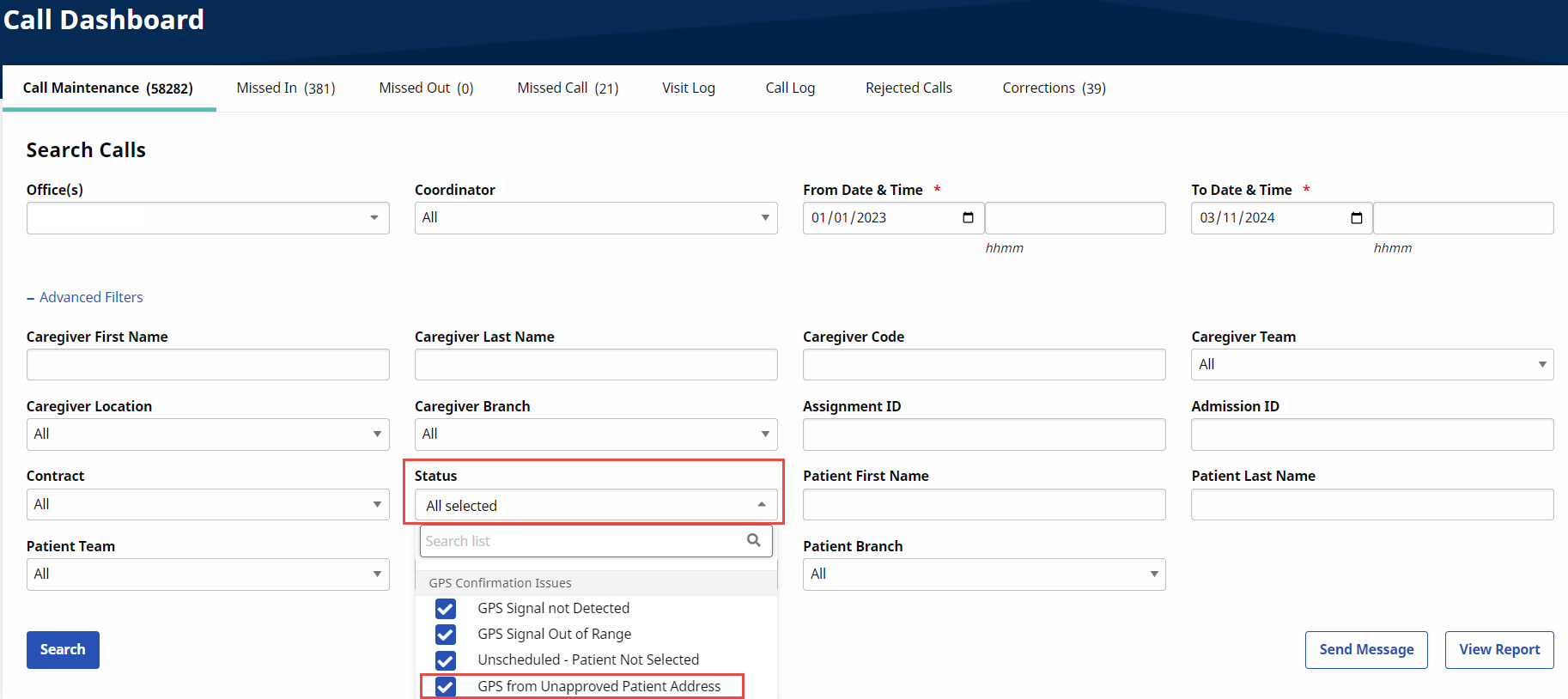
You can search for Multiple Address visits on the Call Maintenance tab by selecting GPS from Unapproved Patient Address under Status.
The following example shows how the system validates a GPS confirmation for a Patient with multiple GPS Allowed addresses on record: EVV confirmation is possible from multiple locations.
Address 1 – Set as Allow GPS
Address 2 – Set as Allow GPS
Address 3 – Set to NOT Allow GPS
-
GPS confirmation received within range of all three addresses; Result: Valid GPS confirmation
-
GPS confirmation received within range of Address 2 + 3; Result: Valid GPS confirmation
-
GPS confirmation received within range of only Address 3; Result: Call Maintenance exception for “GPS from Unapproved Patient Address”
At times, the coordinates attributed to an address by Google Maps do not properly reflect the actual coordinates of the Patient’s home. This may be common for Patients living in rural addresses or in large apartment complexes in a city.
To address this issue, users may recalculate the coordinates of a Patient’s address using the coordinates associated with GPS based EVV that is being held on Call Maintenance. This allows Agencies to correct the coordinates attributed to a Google address by replacing them with the more accurate EVV coordinates.
When a Patient’s address coordinates are changed, all future EVV placed via GPS use the updated coordinates. Only update coordinates for GPS-based EVV that routinely display on the Call Maintenance tab with a Status of GPS Signal Out of Range. Complete the following steps to update Google coordinates for a Patient’s address.
-
Click the GPS icon under the Status column of the held EVV.

-
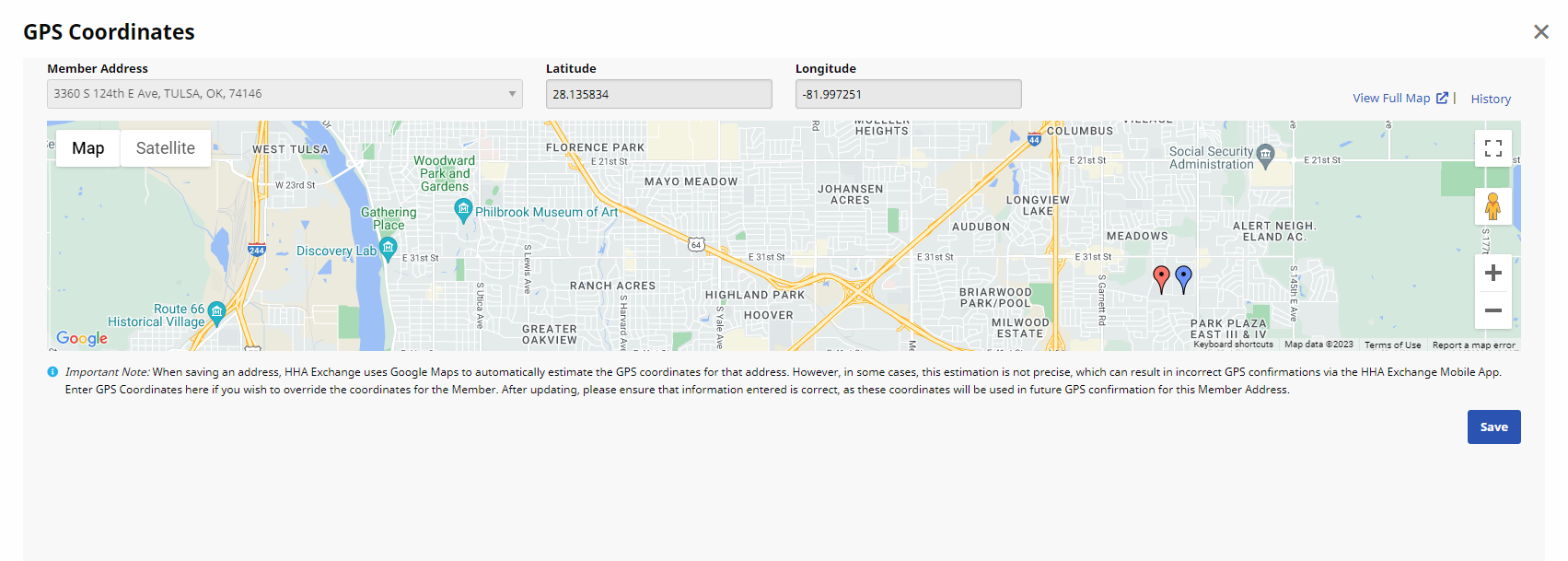
The GPS Coordinates page opens, displaying the coordinates of the EVV using Google Maps. The map contains a red marker for the current Google Map coordinates associated with the Patient’s address and a blue marker for the Caregiver’s coordinates at the time the EVV was placed. The Latitude and Longitude fields (above the map) indicate the coordinates where the EVV was placed.
-
The Patient’s Primary Address is selected by default. If multiple addresses are on record, select the applicable address from the list.
-
Click Save at lower right to overwrite the Google coordinates with the EVV coordinates.
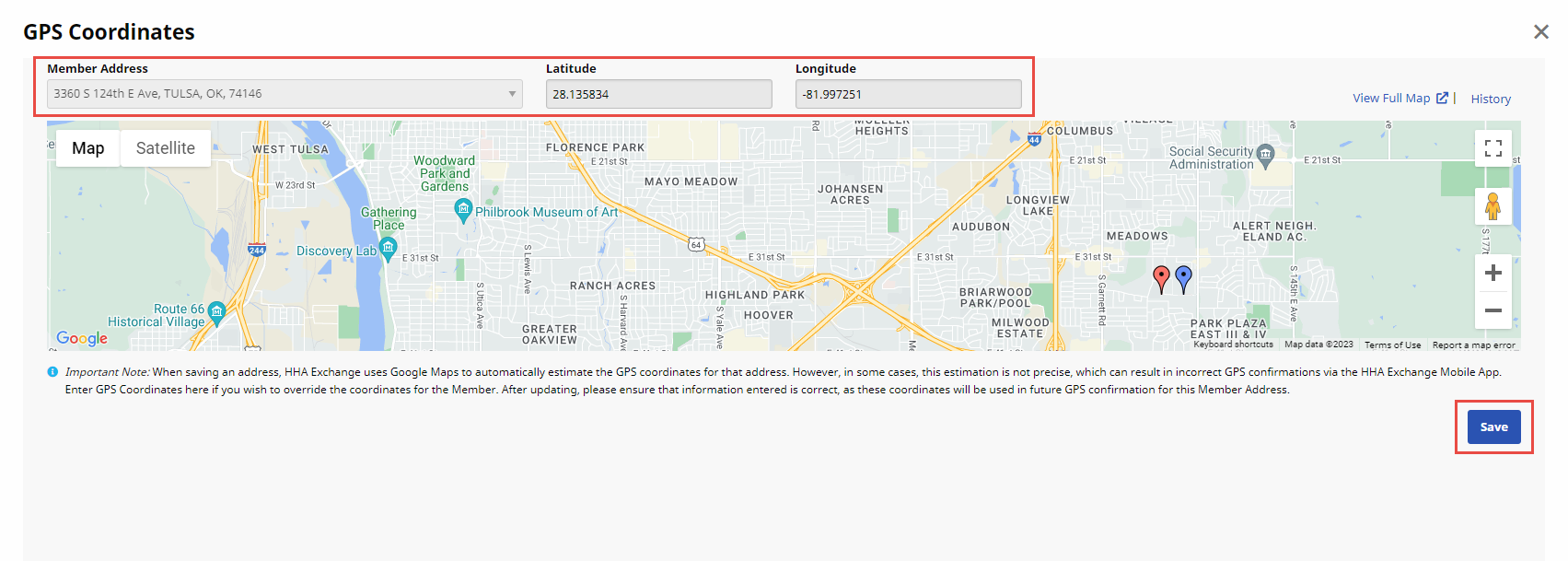
The Latitude and Longitude values on this page cannot be edited. These represent the EVV data received by HHAeXchange.
-
-
When a confirmation message alerts you that all future GPS-based EVV for the Patient is authenticated using the updated coordinates, click OK to confirm and save.
-
On the Call Maintenance tab, click Search at lower left for the system to reprocess the previously held EVV. With the newly updated coordinates, the EVV is processed and linked properly to the corresponding visit(s).
An EVV that cannot be linked can be rejected. A rejected EVV is moved from the Call Maintenance tab to the Rejected Calls tab. The following is an example of rejecting an Unsuccessful EVV.
Caregiver placed an EVV. The Status of GPS Signal Out of Range indicates the Caller ID was blocked.
-
Click Caregiver’s name under the Caregiver Name column to confirm the visit on 5/2. This opens a menu containing additional schedule information.
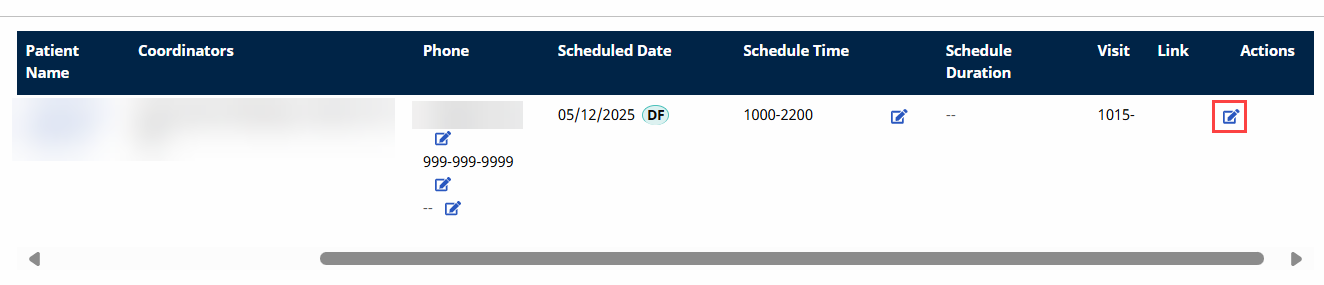
In this example, the visit cannot be linked because the system could not verify the Caller ID. Therefore, there is no way to confirm if the EVV was made from the Patient’s home. Moreover, without a number to save, the Link option does not appear.
-
Click the Edit icon to open the visit details and select the Timesheet Required checkbox. To verify this visit, the Caregiver must submit a physical, signed timesheet to confirm the shift.
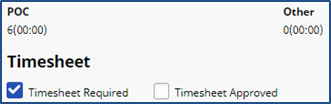
Once the Caregiver hands in the Timesheet, approval must be manually entered in the system by selecting the Timesheet Approved checkbox on the Visit Window.
-
On the Call Maintenance tab, click Reject under the Action column.

-
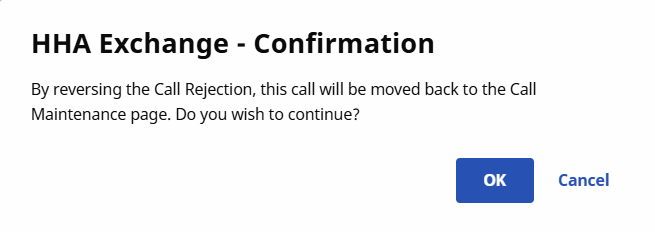
Click OK to confirm the rejection.
-
After confirming, the EVV is removed from the Call Maintenance tab and placed on the Rejected Calls tab of the Call Dashboard.
Rejected Calls may be reversed if an EVV was mistakenly rejected. Reversing a rejected call sends it back to the Call Maintenance tab, where the EVV can be linked to the appropriate visit. Complete the following steps to reverse a rejection in the system.
-
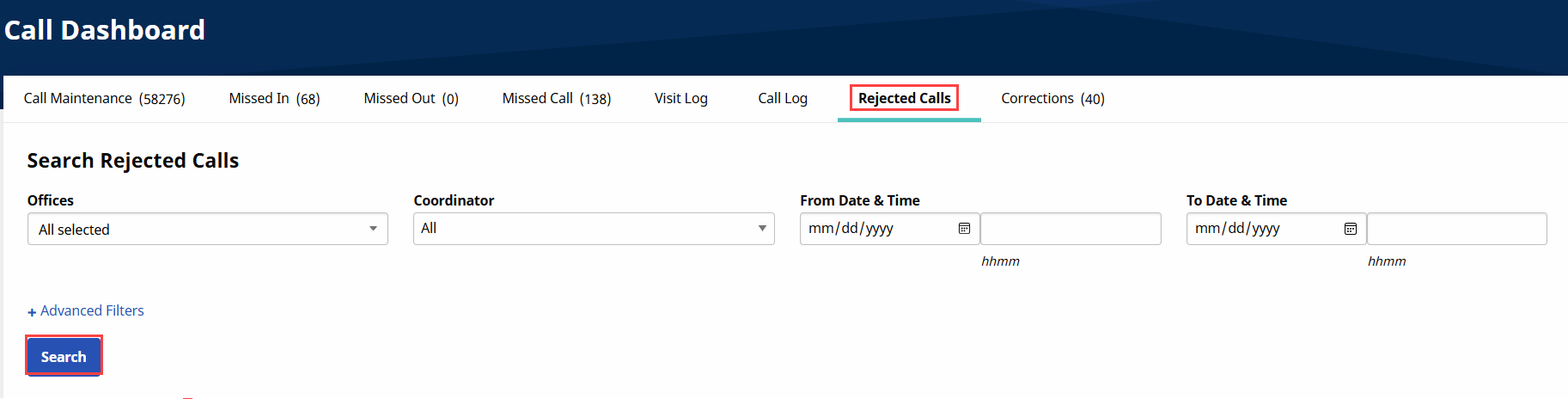
Go to Visit > Call Dashboard select the Rejected Calls tab, and click Search.
-
In the search results, locate the call and click the View icon in the Actions column to see Call Rejection Details.
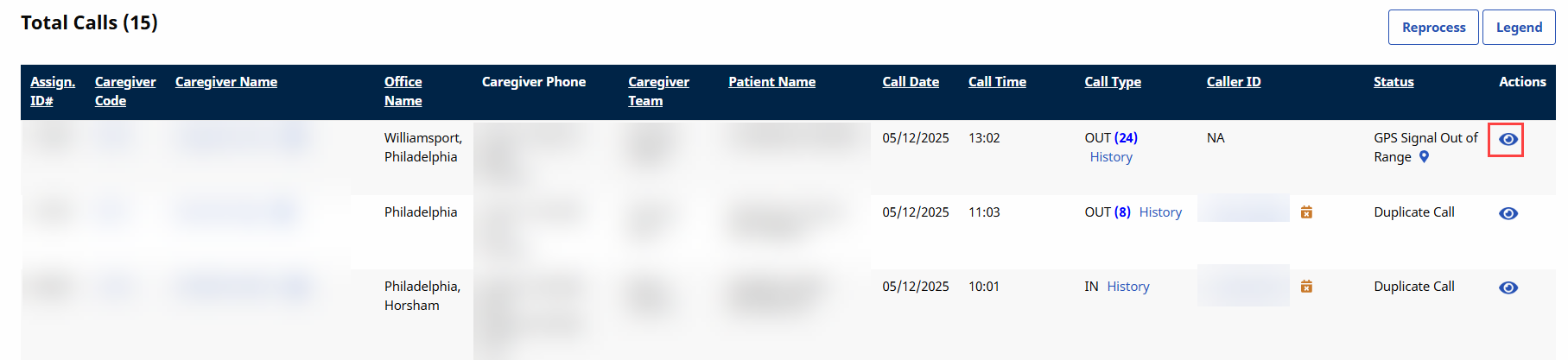
The Call Rejection Details include who rejected the EVV and the date and time of its rejection.
-
In the Actions column, click the Reverse Call Rejection link.

-
Click Yes to confirm your actions.
-
The EVV is removed from the Rejected Calls tab and routed back to Call Maintenance.

-
Link the EVV to the appropriate visit.
An EVV can be rejected and reversed multiple times. Call Rejection Details maintains a record of each rejection.