EVV-Based Visit Scheduling and Confirmation
If a Patient requires immediate service outside of their normal schedule, EVV can be used to schedule and confirm visits, as follows:
|
Option |
Description (How it works) |
|---|---|
|
Automatic Visit Creation Based on EVV Confirmation |
Identify incoming EVV placed for Patients under a specific Contract and using the confirmation details to schedule and confirm the visit. |
|
Automatic Creation of Schedules |
Review all EVV received by the system that could not be matched to scheduled visits and use to create partially or fully confirmed visits. |

The following criteria must be met to use the Automatic Visit Creation functionality:
-
The Automatic Visit Creation Based on EVV Confirmation field must be selected on the Contract Setup page.
-
Patients who are receiving services under the associated Contract must have a Default Service Code.
-
The discipline providing service to the Patient must have a Default Pay Code.
-
Caregivers must place the EVV (both Clock In and Clock Out) from a single and verified Patient phone number. If either call ends up on Call Maintenance, the system is not able to generate or confirm the visit.
Follow the steps below to complete the Contract Setup required to permit EVV-based visit scheduling and confirmation for a specific Contract.
-
Go to Admin > Contract Setup > Contract Search and select a Contract.
-
Select the Scheduling / Confirmation tab at the top of the page, and scroll to the Scheduling Configuration section.
-
In the Scheduling Configuration section, select the Automatic Visit Creation Based on EVV Confirmation checkbox. Click Save.
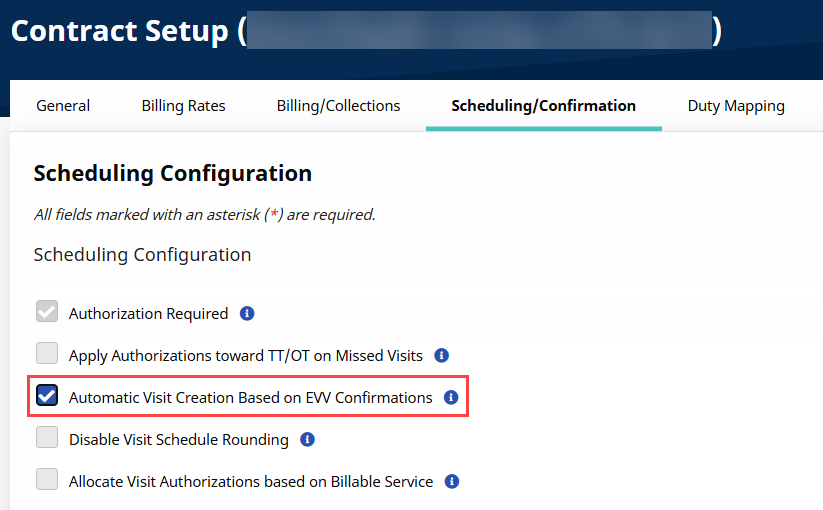
Going forward, the system uses EVV from visits scheduled under this Contract to create and confirm Visits.
For the system to automatically generate a visit based on EVV information, all Patients receiving service under the associated Contract must have a Default Service Code. Complete the following steps to enter a Patient’s Default Service Code.
-
Go to Patient > Search Patient and select a Patient.
-
In the Patient Profile, open the Contracts page and look for a Service Code in the Service Code column.

-
If no Service Code is associated with the Contract, click the Edit icon
 in the Service Code column and select a code.
-
When a Service Code is selected, click Update in the Service Code column.

The Patient now has a Default Service Code for the Contract.
Automatic Visit Creation can be deactivated at any time for a specific Patient by going to Patient > Patient Profile > General and then selecting the Disable Automatic Visit Creation Based on EVV Confirmation checkbox.
For the system to apply a Pay Code to the Visit, the discipline providing service for the Patient needs a Default Pay Code. Complete the following steps to apply.
-
Go to Admin > Reference Table Management.
-
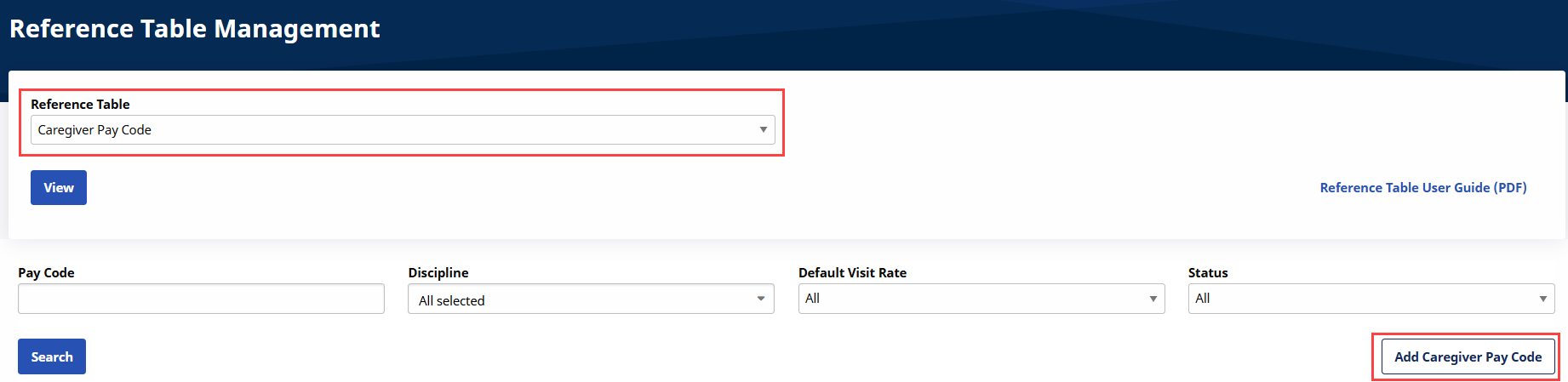
Select the Caregiver Pay Code Reference Table list.
-
Click View to view the existing Pay Codes. To add a new Pay Code, click Add Caregiver Pay Code.
-
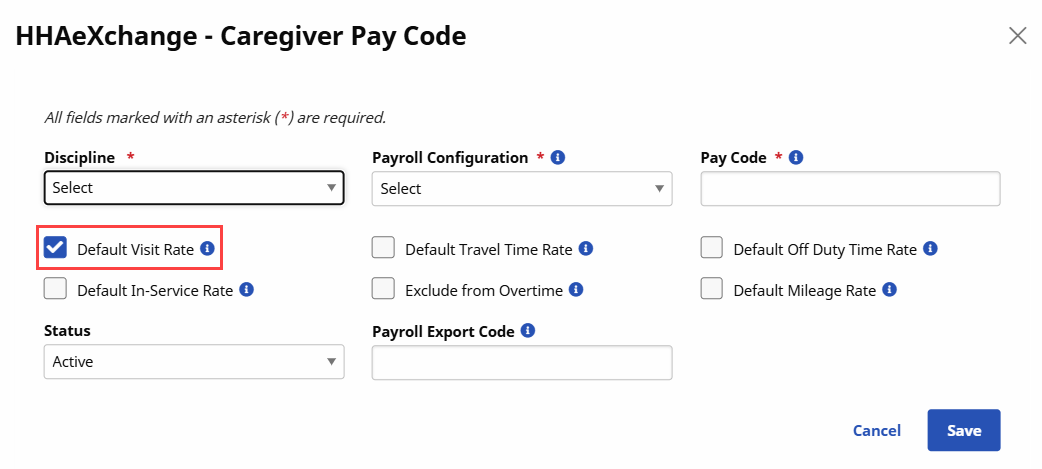
The Caregiver Pay Code window opens. Complete the required fields. Select the Default Visit Rate checkbox.
-
Click Save. Going forward, the system automatically applies this Pay Code to visits scheduled with the associated discipline.