EVV Configuration
Agencies must determine the functional parameters of EVV confirmation and properly manage information and settings on Patient and Caregiver Profiles. This ensures proper usability and success of EVV.

The flowchart below illustrates the EVV process flow in the HHAeXchange system.
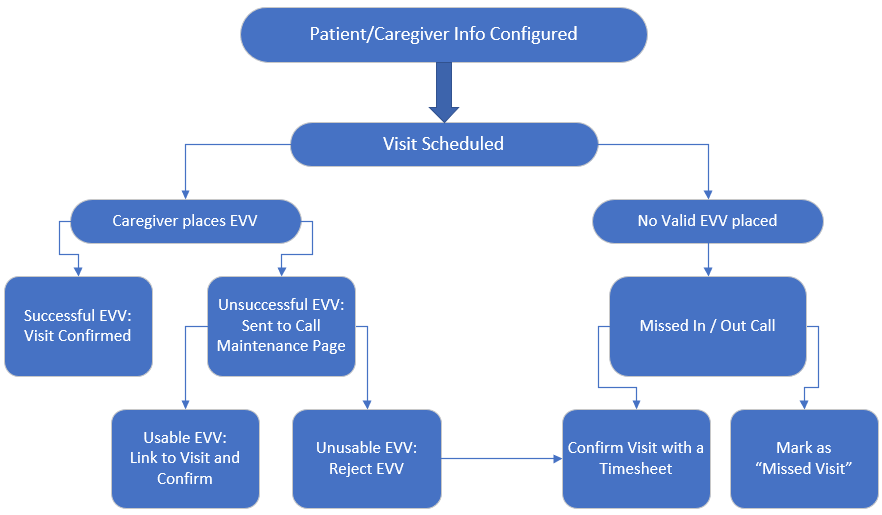
Some Agencies may have their own internal policies for EVVs and manual visit updates. Ensure to check with your Agency’s Compliance Officer to confirm internal practices and procedures.
EVV confirmation can be made using the following methods:
-
Home Phone Landline: Caller ID
-
Mobile Method: Global Positioning System (GPS)
-
Fixed Object (FOB) /Alternative Device: FOB code
Each method must be activated and set up manually by the Agency on the Agency Profile and Office Setup pages.
Go to Admin > Agency Profile to set up EVV configuration at the Agency level. The system stores up to three unique phone numbers for every Patient. In the Accept Time and Attendance Call From field, determine which of these phone numbers is to be used for Caller ID-based EVV.

Go to Admin > Office Setup to set up EVV configuration at the Office level, as described in the table below.
|
Field |
Description |
|---|---|
|
Mobile GPS Visit Verification /Tolerance Range (ft) |
Allows Caregivers to place EVVs using the Mobile App. The Tolerance Range(ft) field refers to the acceptable distance from which a Caregiver can make a valid EVV. If the Tolerance Range is set to 250 feet, the Caregiver can successfully place an EVV using GPS within 250 feet of the Patient’s address.
|
|
Mobile Fixed Visit Verification |
Allows Caregivers to enter FOB (Alternative Device) codes using the Mobile App.
|
|
Unbalanced Tolerance |
Gives Caregivers a time range for linkable EVV. For example, if the Unbalanced Tolerance is set to 15 minutes, the Caregiver has 15 minutes from the scheduled start time of the visit to place an EVV. If the Caregiver tries to place an EVV outside that time range, the EVV will not link to the visit.
|
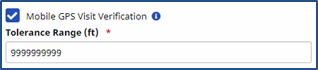


The Caregiver must be within the Office’s Tolerance Range of the member’s GPS address in HHAeXchange (for example: within 250 feet) to perform a successful EVV clock in or clock out.
The HHAeXchange+ Mobile app displays the user location when clocking in or out and informs the user when they are outside the Tolerance Range. When a clock in or clock out is performed outside the Tolerance Range, the mobile app prompts the user to select an alternate service location for example: Family Home, Neighbor Home, or Community.
If the Caregiver is outside the Tolerance Range but indicates they are at the Patient Home, the mobile app flags the visit as an EVV exception and sends it to the Call Dashboard for review.
When a Caregiver Clocks In or Out, the system verifies the EVV based on information maintained on the Patient’s General and Profile pages. Follow the steps below to enter and maintain Patient confirmation information.
-
Go to Patient >General and select the Edit button.
-
The EVV settings are in the General section.
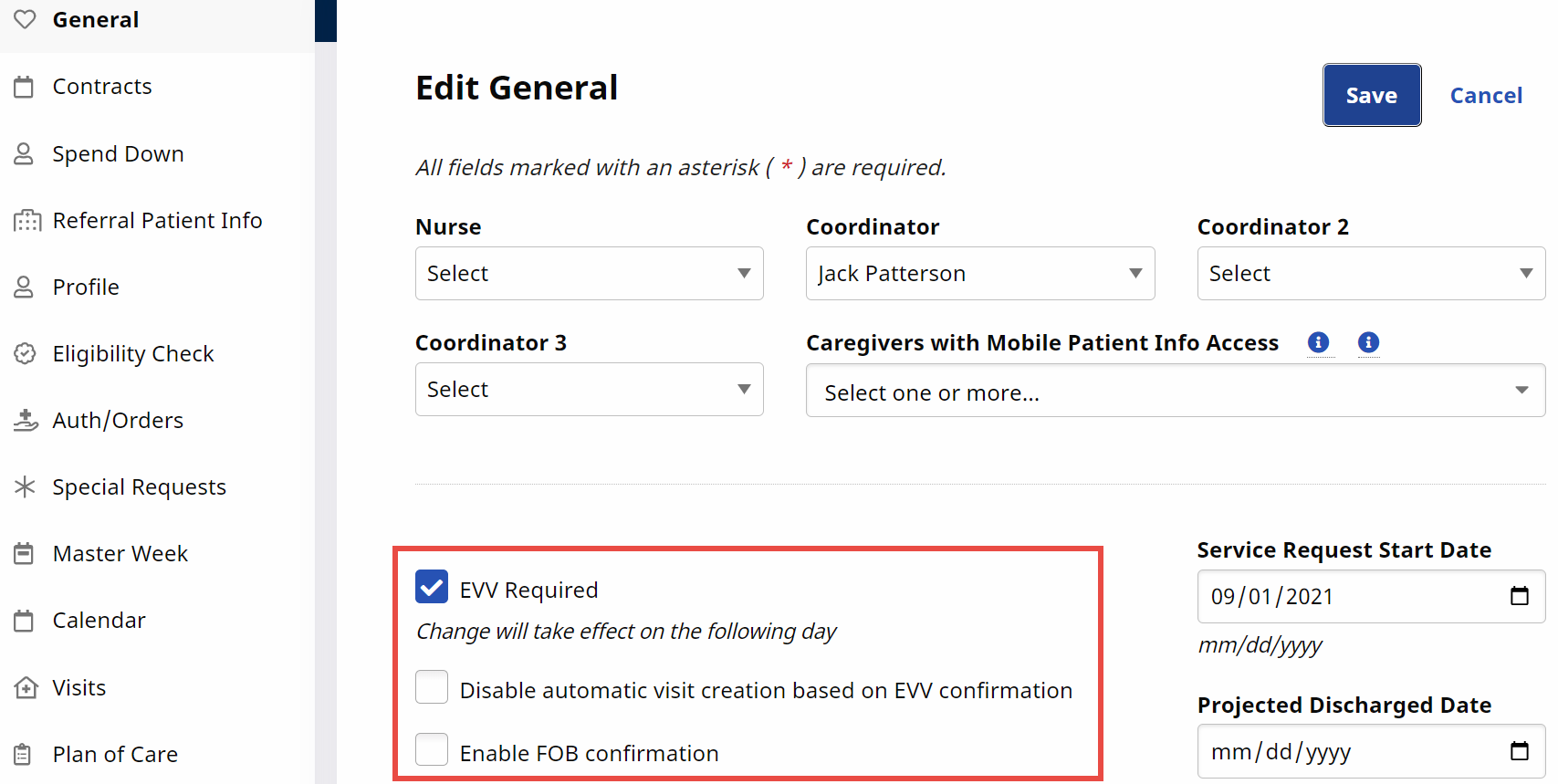
Field
Description
Caregiver with Mobile Patient Info Access
Select Caregivers (Service Providers) to grant them access to the Patient’s clinical info. These Caregivers can view clinical information in the Mobile App.
EVV Required
This checkbox is automatically selected when a Referral converts to a Patient.
Enable FOB Confirmation
Select this checkbox if the Patient uses an FOB device. Enter the required FOB Device ID and FOB Seal ID fields (if this option is selected). The Caregiver must enter the Device ID each time an EVV is entered. Select the FOB Location (address) assigned to the FOB in the system.
-
Select the Patient’s Profile page and go to the Address section.
-
Complete the Patient’s demographic information. Multiple Addresses can be entered for a Patient as a GPS-enabled Address Type. Verify that all addresses are accurate, as the system uses these values to validate EVV confirmations.

-
For other forms of EVV, the Patient Phone Number(s) is used to confirm an EVV. Verify the Phone Number Information on the Patient Profile.

Refer to the Track Location Where EVV is Performed topic for full details on linking a Patient Phone Number to an EVV method.
Caregivers must enter their Time & Attendance PIN (Assignment ID) to verify their identity whenever placing an EVV (using an approved phone). This allows the system to match their call with the proper visit.
In the classic Mobile App, EVVs require a Mobile ID verification number that is issued when a Caregiver creates a profile on the Mobile App. Caregivers must provide this Mobile ID to the Agency to link with the system. When the Agency enters the ID on the Caregiver’s Profile page, the system recognizes EVVs placed from the Caregiver’s Mobile App.

After the Caregiver Mobile ID has been entered, the system requires a Mobile ID Type.
In the HHAeXchange+ Mobile App, the Provider generates an Activation Code in the Caregiver Profile. The Provider sends the Activation Code to the Caregiver to complete their Mobile App registration.
In the Caregiver Profile, select Clinical to allow the Caregiver to review the Patient’s medical and clinical information if they have been granted access to this information. The Caregiver cannot view any medical or clinical information if Non-Clinical is selected.