Edit Visits
There are two ways to edit visits via the Appointments page. Follow the steps in each option type to edit visits from this page.

-
Go to Visit > Appointments and generate a search to locate the desired visit based on the Patient or Caregiver.
-
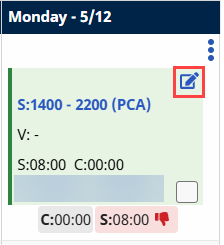
Hover the cursor over the visit cell and click the edit icon on the top-right corner of the cell.
-
The Schedule Time fields open (1) and the Caregiver field turns blue (2). Make the desired edits to the visit and click Save.
-
Click Save to save the changes. Click the Delete
 icon to delete the assigned Caregiver. Click Cancel to cancel any changes made.
-
Go to Visit > Appointments and generate a search to locate the desired visit based on the Patient or Caregiver.
-
Click the Schedule Time of the visit and select View Visit Details from the menu to open the Visit window.
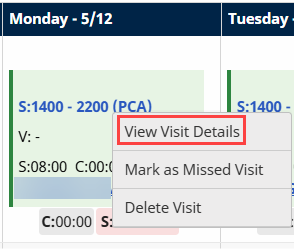
Other options include:
-
Mark a Missed Visit
-
Delete Visit
-
Search for a Caregiver using the Availability Search and Smart Map Availability functions.
-
-
On the Visit window make the necessary edits and click the Save button.
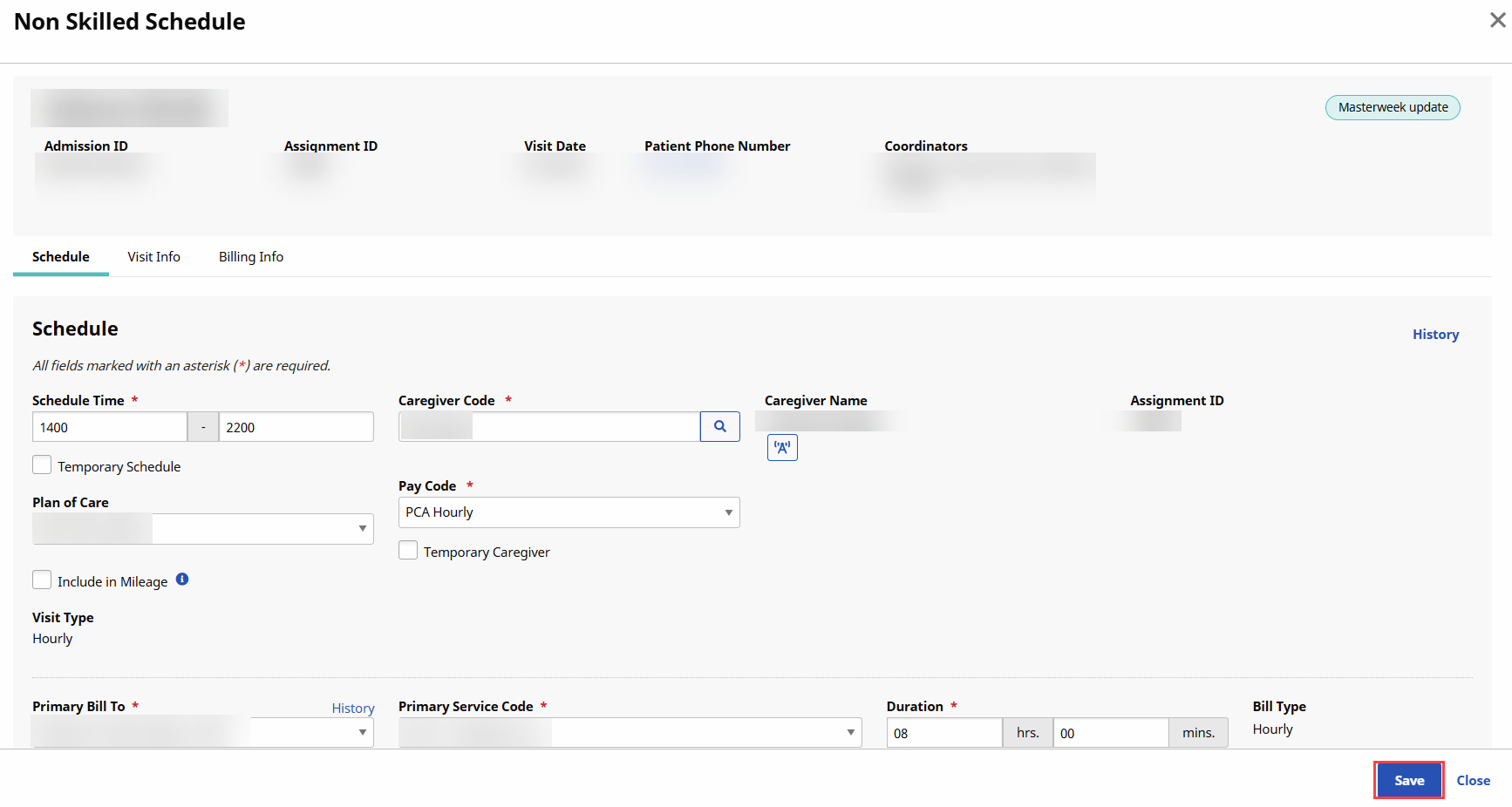
Follow the steps below to edit multiple visits simultaneously via the Bulk Update function.
-
On the Appointments grid, hover the cursor over the visit cell and select the blank checkbox on the bottom-right corner. Repeat to select multiple visits.
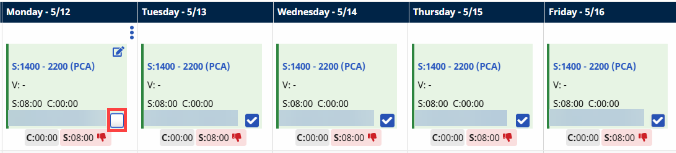
-
When one or more visits are selected, two buttons appear directly above the visit cells: Clear Selections and Bulk Update. Select Clear Selections to unselect all visits or Bulk Update to apply a schedule or confirmation change to all selected visits.

-
Select desired Bulk Update action, make the edits and Save to finalize.
Visits can also be moved by a drag and drop mechanism. Follow the steps below.
-
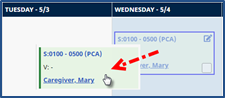
On the Appointments grid, hold the left mouse button to lift the entire visit cell.
-
Drag the cell to the desired cell.
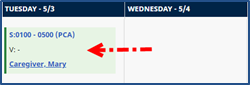
Visits can only be dropped in a grid cell for the same Patient.