Overtime Dashboard
The Overtime Dashboard allows one to review all overtime authorizations made and the number of overtime hours worked. Complete the following steps to review information on the Overtime Dashboard.
-
Go to Action > Overtime Dashboard.
-
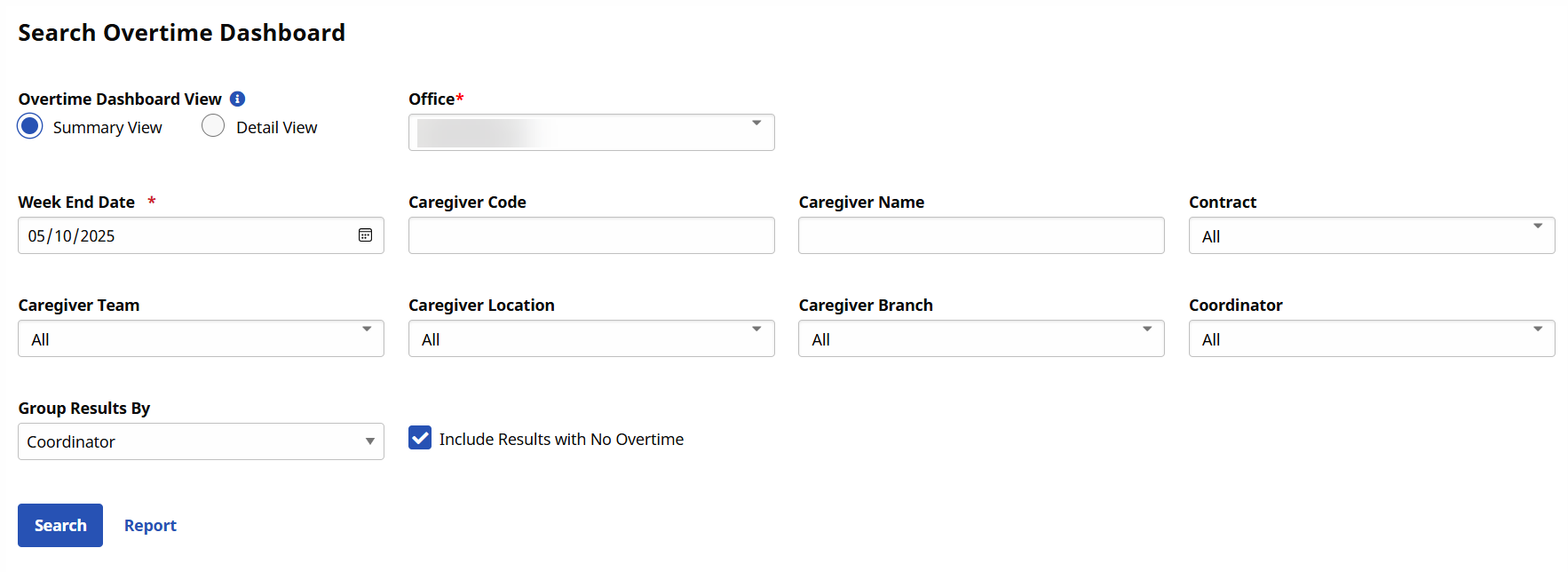
Use the search filters to search and view overtime information for a specific Caregiver, week, or the number of authorized hours for a specific user. The Office field is required to perform a search.
Only a single Office can be searched on the Overtime Dashboard at a time.
-
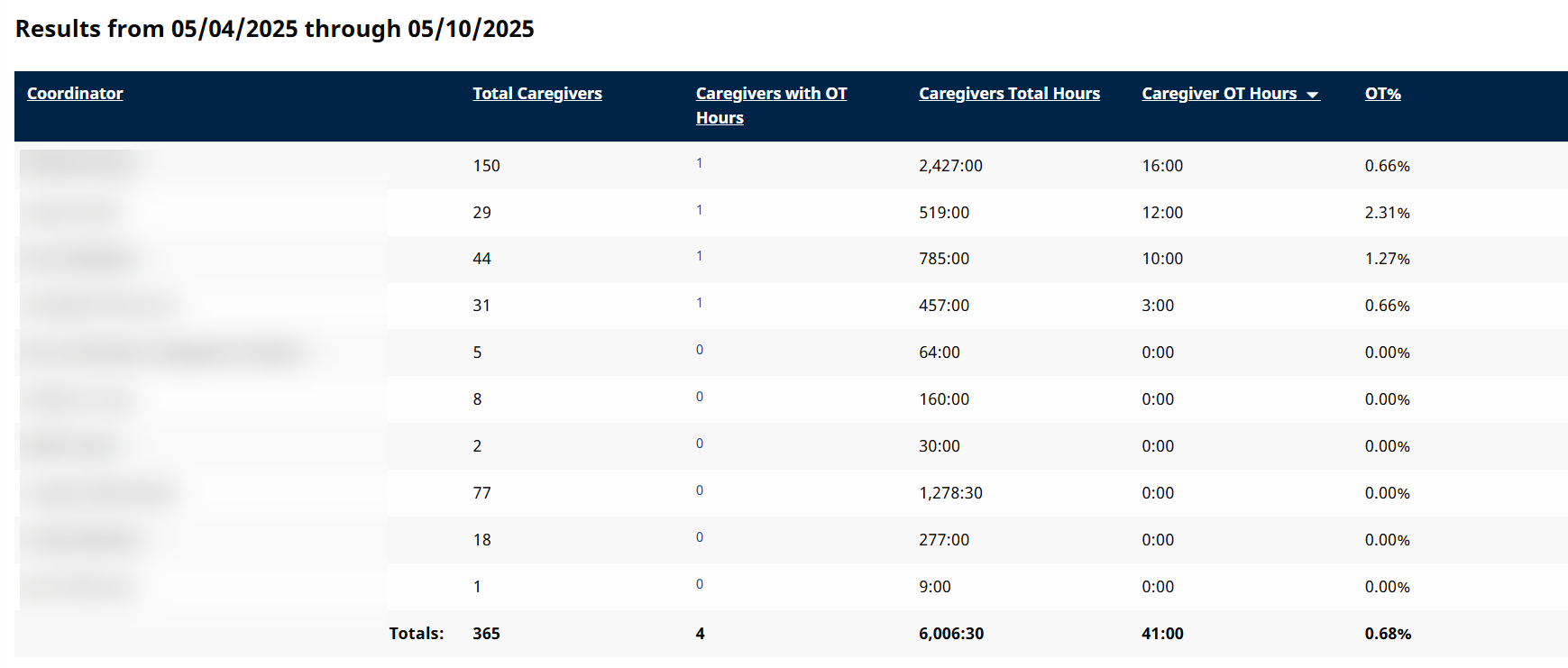
If viewing in Summary View, the results show summary totals for Overtime Scheduling grouped by the authorizing Coordinator, the Caregiver Team, the Caregiver Location, the Branch, Contracts, or Override Reason.
-
If viewing in Detail View, the results show a full detailed listing of Caregivers with overtime for the selected week.
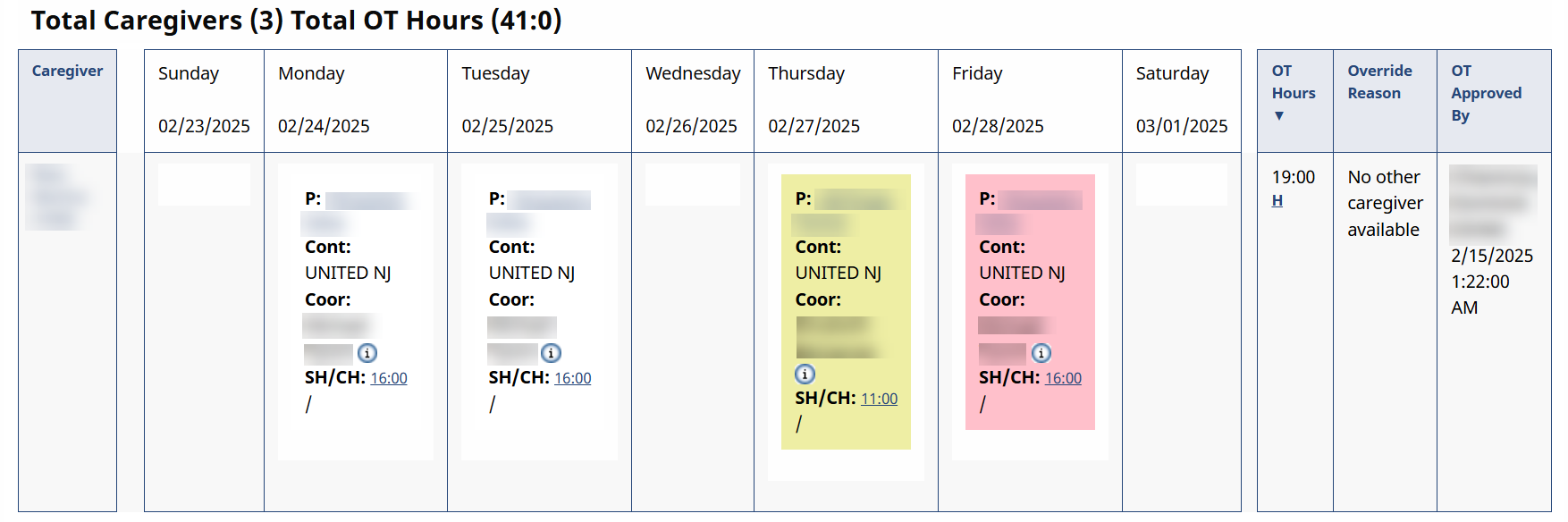
Visits highlighted in yellow indicate that the Caregiver begins accruing overtime for the visit. Visits highlighted pink indicate that the Caregiver receives overtime for the entire visit. The Override Reason and overriding user also display for reference.