Select a Caregiver for a Visit
There are several ways to search for and add Caregivers to visits, including Availability Search, Caregiver Search, or Assign to Temp. This section covers the Caregiver Search and Assign to Temp methods, that are used as a placeholder to create a visit in the system.
Caregiver Search options vary depending on the Provider platform.

The Caregiver Search function allows users to search for a specific Caregiver using filters, such as Discipline, Team, and Location to sort the search results.
Complete the following steps to perform a Caregiver Search when scheduling a visit.
-
Go to Patient > Search Patient enter values in the search filters and click Search.
-
Select the Patient from the Search Results and click Calendar on the left navigation menu.
-
Select the desired Visit from the Calendar to open the Visit page.
-
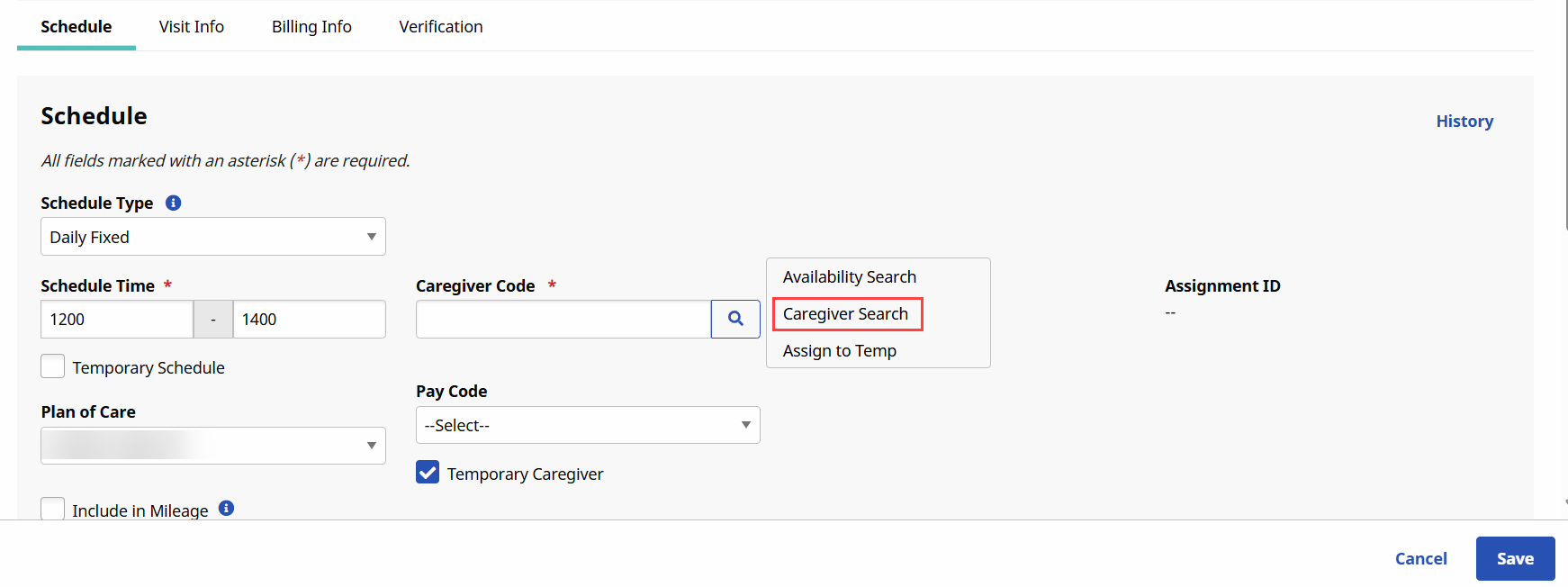
On the Schedule tab, click the Search Icon to the right of the Caregiver Code field. Select the Caregiver Search option.
-
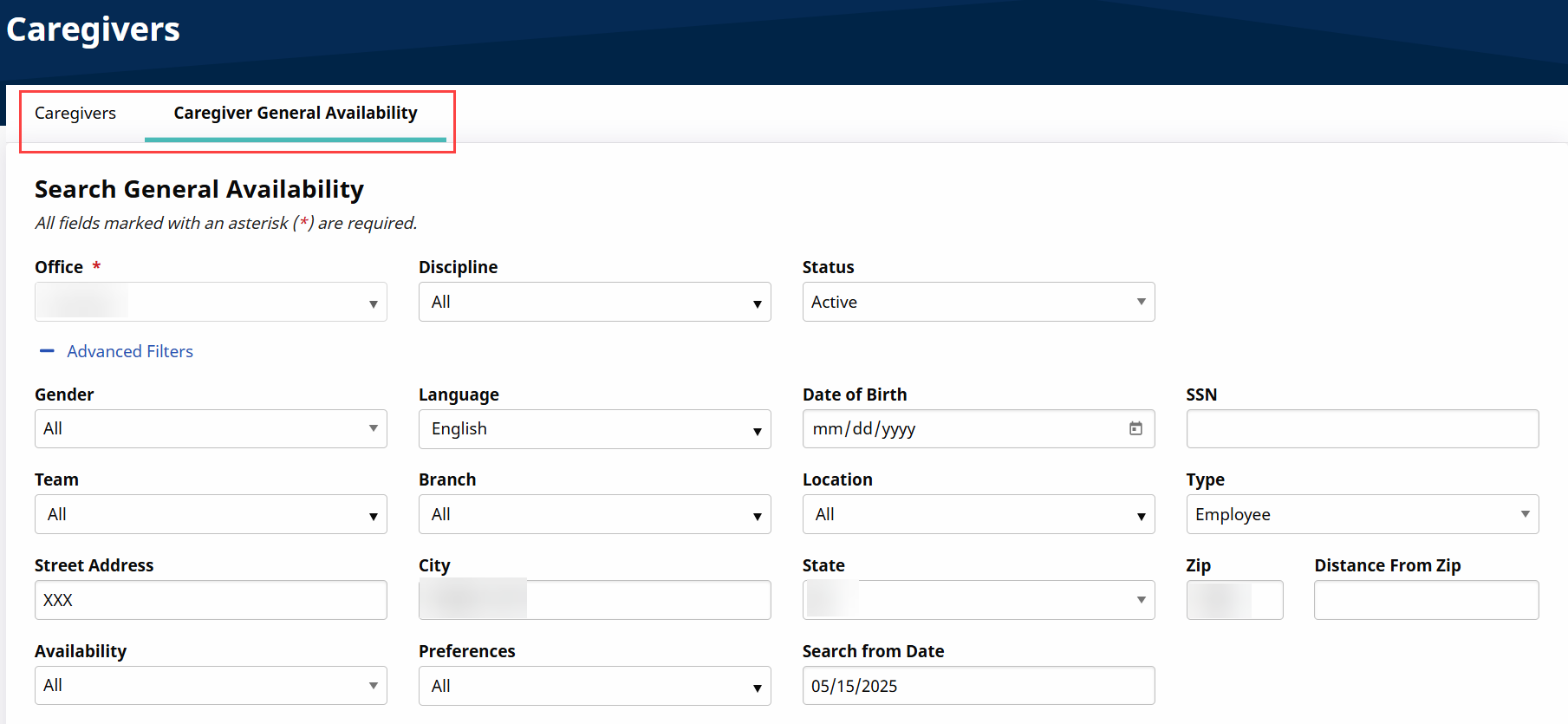
The Search Caregivers window opens. Enter values in the filters to generate a search.
-
The Search Results return Caregivers based on the filter selections. Click the Caregiver Name link to assign the shift.
The Caregiver Hours show the number of hours a Caregiver is already scheduled for the week. This total displays in red if over 40 hours, in orange if over 30 hours, and in black for any amount under 30.
-
The selected Caregiver populates on the Schedule tab in the Caregiver Code field.

If a Caregiver is not available to assign or unknown when scheduling a visit, then select the Assign to TEMP option to place a temporary placeholder to save the visit.
-
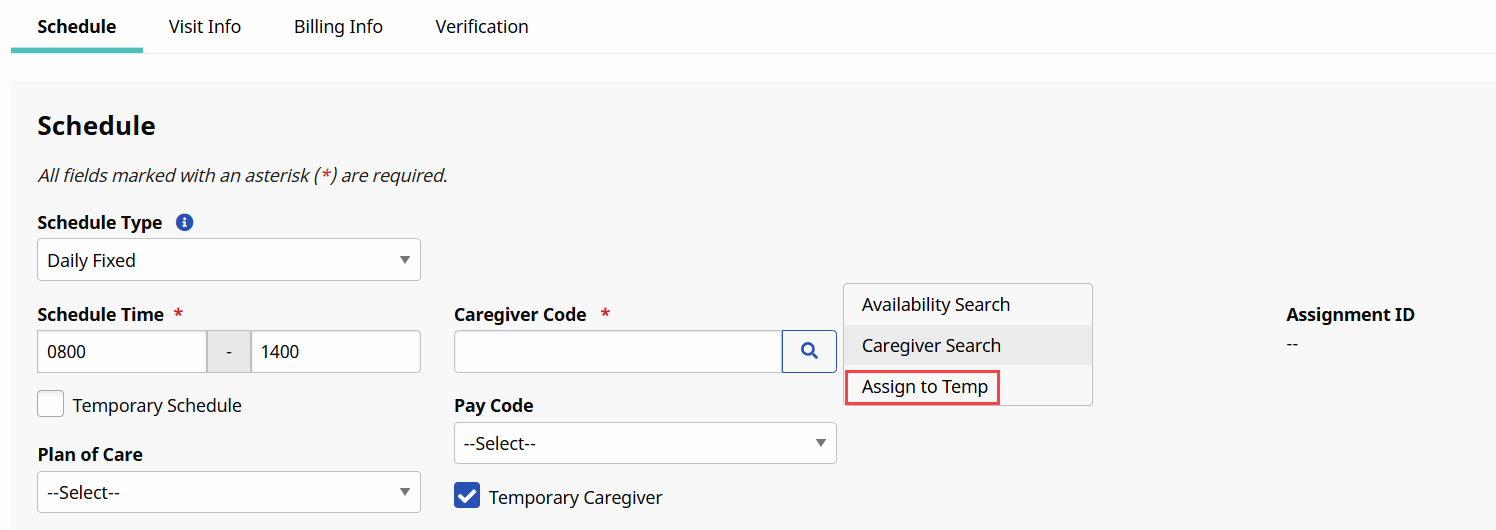
On the Schedule tab, click the Search Icon and select the Assign to Temp option.
-
The Caregiver Code field is populated by the Temp Code (with the Temp Temp name).
User can also manually enter 1000 or Temp in the Caregiver Code field to assign a temporary placeholder to the visit.

-
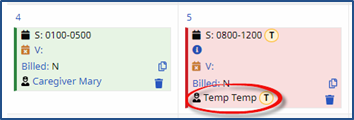
Once saved, the visit displays with a Temp Caregiver on the Calendar page.
-
Once an actual Caregiver is found, revise the visit and replace the TEMP Caregiver with the confirmed Caregiver.
To see a list of all visits with assigned TEMP Caregivers, navigate to Visit > Visit Search and select Display only open schedules checkbox field.

If the Caregiver Code field is not updated by the time of the visit, EVVs placed by the Caregiver do not sync to the visit. The visit is held on the Prebilling Exception page until the calls are linked to the visit and a user manually enters a real Caregiver in the Caregiver Code field.