Client Support Portal
In the Client Support Portal, you can
-
Review known issues (Service Announcements).
-
Submit a support case to our technical customer care team.
-
Communicate with the team once they reach out via email. You must log back in to the portal to see responses from the team.

For technical, claims, or billing questions, first check the Knowledge Base for information on your issue.
If you don't find what you need, go to the Client Support Portal. There you can check for known issues and/or submit a support case.
You can access the portal at any time from the bottom of this page or any other page in the Knowledge Base. Select "Submit a Ticket." This will take you to the Client Support portal login page.

Log in using your support account credentials. If you do not have a support account, you can sign up for one on the Client Support Portal login page.
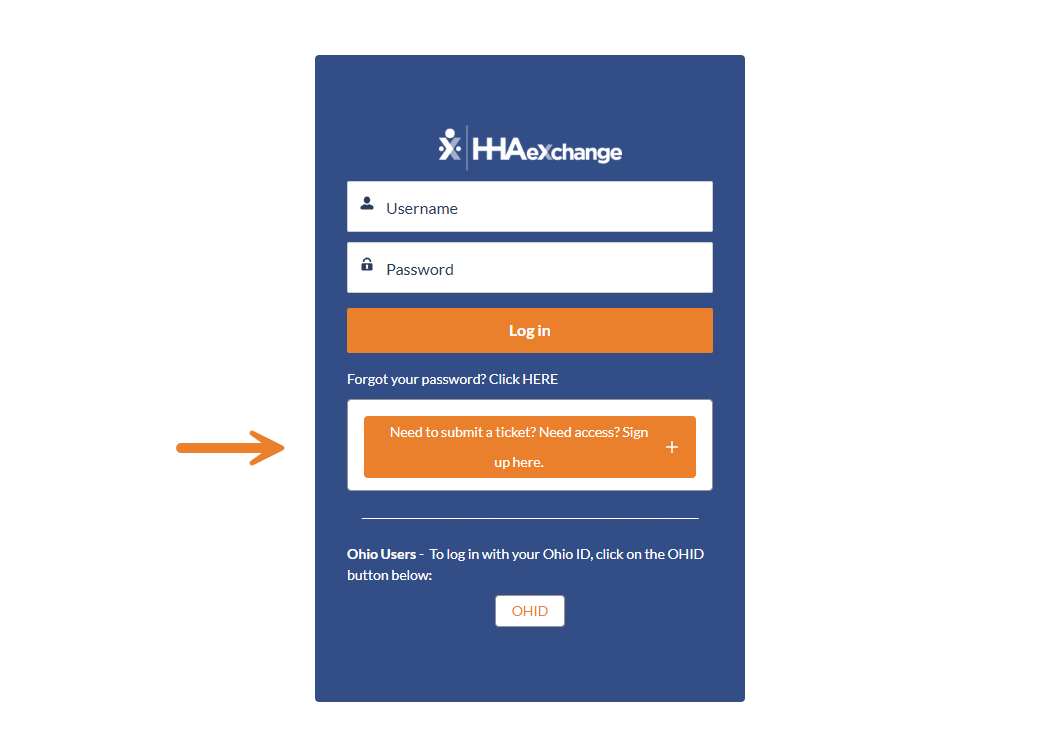
To sign up, select the button shown in the screenshot below.
Next, fill in the requested information, including the platform you are using, and your Customer ID.
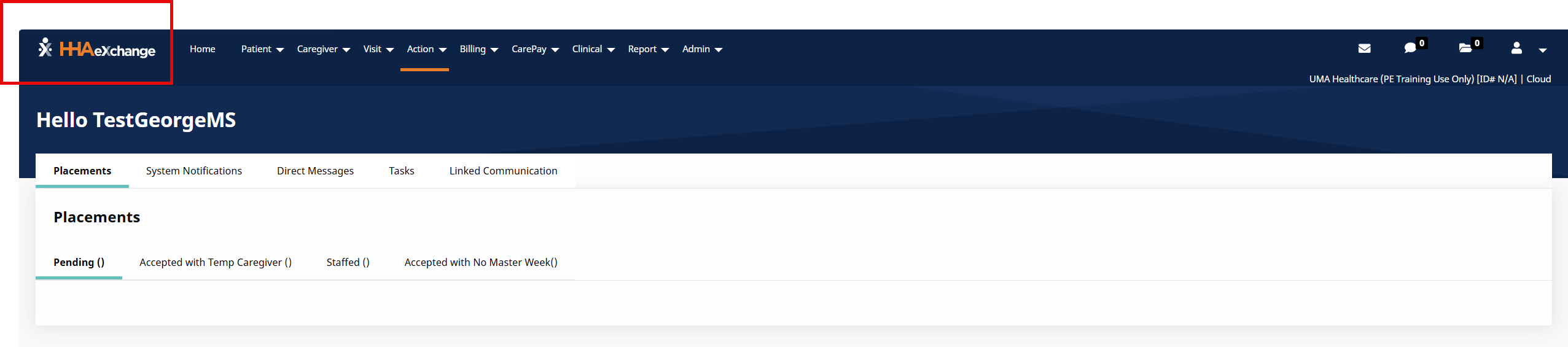
To identify your platform, look for the logo at top left when you are logged into your main account.
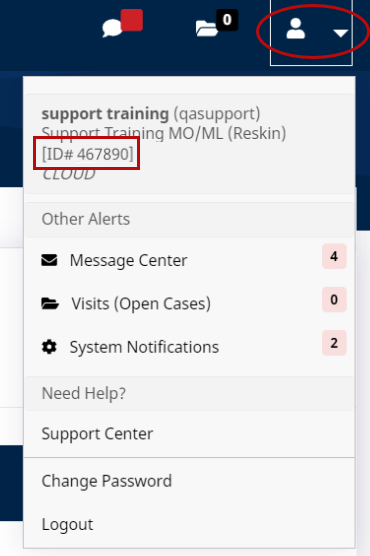
To find your Customer ID, click on the profile icon at top right when you are logged into your main account. Your ID is in the drop-down menu.
Once you submit your support account request, a Technical Support Representative will contact you by email to complete your registration. Check your spam folder if you do not receive the email.
In the client support portal, first check Announcements.
Here you can see whether your issue is known to our technical customer team or system-wide, and if it's being addressed.

If you don't see your issue here, submit a support case to the technical customer care team.
In order to connect with a member of the technical customer care team, you will need to take two key steps.
Step 1: Open a Support Case.
Open a case in the Client Support Portal. Follow the guidelines below. Be sure your information is accurate and complete.
Step 2: Log back in to the portal to see the response from technical customer care team.
You will receive an email alert when the team responds. You must log back into the Client Support Portal to see the full message and communicate with the team. Responses may be time sensitive, so be sure to monitor your email and the portal. If you will not have access to email or the portal, you may want to add a collaborator from your agency to your case. See Adding Collaborators on this page.
Guidelines for Opening a Support Case
When opening a support case, please be as accurate and detailed as possible. This will help ensure you are connected with the right support. Follow the guidelines below when submitting your case.
1. Start a case.
In the Client Support Portal, choose Support Cases from the top menu. In the drop-down menu, choose Log a Support Case

2. Select your platform.
Choose the platform you’re working with from the drop-down menu. This will be either HHAeXchange, Pavilo, Sandata, or Sandata/HDD.

Be sure to select the correct platform. If you're not sure which platform you're using, log in and find the product logo in the upper-left corner.
3. Enter the requested information.
Once you’ve selected your platform, you will be guided to provide your identifying information and describe your issue.
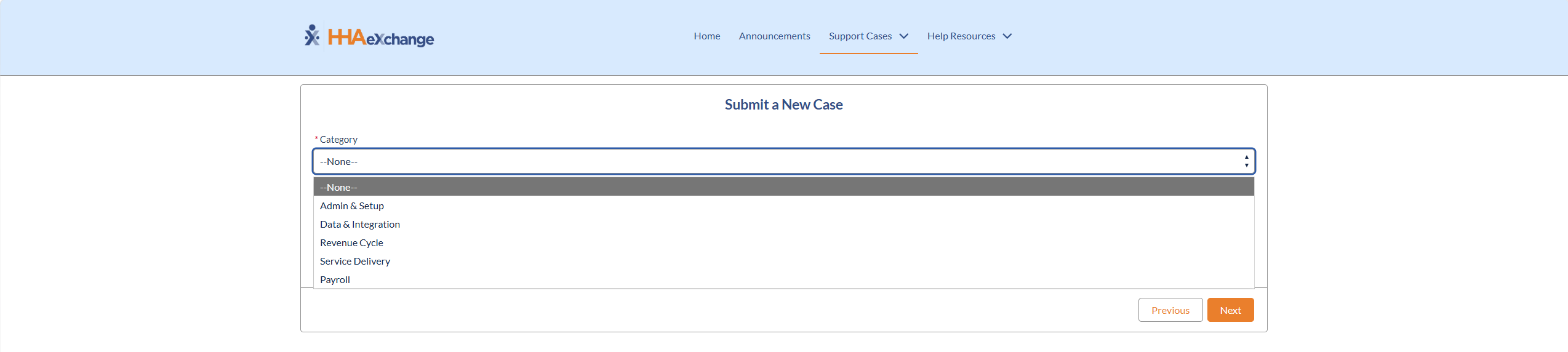
First, select a category. It is important that you select the most appropriate category for your issue to help connect you with the right support.
For HHAeXchangeusers, use the following tips to help you select a category:
-
Select Data & Integration for issues involving integrations between HHAeXchange and another system.
-
Select Revenue Cycle for issues related to
-
Billing
-
Claims
-
Denials
-
Payment Posting
-
Electronic Remittance Advice (ERA)
4. Provide a summary of your issue.
Describe your issue in detail. Be specific and include relevant details that will help the support team understand the issue.
Do not include Protected Health Information (PHI) or Personally Identifiable Information (PII) in the summary, such as patient names or addresses.
After your case is open, you will be able to add supporting documentation such as:
-
Screenshots
-
Error messages
-
Rejection notices
-
Email correspondence
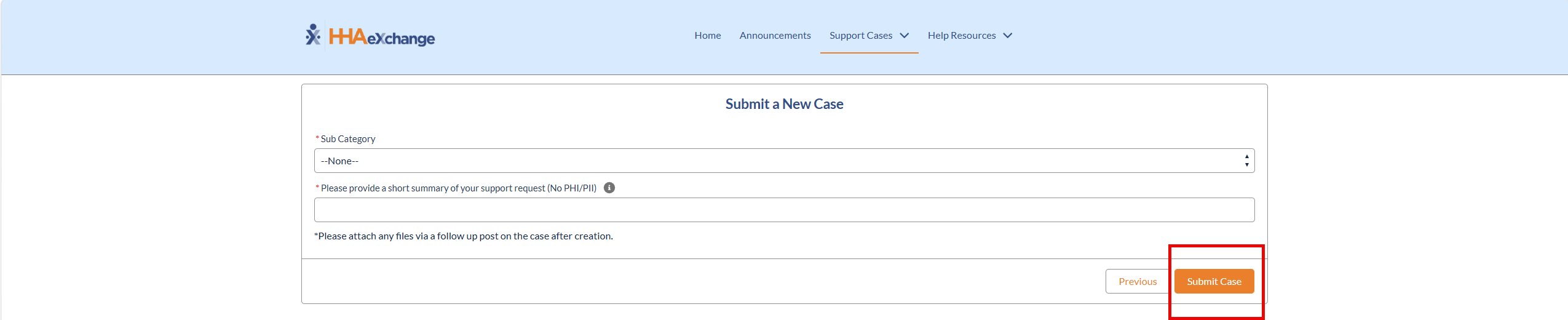
5. Submit your case.
Once you’ve entered all necessary information, click Submit Case.
-
Once you submit your case, you will receive a confirmation email.
-
When the technical customer care team responds, you will receive an email alert. You will then need to log back in to the portal to see the response.
Please monitor your email and ensure you respond to updates in a timely manner. Cases will be automatically closed if there is no response in 5 (five) days from the update. You will receive daily reminders that a response is needed. If you don’t see the alert, check your spam folder. If you will not have access to email, you may want to add someone else from your agency as a collaborator who can monitor for the response. See Adding Collaborators on this page.
-
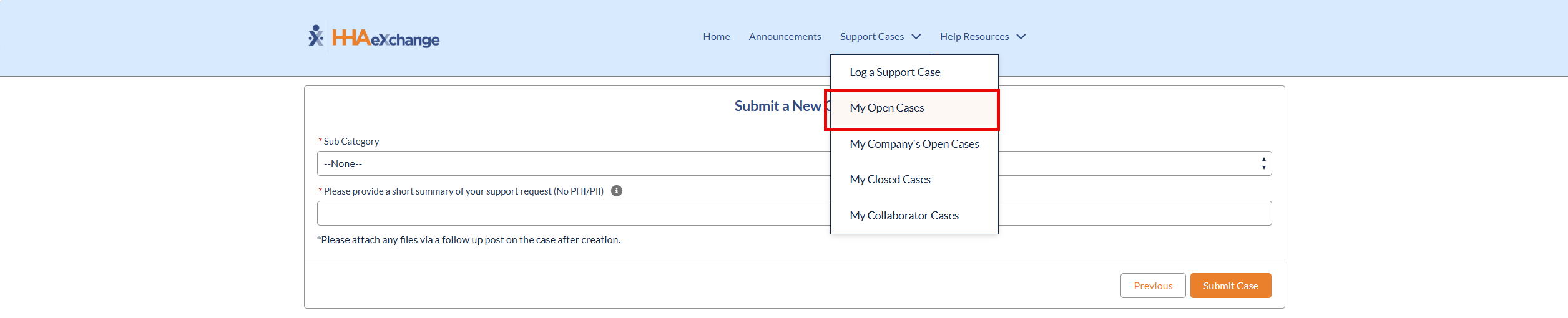
To review active support requests and responses, go to My Open Cases.
-
In My Open Cases you can
-
View support responses
-
Provide additional information
-
Upload supporting documentation
-
Monitor case status
-
Share an update with the technical team
-
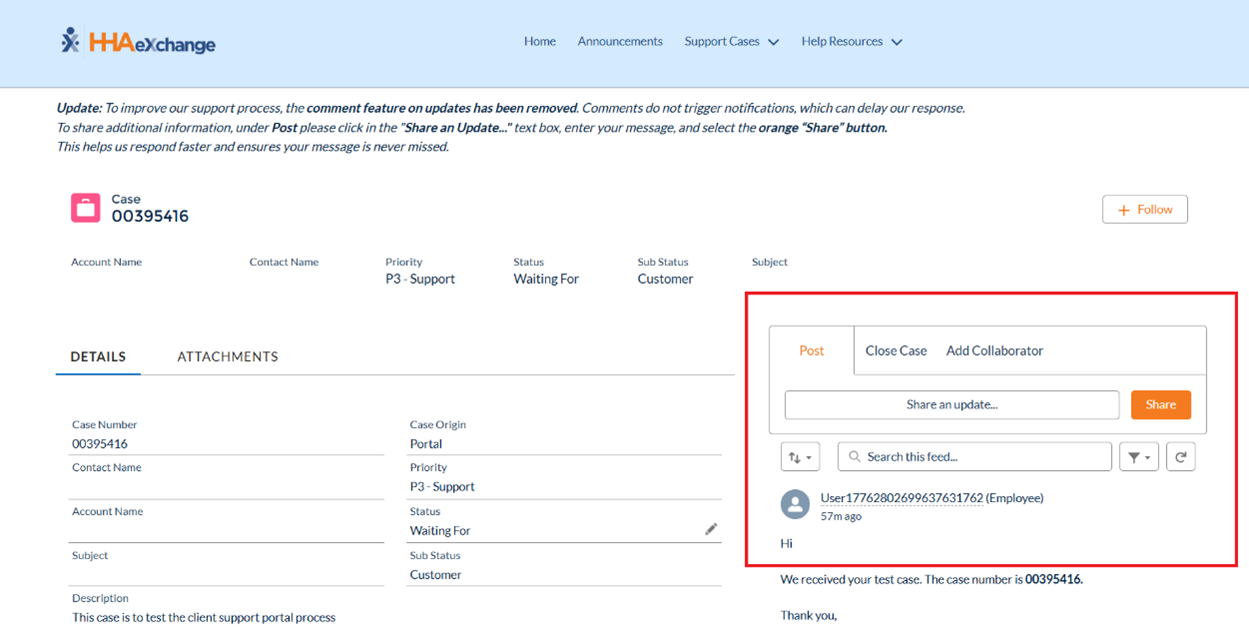
Click the Case Number of your request to view more information.
-
To open a communication with the Support Team, enter your message in the"Share an Update" area and then click the Share button.
-
See the following table for an explanation of the Status field.
|
Status |
Status Definition |
|---|---|
| New | The case has been created and is awaiting assignment. |
| Assigned | The case is assigned to a Technical Customer Care Representative to address. |
| Waiting For Customer | The case has been updated and is awaiting a response from you. The case remains in this status for 4 days, and reminders are sent out via email. On the 5th day, the ticket is marked as Resolved. |
|
Waiting For |
The case is awaiting a response from the entity listed within the Sub Status. |
| Pending Support | You have written an update in the case, and it has been sent to Technical Customer Care for review. |
| Resolved | Your request has been addressed to the best extent possible. The case will remain in this status for 3 days before it is automatically closed. An email reminder is sent before the case is closed. If you share any updates during this time, the case returns to Pending Support so further assistance can be provided. |
| Closed | This case is now closed and will no longer be addressed by our Technical Customer Care team. If you share an update in this case, a new case will be automatically created. You may also choose to create a new case and reference the closed case for continuity. |
-
Once your issue has been resolved, select Close Case. Closing resolved cases helps ensure accurate tracking of support activities
-
Provider Agencies can identify multiple staff to include as collaborators on each ticket. This will provide coverage if the staff member who originally creates the ticket is out of the office.
-
In order to be added as a collaborator, each staff member needs to register for their own Client Support Portal account.
-
Once Client Support Portal accounts have been confirmed, provider agency staff may be added as collaborators to tickets, allowing staff to view tickets and any updates from HHAeXchange Support Team.
-
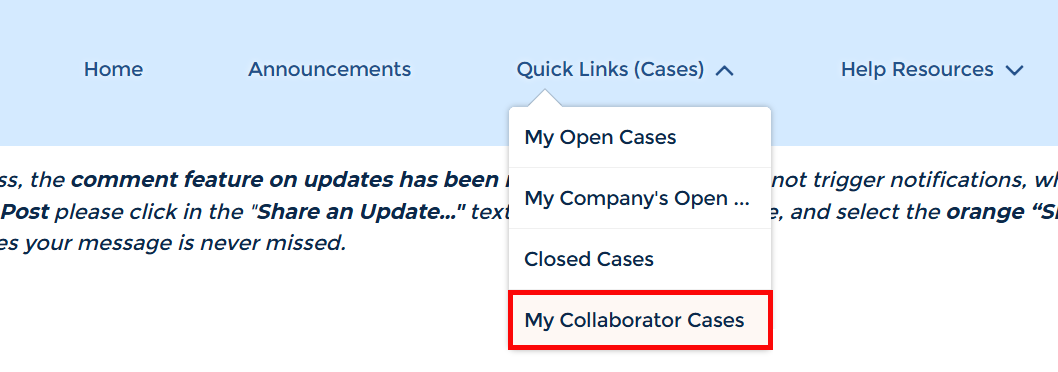
There will be times when provider agencies using Third Party EVV Vendors may also want to add vendor representatives as collaborators on Client Support Portal tickets. Please work with your EVV Vendor to identify who should be added to ticket. You can view all cases with collaborators by going to Quick Links (Cases) > My Collaborator Cases
Other Resources