Automated Broadcasting Overview
How to automatically escalate unfilled broadcasts to more provider.

Automated Rebroadcasting lets you automatically resend an unfilled broadcast to a wider group of providers when the original providers deny the case or don't respond in time without any manual follow-up on your end.
Today, when you send a broadcast to a group of providers (by tier, zip code, or specific provider) and none of them accept within the response window, someone on your team has to manually resend the case to additional providers. Automated Rebroadcasting removes that manual step. You configure the escalation rules once, and the system handles the rest.
Automated Rebroadcasting works in escalating “levels.” Each level widens the pool of providers who can see and accept the case.
-
The original broadcast is sent to the provider group you already configure today (by tier, zip code, and/or specific providers).
-
If no provider in the original broadcast accepts before the acceptance window closes, because every provider denied the case or didn't respond, the system automatically sends a new broadcast to Level 1.
-
Level 1 is cumulative: it includes every provider from the original broadcast plus any new providers who match the Level 1 criteria. Providers aren't removed just because they previously denied or didn't respond. They stay in the pool for every subsequent level.
-
This continues through each level you've configured, in order, until a provider accepts the case or all levels have been exhausted.
-
The moment any provider accepts, the case is assigned immediately and no further rebroadcasts are sent.
Example
Suppose you configure two rebroadcast levels on top of your original broadcast:
-
Original broadcast: providers in the member's zip code AND Tier 1
-
Rebroadcast Level 1: providers in the member's zip code AND Tier 2 (added to the original group)
-
Rebroadcast Level 2: providers in the member's zip code AND Tier 3 (added to the prior group)
If no Tier 1 provider accepts, the case is automatically rebroadcast to Tier 1 and Tier 2 providers together. If still no one accepts, it escalates again to Tier 1, Tier 2, and Tier 3 providers together. As soon as any provider in any level accepts, the process stops.
What Counts as a Broadcast
Automated Rebroadcasting only applies to true broadcasts — cases sent to multiple distinct providers through your integration file. The following are out of scope and will not be rebroadcast:
-
Unconfirmed placements sent to a single provider
-
Unconfirmed placements sent to one provider with multiple offices
-
NHC (non-home care) placements
A broadcast is only escalated automatically if it's flagged as rebroadcast-eligible.
Automated Rebroadcasting is off by default. Here's how to turn it on:
-
Go to NPP > Payer Profile.
-
Find the Automated Rebroadcasting section, located just below the existing Automatic Email Notifications section.
-
Switch the enable toggle on.
Once enabled, the rebroadcast configuration grid appears so you can define your escalation levels (see the next section). If you switch the toggle off, no additional configuration is shown, and no rebroadcasts will be triggered.
Once enabled, you'll see the Rebroadcast Configuration Grid, where you can define one or more ordered escalation levels. Levels are labeled sequentially (Level 1, Level 2, …) and run in the order shown, with Level 1 at the top.
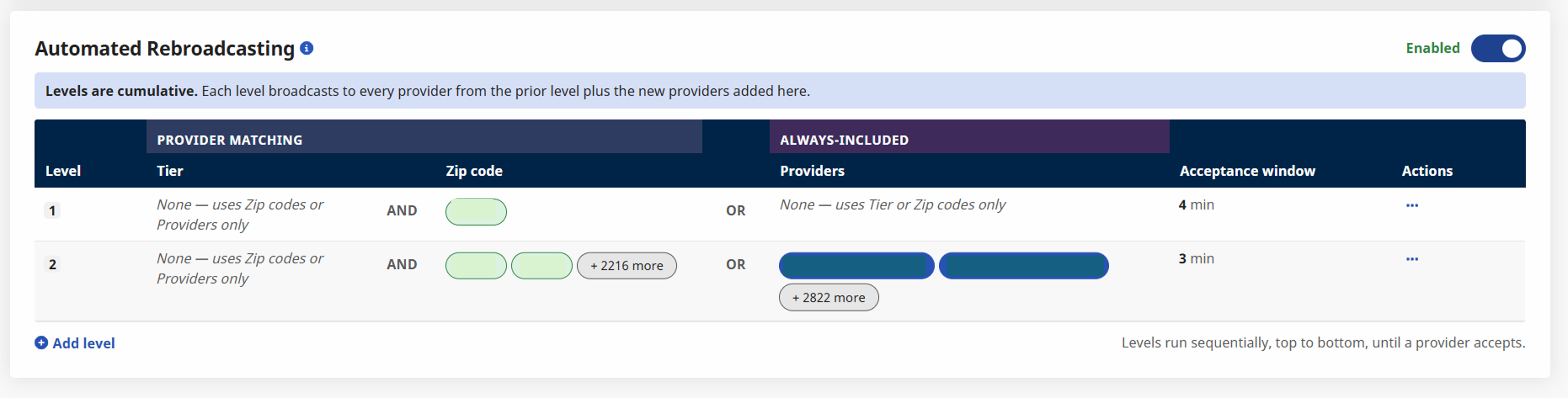
Adding or Editing a Level
Select Edit from the action menu on a level (or Add level to create a new one) to open the level configuration panel:
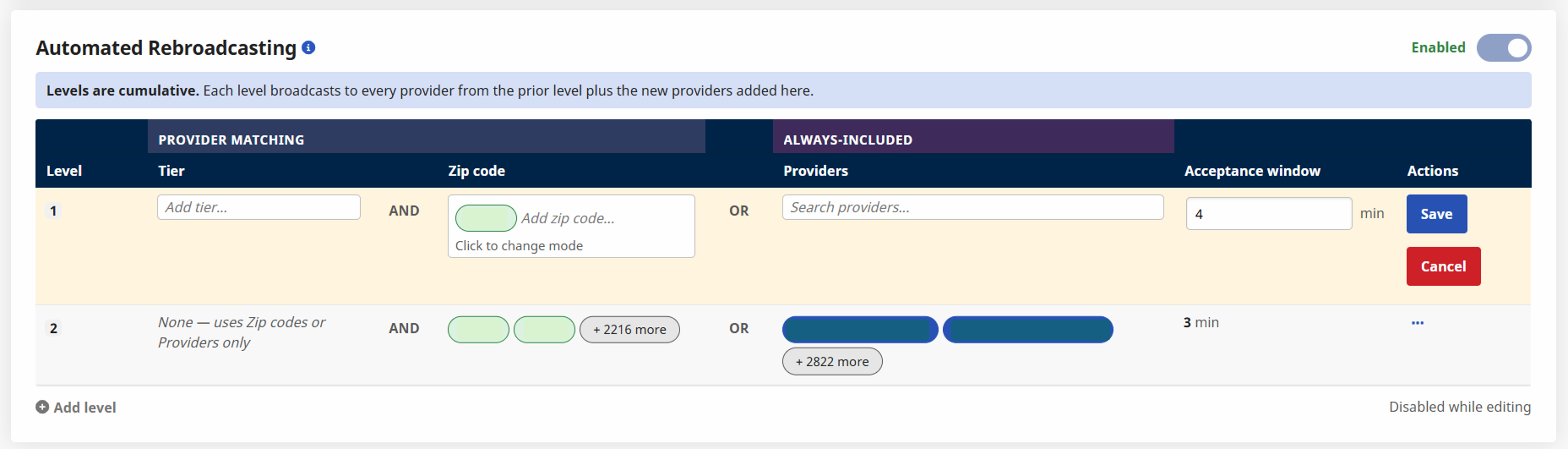
For each level, you can configure:
-
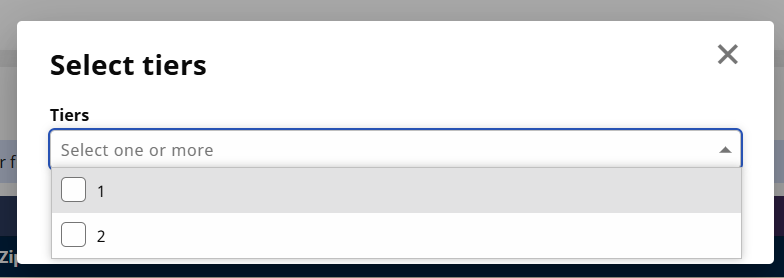
Tier — select one or more provider tiers (e.g., Tier 1, Tier 2, Tier 3 + Tier 4).
-
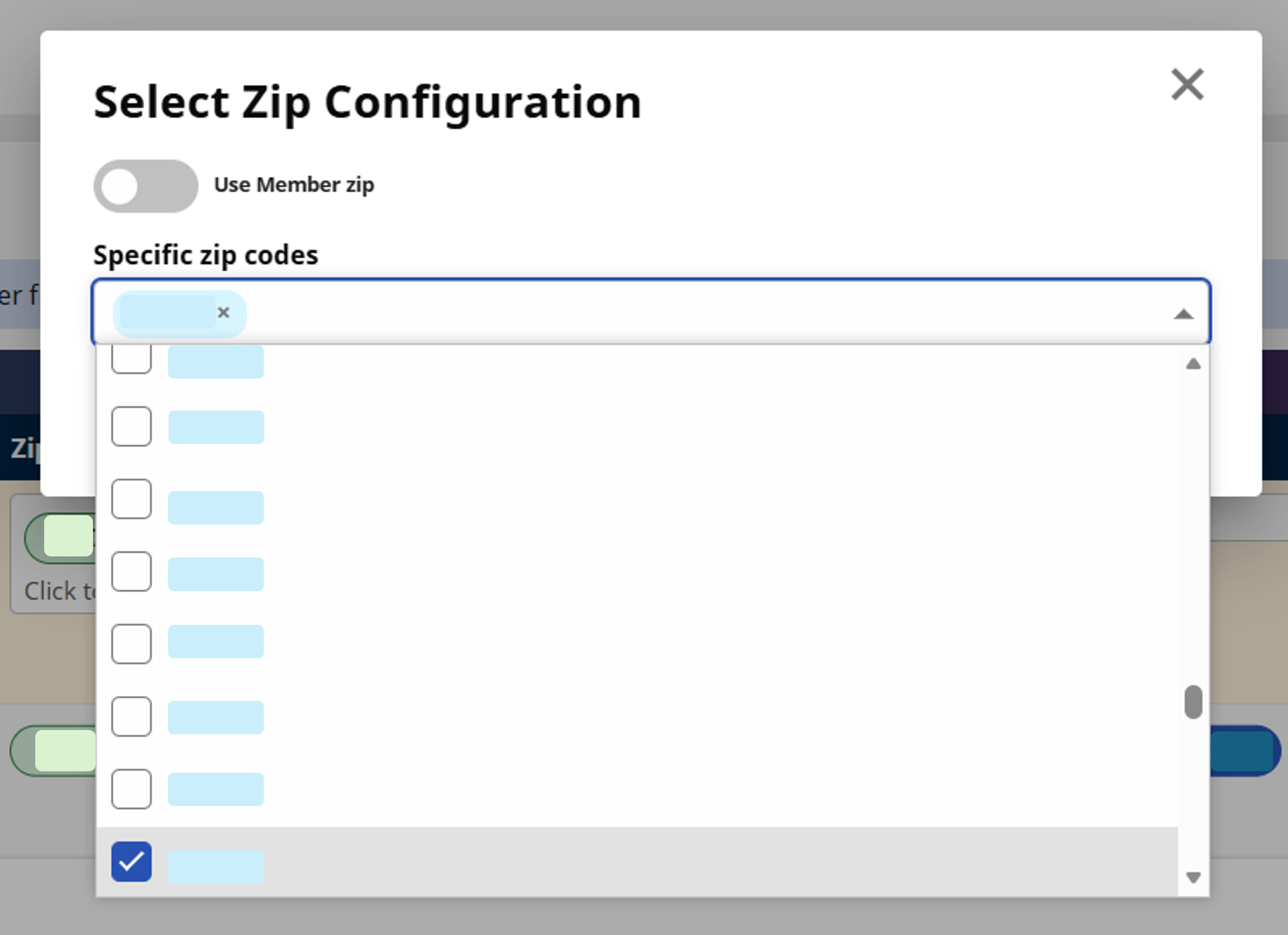
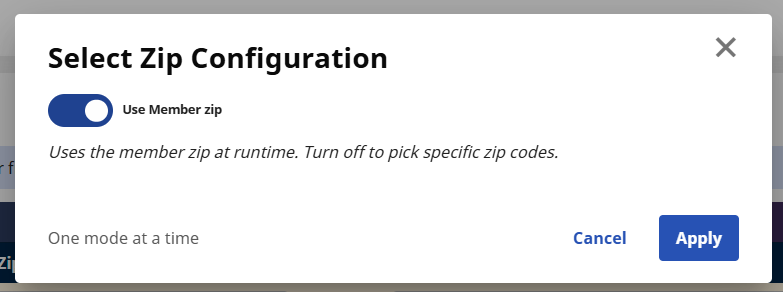
Zip code — match the member's zip code, or select specific zip codes.
-
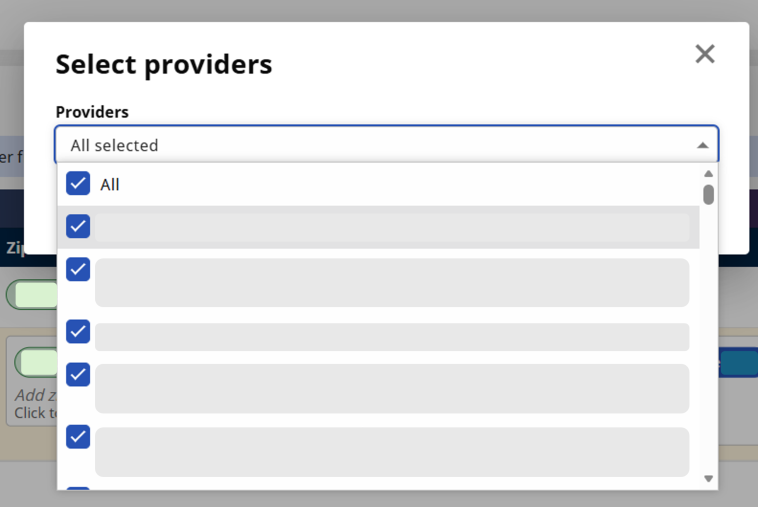
Specific providers — name individual providers who should always be included in this level.
-
Acceptance window — how long this level's providers have to respond before the system escalates to the next level (e.g., 1,000 minutes for Level 1).
How the Criteria Combine
A level can use Tier + Zip, Specific Providers, or both:
Tier + Zip use AND logic — if you select both, a provider must match both to be included (e.g., Tier 2 AND the member's zip code).
Specific providers you add are always included in the level, regardless of tier or zip.
If you configure both, the two groups are combined with OR logic — for example, [Tier 2 AND matching zip] OR [Provider A, Provider B, Provider C].
Managing Existing Levels
From the action menu on any level, you can:
-
Edit — add or remove criteria for that level.
-
View History — see the change history for that level's configuration.
-
Delete — remove the level entirely.
Use the Add level button to append additional escalation levels at any time.
If a provider denies or ignores the original broadcast, will they see the case again in the rebroadcast?
Yes. All eligible providers are included in every level they qualify for, regardless of whether they previously denied or didn't respond to an earlier level.
What if the same providers qualify for two levels in a row?
The rebroadcast is still sent to that group as a new escalation step, even if the provider list doesn't change from the prior level.
How fast does escalation happen?
As soon as a broadcast's status moves to Denied or No Answer (rather than Active, Pending, or Needs More Time) and you have additional levels configured, the system automatically triggers the next level — there's no added delay or scheduling logic.
Does this apply to placements sent through the portal UI?
Not yet. This feature currently applies to broadcasts sent through your integration file. Support for broadcasts sent through the application UI is planned for a future release.