Add and Edit User Roles
User access to specific system functions and processes depends on the Role assigned to the user and the Permissions assigned to that Role.
User Role Permissions are initially set up by HHAeXchange (either during Implementation or by request). After the initial user setup, an authorized user (assigned to a User Role with User Roles and Edit Roles permissions by HHAeXchange Support Team) can edit User Role Permissions.
Payers have the ability to add and edit User Roles in the New Payer Portal application, assigning and removing User Role Permissions that have been authorized for the Payer by HHAeXchange Support Team.

-
From the Admin menu, select User Management.
-
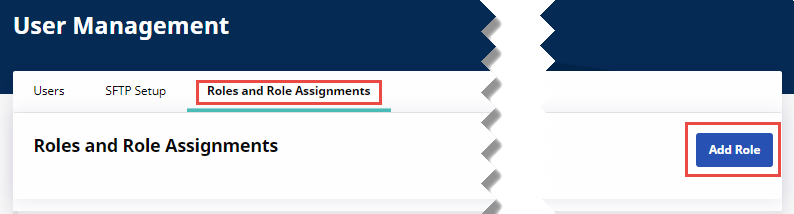
On the User Management page, select the Roles and Role Assignments tab. Click Add Role.
-
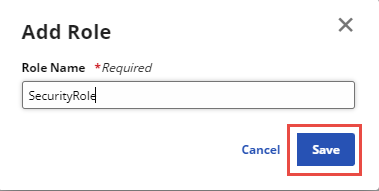
On the Add Role page, type a unique Role Name and click Save.
-
Add User Role Permissions for the new User Role by following the Edit User Role Permissions procedure below.
-
From the Admin menu, select User Management.
-
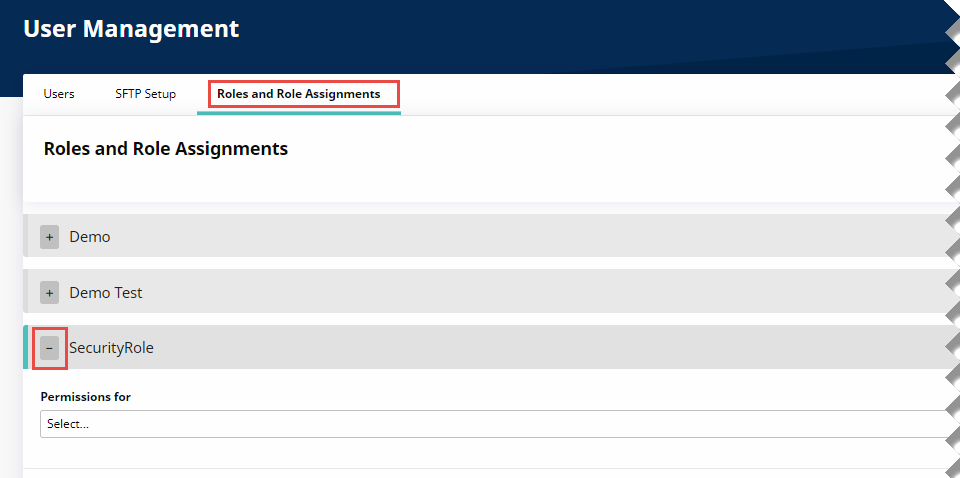
On the User Management page, select the Roles and Role Assignments tab. Expand the Role you want to edit by clicking the + icon at left.
-
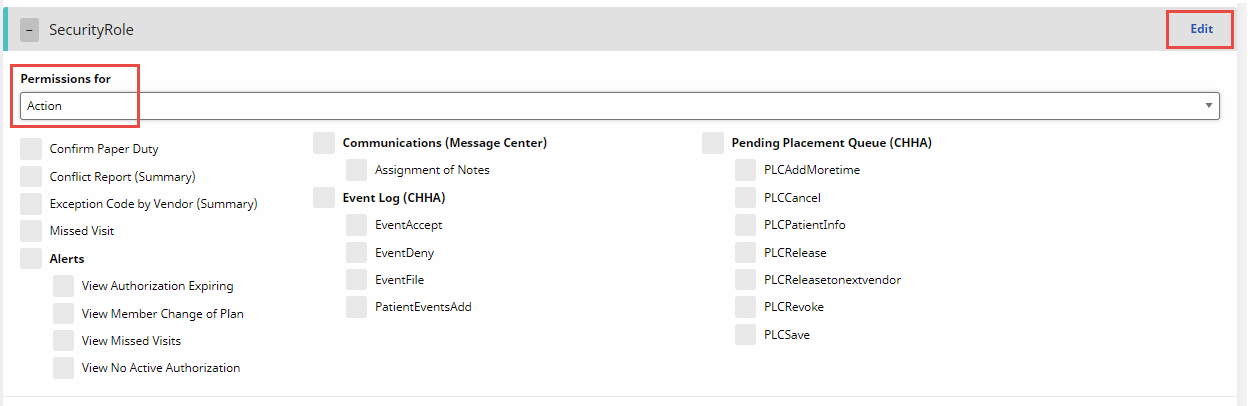
In the Permissions for field, select the section where you want to view and edit permissions. Click Edit at far right to allow Permission changes.
-
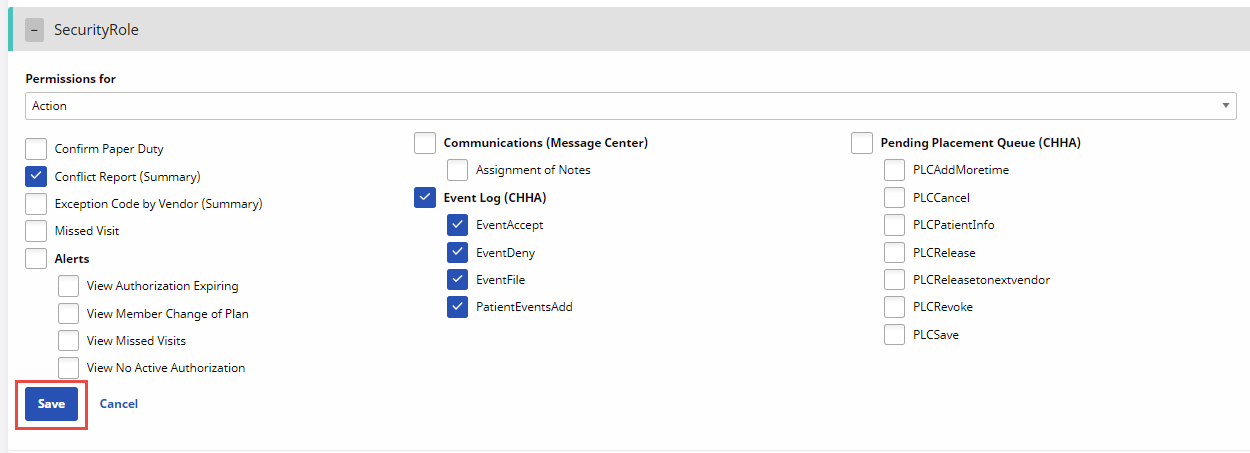
Make your changes to the section’s permissions for the User Role and click Save.
The Placement Accepted Real-Time Alert notifies the Payer that a Provider has accepted a broadcast placement.
HHAeXchange Administration must assign permissions to the Payer user who adds, changes, and deletes Placement Accepted Real-Time Alerts. Contact HHAeXchange Client Support for help.
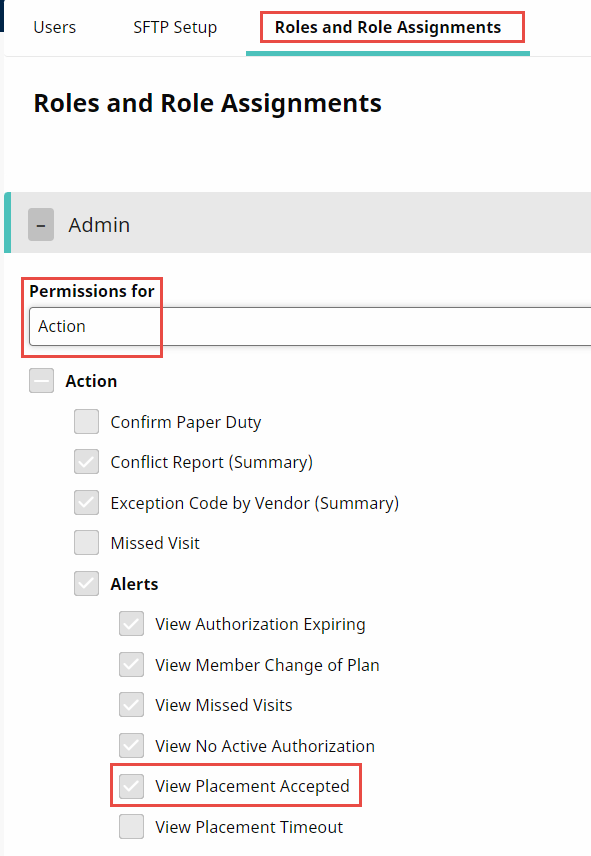
Payer users who need to access Placement Accepted Real-Time Alerts in Admin > Alerts Management must have the View Placement Accepted permission assigned to their Role in the Payer Portal under Admin > User Management > Roles and Role Assignments, expand Role, and then set Permissions for to Action.