Integration File Dashboard
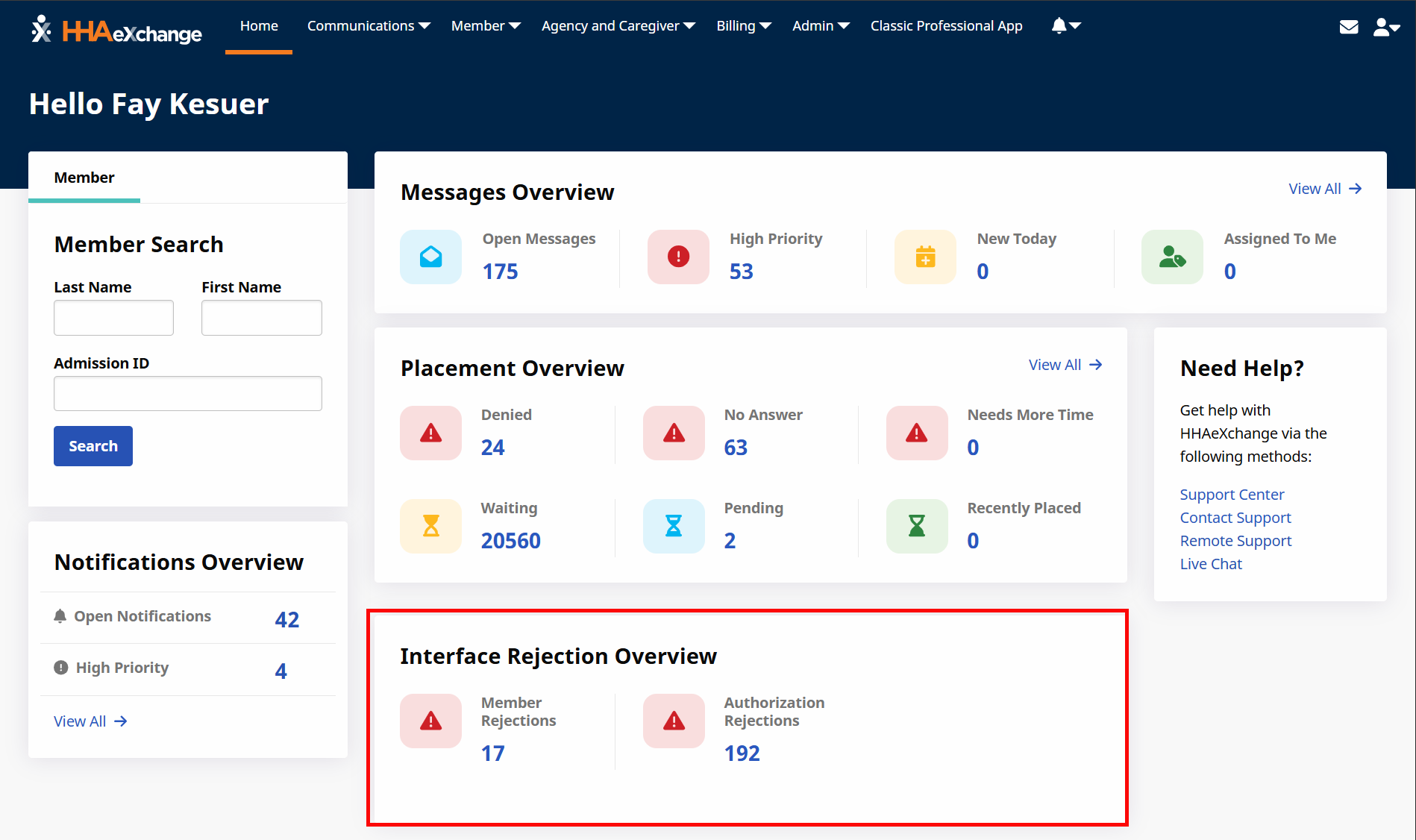
The Integration File Dashboard provides visibility into records sent via the Payer integration files. It is available under Admin > Integration File Dashboard, or by clicking any of the numbers under Interface Rejection Overview on the homepage.
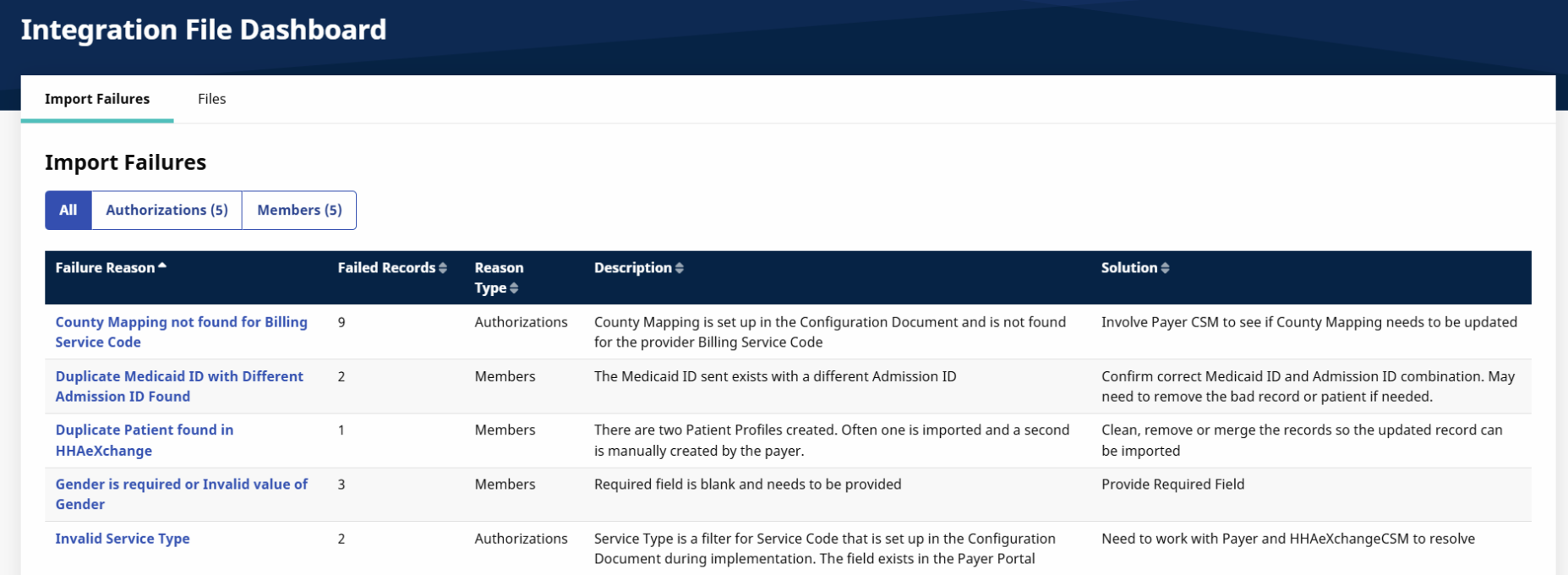

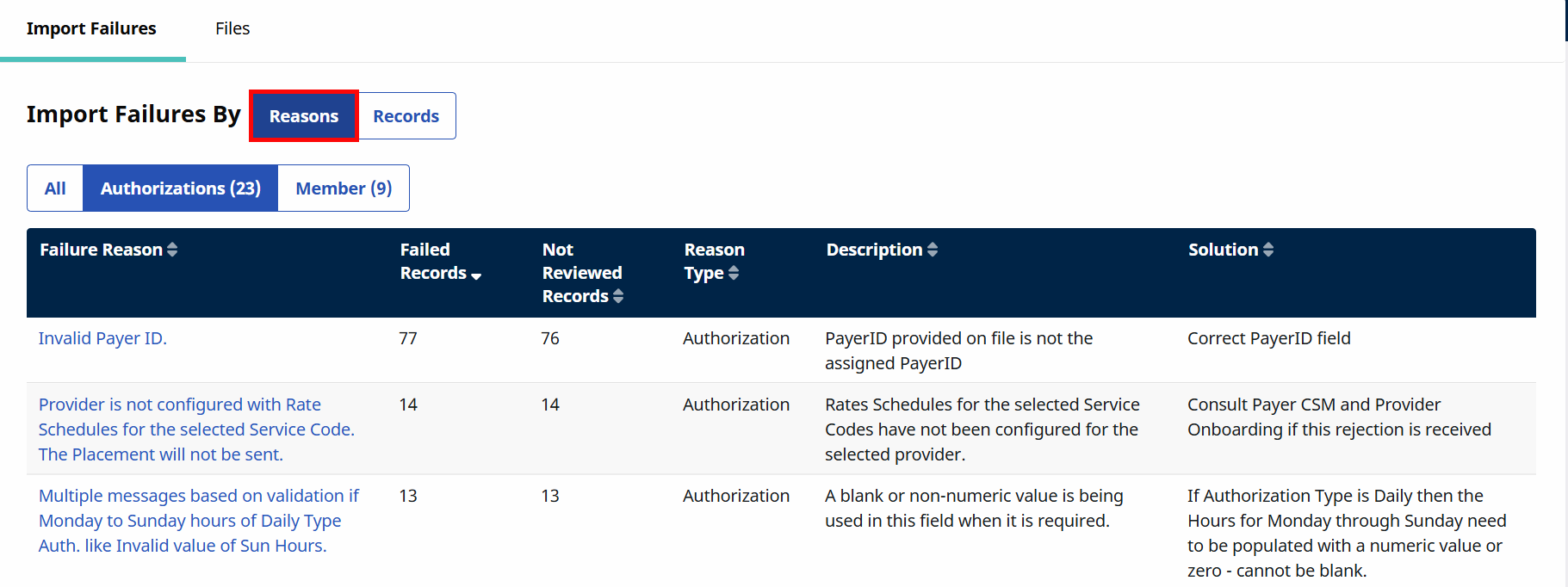
The Import Failures tab lets you view import failures in two different ways. You can toggle between these views depending on whether you want a high-level summary or detailed information:
-
Reasons: A summary view that groups failures by reason and shows how many times each reason occurred. Use this view to quickly spot trends or identify the most common issues. Review the information in the table to see how many records have failed (Failed Records), for what reason (Description), and how to fix them (Solution).
Click on a Failure Reason to go to the Failed Records page and view all failed records for that reason across all files:
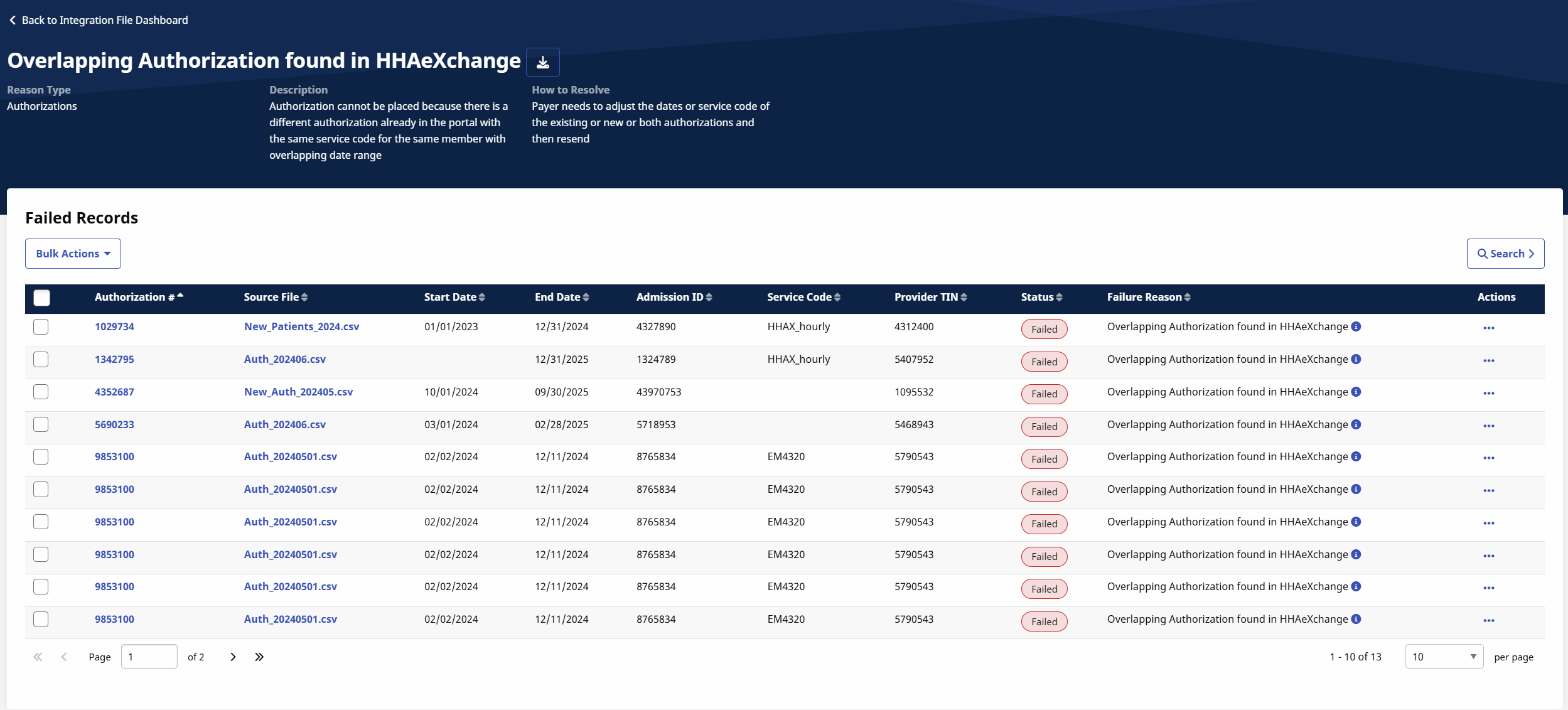
Download a copy of the file by clicking the download icon at the top of the page.
-
Records: A detailed view that lists each individual failure separately. Use this view when you need to review specific incidents or investigate what happened in a particular case. Review the information in the table to see for what reason the records failed (Description), and whether or not someone has reviewed them (Review Status).
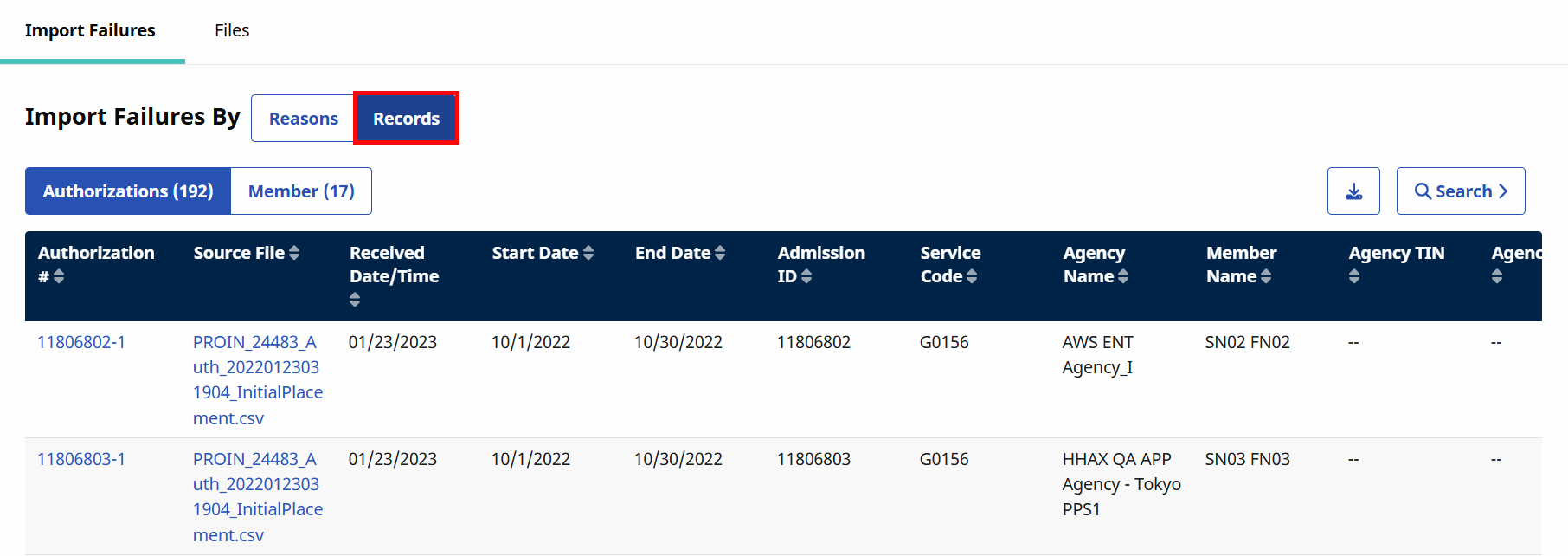
To help replace external tracking, each failed authorization now includes a Review option. To review a record:
-
Scroll all the way to the right on the Records table, and click the Ellipsis under the Actions column. Select Review from the dropdown.
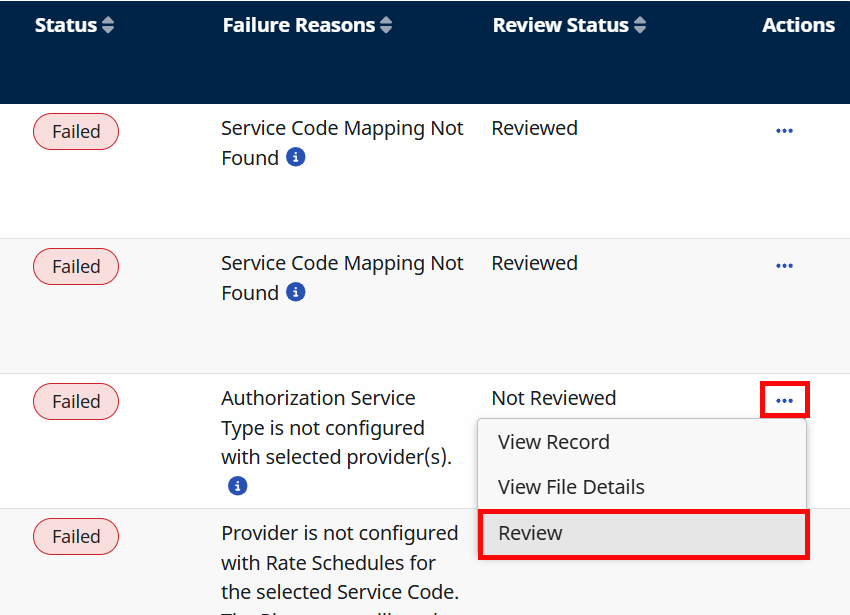
-
The Review Authorization/Review Member window opens, depending on your view. After fixing the issue with the record, enter a New Note explaining the actions taken. Click Add.
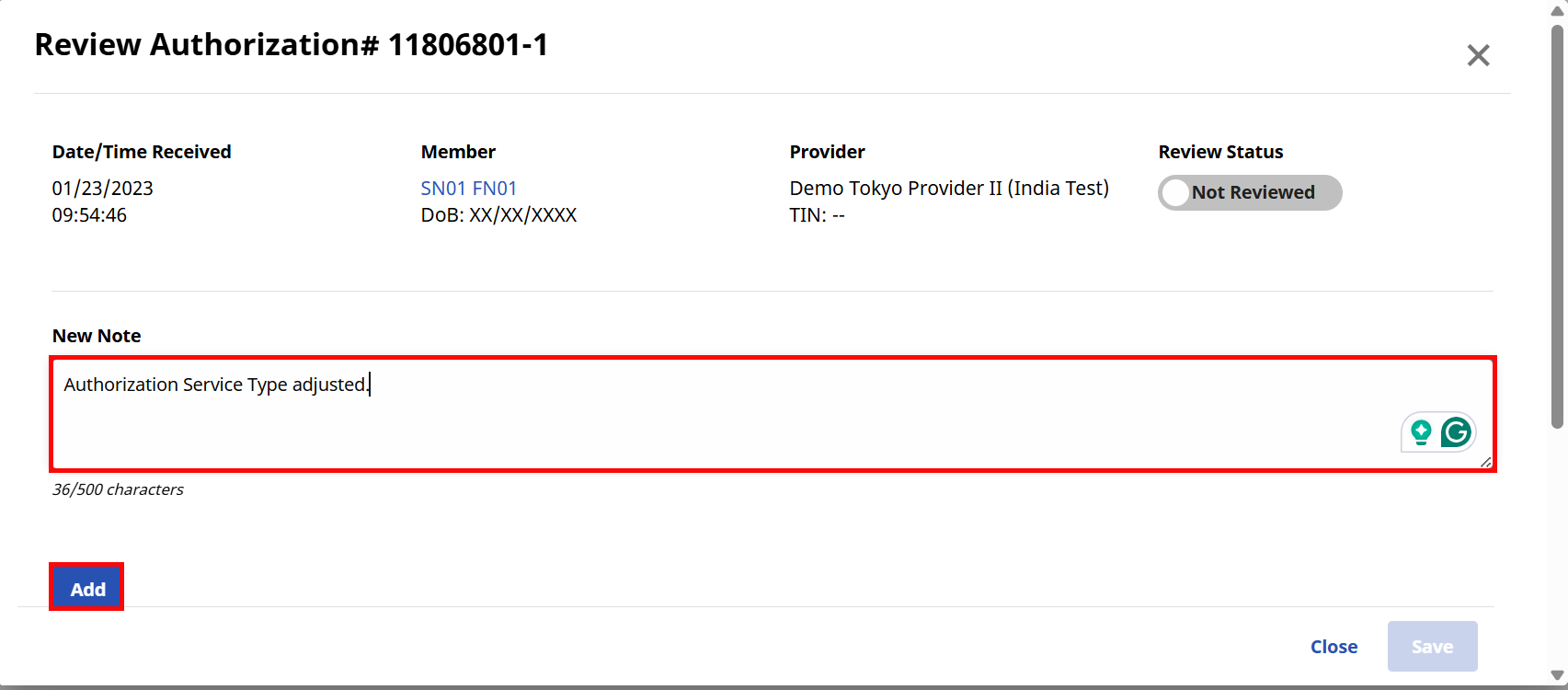
-
Move the Review Status toggle to the right to mark the record as Reviewed.
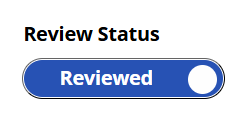
This helps your team quickly see which records have already been addressed and which still need attention, without tracking them outside the system.
The Files page shows a breakdown of every uploaded file. Click the Files tab at the top of the Integration File Dashboard page to view the Files page.
You can filter the files by Date and File Status.
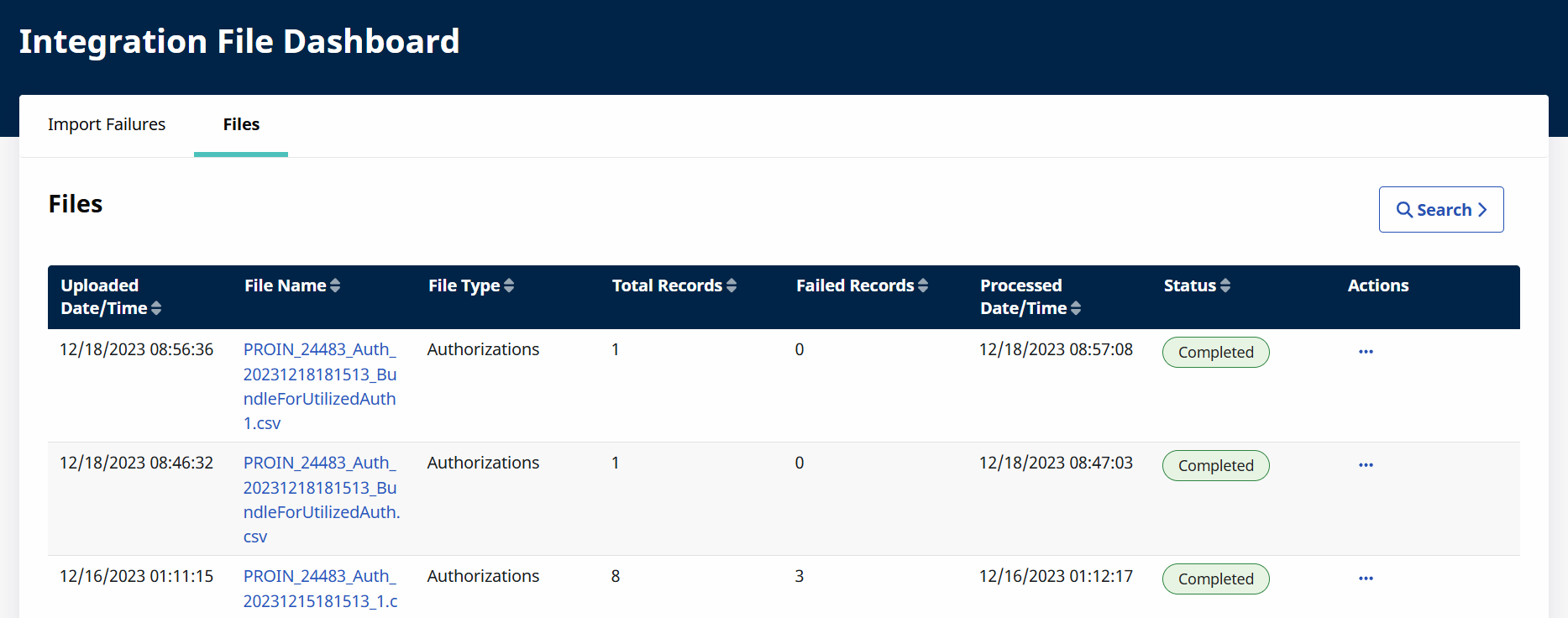
The table shows the File Type, Uploaded Date/Time, Total Records, Failed Records, Skipped Records, Processed Date/Time, and the Status of the upload.
Click on a file name to view an in-depth breakdown of the records within the file on the Records page.
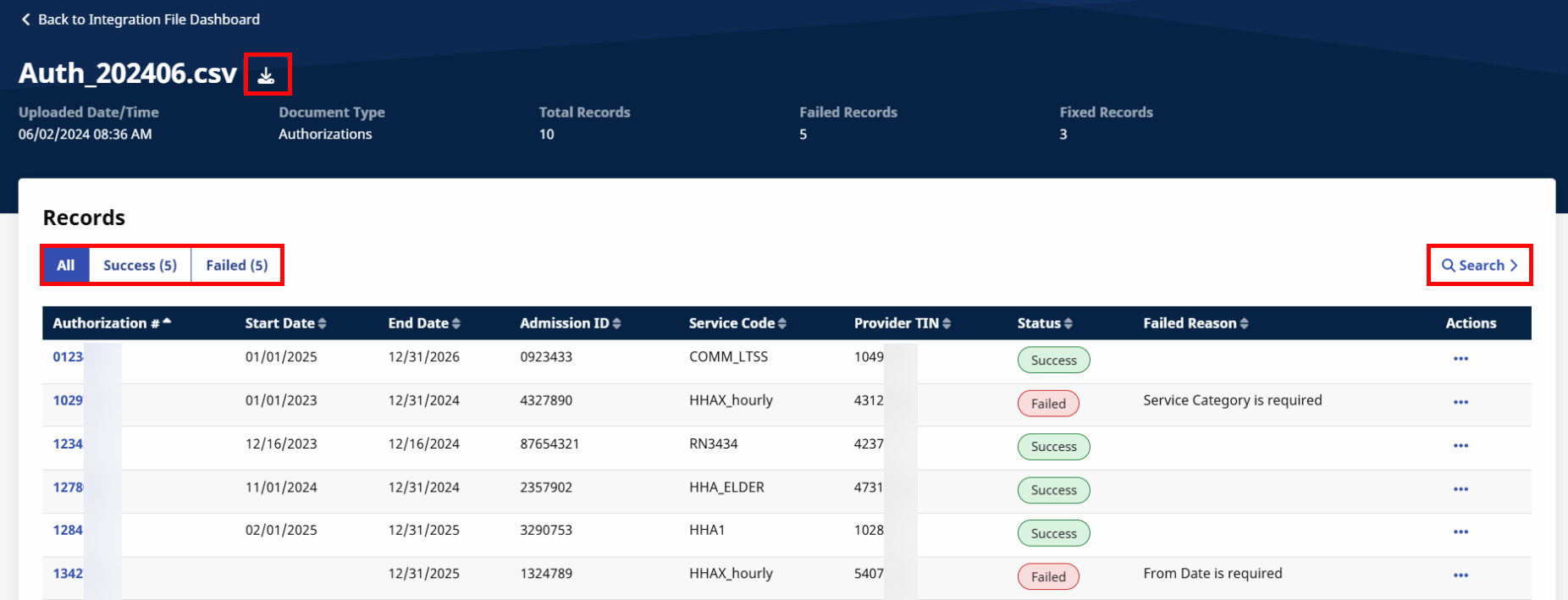
The Records page shows a breakdown of all the records within the file.
You can toggle between All records, records that have been successfully processed (Success), Failed records, and records that have been Skipped due to being duplicates with records already in the system.
For Authorization files, the table shows the Authorization Number, Start Date, End Date, Admission ID, Service Code, Provider TIN, Status, and a Failed Reason, if applicable.
For Member files, the table shows Last Name, First Name, Date of Birth, Admission ID, Medicaid ID, Status, and a Failed Reason, if applicable.
Download a copy of the file by clicking the download icon at the top of the page.
Search for a particular record by clicking the Search button on the upper right.