Invoice Searches
Search Filter settings are saved by user, so the next time the user searches, the filter settings are the same.

The Invoices feature under Billing > Invoice Search allows you to filter Invoices from linked providers to make them easier to review.
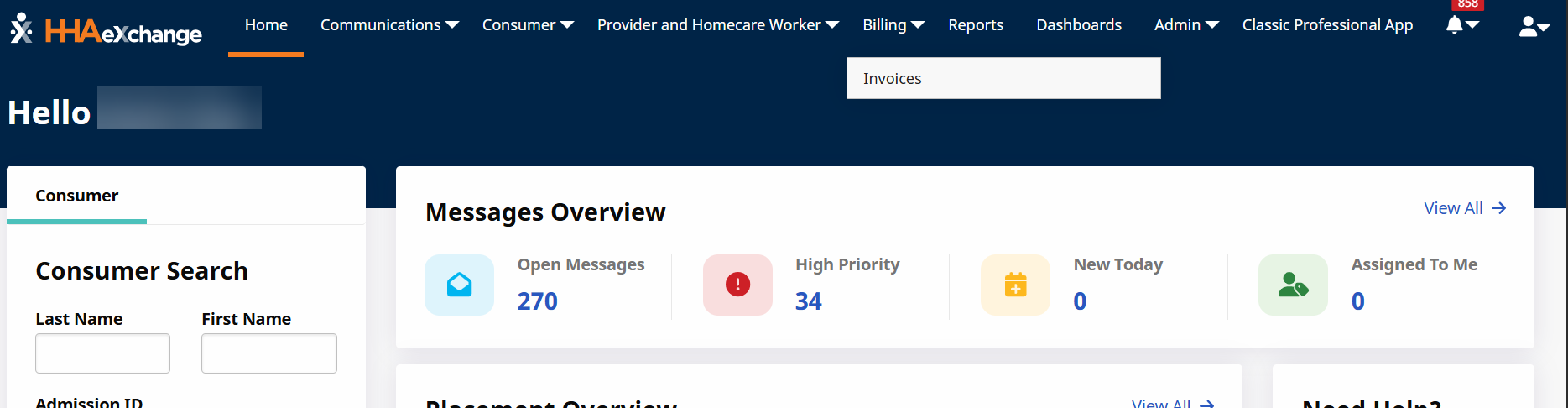
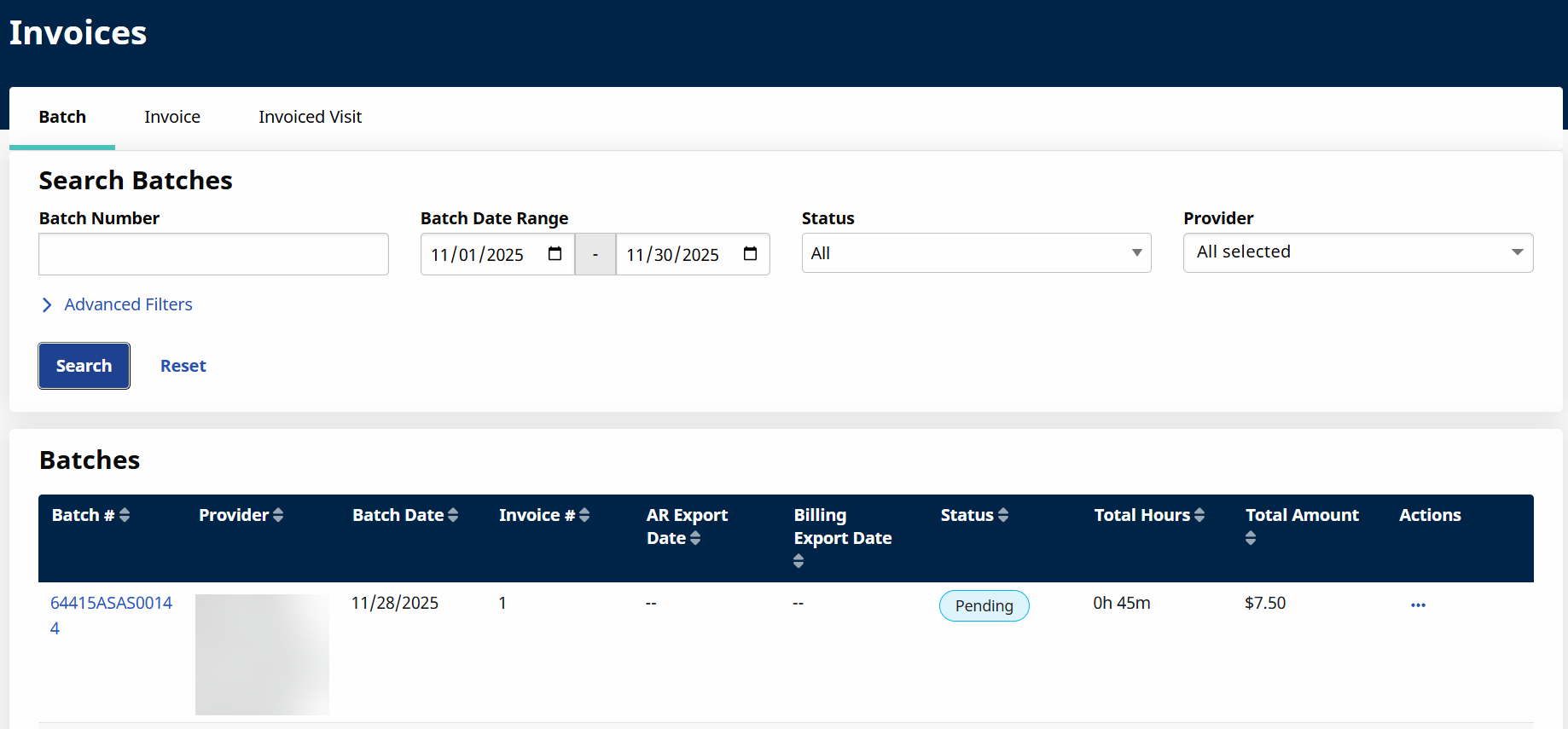
View invoice details from providers to better understand what providers are billing in HHAeXchange. You can search for invoices by Batch, Invoice, or Invoiced Visit.
Batch
View all batches of invoices created by providers who bill in HHAeXchange.
-
Select the Batch # link to review batch details.
-
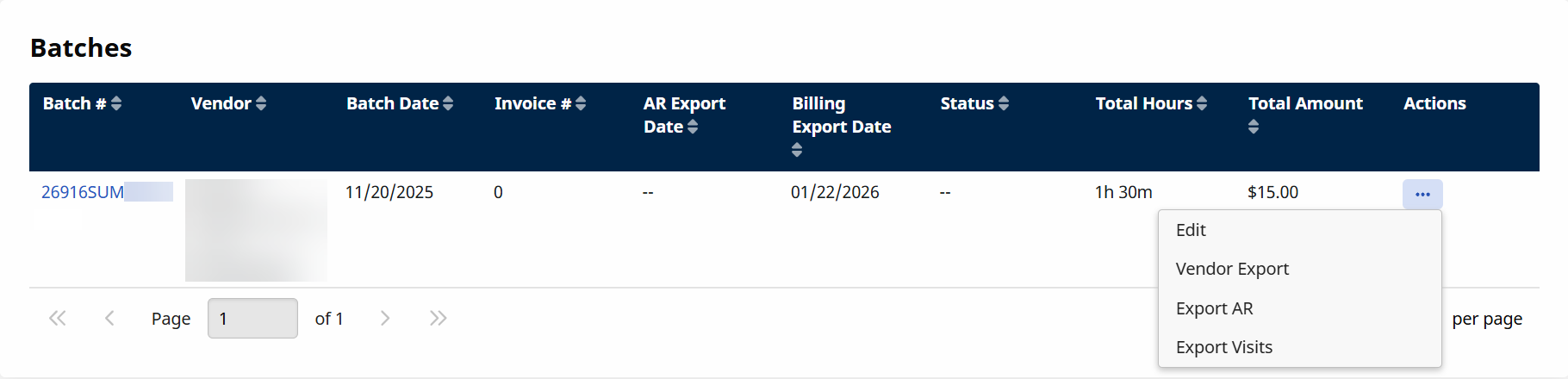
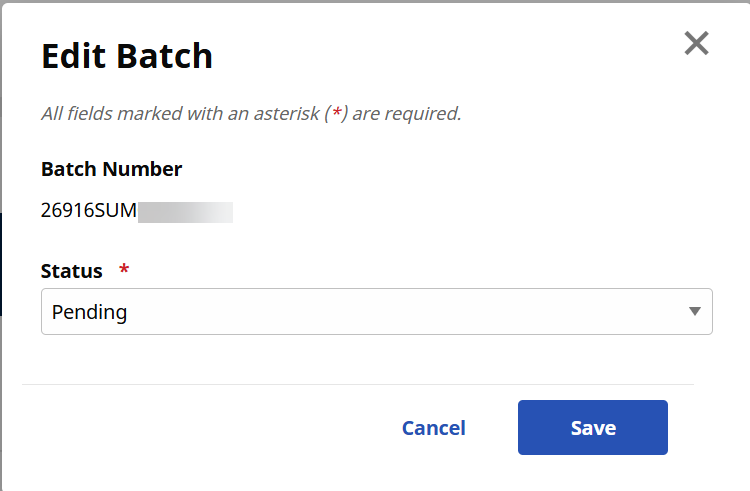
Select Action to run available reports and edit the Batch Status.
Invoice
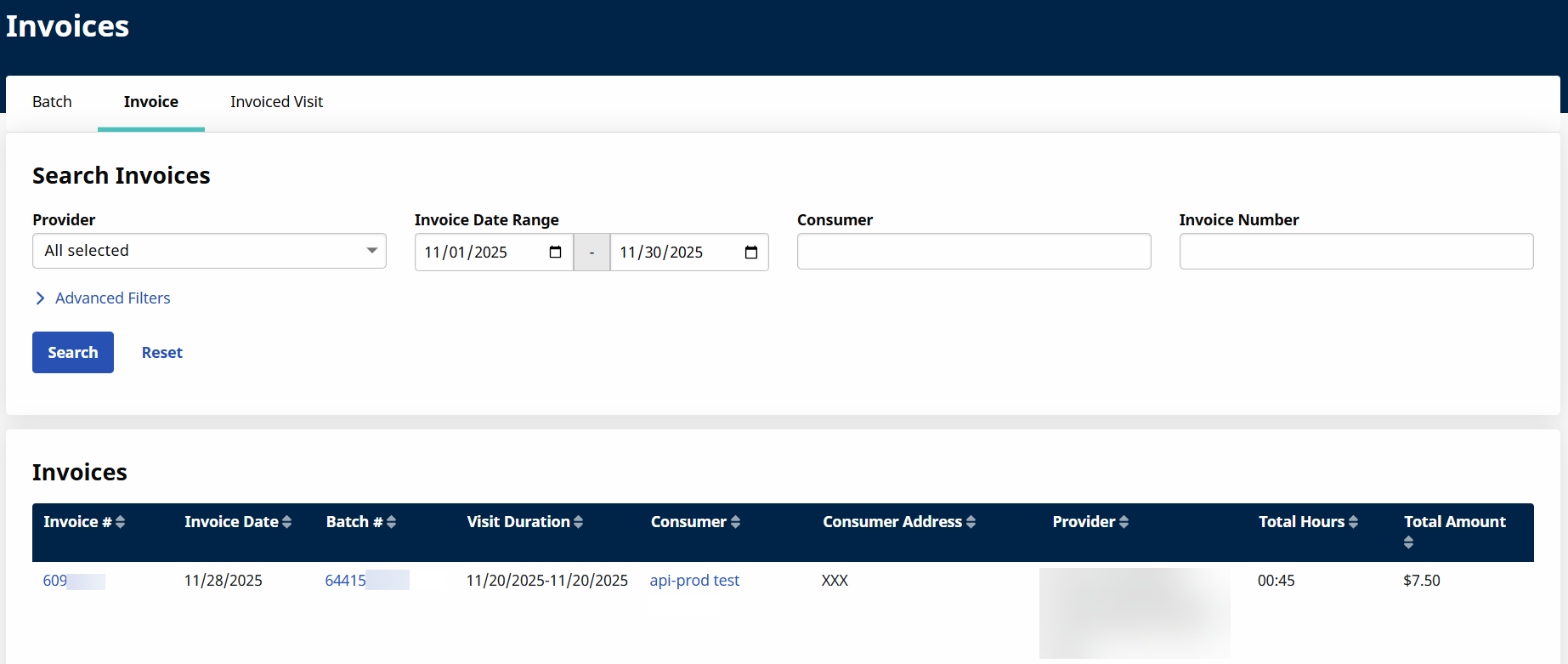
View all invoices created by providers who bill in HHAeXchange.
-
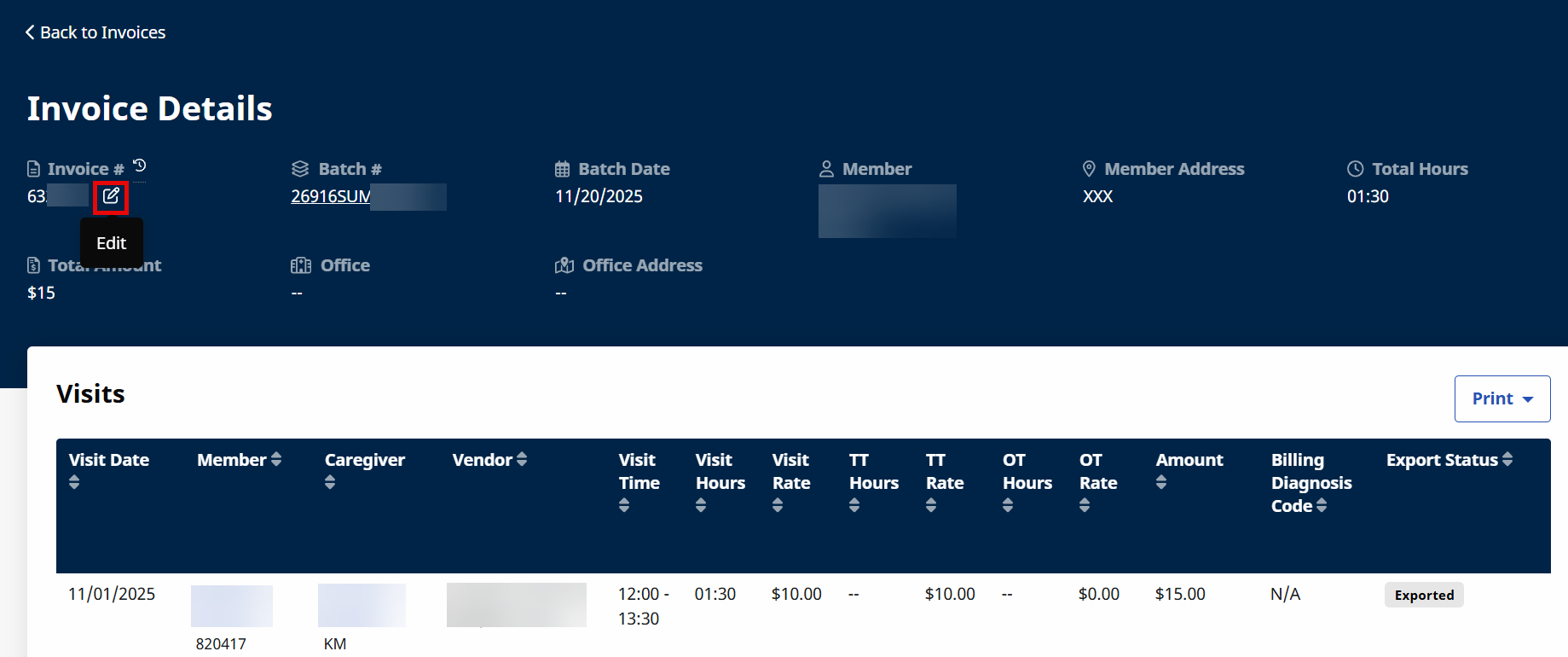
Select the Invoice # link to review Invoice details. From the Invoice Details, you can update the Invoice Number.
-
Select the Batch # link to review batch details.
-
Select the Payer or Caregiver for more details about them.
Invoiced Visit
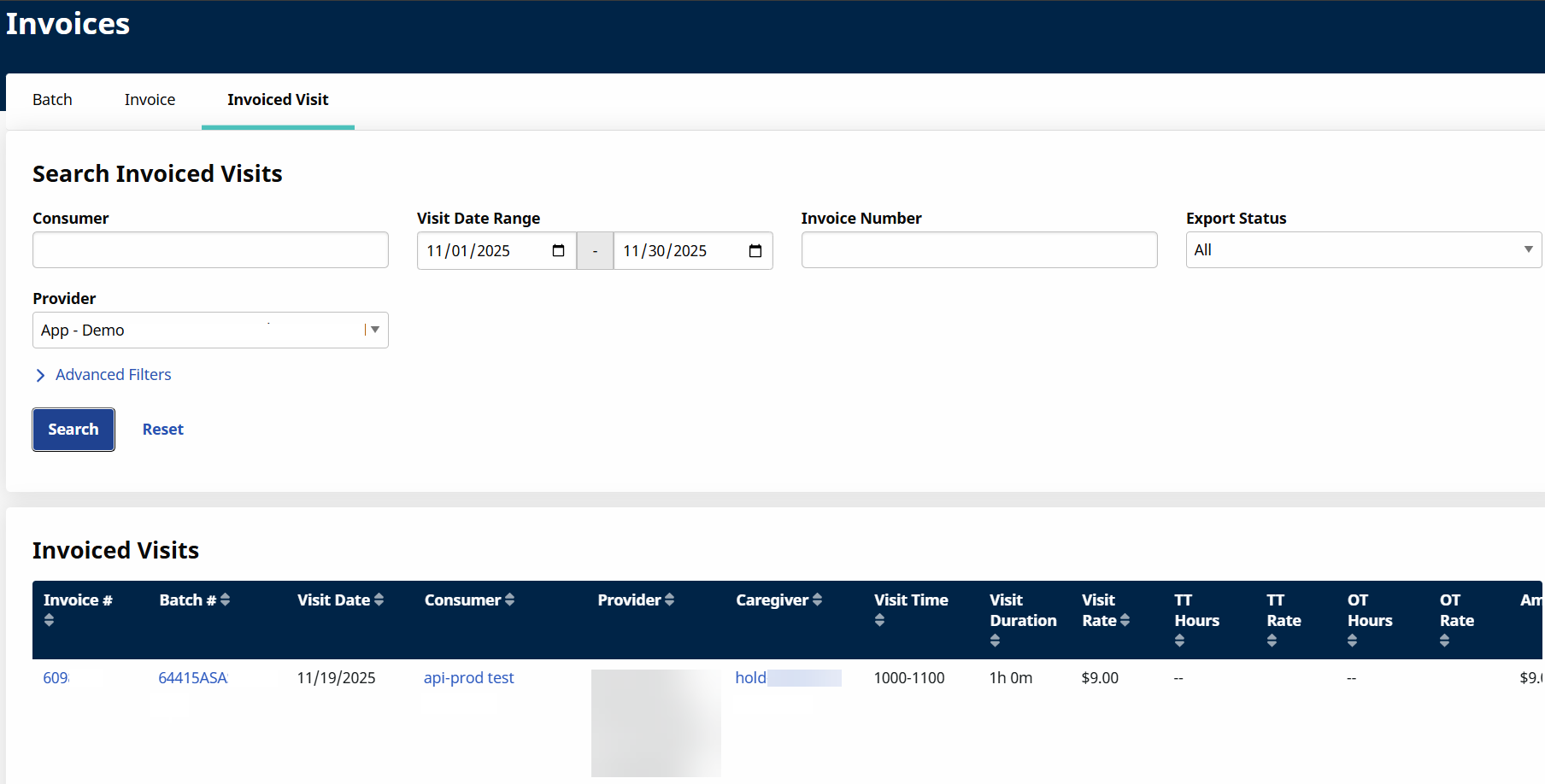
View all visits on invoices created by providers who bill in HHAeXchange.
-
Select the Invoice # link to review Invoice details.
-
Select the Batch # link to review batch details.
-
Select the Payer or Caregiver for more details about them.
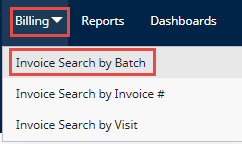
Users access the Invoice Search by Batch function from the Billing menu by selecting Invoice Search By Batch.
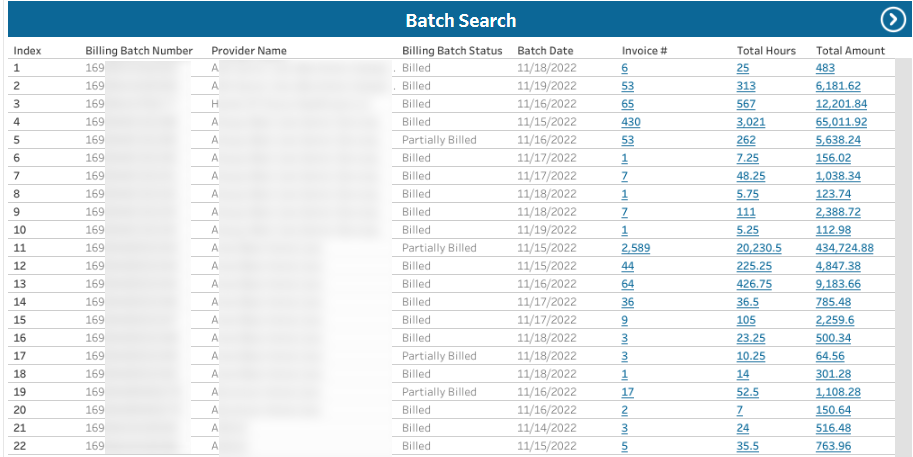
Searching invoices by batch returns search results sorted by batch so the user can easily review all the invoices associated with a specific invoice processing batch.
Review invoices by batch as instructed in the following table.
-
From the Billing menu, select Invoice Search by Batch.
-
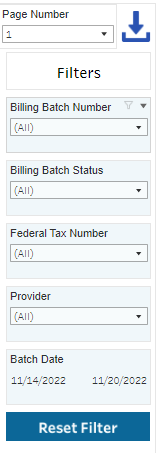
After search results are displayed, change the filters at right as needed to obtain specific results.
-
Scroll through and review the results at left. Make filter changes at right as needed.
-
If needed, download the search results in PDF or Excel format from the Filters pane.
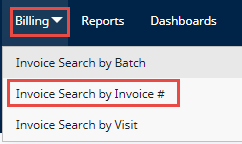
Users access the Invoice Search by Invoice Number function from the Billing menu by selecting Invoice Search By Invoice #.
Searching invoices by invoice number returns search results sorted by invoice number so the user can scan through processed invoices in numerical order.
Review invoices by invoice number as instructed in the following table.
-
From the Billing menu, select Invoice Search by Invoice #.
-
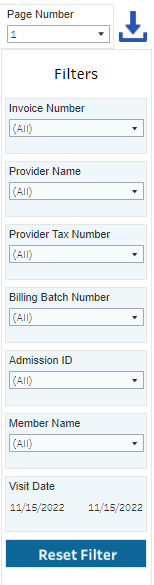
After search results are displayed, change the filters at right as needed to obtain specific results.
-
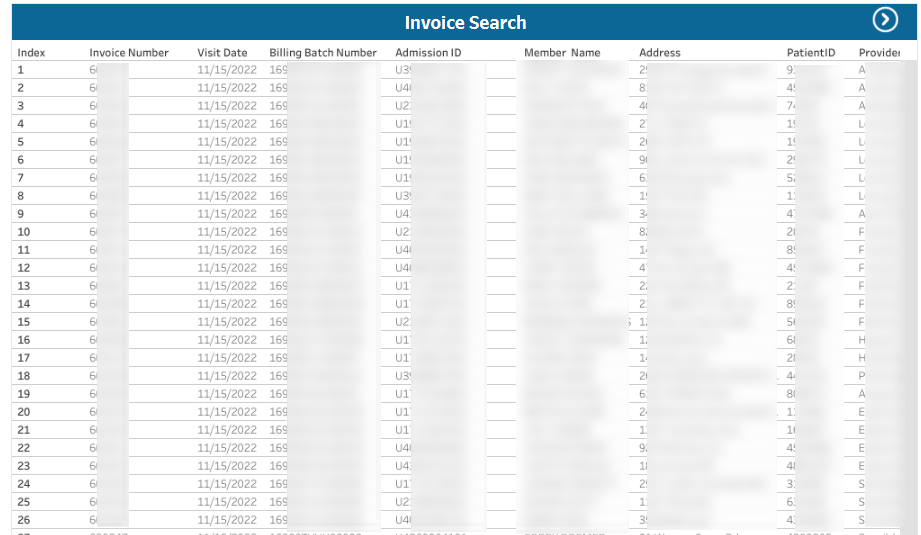
Scroll through and review the results at left. Make filter changes at right as needed.
-
If needed, download the search results in PDF or Excel format from the Filters pane.
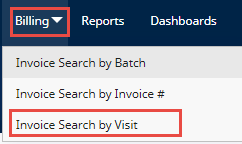
Users access the Invoice Search by Visit function from the Billing menu by selecting Invoice Search By Visit.
Searching invoices by visit returns search results sorted by visit so the user can easily review all the invoices associated with a specific visit.
Review invoices by visit as instructed in the following table.
-
From the Billing menu, select Invoice Search by Visit.
-
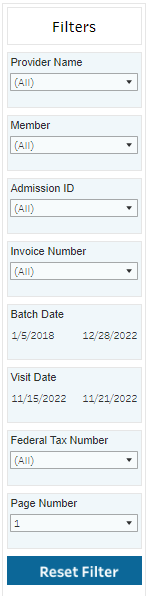
After search results are displayed, change the filters at right as needed to obtain specific results.
-
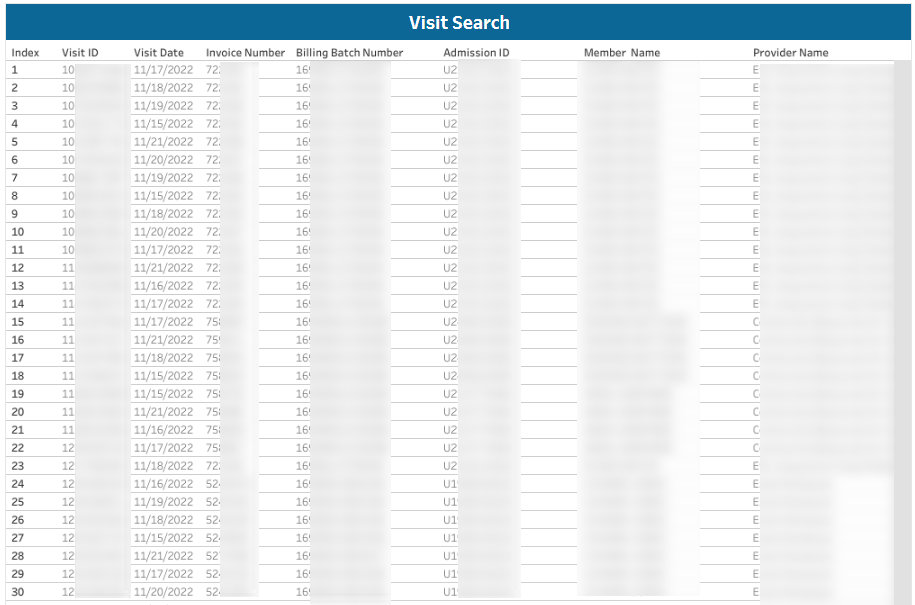
Scroll through and review the results at left. Make filter changes at right as needed.
-
If needed, download the seach results in PDF or Excel format from the Filters pane.