Placement Queue Overview
Placement Queue documentation describes the Payer Portal’s Placement Queue, found on the Provider & Caregiver menu, where a Payer can review all Placements by category or status.
Some features may not be available in your portal. Features depend on role, permissions, and portal type.

In the Placement Queue, your Members and their Placement statuses are organized into categories so that you can easily manage them. Categories appear in a horizontal navigation bar, as shown in the following image.
To open the Placement Queue, click Provider and Caregiver in the top navigation menu and select Placement Queue. Search for members in each category with the filters under Search for a Member.
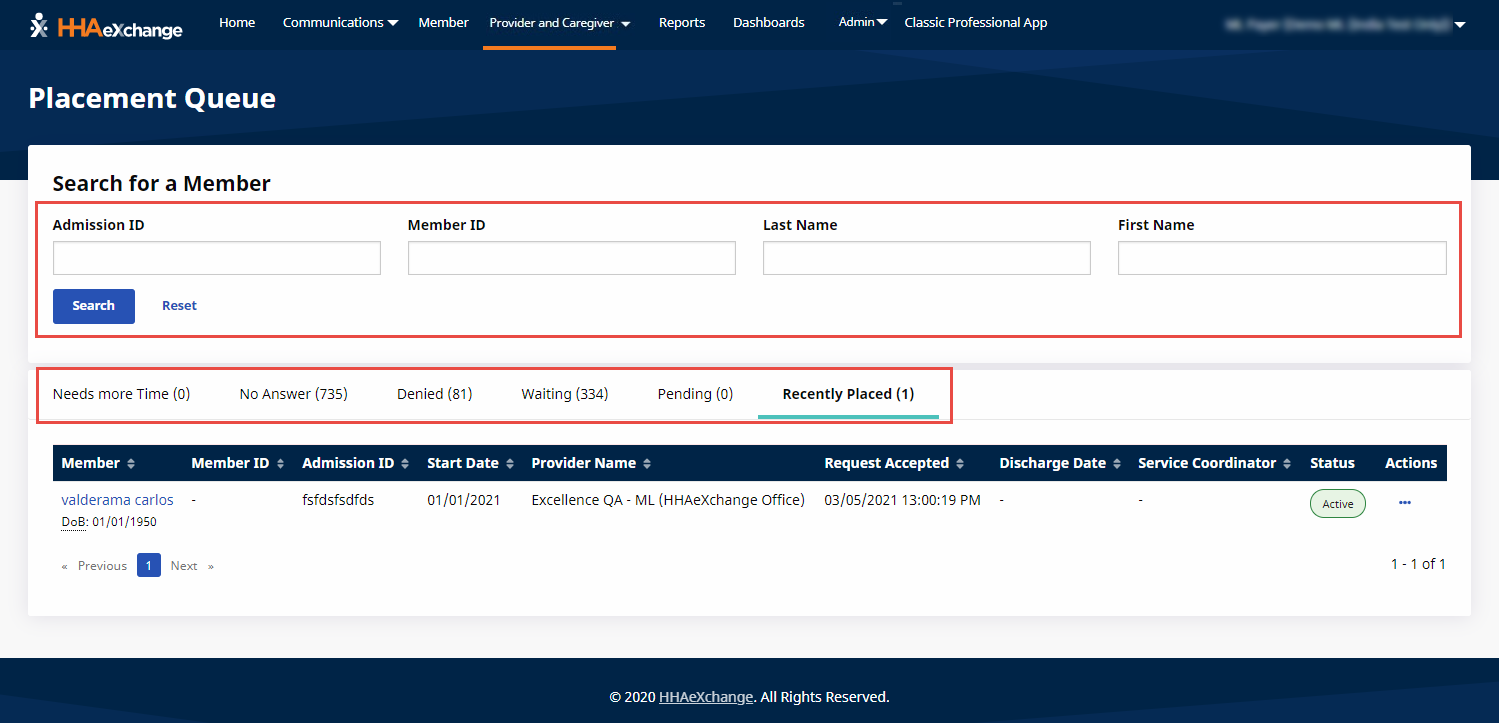
The Placement Queue contains the following statuses and contextual actions that allow you to manage Member Placements and Placement offers from a single location.
|
Placement Status |
Description |
|---|---|
|
Needs More Time |
Provider needs more time to accept or deny the placement. Actions: View Placement, Add More Time, Cancel Request |
|
No Answer |
Provider did not answer the Placement offer within the acceptance window. Actions: View Placement, Add More Time, Cancel Request |
|
Denied |
Provider denied the Placement offer. Actions: View Placement, Cancel Request |
|
Waiting |
Member has no Placement offer yet. Actions: Add Placement |
|
Pending |
Provider has not yet responded to the Placement offer. Actions: View Placement, Add More Time, Cancel Request |
|
Recently Placed |
Member was placed with a Provider within the past day. Actions: Revoke |