View Cohort Details
To view Cohort details under Provider & Caregiver > Care Insights > Cohorts, click the Plus  icon on the left area of the Cohort to open a list of Members.
Information is organized in a list of columns.
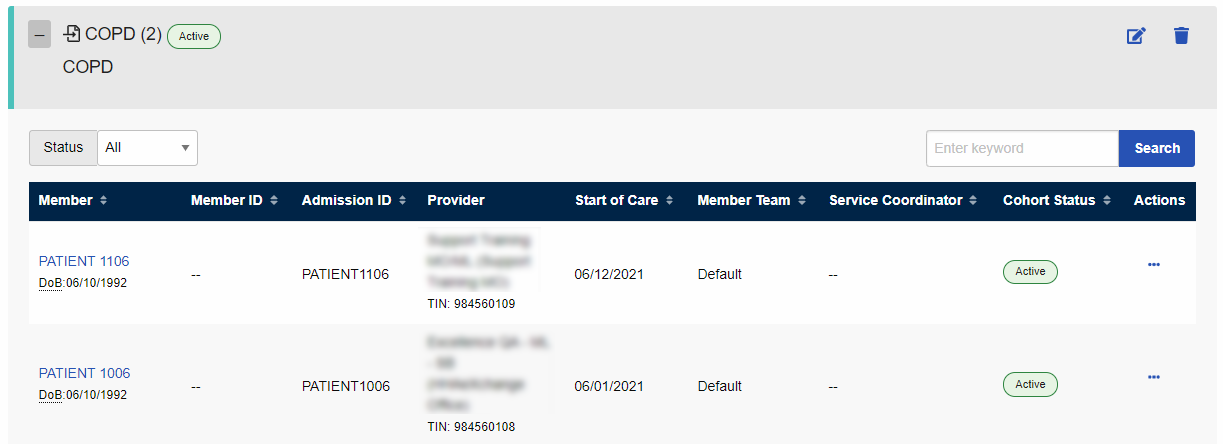
From an open Cohort list, users can take a number of actions, as described in the following table.
|
Action |
Description |
|---|---|
|
Filter by Status |
With the dropdown list on the left area, filter by All, Active, or Inactive Members. |
|
Search for a Member |
With the search box on the right, search for a Member by any of the information shown, including Member name, TIN, Provider, Start of Care, and more. |
|
View Member Details |
Open a Member’s details page in the Payer Portal. |
|
Delete a Member |
Delete a Member record from the Payer Portal. |
|
Exclude a Member |
Exclude a Member from the current Cohort by setting them to Inactive. |