Payer Communications in the Communications Message Center

The Communications Message Center page under the Home page, or Action > Payer Communications, allows Providers to communicate with Payers about items not directly related to an individual Patient. Using this feature, Providers can create new communication notes, review and reply to open notes, and archive closed notes to Payers.
To access the Communications Message Center page, either:
-
Click the Message Center button (available on both the Home page and Patient General Notes section); or
-
Go to Action > Payer Communications.
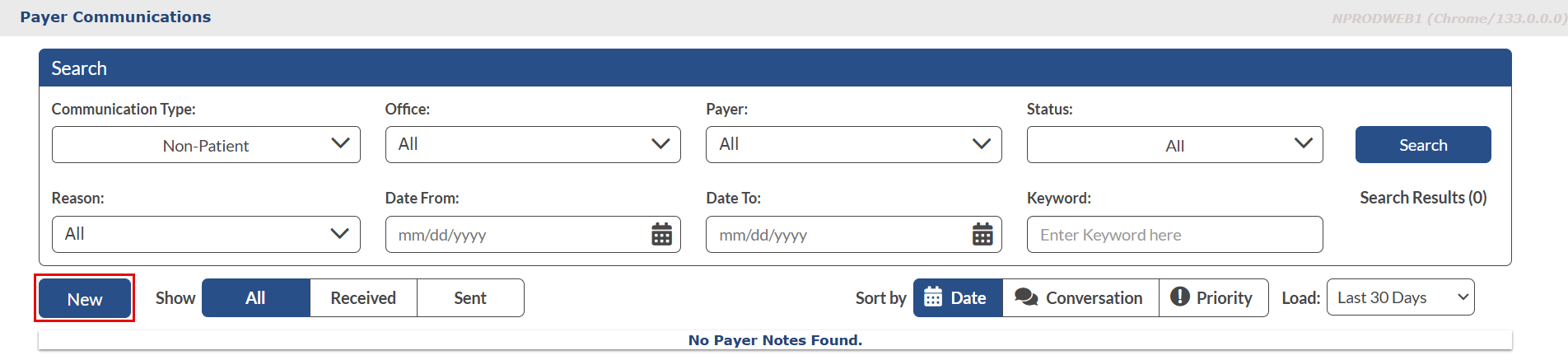
On this page, the search filters are listed as a section at the top of the page. When accessing the page, Non-Patient is preselected in the Communication Type filter. For the Show field, sort to view All, Received, or Sent messages.

When selecting Patient in the Communication Type filter, the Internal search field becomes available. Refer to the table below for selection values for the Internal field. The Patient and Internal columns display. Internal messages (only to be seen by the Agency personnel) are indicated with an encircled checkmark. When Non-Patient is selected, the Patient and Internal columns are hidden.

|
Value for Internal Field |
Description |
|---|---|
|
Both |
(Default) Shows all Payer and Provider communications. |
|
Yes |
Shows only Provider communications for internal messages. |
|
No |
Shows only Payer communications. |
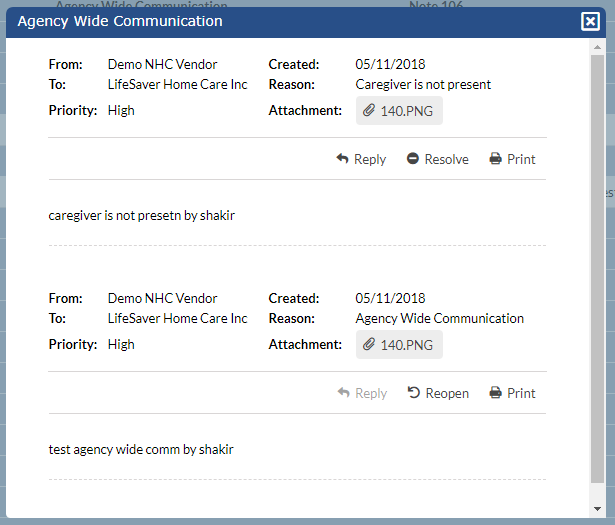
To view a message, go to Action > Payer Communications and search for messages. Click a Note in the search results to open a pop-up window displaying the selected message. On the message window, message details display to include From, To, Created, Reason, Priority, and Attachment fields, as well as the message. Action buttons are displayed to Reply, Resolve, or Print the message.
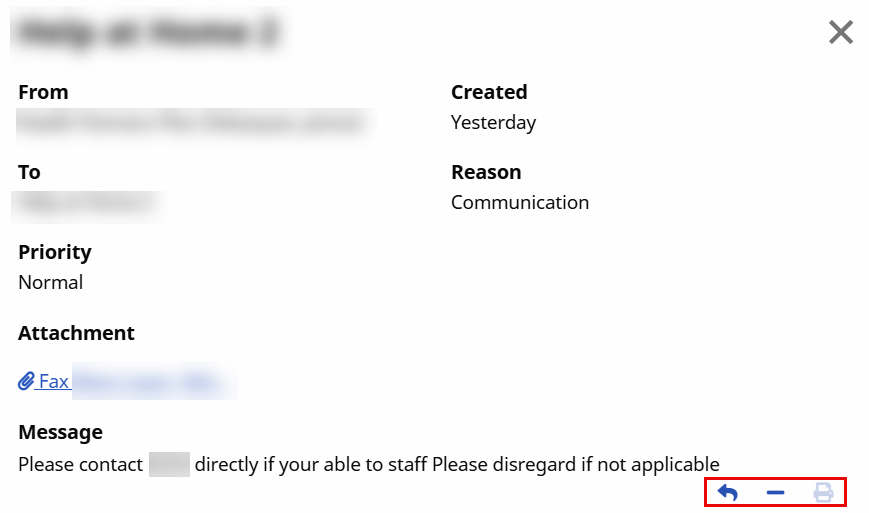
The table below provides descriptions for each action button.
|
Action |
Description/Select to… |
|---|---|
|
Reply |
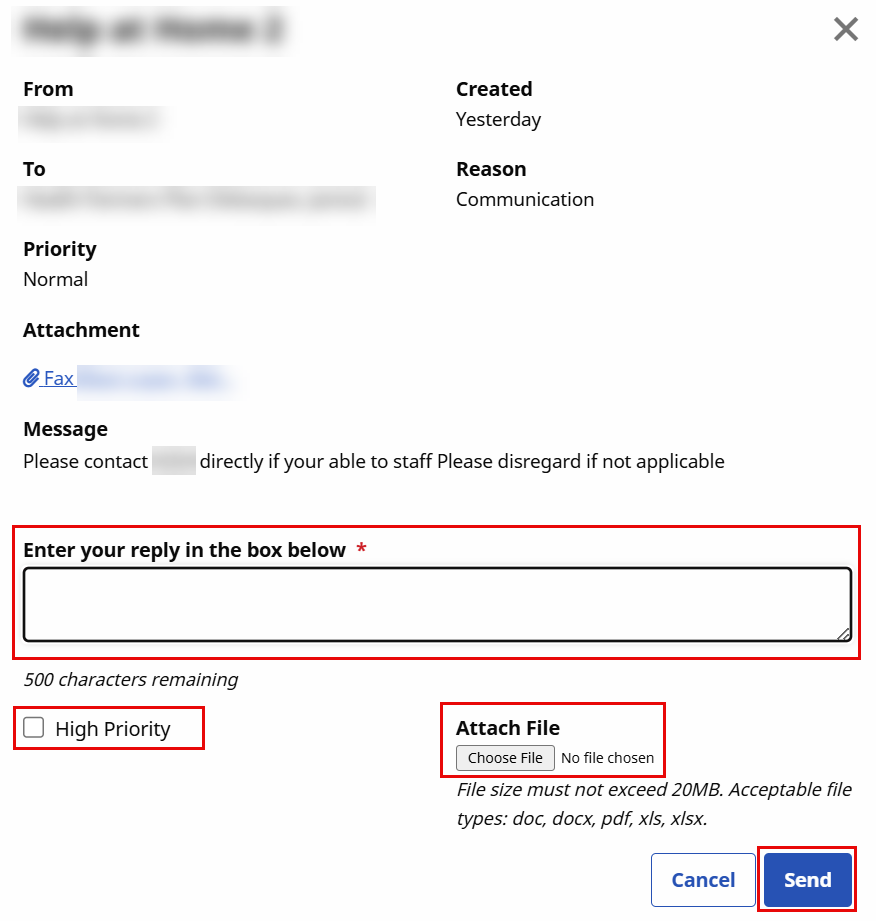
Reply to a message. Entering a note is required when selecting Reply. Enter up to 500 characters in the text box. Select the Priority level and attach a file. Click the Send button to finalize.
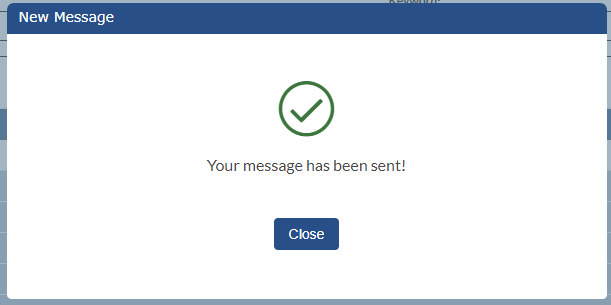
A confirmation alert indicates that the message was sent successfully. Click Close to exit the window.
|
|
Resolve |
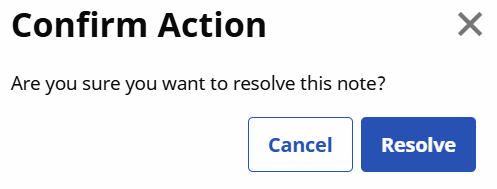
Click the Resolve button to Close the Note. An alert prompts the user to confirm action. To confirm, click the Resolve button.
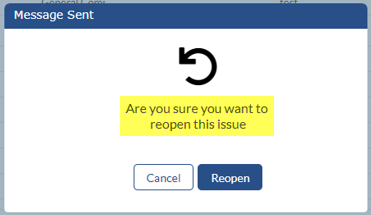
A Reopen alert window appears to further confirm to Close or reopen the message. Click Reopen to keep the message open.
|
|
|
Click Print and follow the system prompts to print the message. |
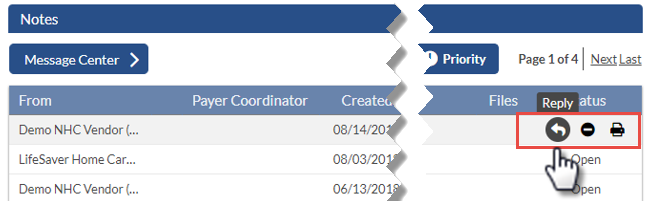
Hover buttons under Action > Payer Communications are available to Reply, Resolve or Print directly from the message record (visible under the Status column when hovering over the row).
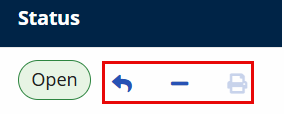
Click the desired icon to launch an action.
Click the Conversation button under Action > Payer Communications to displays messages in Conversation mode. Messages with (down) arrows indicate a conversation thread.
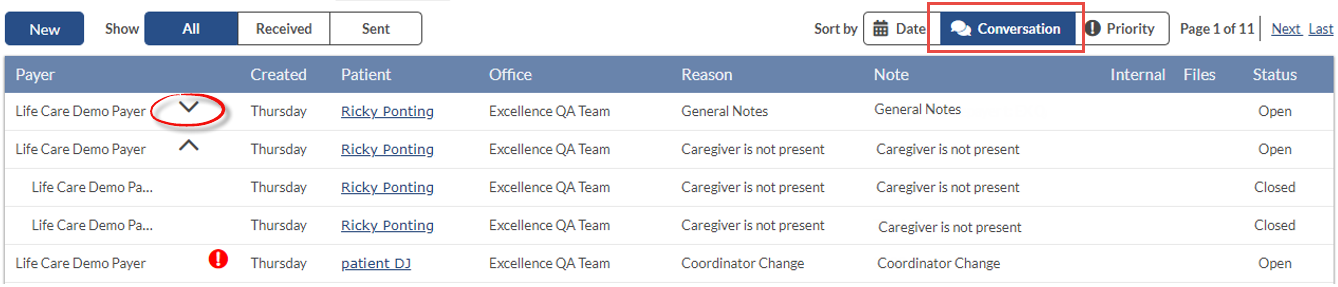
In this mode, click the arrow to view all the responses to the original message. Response messages appear indented and the original message remains on the top. To collapse the messages, click the (up) arrow.
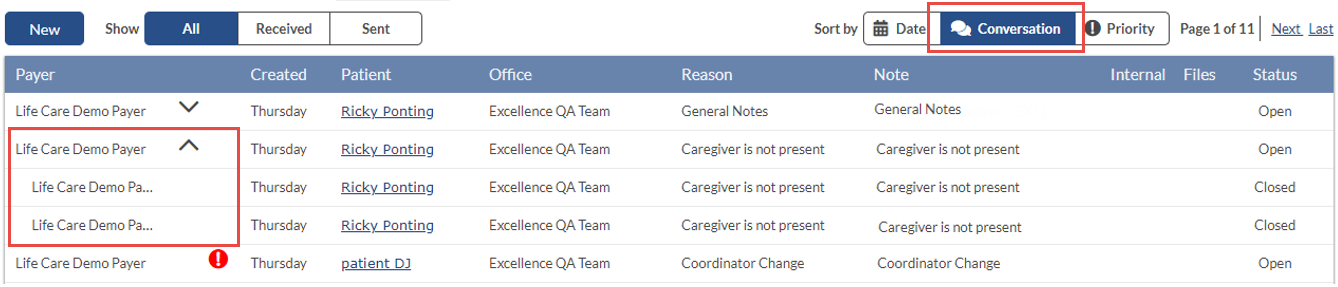
Click on any message in the conversation to display the thread of related messages in the conversation in a pop-up window.
Both Patient and Non-Patient messages under Action > Payer Communications can be created from the Message Center. To create a message click the New button.
On the New Message window under Action > Payer Communications, select Patient from the Communication Type field. The Patient, Reason, and Note fields are required.
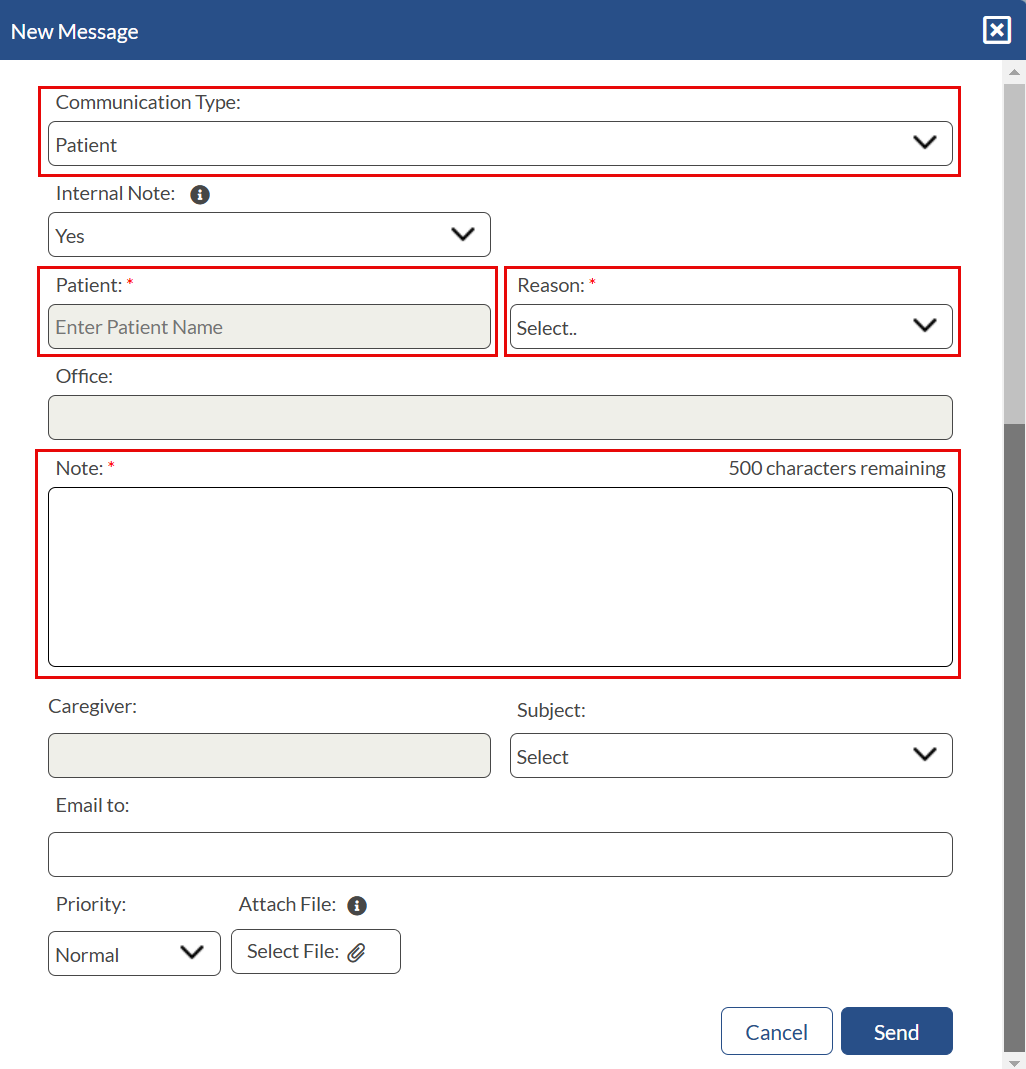
All fields are auto-search and generate information as text is entered. Depending on the Reason selected, other applicable (situational) fields are populated. For example, selecting Change of Schedule prompts user to select a Start Date field.
Complete the rest of the fields (Internal, Priority, and Attach File), as applicable. Click Send once complete.
Patient Notes can also be created from the Patient’s General page by clicking the New button in the Notes section.
As with the example above, the same functionality applies: All fields under Action > Payer Communications are auto-search and generate information as text is entered, additional fields may populate depending on the Reason selected, and fields denoted with a red asterisk are required.
On the New Message window, select Non-Patient from the Communication Type field. The From field is auto-filled with the sender’s username.
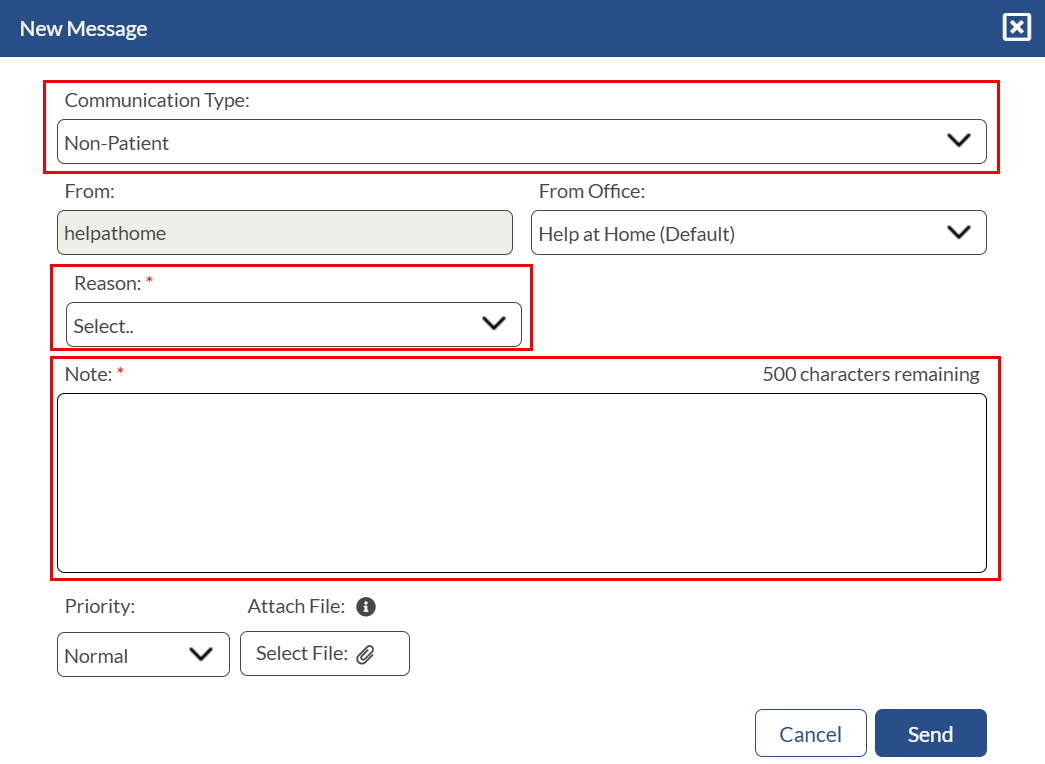
In these messages, the Reason and Note fields are required. The From field contains only the Payers linked with the selected Office. Complete the rest of the fields (Priority and Attach File), as applicable.
Click Send once complete.