Expiring Medicals/Other Compliance Worklist
Tasks for the Expiring Caregiver Medical/Other Compliance Worklist, under Action > Operation Worklist, are created when a specific Medical or Other Compliance record comes within 30 days of expiration without a set Completion Date and Result value. Tasks within this worklist are only listed as Completed if values for the Completion Date and Result fields are entered or the Due Date is changed to a later date (no longer reflecting a 30-day expiration).

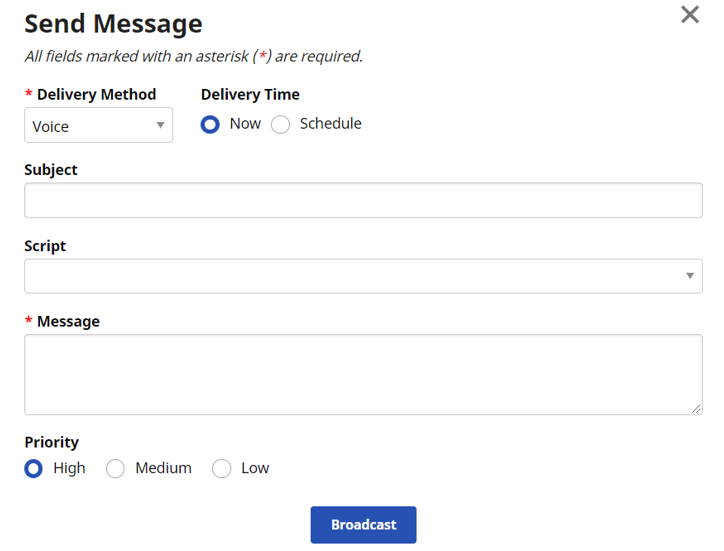
Send Message is an additional Task Action for the Expiring Caregiver Medical/Other Compliance Worklist under Action > Operation Worklist, allowing a user to send messages directly to the associated Caregiver from the worklist page.
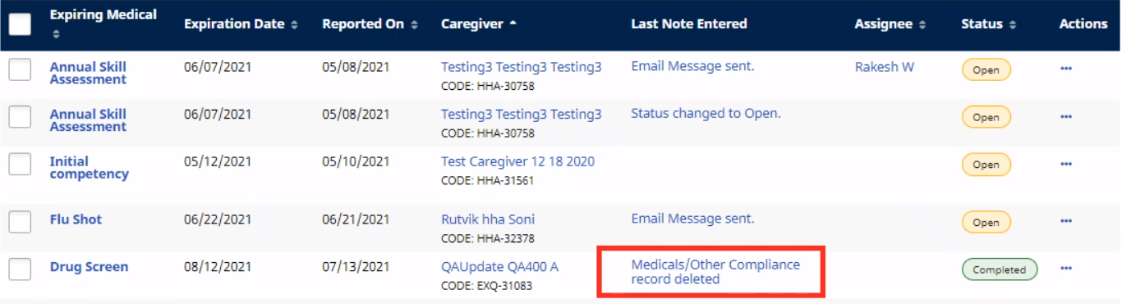
On the Expiring Caregiver Medical/Other Compliance Worklist under Action > Operation Worklist, an Automated Note is issued when a task status changes. For example, when a task is deleted, it is marked as Completed and a note appears under the Last Note Entered column.
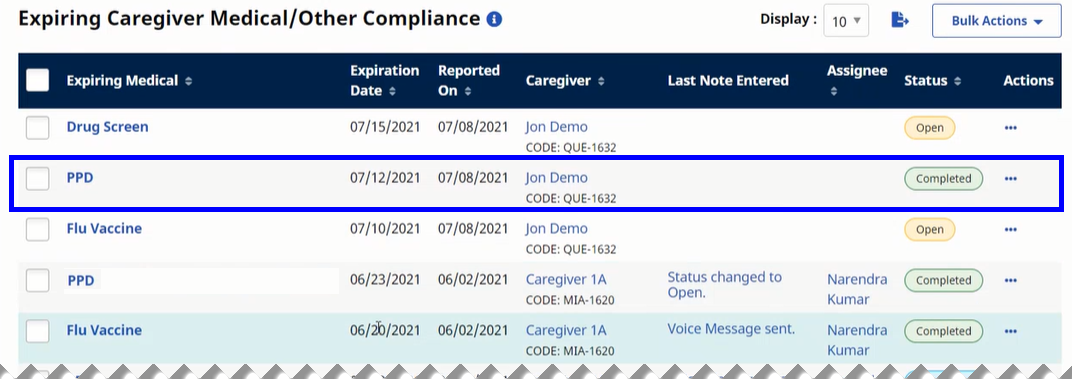
When a compliance Item is deleted from the Caregiver Compliance Medical/Other Requirements page under Action > Operation Worklist, the respective task is marked Completed in the Expiring Caregiver Medical/Other Compliance Worklist.
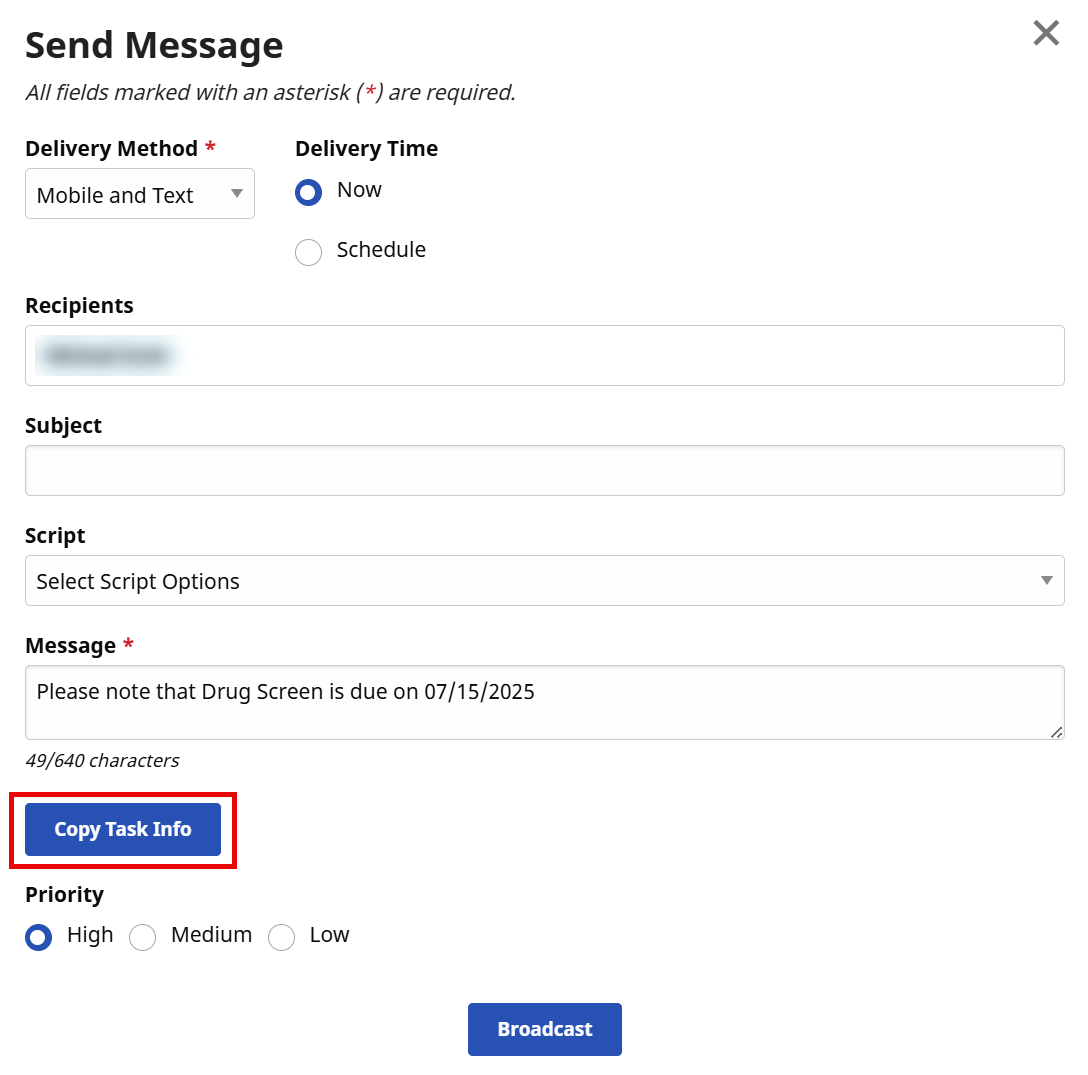
To avoid entering repetitive messages, use the Copy Task Info button under Action > Operation Worklist when sending a message to a specific Caregiver, as seen in the following image. Click the Copy Task Info button to copy the details of the selected task into the message. Messages can be customized, as needed.
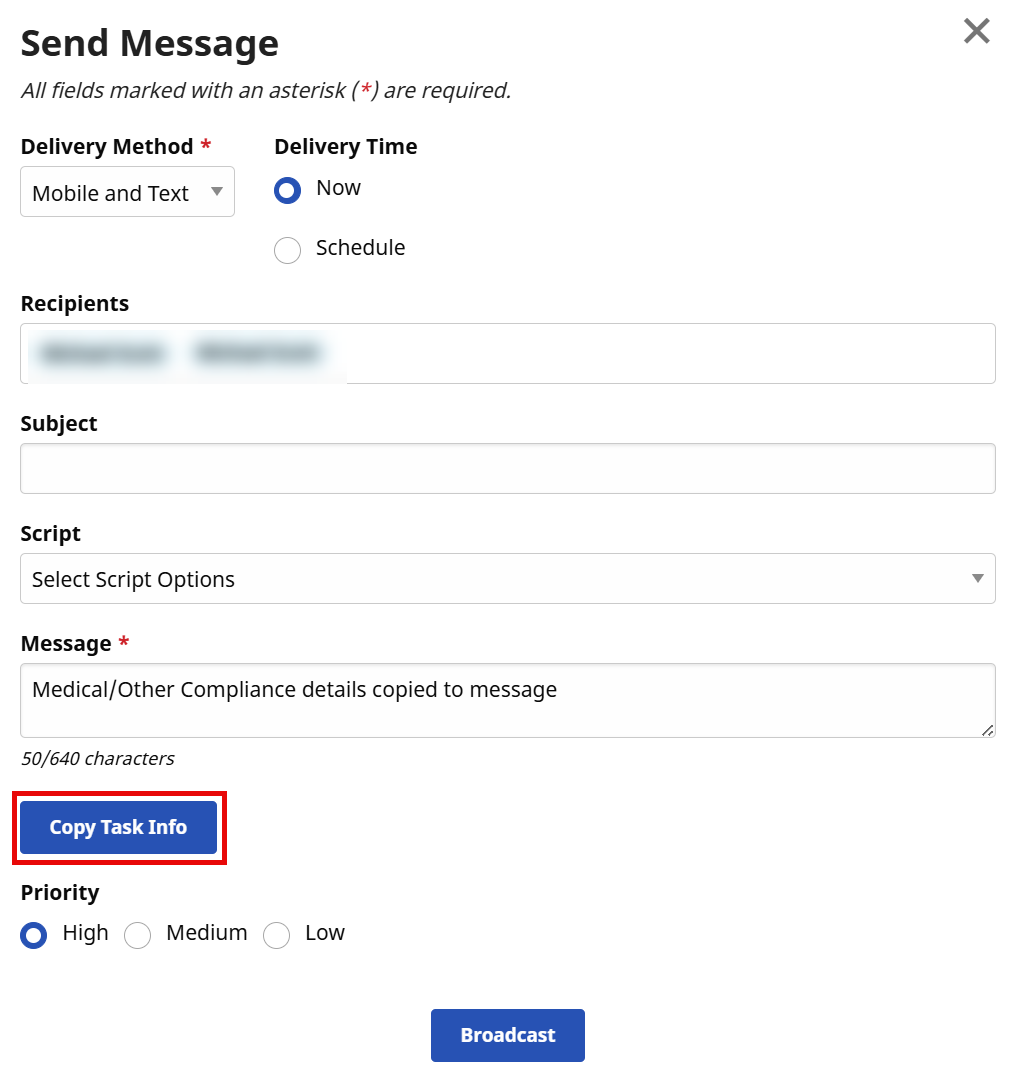
This feature can also be used to send a Bulk message. Click the Copy Task Info button to copy details of the selected task into the message and send to listed Recipients (Caregivers), as seen in the image below. Messages can be customized, as needed.
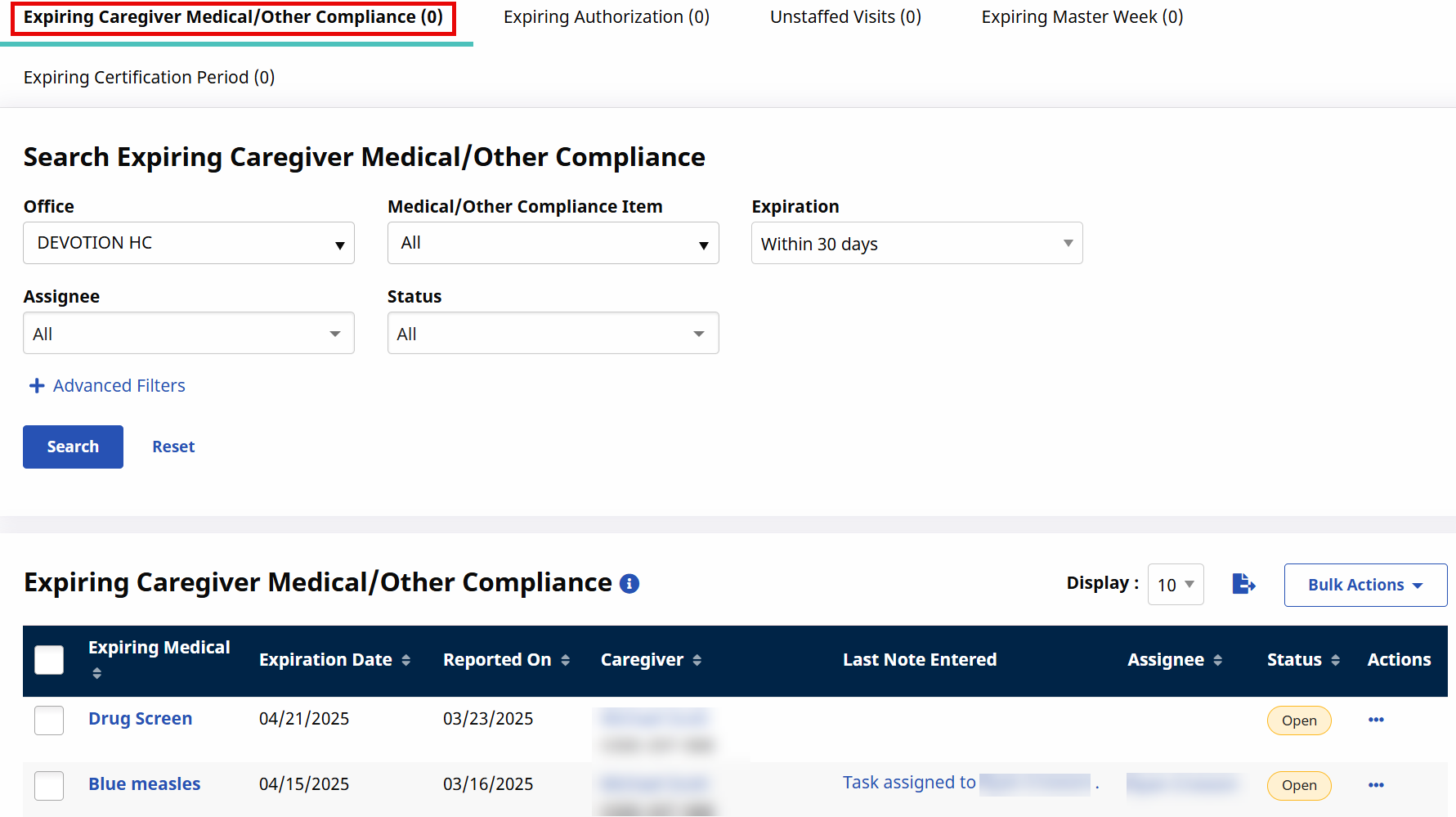
The top section of the worklist under Action > Operation Worklist contains search filters, as seen in the image above and described in the following table. Select the search criteria to view associated tasks.
|
Field |
Description |
|---|---|
|
Office |
The Office field defaults to the user’s primary office. Select one or more offices to search for tasks based on office. Search results do not reflect tasks for offices a user is not assigned to. |
|
Medical/Other Compliance Item |
Select the Medical/Other Compliance Item to search. All is selected by default. |
|
Expiration |
Select an expiration time frame to sort worklist tasks based on the Medical Expiration Date. Within 30 days is selected by default. |
|
Assignee |
Select to sort tasks based on the assigned user. By default, this field is set to the user accessing the worklist. |
|
Status |
Select a status(es) to search based on status. |
|
Advanced Search Filters |
|
|
Caregiver |
Select a Caregiver to search for worklist tasks associated with a specific Caregiver. |
|
Team/Branch/Location |
Use these search filters to search for a Caregiver’s specific Team, assigned Branch(es) or Location(s). |
|
Discipline |
Select applicable discipline(s) to search for worklist tasks based on the Caregiver’s assigned discipline(s). All is selected by default. |
|
Caregiver Status |
Use to search for expiring Caregiver Medicals/Other Compliance items based on Caregiver status (All, Active, Inactive, Hold, OnLeave, and Terminated). |
|
Language |
Use to search for expiring Caregiver Medicals/Other Compliance tasks based on the Caregiver’s selected language. |
The following table provides the details included for on the worklist widget under Action > Operation Worklist.
|
Field |
Description |
|---|---|
|
Caregiver Name/Code |
The Caregiver Name and Code. Click the Caregiver Name link to access the Caregiver Profile. |
|
Expiring Medical Name |
Title/Name of the expiring Medical. |
|
Medical Expiration Date |
The date the Medical expires in the system. |
|
Date Reported |
The date when the worklist is created by the system. |
|
Last Note Entered for Task |
Displays the last note entered for the task. If at least one note is entered, then a Note icon appears in this column. For quick reference, hover over the icon to display the last note entered. |
|
Assigned To |
The name of the current Assignee for the task (if any). |
|
Task Status |
The current status of the task. |