Manage Exclusion/Verification Lists
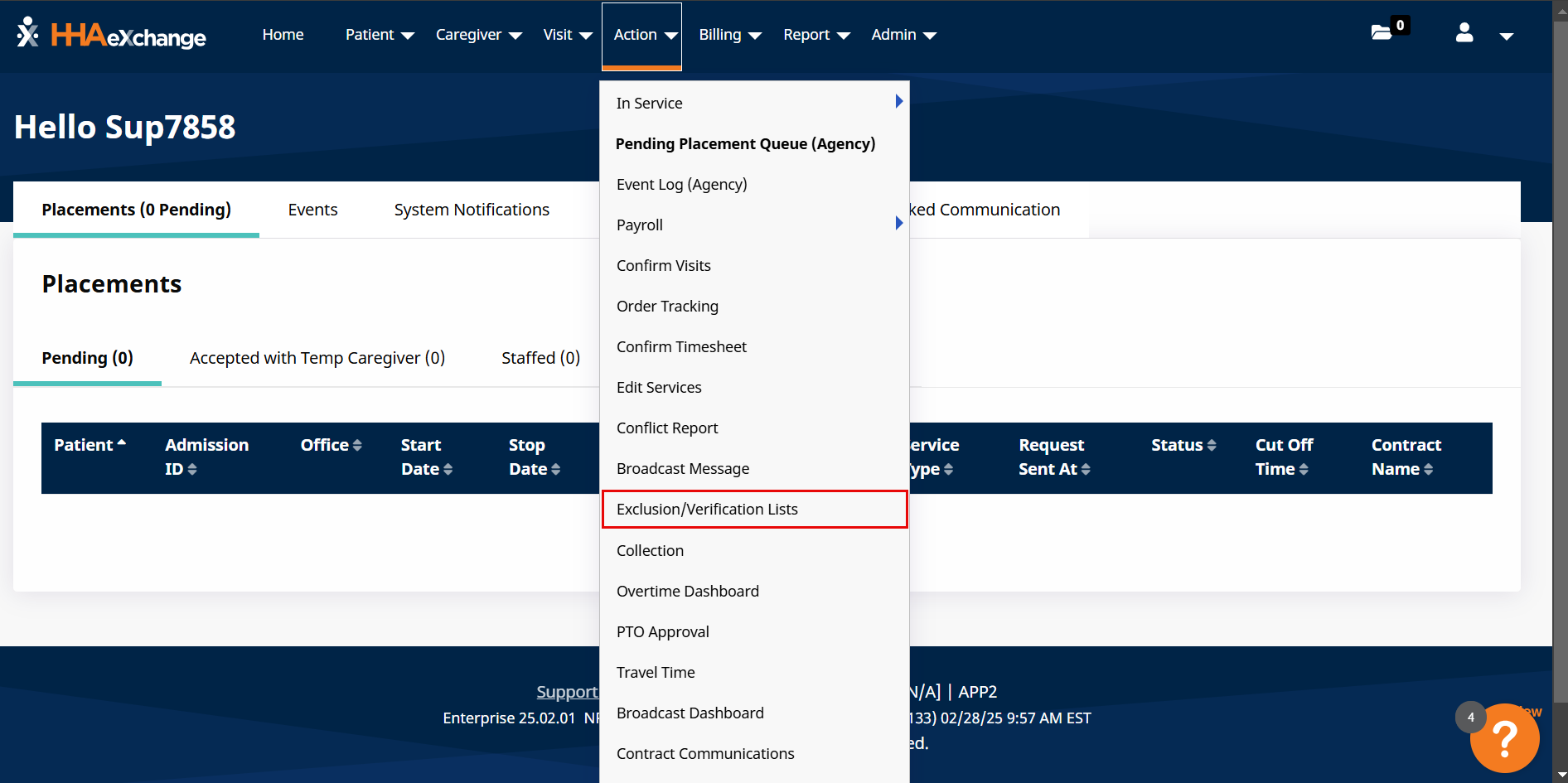
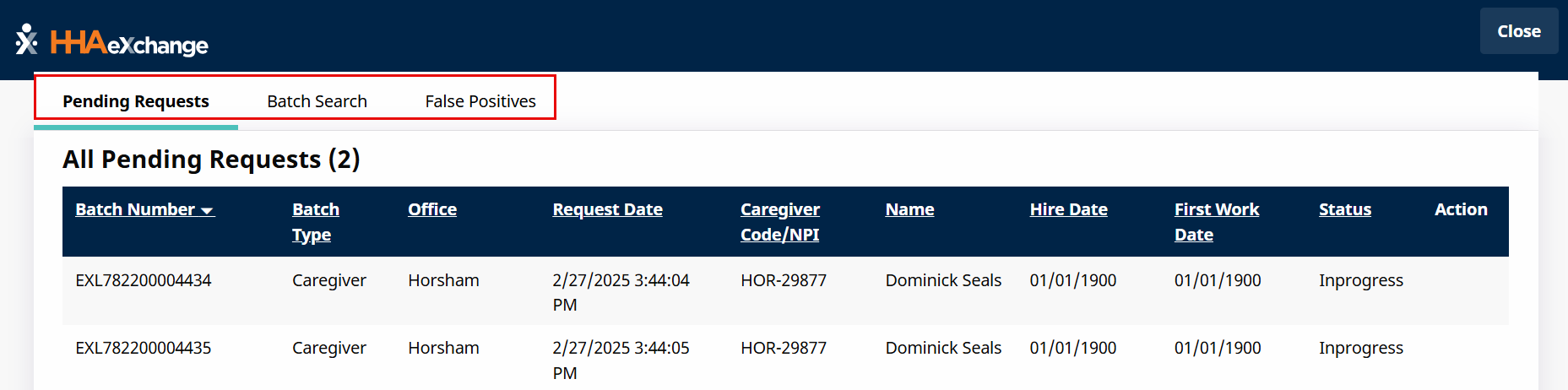
To check the status, search for batches of records, or manage false positive results for Exclusion and Verification Lists, go to Action > Exclusion/Verification Lists. A new window opens to a summary page on the Pending Requests tab. The Pending Requests, Batch Search, and False Positives tabs are covered in the following sections.

The Pending Requests tab under Action > Exclusion/Verification Lists provides a list of batches of records in Pending status. Each line item includes details such as the Batch Number, the Batch Type, and other high-level information such as the Caregiver Code/NPI and the Status.
-
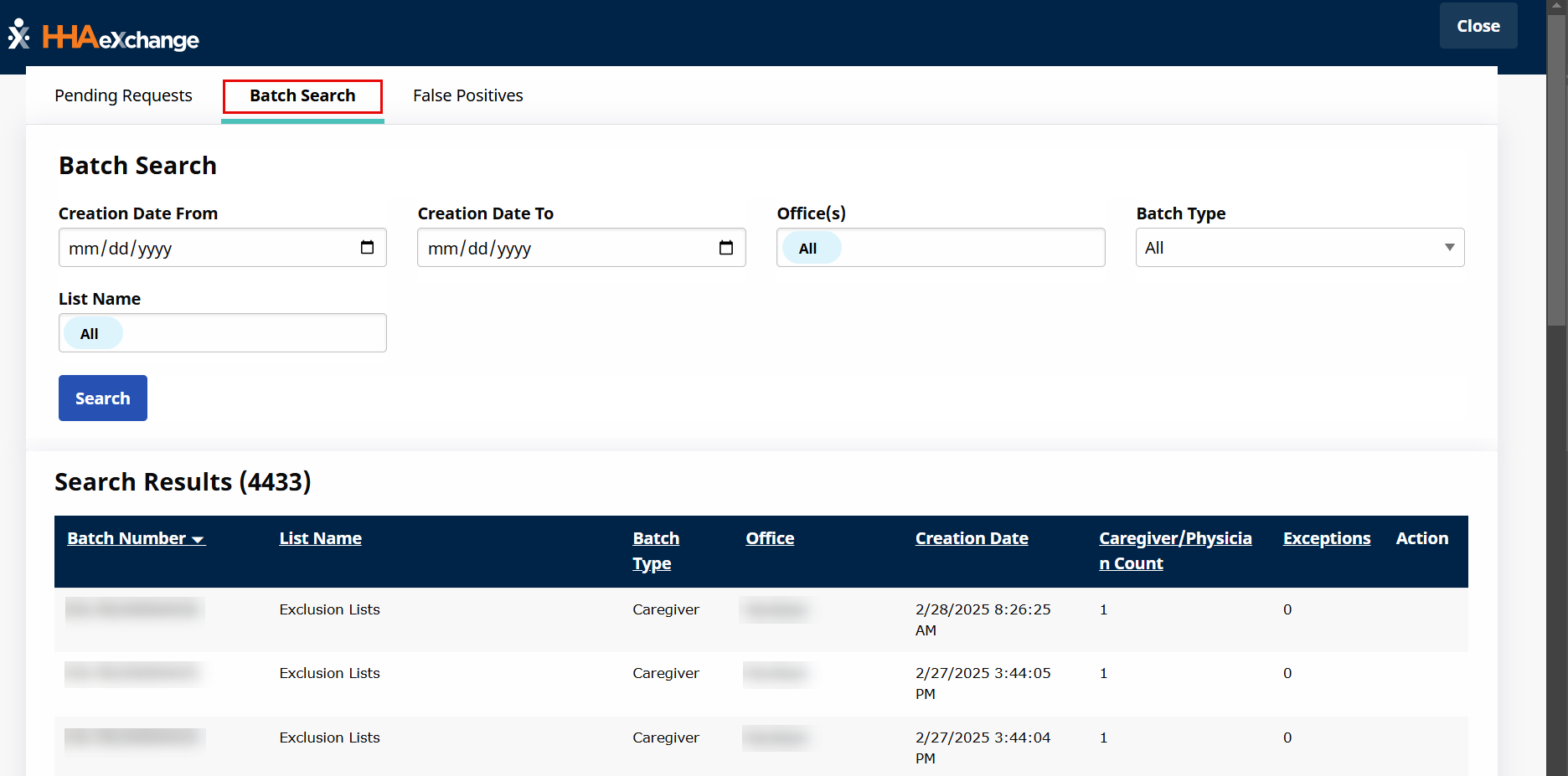
On the Batch Search tab under Action > Exclusion/Verification Lists, select search filters to narrow the search.
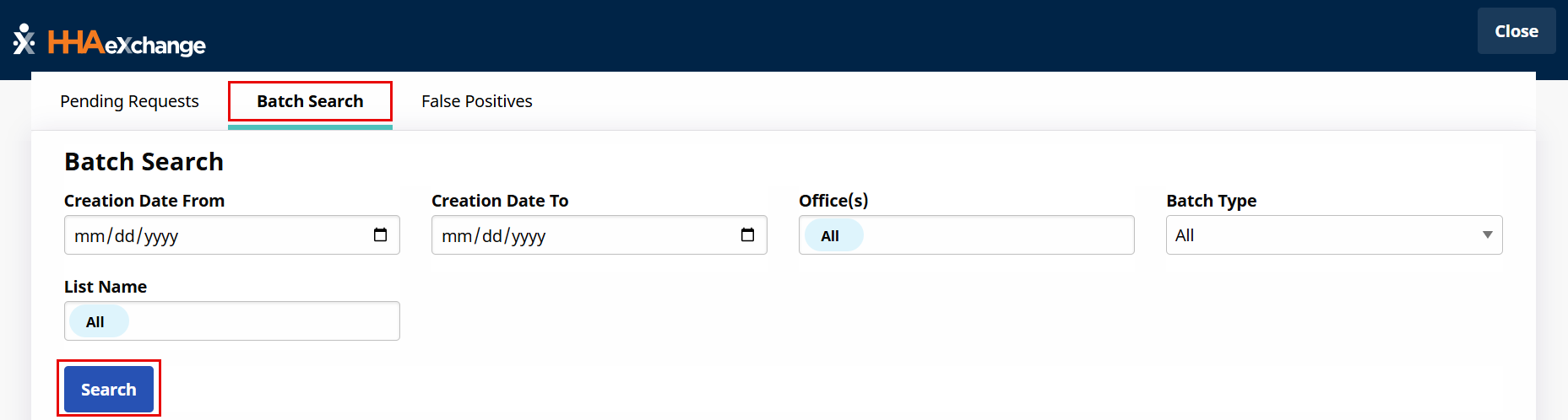
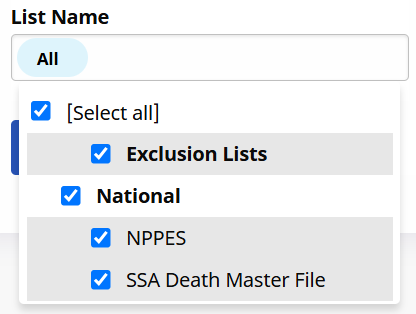
From the List Name field, select all of the lists configured for the agency by HHAeXchange System Administration. Click Search to generate search results.
-
The results appear under the Search Results section. Each line item includes the Batch Number, List Name, Batch Type, Office, Creation Date, Caregiver/Physician Count (number or records in the batch), Exceptions, and Action (icon to download record).
-
To view batch details, click the desired batch number link. The Batch Info and Search Batch page appear. Use the filters to expand the search further to include a Results dropdown.
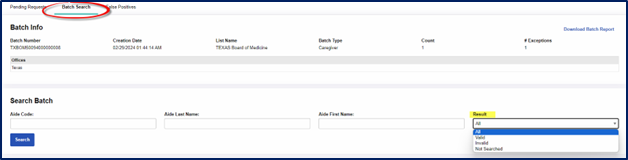
Select... Results All Displays Valid, Invalid, and Not Searched results on the same page. Invalid Displays all results where search name and license number do not match records in queried database.
For example, in the Death Master List, a person’s Social Security Number (SSN) is verified to ensure that the SSN does not belong to a dead person (in case the employee provides a false SSN). In the system, the SSN is considered a License Number. In this case, a searched license number is identical to a matched license number which may indicate fraud. For this reason, the individual shows as Invalid.
Not Searched Displays all results which had insufficient information recorded in the HHAeXchange system such that a query would have been unsuccessful, and therefore no query was run.
All individuals batched up to be run through a verification list must have the minimum required details available in the required fields of their profile. If the required details are not available in the required fields, they are not entered into a batch or query, and their record appears as Not Searched.
Valid Displays all verification list results where the search details are the same as the match details. -
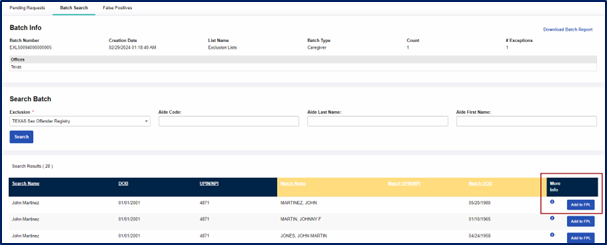
For Search Batch fields, the Exclusion field is required. Select the list and click the Search button to continue.

The search results provide the individuals on the selected batch with details such as Name, DOB, UPNI/NPI number and matching information under the highlighted yellow columns.
-
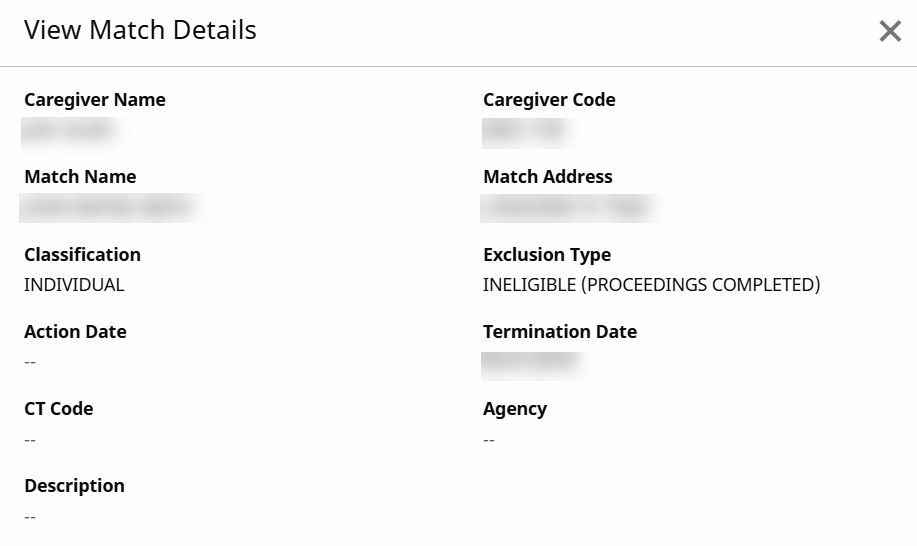
Under the More Info column, click the information icon to open the View Match Details window. Review the information provided and determine if the individual should be added to the False Positive List (FPL). Click the X at the top-right corner to exit the window and return to the results screen.
-
To add the individual to the False Positive List (FPL), click the Add to FPL button under the More Info column of the row in the results screen. The individual is then moved to the False Positives tab.
The selected individual does not show up on the selected exclusion list when compared to the same incorrect excluded individual.
The False Positives tab under Action > Exclusion/Verification Lists deals with exclusion lists which includes newly added lists.
-
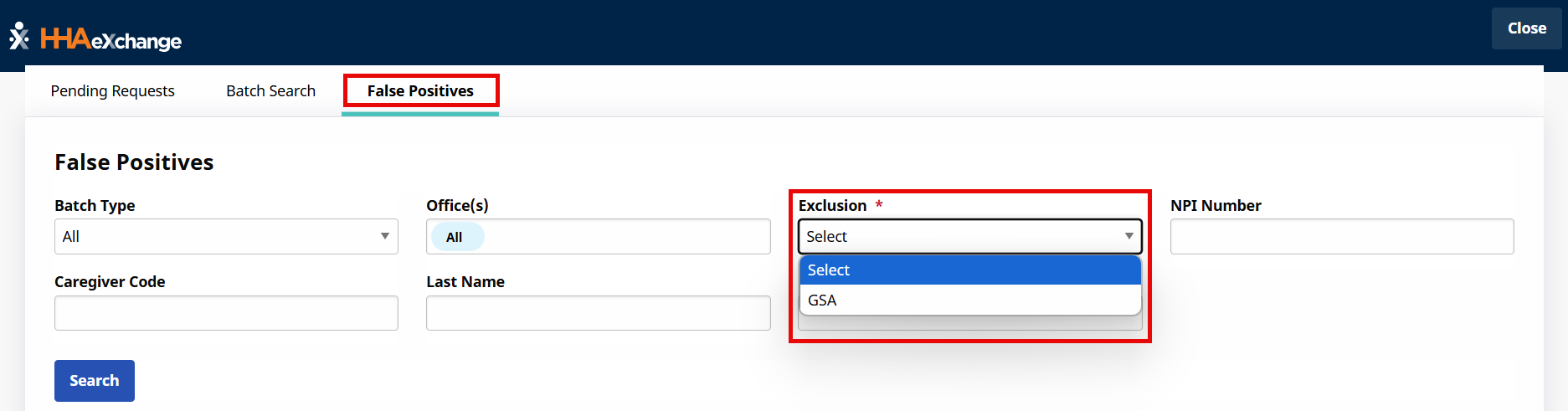
On the False Positives tab, select an exclusion list from the Exclusions field and then click the Search button.
The Exclusion dropdown shows all Exclusion lists (all lists available for any office throughout an agency) and is required to run a search.
-
The results are generated in the False Positives tab. Each line item indicates specific high-level information. The first three columns indicate the Name, DOB, and UPIN/NPI number, the following three columns to right display the matching Name, UPIN/NPI and DOB.
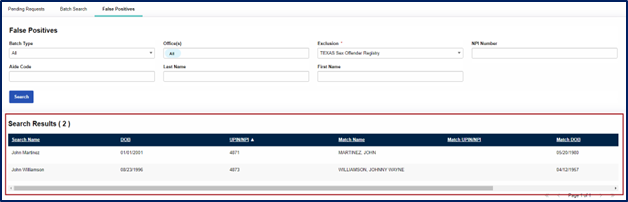
When an individual is placed in the False Positives for a selected exclusion list, they no longer show up on the selected exclusion list when compared to the same incorrect excluded individual.