Worklist Example
The following example demonstrates how to manage expiring Medicals/Evaluations for a Caregiver through worklists, under Action > Operation Worklist. For this particular worklist, the system is configured to create a new task whenever a Medical or Evaluation comes within 30 days of expiring.
The following details are provided in a task:
-
Caregiver Name
-
Name of the Medical or Evaluation that is expiring for the Caregiver
-
Expiration Date of the Medical or Evaluation
-
User assigned to the task (assignee)
-
Task Status
From the task, the assignee has the option to message the Caregiver using ConeXus, informing them of an expiring Medical/Evaluation. Notes can also be added to the task to track when the Caregiver was contacted or to provide any other pertinent information. The task status can also be updated to indicate that it is In Progress. Once the completed Medical/Evaluation information is provided by the Caregiver, and entered in the system, the task status is automatically updated to Completed (since the closing condition is met).
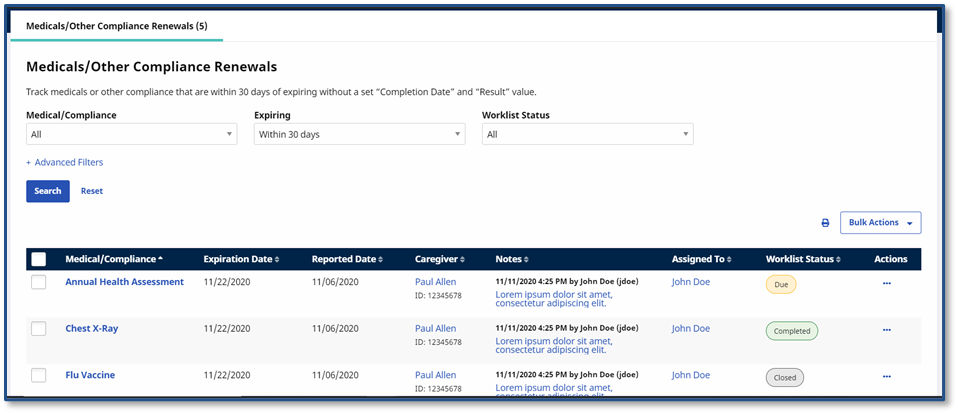
All worklists are housed in a single page, allowing an assignee to tab through and manage the worklists and tasks assigned to them. Worklist assignment is performed at the user level. Worklists can be sorted and searched for using Search fields such as Caregiver, Patient, Task Status, Assignee, and Office.