Daylight Savings Time
Daylight Saving Time (DST) can quietly throw off the hours on overnight visits, which can lead to incorrect billing, payroll delays, and extra manual work for your team. HHAeXchange offers an Automatic DST Adjustment Feature that can help prevent these issues by keeping visit hours accurate when the clocks change. Without it, you may see unexpected hours on affected visits and need to correct them before claims can be processed or caregivers can be paid. This help topic explains how Daylight Savings Time works, as well as the benefits of using the Automatic DST Adjust Feature.

Date: Sunday, November 2, 2025
What happens: At 2:00 am, clocks move back to 1:00 am. The hour between 1:00–2:00 am repeats, so shifts include one extra hour.
System behavior:
-
Caregivers work one additional hour.
-
Billing and payroll stay at the scheduled hours unless automatic DST adjustment is enabled.
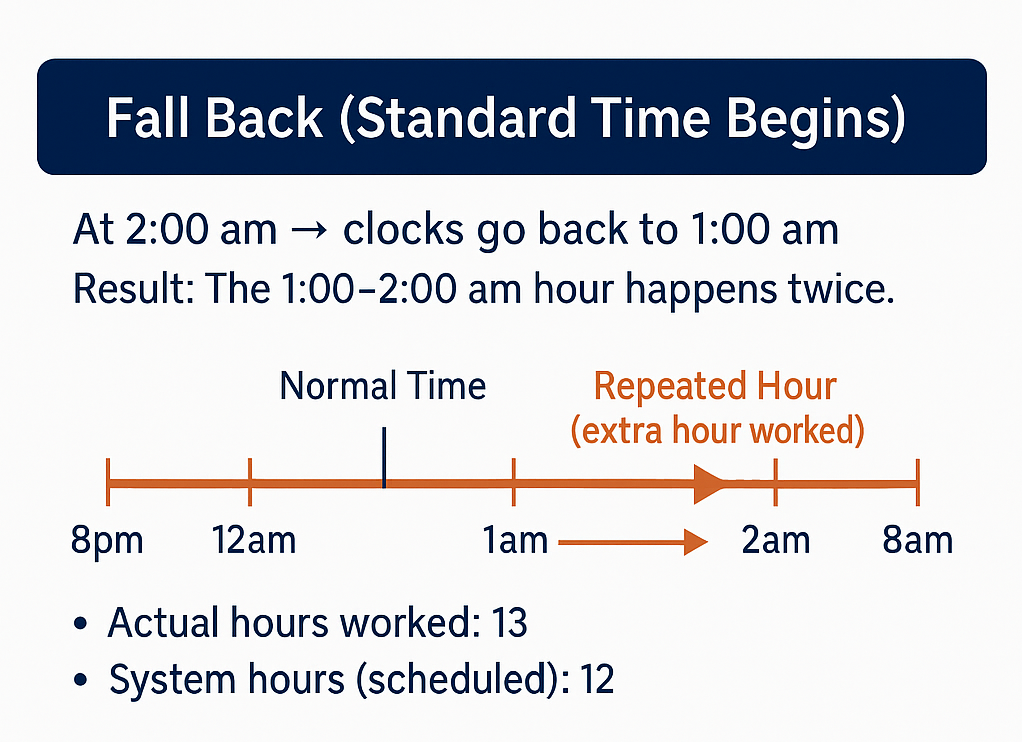
Example:
A shift scheduled for 8:00 pm – 8:00 am spans the time change.
-
Actual time worked: 13 hours
-
System-generated hours: 12 hours (scheduled duration)
Date: Sunday, March 8, 2026
What happens: At 2:00 am, clocks jump forward to 3:00 am. The hour between 2:00–3:00 am is skipped, so shifts lose one hour.
System behavior:
-
Caregivers work one hour less than scheduled.
-
Billing and payroll stay at the scheduled hours unless automatic DST adjustment is enabled.
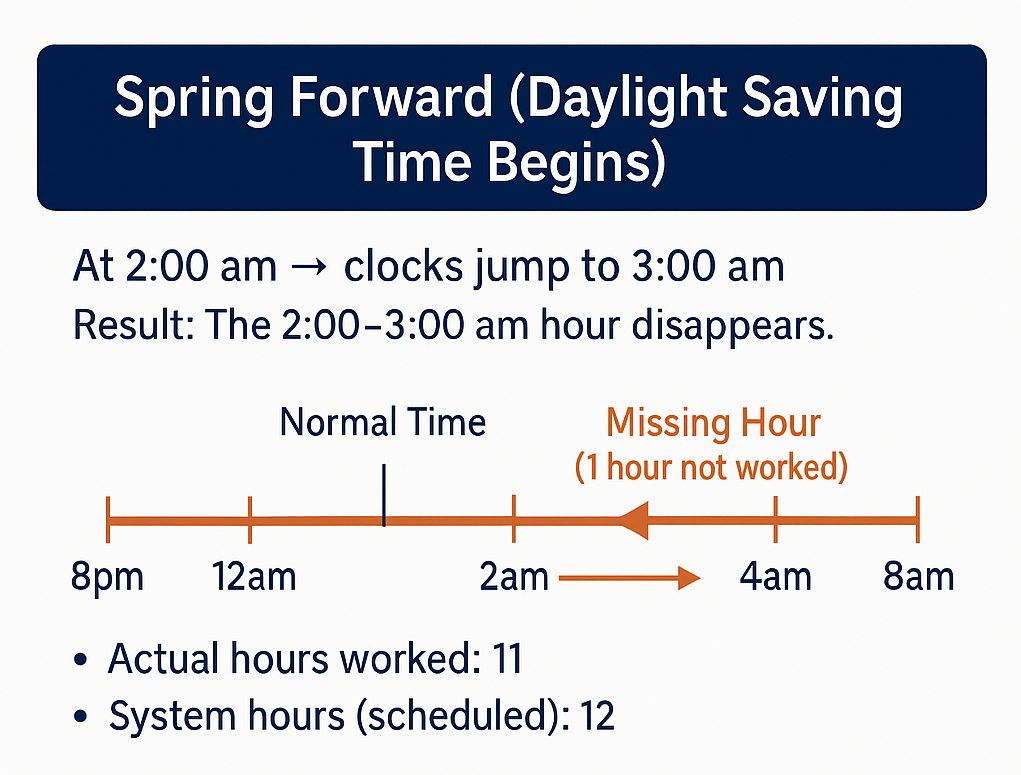
Example:
A shift scheduled for 8:00 pm – 8:00 am spans the time change.
-
Actual time worked: 11 hours
-
System-generated hours: 12 hours (scheduled duration)
-
Use the Daylight Saving Time (DST) Adjustment setting when you want HHAeXchange to automatically handle the extra hour gained in the fall or the lost hour in the spring for overnight visits that cross 2:00 am. This helps keep billing and payroll accurate without requiring manual edits for most shifts.
You should turn this setting ON if:
-
Your Caregivers regularly work overnight shifts that cross 2:00am during DST weekends.
-
You want the system to automatically add or remove the DST hour instead of adjusting visits manually.
-
You’re comfortable manually reviewing only the small number of 24-hour live-in visits that may appear as 25-hour shifts.
You should leave this setting OFF if:
-
Your agency does not have visits that cross 2:00am.
-
You prefer to manually adjust hours for any visits affected by the time change.
-
You want to avoid 25-hour live-in visits that require correction in Billing Review.
Using this setting ensures the system handles most DST-related hour changes automatically, reducing manual work and helping prevent billing and payroll discrepancies.
Refer to the flowchart below to determine whether the DST adjustment setting is right for your agency:
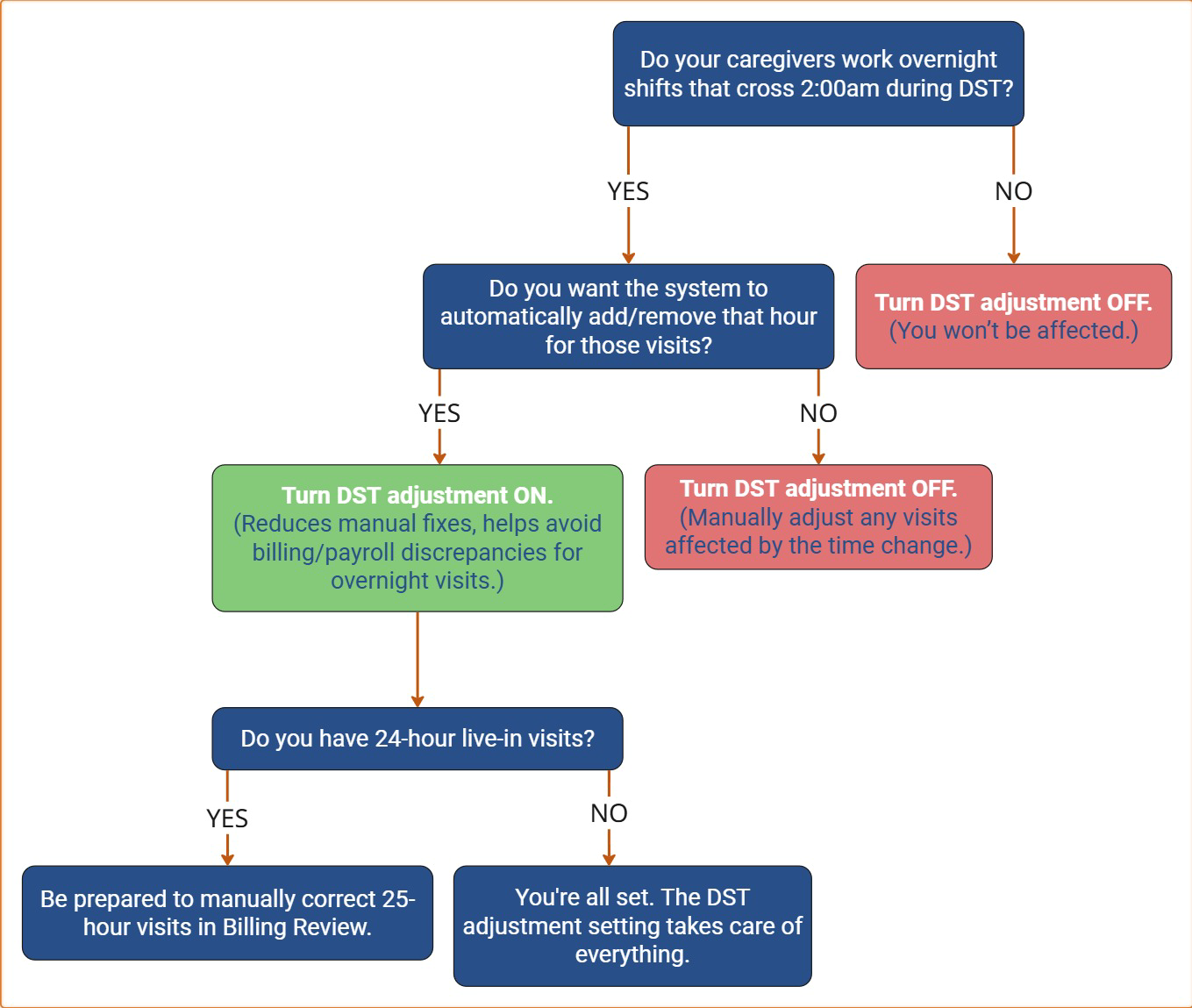
To enable this setting:
Go to Admin > Office Setup > Office Search and click on the office you want to edit. In the Scheduling section, check Automatically adjust for Daylight Savings Time.
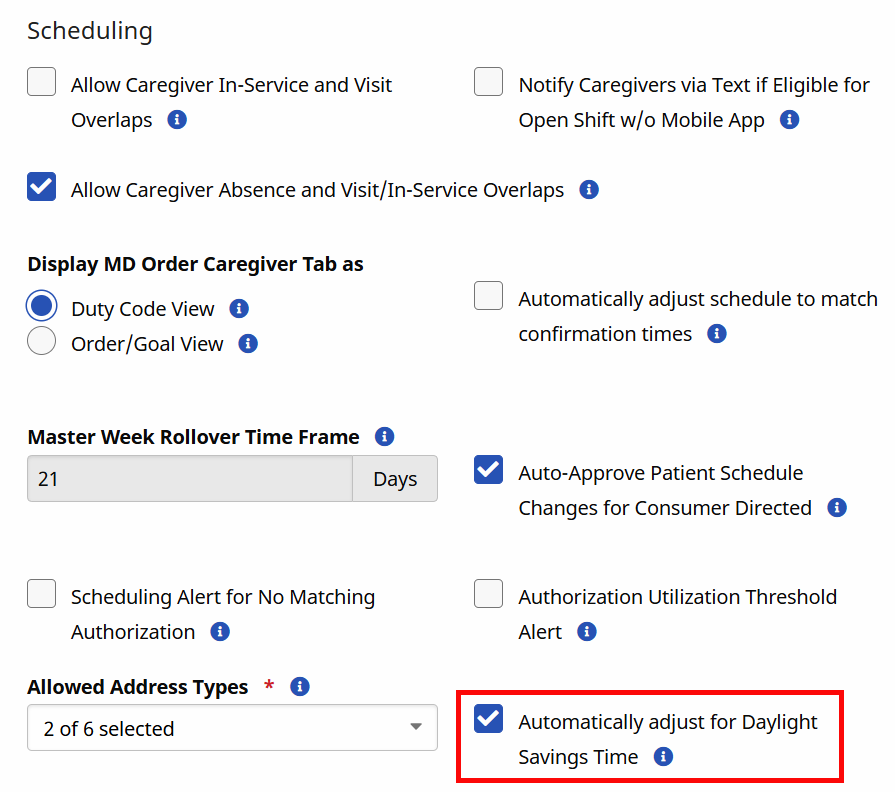
When enabled:
-
Spring (DST begins): 1 hour is automatically subtracted
-
Fall (Standard Time begins): 1 hour is automatically added
-
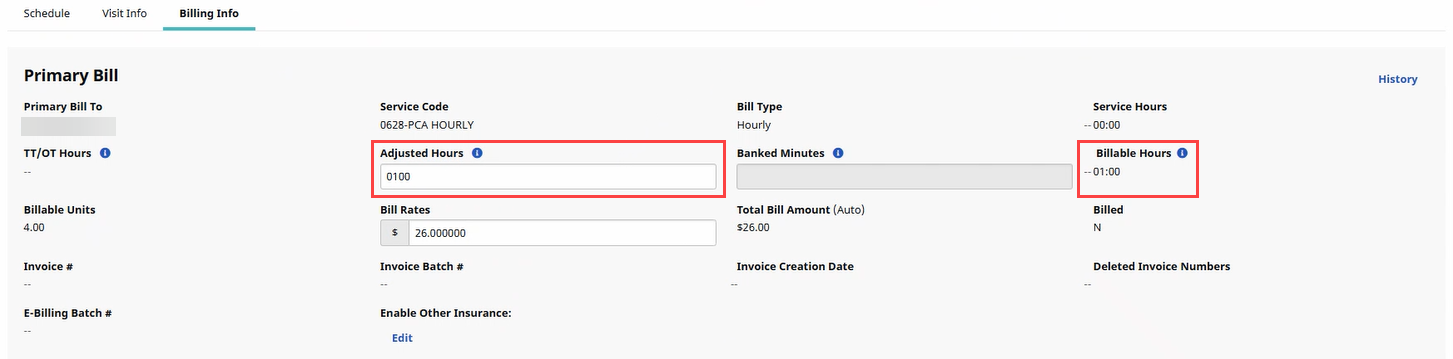
Adjusted hours appear in the Billing Info tab of the Visit under Adjusted Hours and Billable Hours.
Manually adjusting a visit can affect your EVV compliance.
If you do not use the automatic adjustment feature, you may need to manually adjust your visit hours in order to correctly bill your visits. To do so:
-
Fall Back: The clock moves from 2:00 AM to 1:00 AM, so a shift that looks like 8 hours is actually 9 hours. To adjust:
-
Review the scheduled shift (For example, 10:00 PM - 6:00 AM).
-
Identify the repeated hour (The hour 1:00 AM - 2:00 AM occurs twice).
-
Adjust the total hours worked by adding 1 hour to the shift duration (From 8 hours to 9 hours):
-
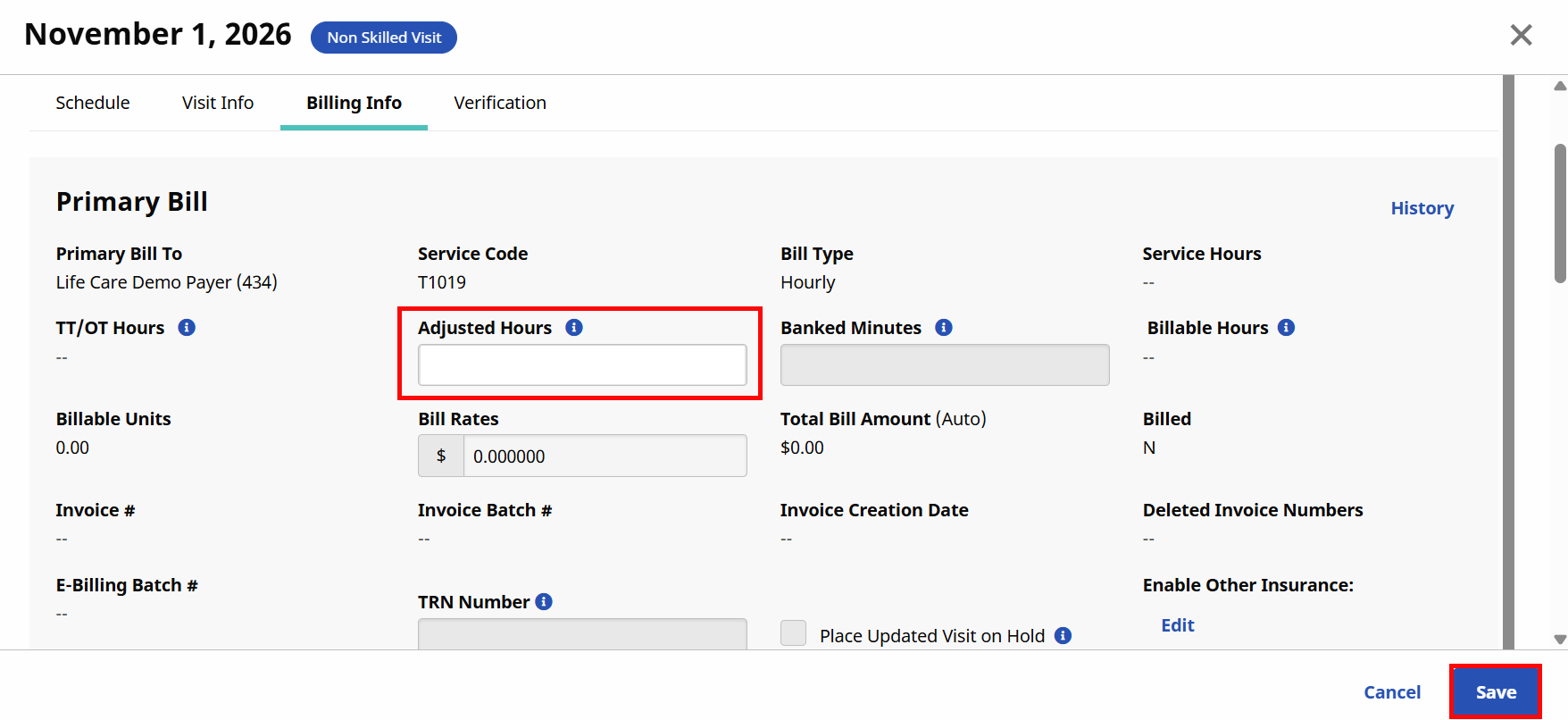
Click on the Visit, and then select the Billing Info tab.
-
In the Adjusted Hours field, enter 0100.
-
Click Save.
-
-
Update the time entry by adjusting the total hours worked, or extending the end time (if needed).
-
Add a note (recommended): Adjusted for DST fall back (+1 hour).
-
-
Spring Forward: The clock moves from 2:00 AM to 3:00 AM, so a shift that looks like 8 hours is actually 7 hours. To adjust:
-
Review the scheduled shift (For example, 10:00 PM - 6:00 AM).
-
Identify the missing hour (The hour 2:00 AM - 3:00 AM does not exist).
-
Adjust the total hours worked by removing 1 hour to the shift duration (From 8 hours to 7 hours):
-
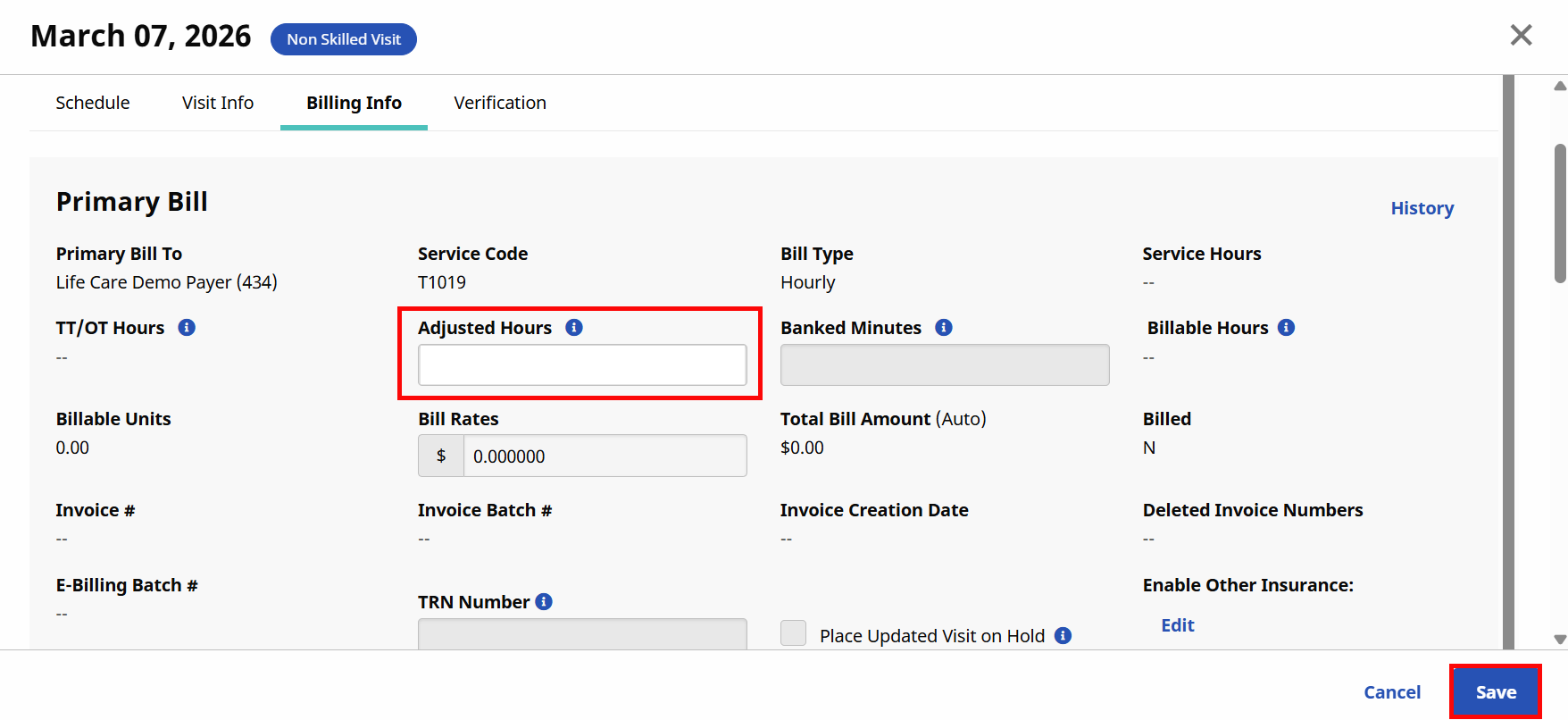
Click on the Visit, and then select the Billing Info tab.
-
In the Adjusted Hours field, enter -0100.
-
Click Save.
-
-
Update the time entry by adjusting the total hours worked, or modify the end time (if needed).
-
Add a note (recommended): Adjusted for DST spring forward (-1 hour).
-
Daily-rate or Visit-rate service codes are not affected because they bill a flat rate.