Reference Table Management
The Reference Table Management feature is found under Admin > Reference Table Management and is one of the most widely used features in the HHAeXchange system. Multiple fields in the application are populated with the unique values created in Reference Tables by the Provider Agency.

Many reference tables exist to create and update system values. The fields used to create new values in the Reference Table list vary from table to table. Values created using this function are labeled as Agency Default on the Office Level Reference Table.
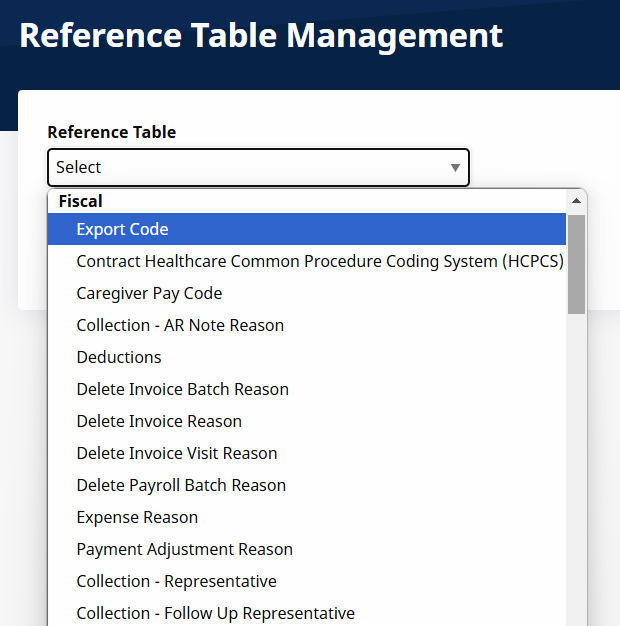
The process of creating and managing Reference Table values is standard. Begin by searching for the Reference Table. For example, the In Service Instructors table is selected. Click Add to add a value to the selected Reference Table or click an existing value name to update it.
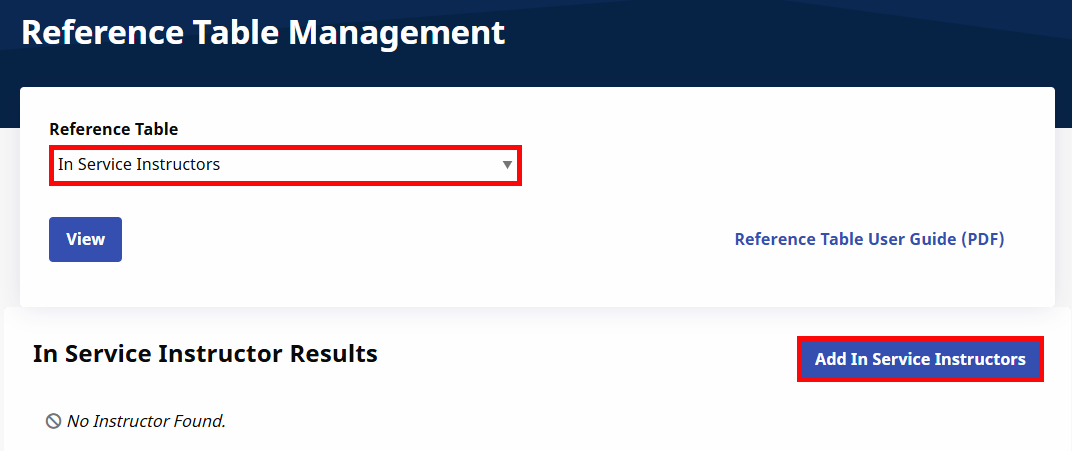
In this example, a new In Service Instructor is added. Click Add to open the In Service Instructor window. Enter the Instructor (name) and ensure the Status is Active. Click Save.
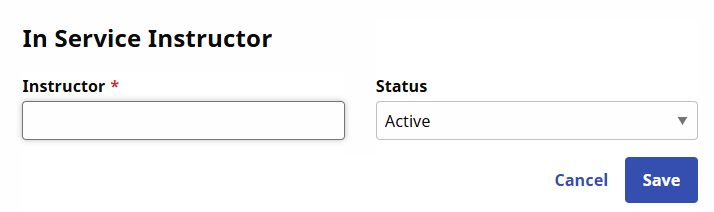
For this example, the same process applies when editing a value. The Instructor name can change and the Status can change from Active to Inactive.
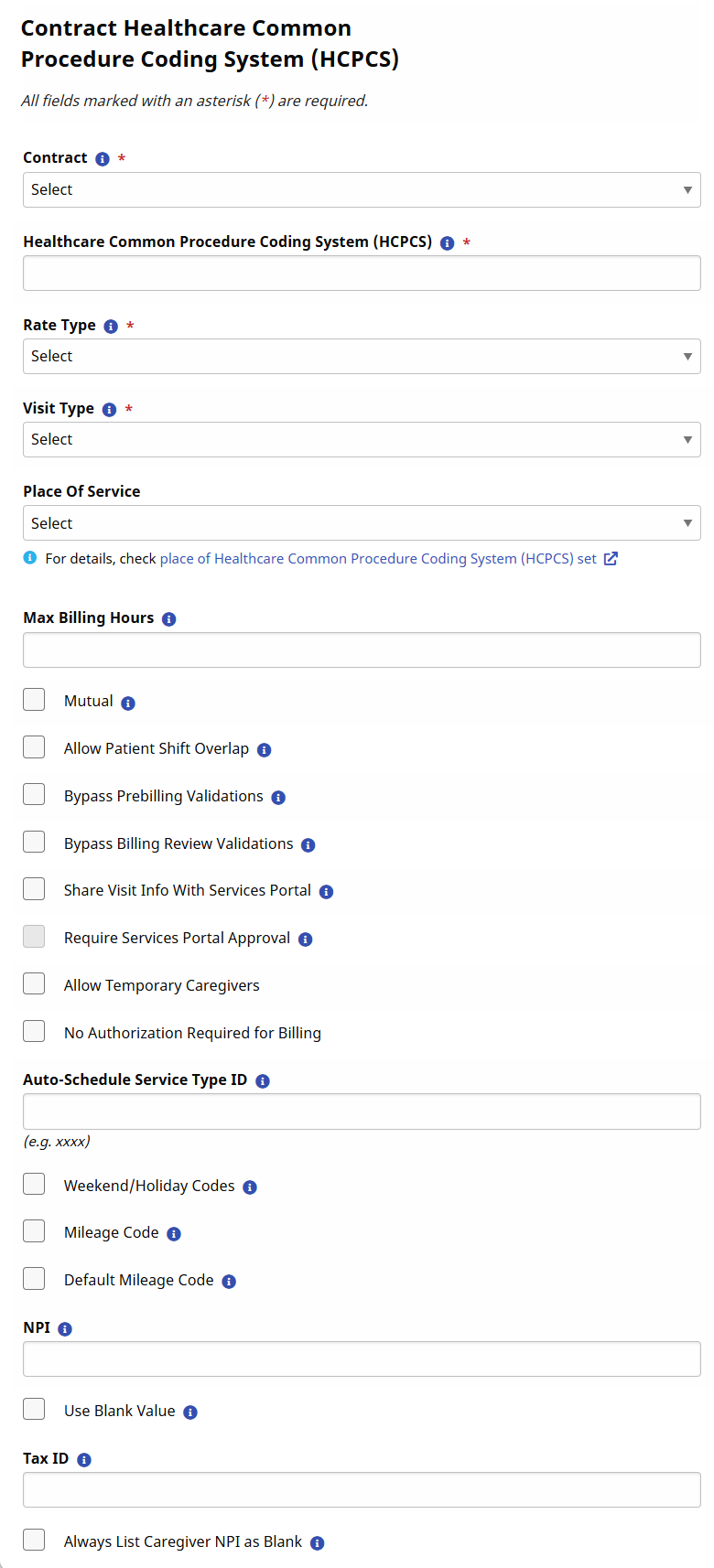
Some Reference Tables require more information. When you access a Reference Table, its fields display as columns on the page (as seen below for the Contract Healthcare Common Procedure Coding System (HCPCS) Reference Table). Search filters are available to facilitate specific searches.
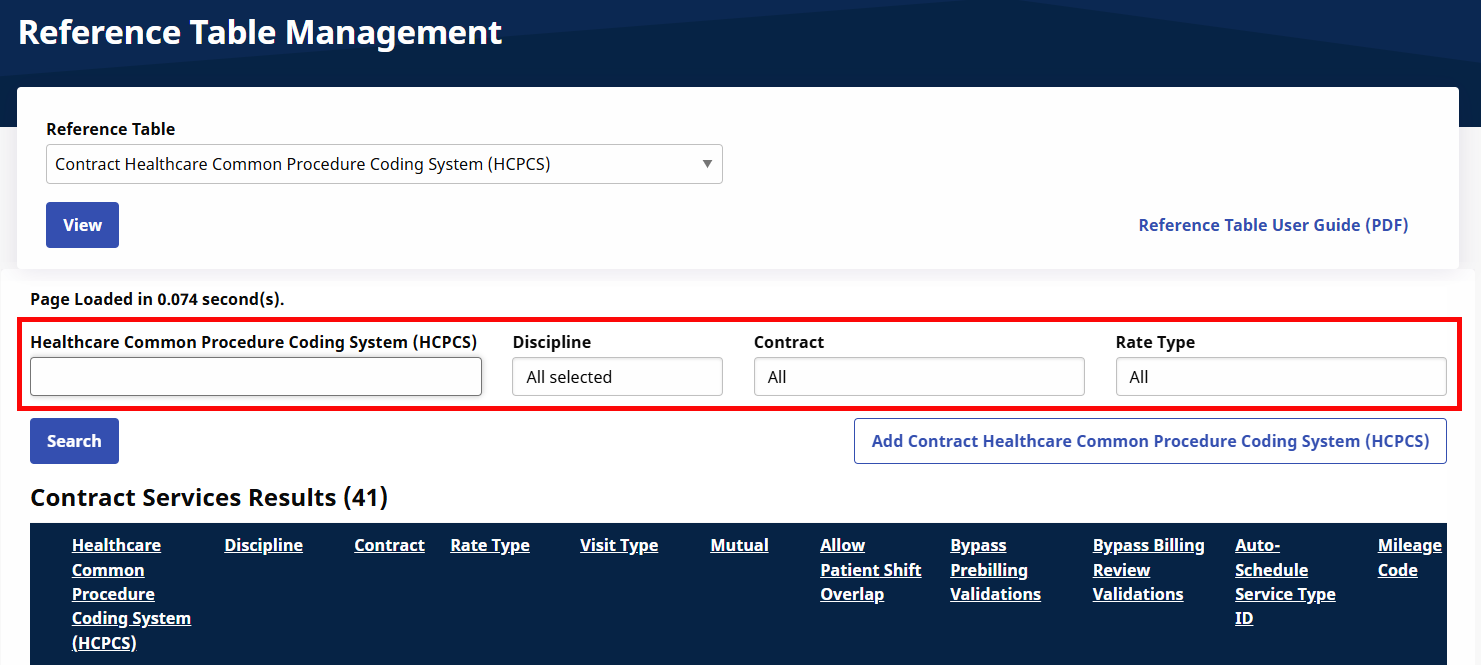
In the following example, adding a new value requires more information. When complete, the field values added here are displayed in the Reference Table Management columns shown above.
This feature is activated by HHAeXchange System Administration. Contact HHAeXchange Support Team for details, setup, and guidance.
Add Expenses in the Blended Overtime calculation feature in the Payroll module. Once activated, Providers can apply an expense to Blended Overtime in the Expense Type Reference Table under Admin > Reference Table Management.
To add expense to blended overtime:
-
Go to Admin > Reference Table Management.
-
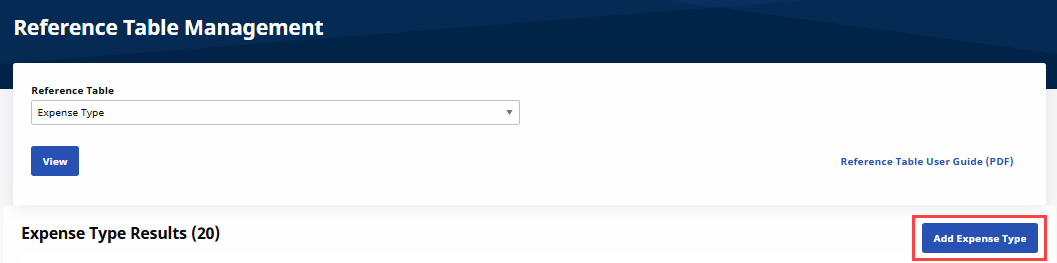
Select Expense Type from the Reference Table dropdown, click View and then click Add Expense Type.
-
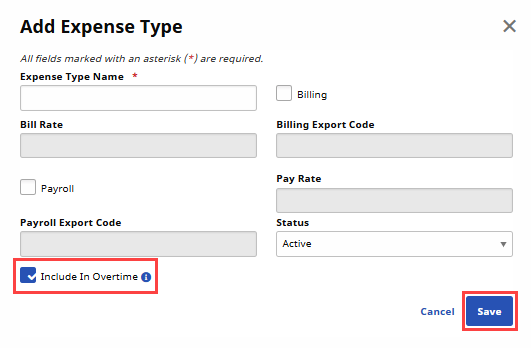
The Add Expense Type window opens. Complete the required fields, select the Include in Overtime checkbox, and click Save.
A Broadcast Reject Reason dropdown is available via the Reference Table Management feature to create and manage Broadcast Rejection Reasons on open shifts. To access this feature, go to Admin > Reference Table Management and select Broadcast Reject Reason under General. Then select the View button. Existing Broadcast Reject reasons appear.
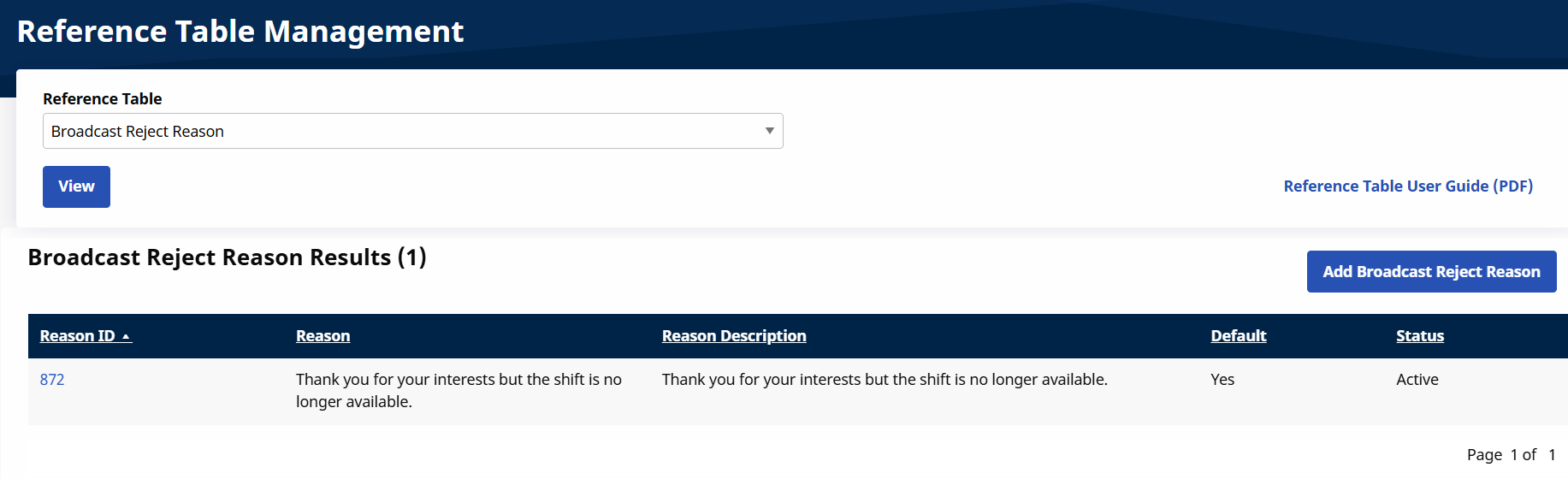
Select the Add Broadcast Reject Reason button to add a new reason. The Reject Reason is required and at least one reason must be selected as default. If only one reason exists, it is automatically selected. Once a default reason is set, this reason is the automatic response sent for rejected cases.
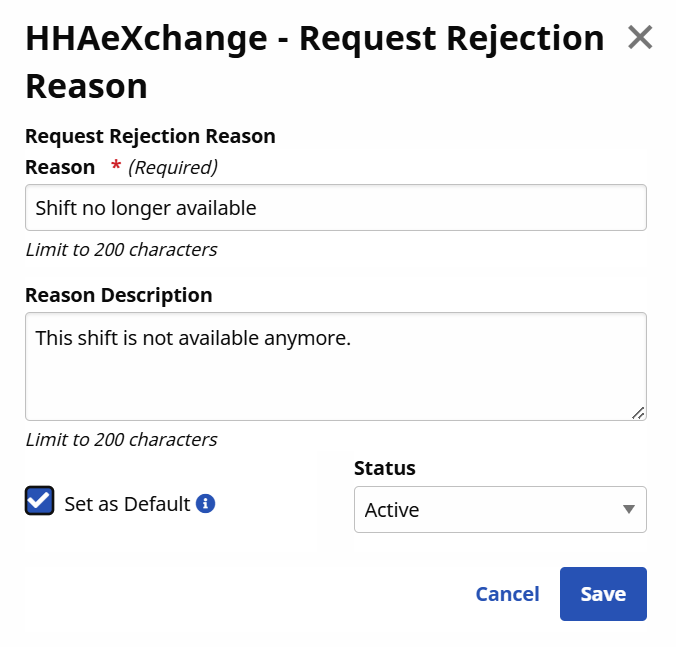
If a case has been assigned, then all remaining requests for that visit are automatically rejected. If a Coordinator chooses to reject each request individually, other reasons can be selected (as created in the Reference Table). The Reference Table search page shows the default rejection reason by indicating Yes under the Default column.
Complete the steps below to setup a new expense.
-
Go to Admin > Reference Table Management.
-
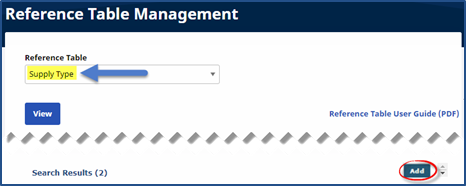
Select Supply Type under the Patient section from the Reference Table field. Click Add.
-
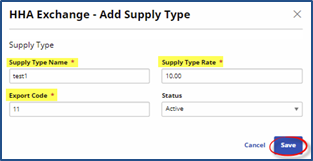
The Add Supply Type window opens. Complete the required fields denoted with a red asterisk.
Field
Enter the…
*Supply Type Name
(Required) Name of the Supply.
*Supply Type Rate
(Required) Billing rate per unit for the Supply.
*Export Code
(Required) Export Code to display on the Invoice.
-
Click Save to create the new Supply.
After ODT is enabled at the Office level, ODT rates must be assigned when Caregiver pay codes are created or edited. This is required for all applicable disciplines.
-
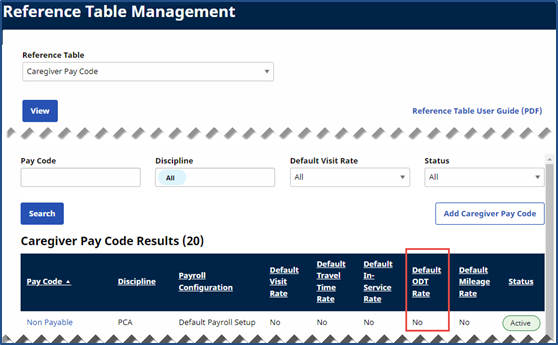
Go to Admin > Reference Table Management. Select Caregiver Pay Code from the Reference Table dropdown field and click Search.
-
On the Caregiver Pay Codes Reference Table search results, pay codes with ODT rates display Yes under the Default ODT Rate column. Click Add Caregiver Pay Code to create a new code or click on an existing code link to edit the code.
-
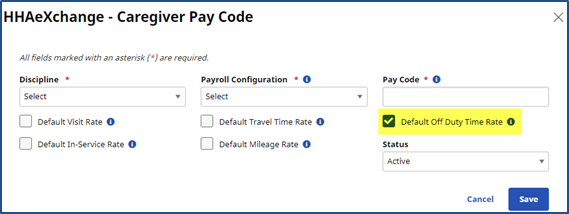
In the Caregiver Pay Code window, select the Default Off Duty Time Rate checkbox.
-
Click Save.
-
Repeat steps for all applicable Caregiver Pay Codes to apply the ODT Rate.
The Caregiver Pay Code is now defined as a default ODT rate for the discipline. When a Travel Time batch is created for Caregivers of this discipline, the Pay Code is automatically applied.