ERAs (835) Claim File Processing
An Electronic Remittance Advice (ERAs), known as 835, is an electronic version of the Provider Explanation of Benefits (EOB). The 835 represents an electronic breakdown of the reimbursement decisions from the Payer. 835 files are used by practices, facilities, and billing companies to auto-post claim payments into practice management systems.
HHAeXchange can apply the 835 data directly into the Provider’s accounts receivables, via SFTP if the Provider shares the 835 files via HHAeXchange. Payments can also be posted manually in the Provider Portal.
HHAeXchange is setting up electronic connections to receive Electronic Remittance Advices (ERAs) on your behalf. Once a payer connection is live, payment and remittance data flows automatically into HHAeXchange — no more manual posting of paper EOBs. That means fewer manual steps, faster reconciliation, and fewer errors for your team.
We use two connection pathways to make this happen.
-
Availity: Our clearinghouse connection, used for all commercial managed care and Medicaid managed care payers in this guide.
-
TMHP: A direct connection to the Texas Medicaid & Healthcare Partnership for fee-for-service claims — both Acute Care and Long-Term Care.

What HHAeXchange Handles for You
-
Initiates and submits ERA enrollment requests to Availity on your behalf for all applicable payers.
-
Provides any payer-required enrollment forms that need your action — pre-populated, so there's minimal work on your end.
-
Tracks enrollment status and follows up with payers as needed.
-
Updates enrollment records in Availity once you return completed forms.
-
Notifies you as soon as ERAs begin flowing for each payer.
Your Responsibility - The Steps You Need to Complete on Your End
-
Complete any payer-required steps outlined in this guide, using the forms HHAeXchange provides.
-
Leave pre-populated fields as-is. If something looks off, just check with your Customer Success Manager before submitting — better safe than sorry.
-
Use only the HHAeXchange-provided forms — they carry the correct trading partner information that generic payer-website forms won't have.
-
Return completed forms promptly. The sooner they're back with us, the sooner your enrollment moves forward.
-
Give your Customer Success Manager a quick heads-up once each action is complete.
If you work with El Paso First Health Plans, there's one extra step: you'll need to acknowledge receipt of your very first ERA once it arrives, or the payer will pause future ERAs. It's simple — full instructions are on the form, and we'll flag it again in Section 4.
Start Here: Check for Your Payer and Key Action Items
Find your payers below and check the "Action Required?" column.
| Payer | Payer ID | Connection | Action Required? | Timing |
| TMHP – Acute Care (Texas Medicaid) | N/A | Direct – TMHP | Yes — TMHP ERA Agreement form | 2–4 weeks after TMHP receives form |
| TMHP – Long Term Care (Texas Medicaid) | N/A | Direct – TMHP | Yes — TMHP Submitter ID Link form | 2–4 weeks after TMHP receives form |
| Aetna Better Health Texas | 38692 | Availity | Yes — ECHO enrollment | 2–4 weeks after payer approval |
| BCBS Texas Medicaid Star Chip | 66002 | Availity | None — HHAX handles this | 24–48 hours |
| Cigna Healthspring | 52192 | Availity | Yes — Zelis enrollment | 2–4 weeks after payer approval |
| Community First Health Plans | 42723 | Availity | Yes — Zelis enrollment | 2–4 weeks after payer approval |
| Community Health Choice | 48145 | Availity | Yes — ECHO enrollment | 2–4 weeks after payer approval |
| Cook Children's Health Plan Star | CCHP9 | Availity | None — HHAX handles this | 24–48 hours |
| Dell Children's Health Plan | 38259 | Availity | Yes — Zelis enrollment | 2–4 weeks after payer approval |
| Driscoll Children's Health Plan | 74284 | Availity | None — HHAX handles this | 24–48 hours |
| El Paso First Health Plans | EPF02 | Availity | Yes — full form + ERA acknowledgment | 2–4 weeks after payer approval |
| Firstcare Star Medicaid | 94998 | Availity | Yes — BOTH ECHO + Zelis | 2–4 weeks after payer approval |
| Molina Healthcare Texas | 20554 | Availity | Yes — ECHO enrollment | 2–4 weeks after payer approval |
| Parkland Community Health Plan | 66917 | Availity | Yes — ECHO enrollment | 2–4 weeks after payer approval |
| RightCare from Scott & White | 74205 | Availity | Yes — ECHO enrollment | 2–4 weeks after payer approval |
| Superior Health Plan | 68069 | Availity | Yes — Payspan enrollment | 2–4 weeks after payer approval |
| United Healthcare Community Plan TX | TEX01 | Availity | None — HHAX handles this | 24–48 hours |
| Wellpoint | WLPNT | Availity | None — HHAX handles this | 24–48 hours |
A. No Action Needed
Applies to: BCBS Texas Medicaid Star Chip • Cook Children's Health Plan Star • Driscoll Children's Health Plan • United Healthcare Community Plan TX • Wellpoint
Step 1: Nothing is required from you here. HHAeXchange submits ERA enrollment for these payers electronically through Availity on your behalf.
Step 2: Enrollments are typically approved within 24–48 hours.
Step 3: You'll hear from us as soon as ERAs begin flowing.
B. ECHO Enrollment
Applies to: BCBS Texas Medicaid Star Chip • Cook Children's Health Plan Star • Driscoll Children's Health Plan • United Healthcare Community Plan TX • Wellpoint
Step 1: Review the enrollment form provided by HHAeXchange. Leave pre-populated fields as they are.
Step 2: Complete the ECHO enrollment by following the instructions included on the form.
Step 3: Return Page 1 of the form to your Customer Success Manager, marked to show enrollment is complete.
Step 4: Give your Customer Success Manager a quick heads-up that ECHO enrollment is done.
C. Zelis Enrollment
Applies to: Cigna Healthspring • Community First Health Plans • Dell Children's Health Plan
Step 1: Review the enrollment form provided by HHAeXchange. Leave pre-populated fields as they are.
Step 2: Complete the Zelis enrollment by following the instructions included on the form.
Step 3: Return Page 1 of the form to your Customer Success Manager, confirmed as complete.
Step 4: Let your Customer Success Manager know that Zelis enrollment is done.
D. Payspan Enrollment
Applies to: Superior Health Plan
Step 1: Review the Superior Health Plan enrollment form provided by HHAeXchange. Leave pre-populated fields as they are.
Step 2: Complete the entire enrollment form, following all the instructions included.
Step 3: Return the ENTIRE completed form (not just Page 1) to your Customer Success Manager —HHAeXchange will upload it to Availity.
Step 4: Important: when your first ERA arrives, acknowledge receipt following the instructions on the form.
E. El Paso First (Special Steps)
Applies to: El Paso First Health Plans Premier Plan Star Medicaid HMO
Step 1: Review the enrollment form provided by HHAeXchange. Leave pre-populated fields as they are.
Step 2: Complete the entire enrollment form, following all the instructions included.
Step 3: Return the ENTIRE completed form (not just Page 1) to your Customer Success Manager — HHAeXchange will upload it to Availity.
Step 4: Important: when your first ERA arrives, acknowledge receipt following the instructions on the form.
F. Dual Enrollment (ECHO + Zelis
Applies to: Firstcare Star Medicaid
Step 1: Review the enrollment form provided by HHAeXchange — it includes instructions for both ECHO and Zelis.
Step 2: Complete ECHO enrollment following the instructions on the form.
Step 3: Complete Zelis enrollment following the instructions on the form.
Step 4: Return Page 1 of BOTH the ECHO and Zelis sections to your Customer Success Manager, each marked complete.
Step 5: Let your Customer Success Manager know that both enrollments are done.
G. TMHP Direct Enrollment
Applies to: TMHP – Acute Care • TMHP – Long Term Care
Step 1: Acute Care - Complete all required fields on the TMHP ERA Agreement form. In the Provider Identifiers section, enter Trading Partner ID 146254604 exactly as shown. Fax or mail the completed form to TMHP per the form's instructions and let your Customer Success Manager know the date you submitted it.
Step 2: Long Term Care - Complete the TMHP Submitter ID Link form. In Section II, enter Submitter ID 146254605 and select "I want the ER&S sent to the Submitter ID listed above." Don't select any other boxes in Section II. Fax or mail to TMHP per the form's instructions and let your Customer Success Manager know the submission date.
What Happens After You're Enrolled
Once a payer approves your enrollment, here's what to expect:
-
HHAeXchange receives automatic confirmation of approval via Availity, or directly from TMHP.
-
ERAs begin flowing into HHAeXchange on the payer's regular transmission schedule.
-
HHAeXchange processes each 835 file and applies payment and adjustment data to your open claims automatically.
-
Any ERA that can't be automatically matched to a claim is flagged for review, and we'll work with you to resolve it.
-
You'll be notified as ERAs go live for each payer.
Need Help?
| Contact | How to Reach | Use For |
| Your HHAeXchange Customer Success Manager | Contact info provided separately | All enrollment questions, form submission, status updates, and ERA go-live notifications |
| TMHP Provider Relations | 1-800-925-9126 | www.tmhp.com | TMHP portal access issues, form submission status, or direct TMHP enrollment questions |
| Availity Provider Support | 1-800-AVAILITY | www.availity.com | Availity portal login or technical issues only. For enrollment questions, contact your Customer Success Manager. |
Refer to the SFTP Client Configuration topic for details and instructions on how to set up an SFTP account.
Providers receive instructions from HHAeXchange on how to retrieve 835s from the Payer; otherwise, Providers must contact the Payer directly to enroll for ERAs.
SFTP applications are divided into two sections. Once connected, files display as follows:
-
The left-side displays the personal directory, desktop, public drive One Drive, etc.
-
The right-side displays the Contract Remittance folders created by HHAeXchange.
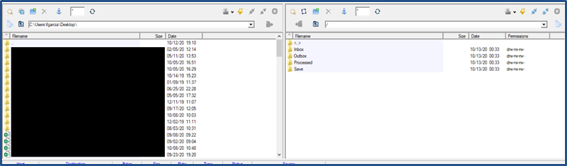
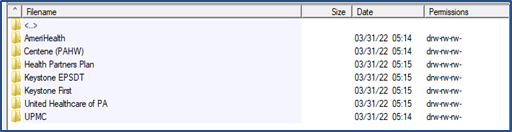
Contract folders are located on the right side. Go to Inbox > Remittance Folder > Contract Folders.
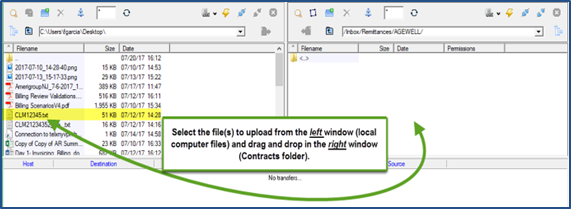
Locate the saved 835 files that appear in the left window and drag them to the appropriate Contract folder on the right window. HHAeXchange only processes 835 files that are x12/txt format.
HHAeXchange runs an overnight process that transfers 835 files to the Provider Portal and applies payments to corresponding visits.
Providers can view payment details from the overnight file process using the Cash Payment feature under Billing > Cash Payment > E-Remittances. Details include rejections and/or invalid amounts for each contract.
Checks are not automatically posted. The Provider must review and manually post payments.
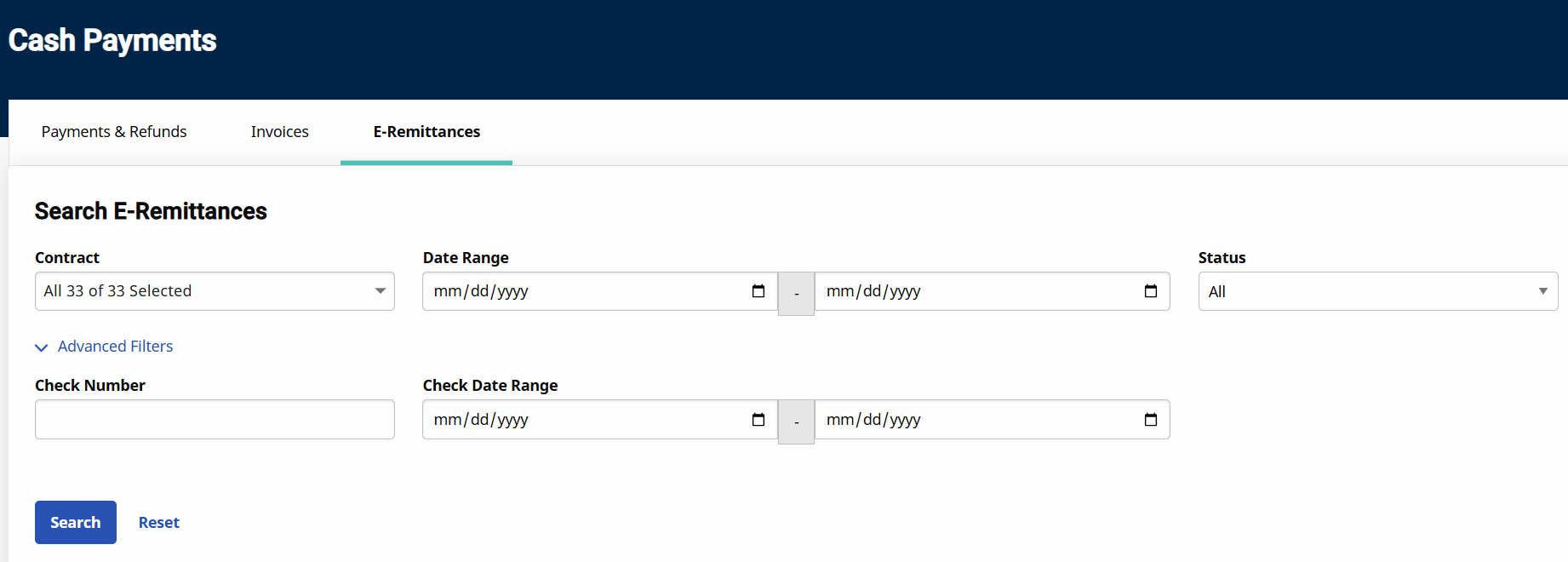
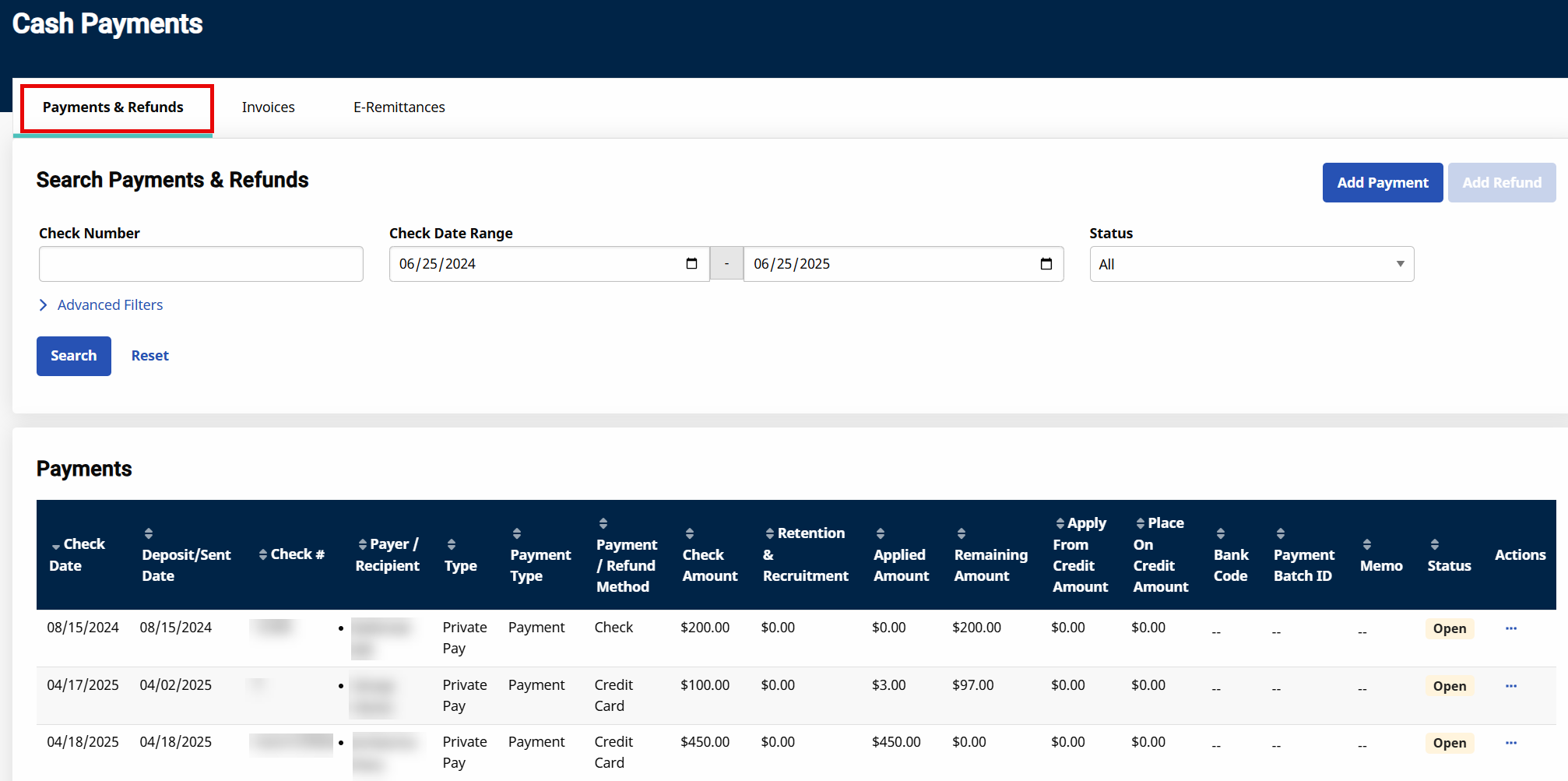
Go to the Payments and Refunds tab under Billing > Cash Payment and search for the check numbers that have been uploaded through the SFTP. Once located, review the check date, deposit date, check number, check amount, and the posted payments.