Collection Dashboard
The Collection Dashboard under Action > Collection is a record keeping tool used to track the status of outstanding collection issues, such as partial payments or denied claims. Use the available filtering fields to sort through collections issues and address urgent cases.
Any adjustments or edits made to payment information must be completed in the Cash Payment page.

Follow the steps below to search for Collection issues.
-
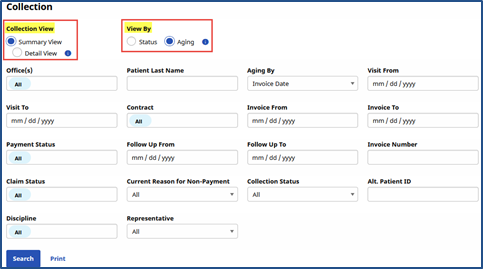
Go to Action > Collection and generate a search using the available filters to include the Collection View options (Summary or Detail View) as well as View By options (Status or Aging).
-
Select Summary View to display all active contracts, open claims, money owed, and any partially paid balances if viewed by Status.
-
Select Detail View to display information on each individual visit with pay discrepancies. This mode also pulls the notes from the Note(s)/Follow Up field in the Cash Payment page.
-
Select Status to see results by Payment/collection status.
-
Select Aging to see results depending on how far back the invoice has been outstanding (open claims and money owed in 30-day intervals).
-
-
The following images illustrate the screens when Summary View is selected in the View By field.
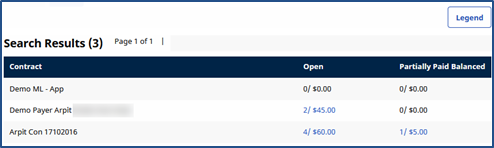
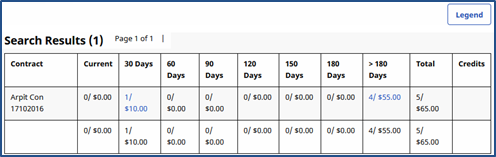
Only the Summary View can be modified by the Status and Aging view options. The Aging option can only be viewed in Summary View.
-
The following image illustrates when Detail View is selected from the View By field. From the search results, review any pertinent payment information associated with a visit. The Patient’s profile may be accessed corresponding to the applicable invoice for the visit as well as any notes associated with the issue.

-
In the Detail View, each line item is highlighted by a color corresponding to the Status. Click the Legend link above the search results (top-right) to access this legend.

The Collection Notes feature under Billing > Cash Payment is used to maintain a record of outstanding collection issues, such as:
-
Track any communications between the Agency and Payer as well as within the Agency.
-
Assign issues to specific users (or Collection Representatives).
-
Set Follow Up Dates which prompt HHAeXchange to remind Collection Representatives to review the case.
The Collection Dashboard under Action > Collection facilitates communication between internal users.
The following image illustrates the Collection Notes page from the Cash Payments module.
-
To view all notes associated with this item, click the + All Notes to expand the All Notes section.
-
To add a note, click the + Add a Note to expand the fields.
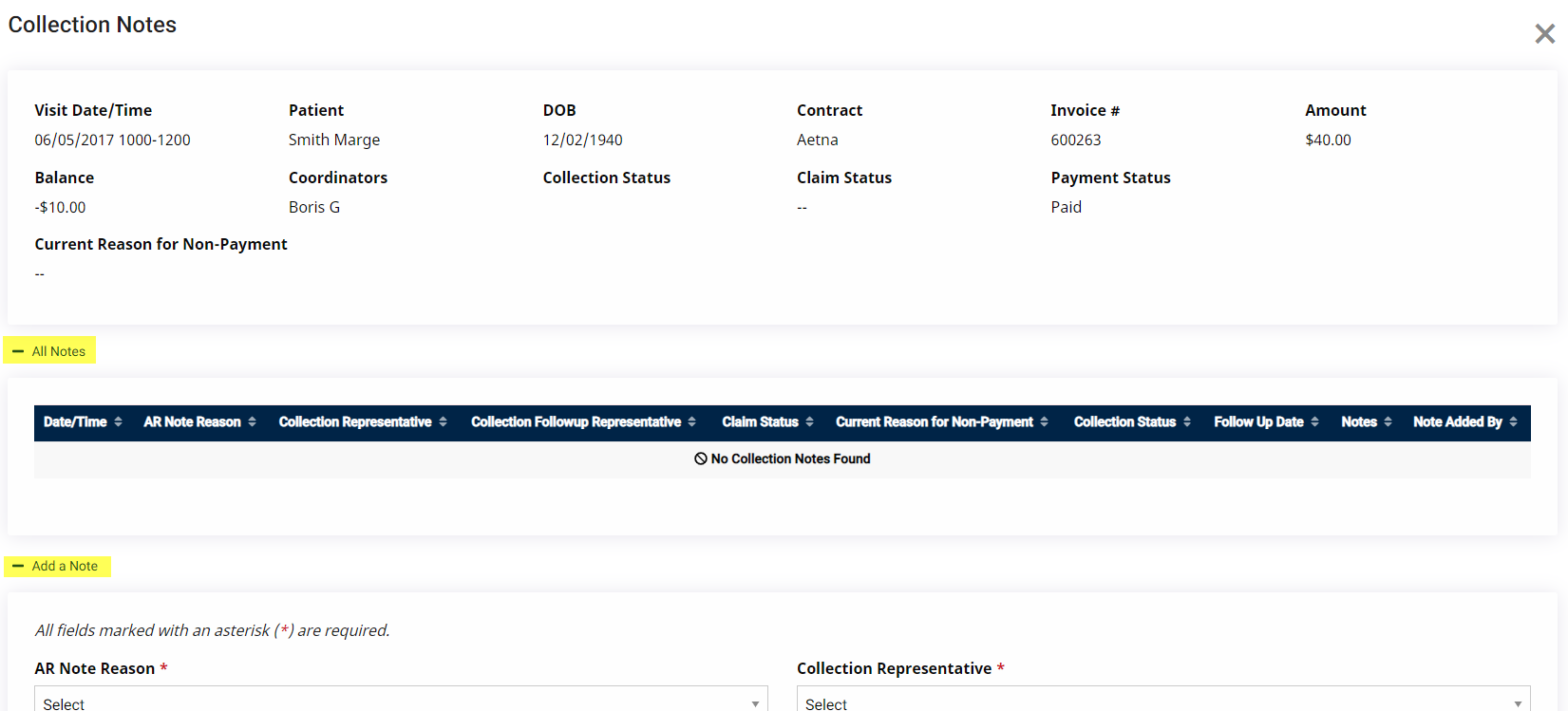
Complete the following steps to add a note.
-
Search for a payment under Billing > Cash Payment.
-
Select the Actions (three dots) menu for the payment, then select the Edit button.
-
Find the Notes/Follow Up column.
-
Click the Add a Note link or click on the existing note. Select the Add a Note option.
-
Complete the required and optional fields.
-
Click the Add button to add the note or Add & Close button to complete the addition.
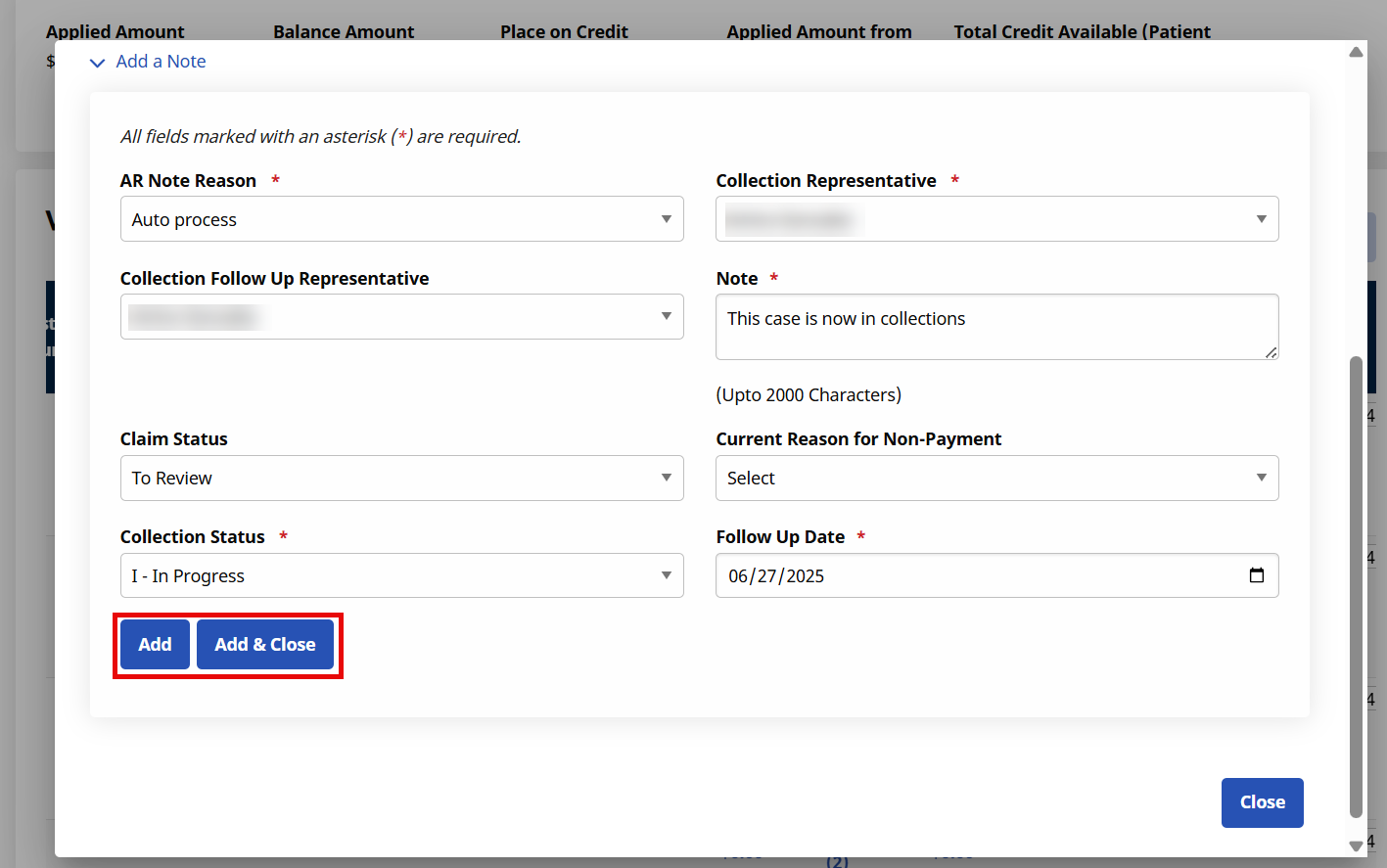
-
In the Collections feature, search for a case. From the Search Results, Click the + link under the Note(s)/Follow Up column for the respective case. On the Collection Note window, complete the required and optional fields.
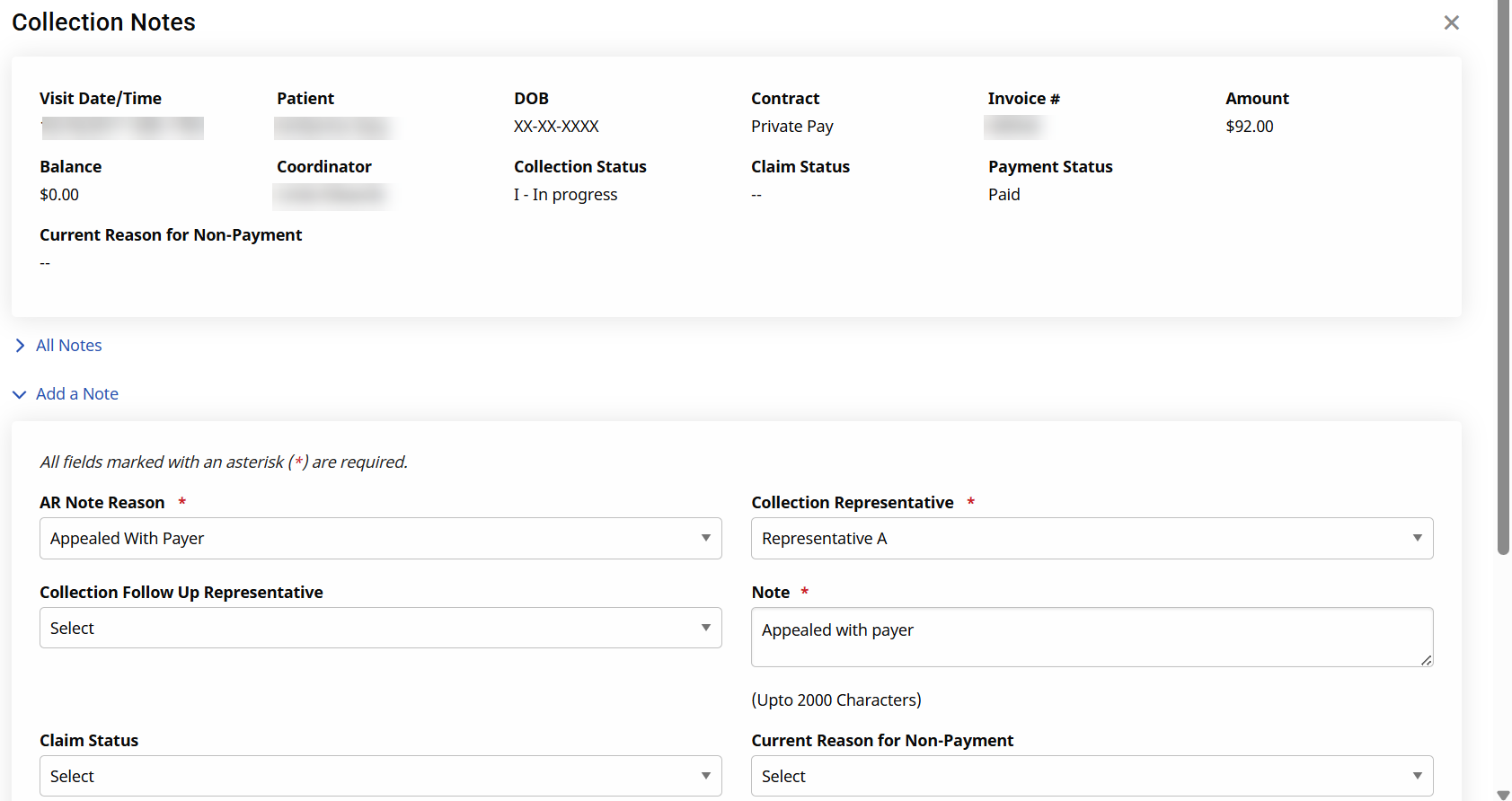
Any collection issue an Agency is in the process of resolving may be monitored with the Note(s)/Follow Up feature.
This feature relies on custom values setup by the Agency such as: AR Note Reason, Collection Representative, Collection Follow Up Representative, Claim Status, Current Reason for Non-Payment, and Collection Status (all Reference Table items).