Billing Review
Billing Review is another exception page under Billing > Billing Review which checks visit information against export requirements specific to each Payer. If a visit violates a rule stipulated by a Payer, it is held at Billing Review until the error is corrected. Therefore, users are not able to print invoices or submit e-claims.
Complete the following steps to review export requirements.
-
Go to Admin > Contract Setup > Search Contract and select the applicable Contract.
Payer and Contract both refer to the company authorizing service.
-
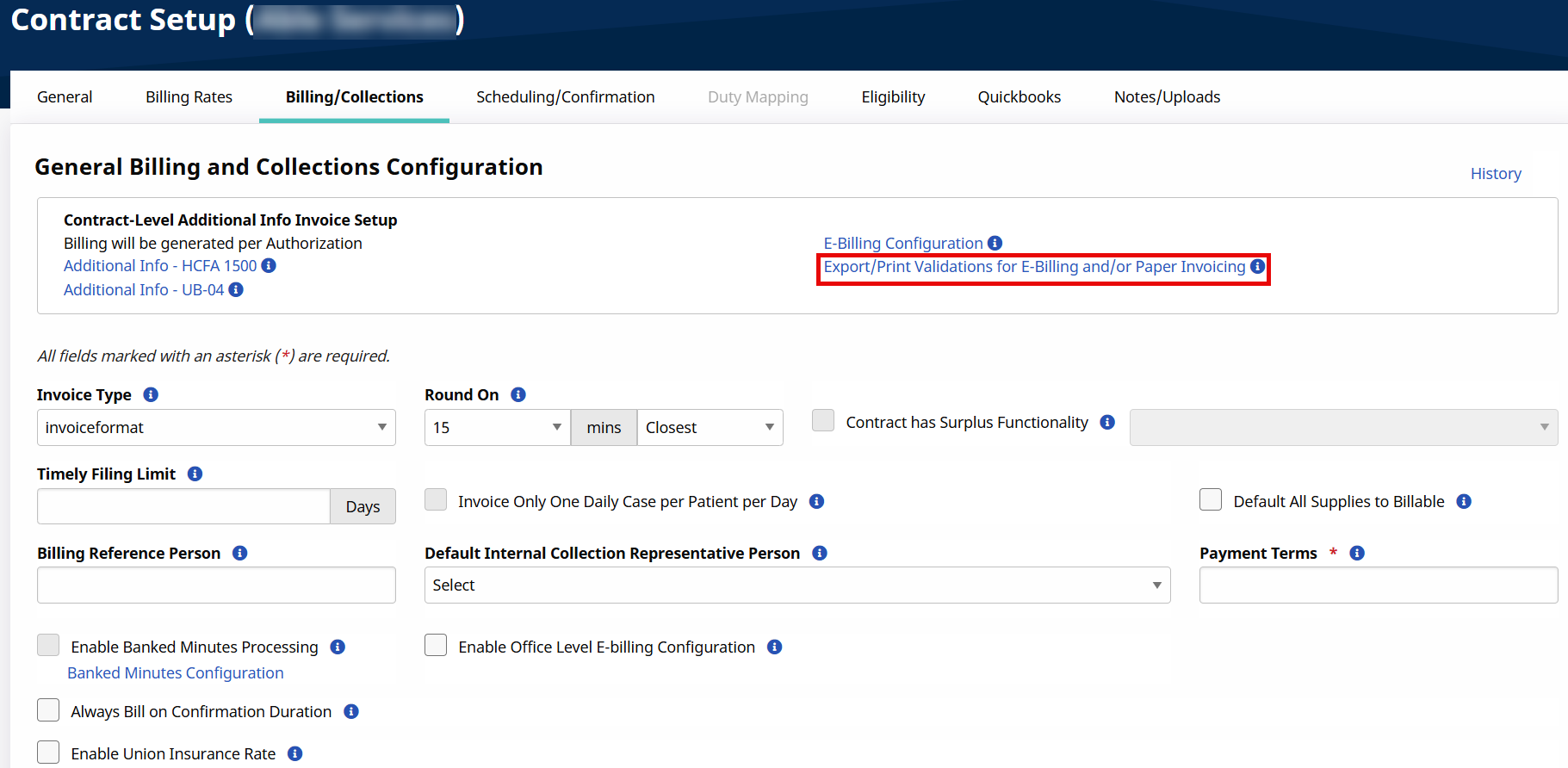
Select the Billing/Collections tab. Go to the General Billing and Collections Configuration section and select the Export/Print Validations for E-Billing and/or Paper Invoicing link.
-
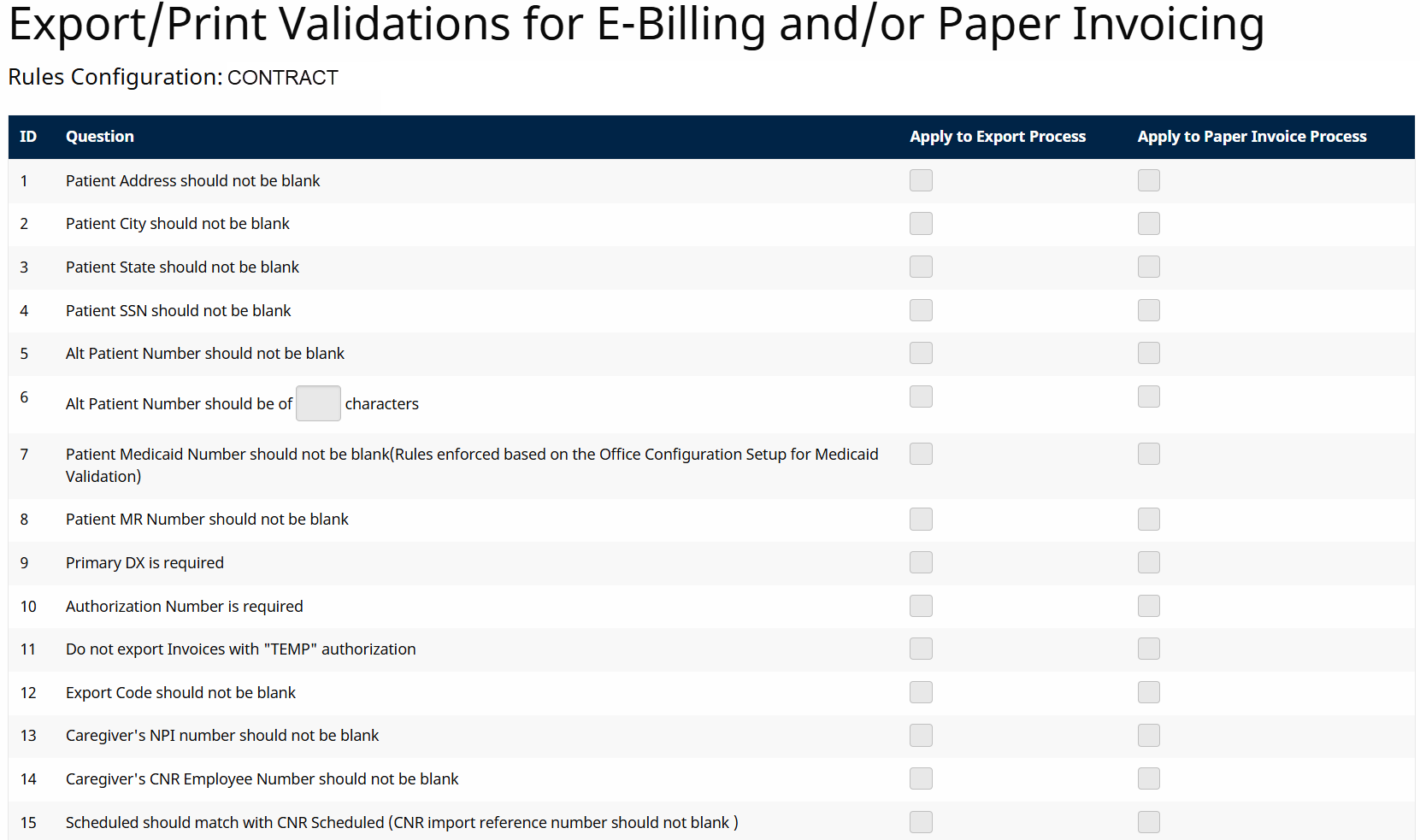
A new window opens displaying every requirement managed by HHAeXchange. If requirements are marked as Apply to Export Process, visits cannot be added to e-billing batches unless the validation is met. If Apply to Paper Invoice Process is selected for a requirement, visits cannot be added to a printed bill unless the validation is met.
-
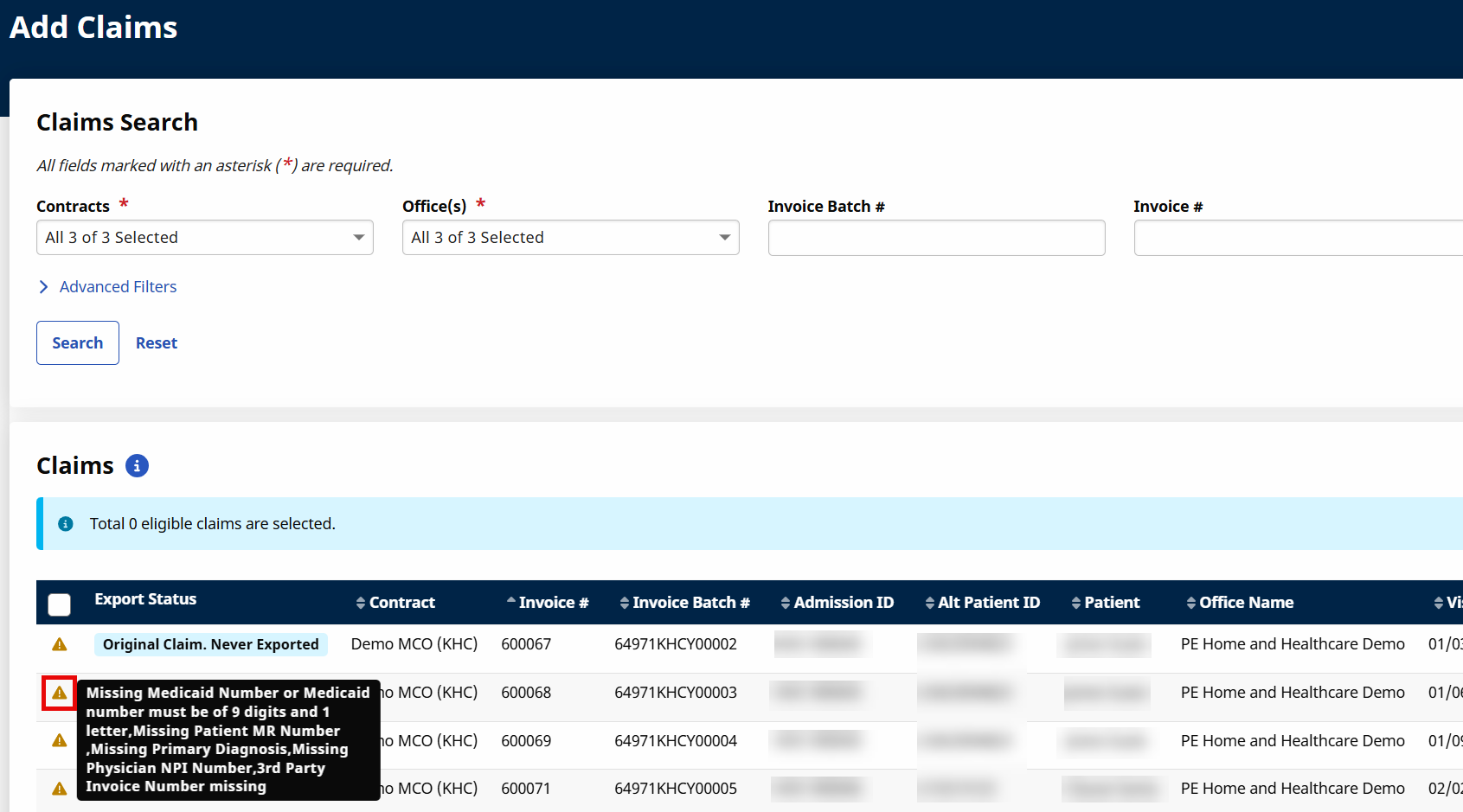
When a visit fails to meet the export requirement, HHAeXchange warns that the record cannot be exported. To find this information, go to Billing > Electronic Billing > E-Submission Batches, then select the Add Original Claims button. Next, search for claims. A warning icon appears next to the failed claim. The entire invoice is held unless the error is corrected or the visit(s) failing to meet the requirements are removed.
-
To act on failed validations, go to the Billing Review page under Billing > Billing Review .
-
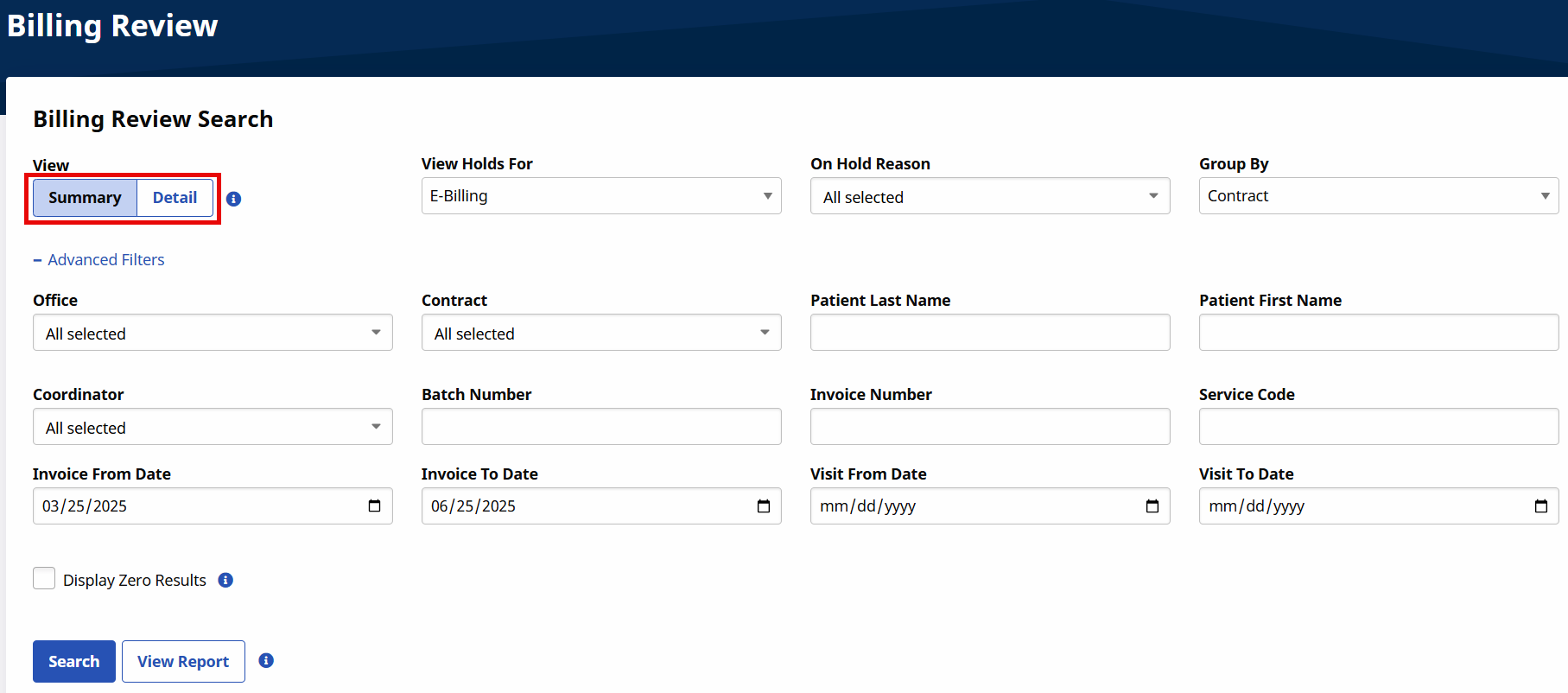
Select a view option: Summary view or Detail view.
-
The Summary view displays results based on the Group By filter selected. In the image below, the summary total of all failed validation visits displays by Contract, as well as the amount of money held from e-billing/paper invoicing because of the exception.
Select the Number link in the Total Visits column to switch to Detail view.

-
The Detail view displays specific visits and reasons for detainment.
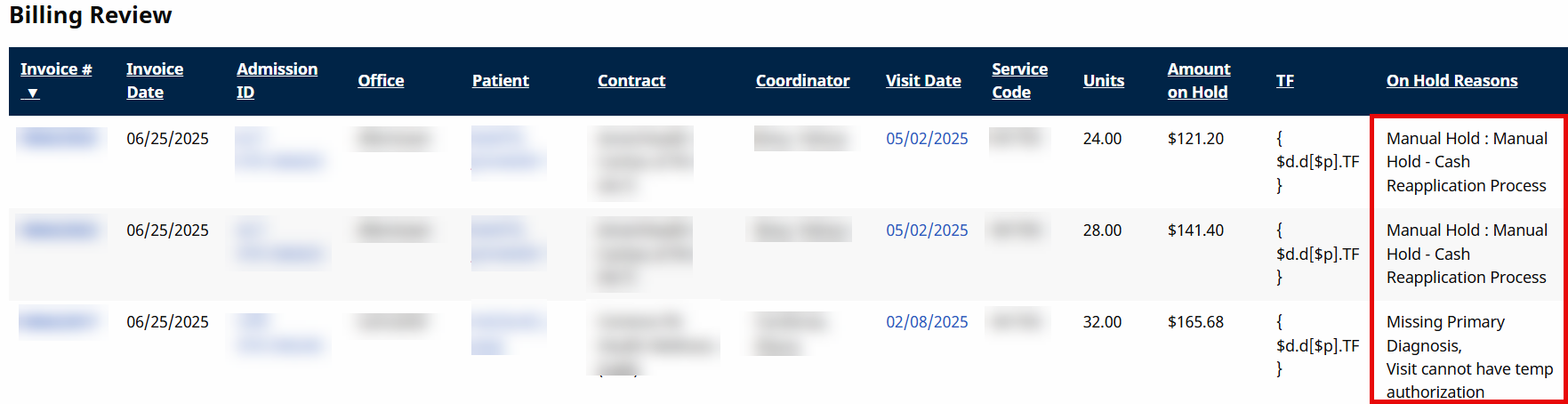
-
Once the Patient/Visit information is updated to pass the Billing Review validation, the visit is removed from this page and can be added to an e-billing batch or a paper bill.