View Claims Status
Payers and Providers can view a claim status once a Provider submits an 837 to the Payer. With this visibility, Providers have the ability to capture any issues prior to receiving the 835 as well as reduce duplicate billing.

Complete the following steps to view the claim status in the system.
-
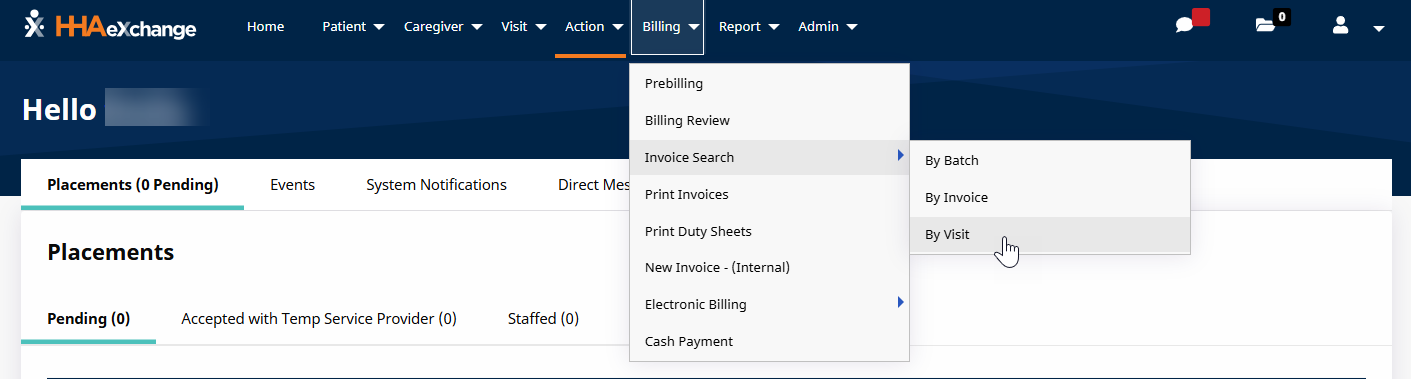
Go to the Invoiced Visit Search page under Billing > Invoice Search > By Visit.
Claim Status can also be viewed in the Patient Financials page under the E-Submission/Batch Info tab under Patient > Financial > E-Submission/Batch Info. The same system behavior applies to the Patient Financial page.
-
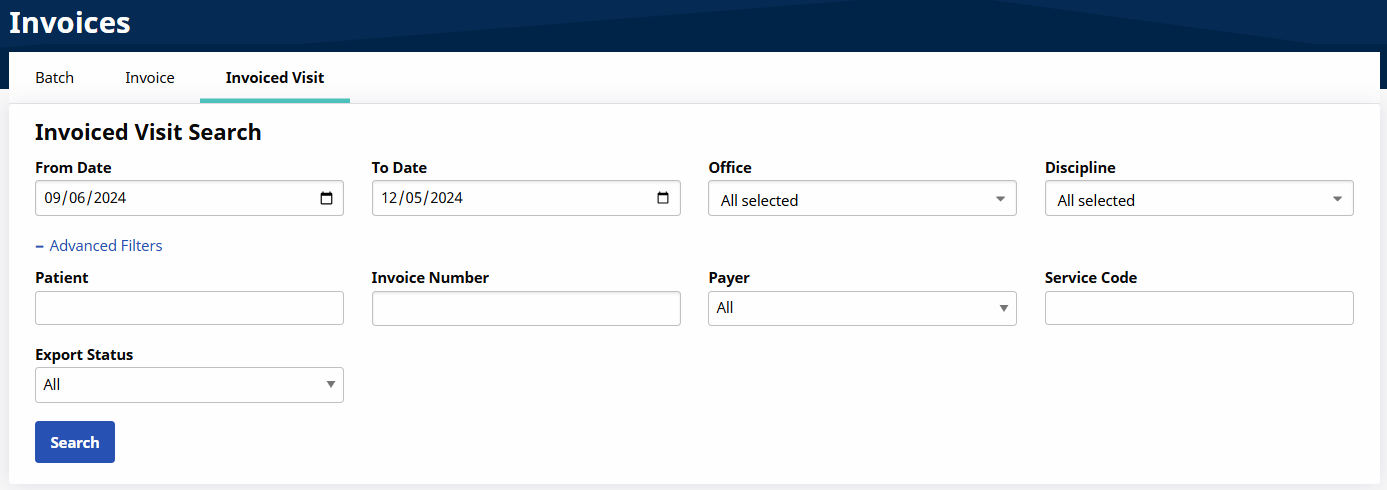
On the Invoiced Visit Search page use the search filters to search for a specific visit (such as date range, Office, and Patient) or simply click Search to generate results for all invoiced visits.
-
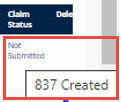
The image below illustrates the Claim Status column in the search result grid of the Invoiced Visit Search page. Once a visit is submitted, the claim status appears as a link.
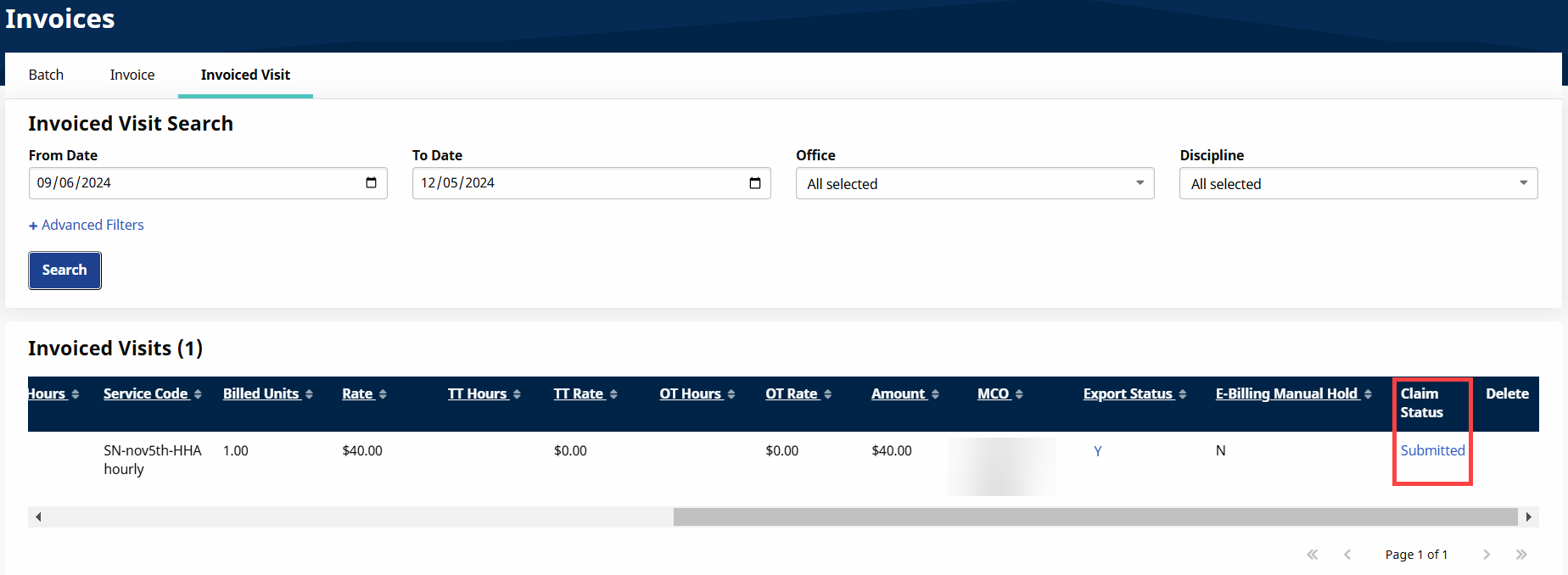
Hovering over the Claim Status link provides a tool tip for the status. In this example, the 837 file has been Created, but not yet Submitted.
-
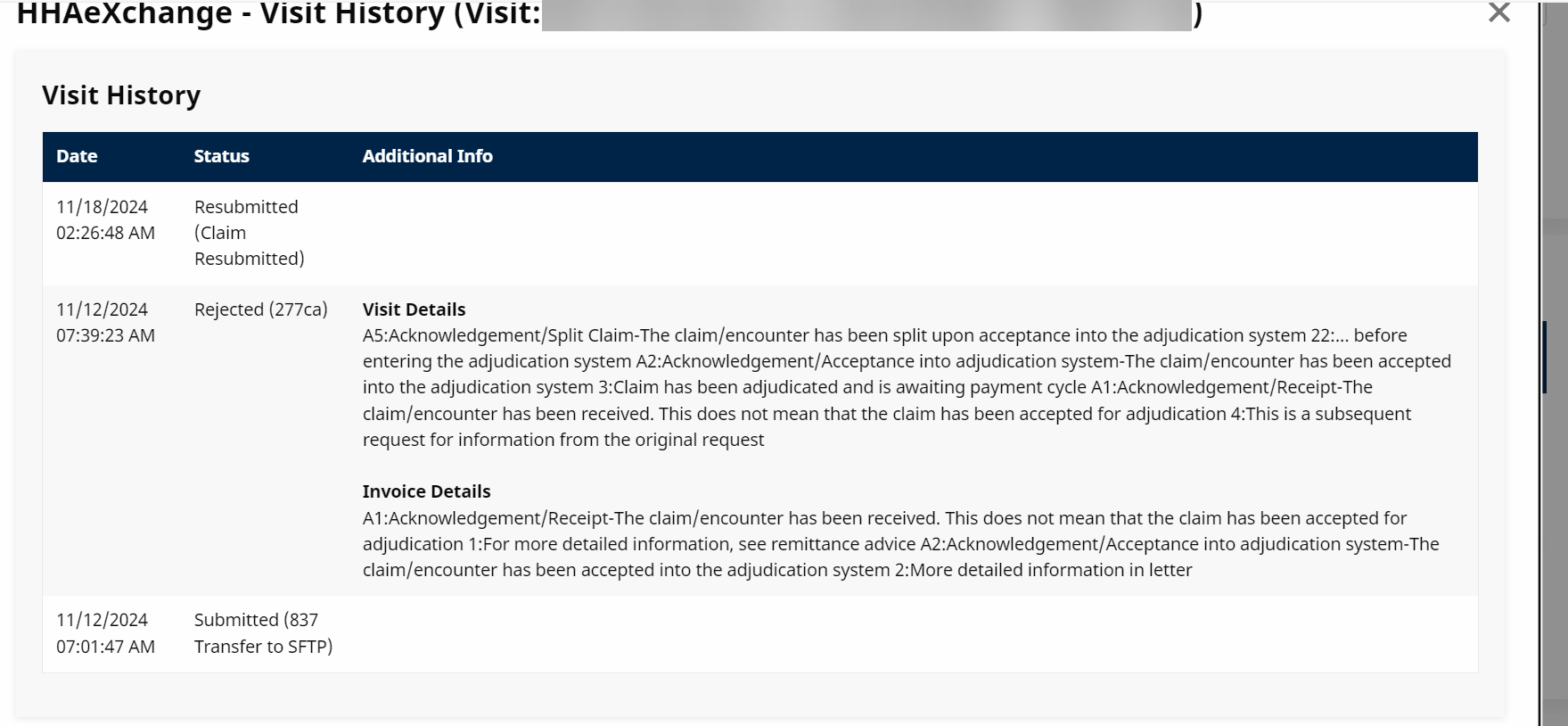
Click the Claim Status link to view the claim history on the Visit History window.
The latest submitted Claim Status displays for invoices that are submitted multiple times.
|
Status |
Description |
|---|---|
|
277ca Accepted |
Claim is accepted for processing in the Payer system |
|
277ca Rejected |
Claim is not accepted due to missing information or Patient eligibility |
|
999 Accepted |
837 is accepted by the Payer’s processing system |
|
999 Rejected |
837 contains formatting issues due to missing information on the Patient or Provider Profile |
|
Not Submitted |
Claim to be processed via the nightly process or a technical issue occurred with the submission of this claim |
|
Resubmission |
Claim is reprocessed and resubmitted |
|
Submitted |
File successfully sent from HHAeXchange; pending 999 |
|
Unexported |
Claim is being prepared for resubmission |
Providers are expected to run the Claims Status Report under Reports > Billing > Claim Status Report on a weekly basis to check for rejections. Use the various filter fields to search for a particular Contract, Visit From/To Dates, Office, Patient, Invoice Number, etc. Click the View Report button to run the report.

On the report output, review the Claim Status (Accepted, Rejected, or Submitted) and Claim Status Reason columns.
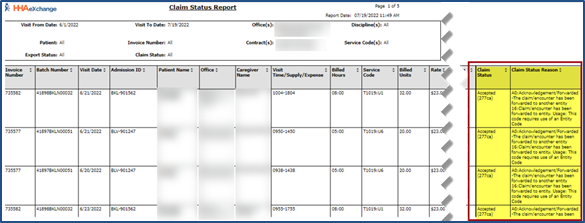
A claim status of Accepted 277 signifies that it has been received an accepted response from the Payer directly. For further details, reach out to the Payer for adjudication details.
If a claim shows a Submitted status, then allow 72 hours for processing. If greater than 72 hours from the date of submission, click Client Support Portal to open a ticket for claim status.
For Rejected claims, review the Rejection Reason under the Claim Status Reason column. For further instructions, refer to the Common Rejections section below for common examples.
This section provides insight into the most common claim rejections than can be resolved prior to contacting the HHAeXchange RCO Team.
Diagnosis Code rejections received for the Payer can be managed by updating the Diagnosis Code on the Contract under Patient > Contract and/or Authorization under Patient > Authorization level the in the Patient Profile, or at an Invoice level on the Invoice Details page.
Ensure the Diagnosis Code is specific enough to be billed. Refer to Billable Specific ICD-10 CM Codes to check the code.
If you cannot update the code, contact the Payer directly to update the Authorization Number with a valid Diagnosis Code. Once updated, then the claim is expected to reprocess correctly.
If a rejection for Entity Not Found is received this means that the Member no longer has the correct eligibility for the Invoice’s Date of Service. For additional information, contact the Payer, as the Member may have changed plans.
An Invalid payer claim control number submitted rejection means that the TRN value with the Date of Service resubmitted for the Invoice No. is incorrect. Adjust the claim using the correct TRN for the Date of Service or for the date range of services.
An Invalid Units of Service rejection means that the Invoice is missing or has invalid Units of service. Contact the Payer to update the Units on the Authorization. Once updated, then the claim is expected to reprocess correctly.
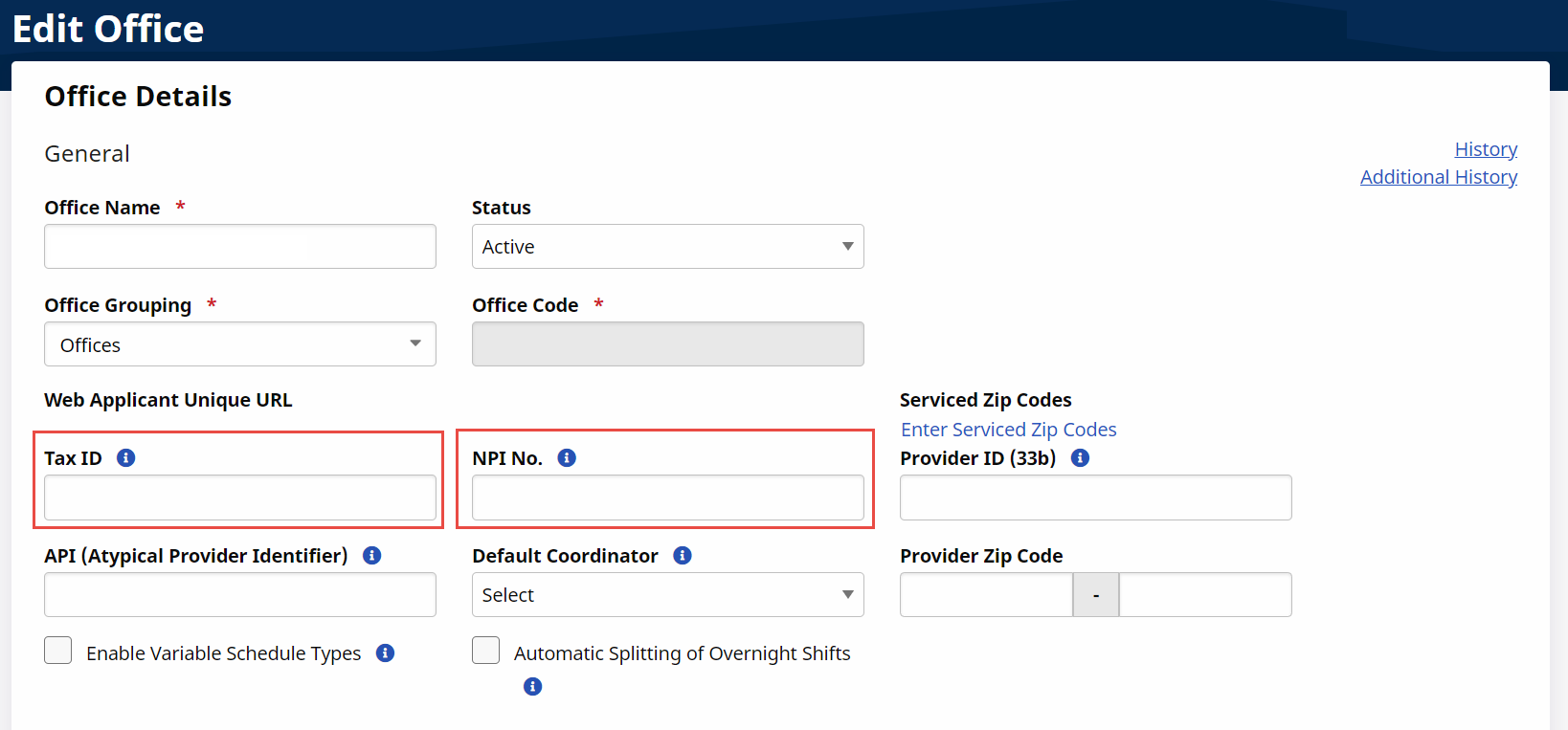
Providers who receive a rejection for invalid NPI or Tax ID can update the Tax ID and NPI on the Contract Service Code window via the Reference Table Management under Admin> Reference Table Management> Contract Service Code. Use the various search filters to locate the contract.
On the Contract Service Code window, select the applicable Service Code and update the NPI and/or Tax ID fields. Do not use dashes or spaces in these fields. Once saved, uninvoice and then reinvoice the claims associated with the service code to update.