How do I adjust or void a claim?
Complete the following steps to adjust or void a claim.
-
Go to Billing > Electronic Billing > E-Submission Batches.
-
On the E-Submissions Batches page, select applicable Contracts and then select the Add Resubmit Claims button.

-
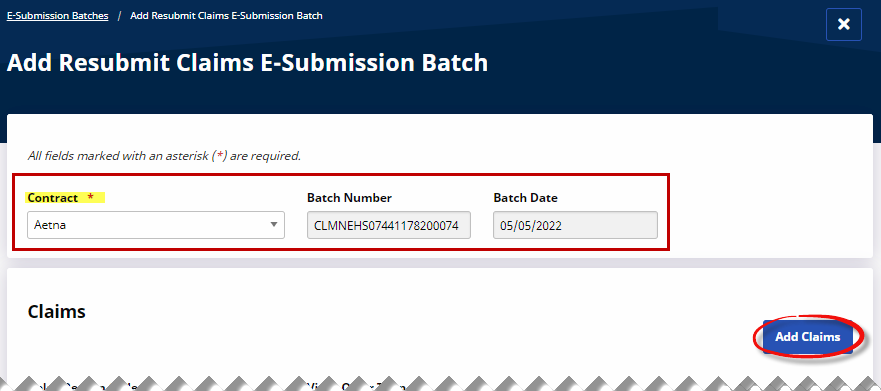
On the Add Resubmit Claims E-Submission Batch page, select the desired Contract. The Batch Number and Batch Date fields automatically populate.
-
Click the Add Claims button, enter search parameters, and then select Search.
-
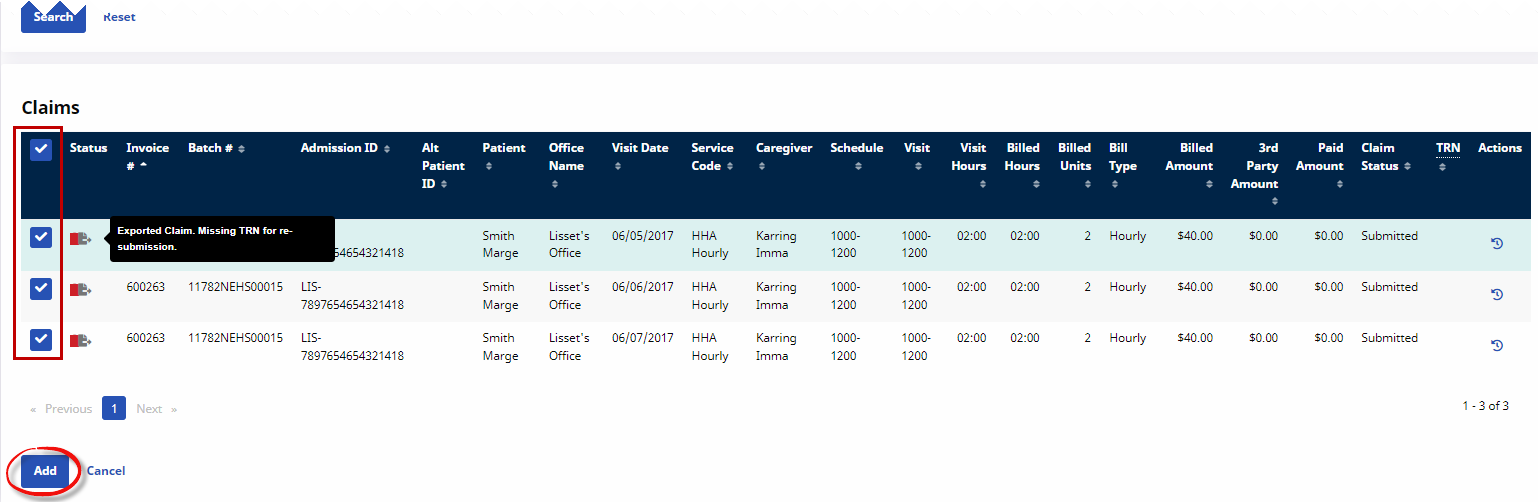
Under Claims, select the claims to adjust and then select Add.
-
On the Add Resubmit Claims E-Submission Batch page:

-
Click the edit icon Edit icon to open the Claim Adjustment window, enter the correct information and then select Save. Repeat for all claims.
-
In the Submission Type field select:

-
Original – initial claim is not processed, resubmits same claim.
-
Adjustment – resubmit the denied or rejected claim with corrections. The TRN Number is required.
-
Void – Voids the previously submitted original claim. The TRN Number is required.
-
-
In the Update dropdown select:

-
Single Claim
-
All claims in the batch
-
All claims with same Invoice Number
-
-
-
Click the Delete icon to remove a visit from the batch.
-
-
Click the Save Batch & Export button to create the resubmission batch. The system creates the batch and then prompts you to name the file and save it locally. Submit the file to the contract or clearinghouse.
