How do I manage my contract rates?
The Contract Rate feature allows providers to manage and update rates for each HHAeXchange system service code and region.

-
Go to Admin > Contract Setup > Search Contract to locate the applicable contract.
-
On the Contract Setup page, select the Billing Rates tab.
-
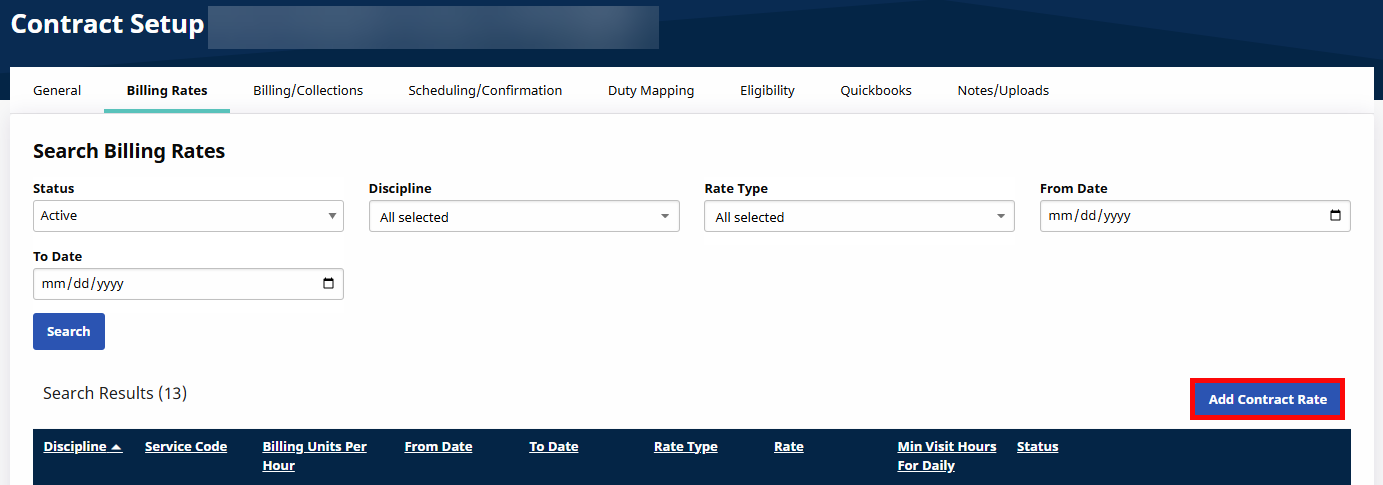
The Search Results provide a high-level view of the Contract’s Billing Rates to include Discipline, Service Code, Units Per Hour, Date Range, Rate Type, the actual Rate, and Status, followed by functions such as the Edit link.
-
Click the Add Contract Rate button above the search results.
-
If applicable, in the Contract Rate window, select a Service Code with district rates applied. Once selected, the District Rates section appears. Complete the required fields (denoted with red asterisk) and add the respective District Rates.

-
Click Save to finalize.
Editing an existing rate involves modifying the details of an existing billing rate, such as the date, rate amount, or unit for an already established rate.
To edit an existing rate:
-
Go to Admin > Contract Setup > Search Contract to locate the applicable contract. Click on the Contract Name.
-
Select the Billing Rates tab.
-
Use the search filters to specify search criteria. The Status field defaults to Active, and the From/To Date fields default to the current date, so make sure to clear the From/To Date fields if searching for a rate that has already passed. Click the Search button to generate results.
-
In the Search Results, locate the rate, and click the Edit icon.

-
The Contract Rate window opens. Update the necessary information.
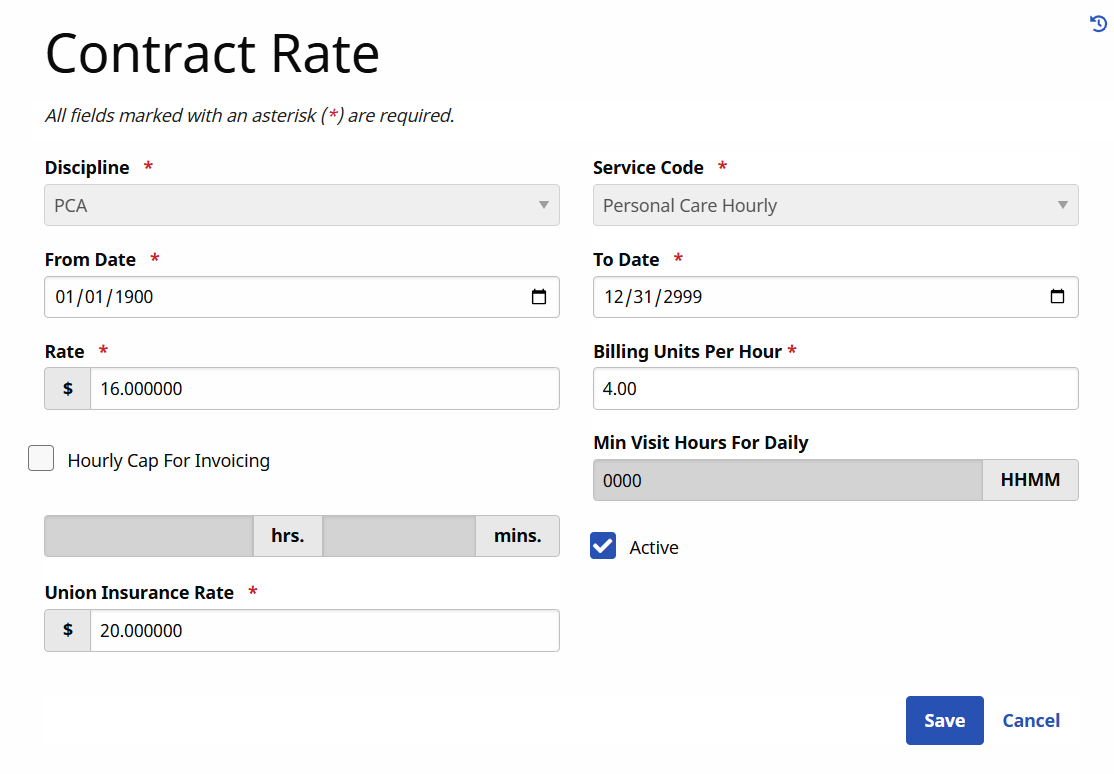
In cases of multiple Counties with differing rates, rates can be changed on a County basis.
-
Click Save.
After saving, the updates appear in the Search Results.

Updating a rate involves adding a new rate to the contract, introducing a billing rate that may differ from the existing one. This is typically done to reflect new service changes in date, amount, or other details, while keeping the original rate intact.
To update a rate:
-
Go to Admin > Contract Setup > Search Contract to locate the applicable contract. Click on the Contract Name.
-
Select the Billing Rates tab.
-
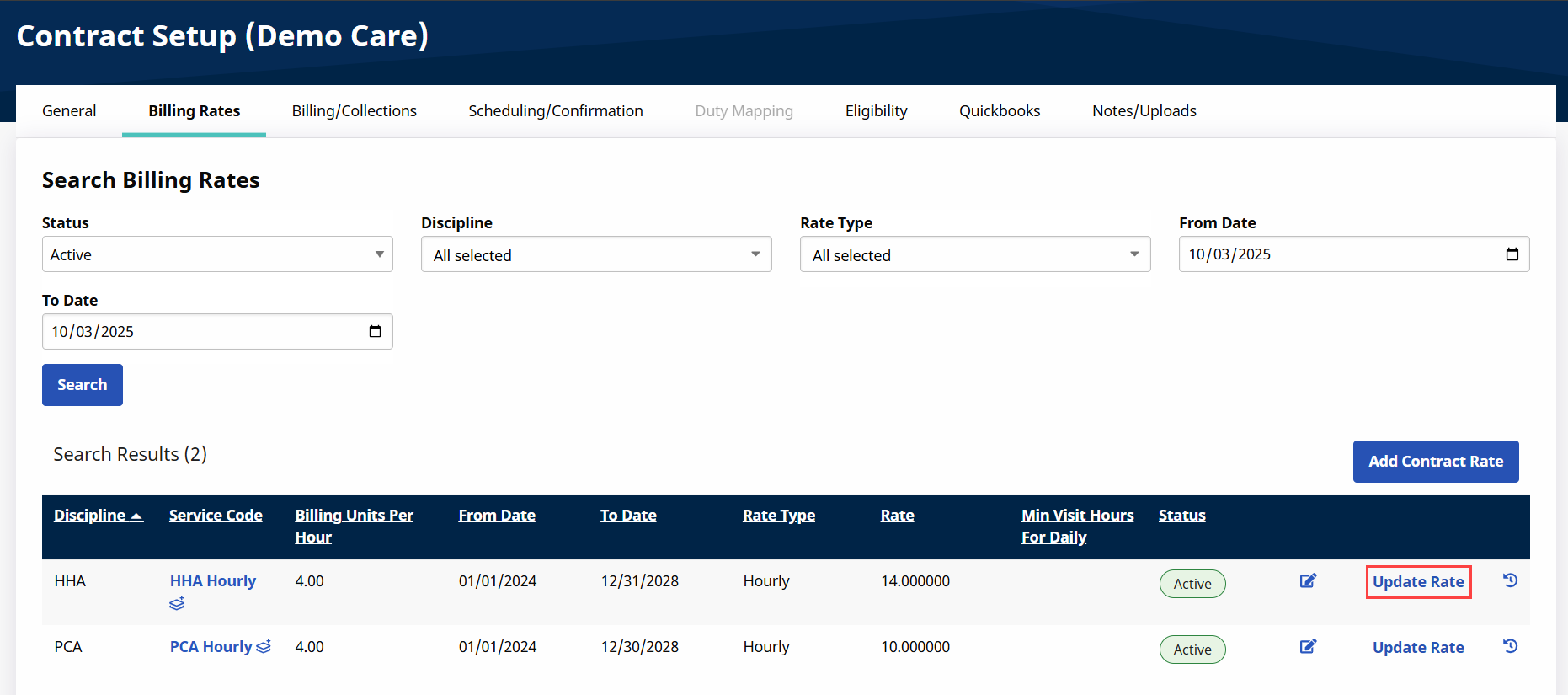
Use the search filters to specify search criteria. The Status field defaults to Active, and the From/To Date fields default to the current date, so make sure to clear the From/To Date fields if searching for a rate that has already passed. Click the Search button to generate results.
-
In the Search Results, locate the rate, and click Update Rate.
-
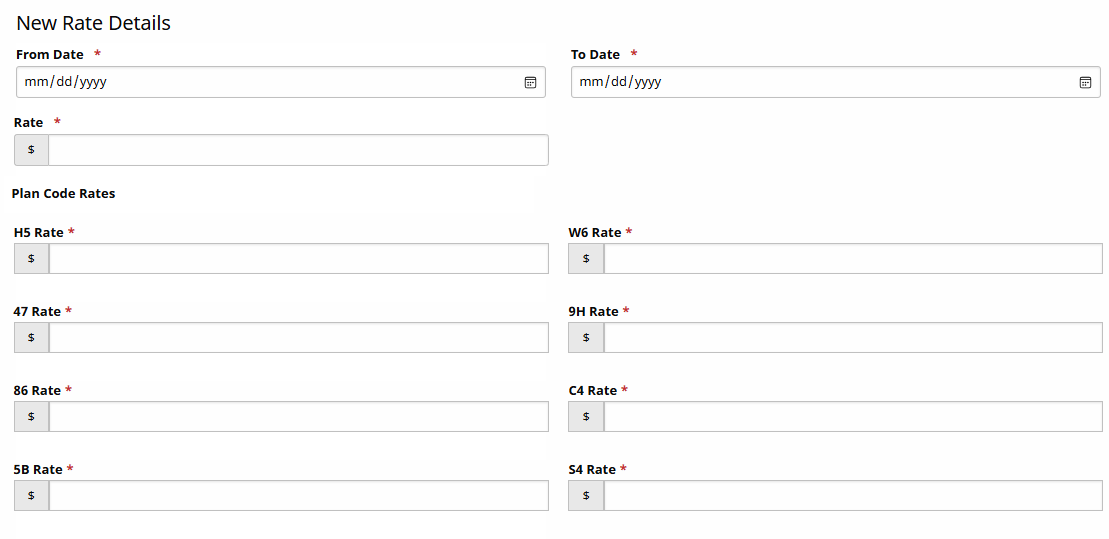
In the Update Rate window, enter the From Date and Rate under New Rate Details. Set the To Date to 12/31/9999. Check the checkbox to retroactively apply the new rate to past visits within the time frame selected.

Make sure to enter the updated rates for all plan codes.
-
Click Save.
After saving, the updated rate appears alongside the original rate in the Search Results.
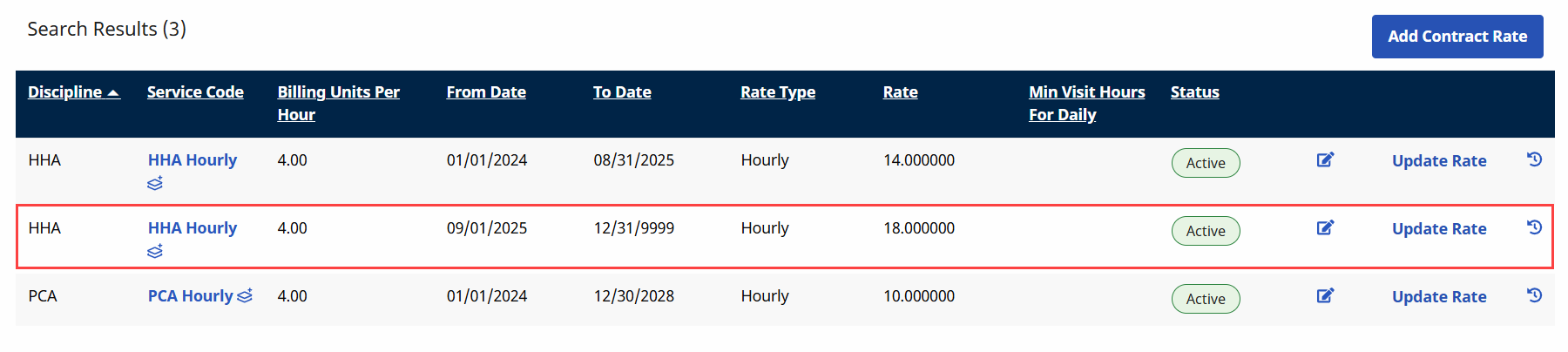
The HHAeXchange system will automatically adjust the End Date for the original rate.
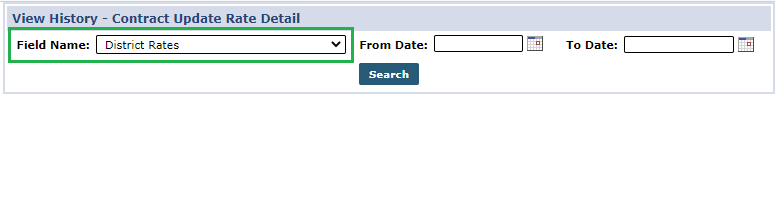
To view a history log of updated rates, go to Admin > Contract Setup > Billing Rates and click the History Icon  .
.
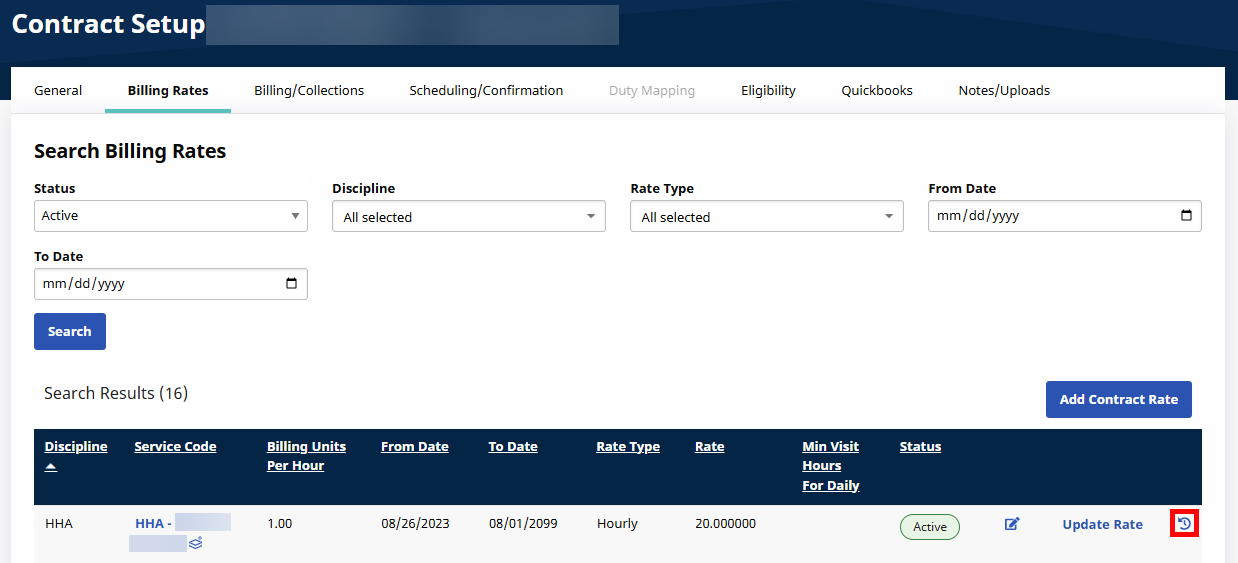
On the View History window, select District Rates from the Field Name dropdown.