Navigate Dashboards
This section details the navigation feature that differs for Dashboards created and released after December 2022. For details and instructions for classic dashboards, refer to the Navigate Classic Dashboards section.
This navigation feature applies to the following dashboards:
-
EVV Management
-
Billing
-
Authorizations

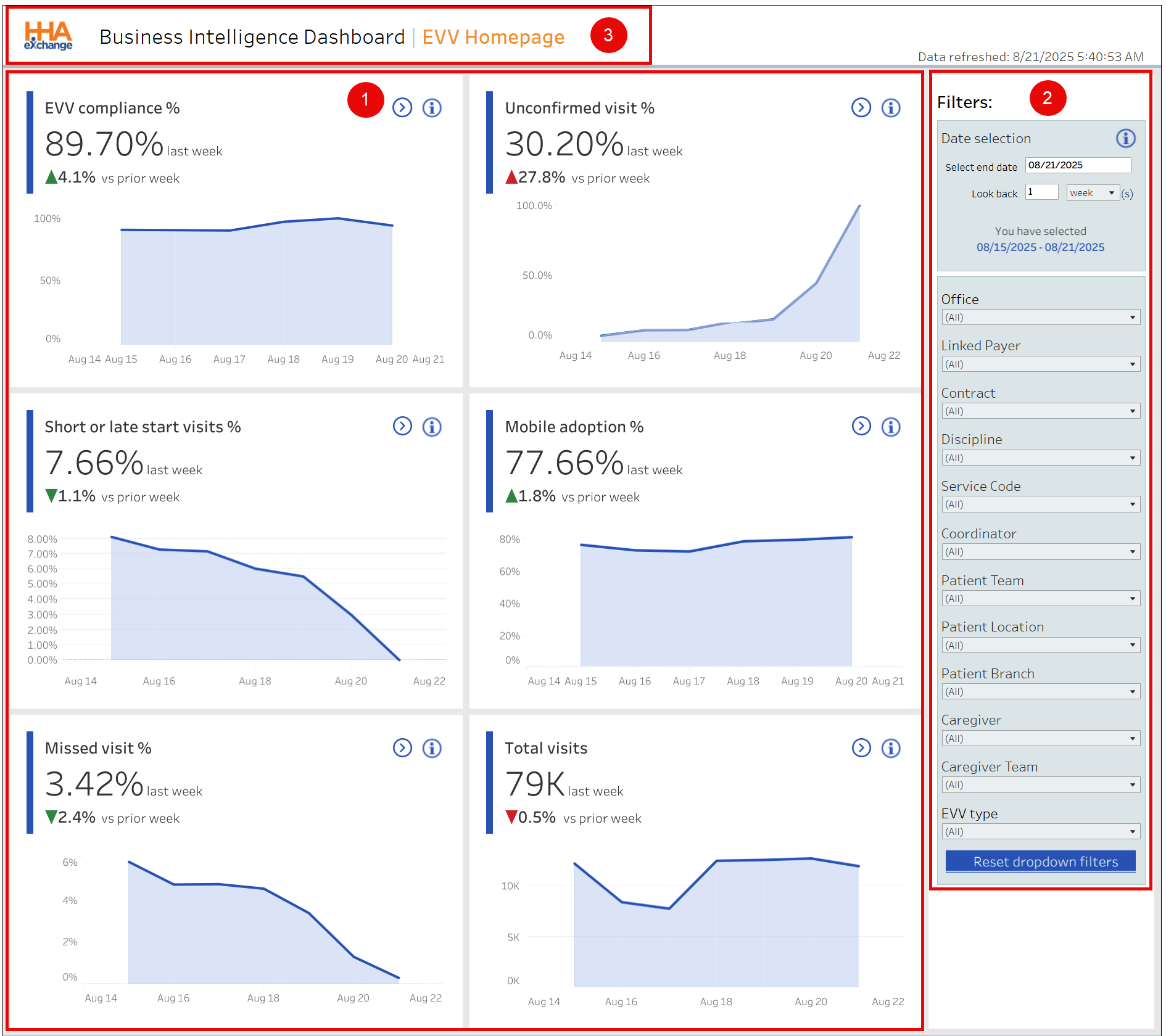
The following image illustrates the main Dashboard homepage (EVV Dashboard) under Data Insights. This dashboard is made up of cards , presenting (1) high-level informational widgets or charts in the main panel. (2) The filters on the right side of the page are used to generate information on the charts. The top of the page includes (3) the Dashboard name and a date and time stamp showing the last data refresh.
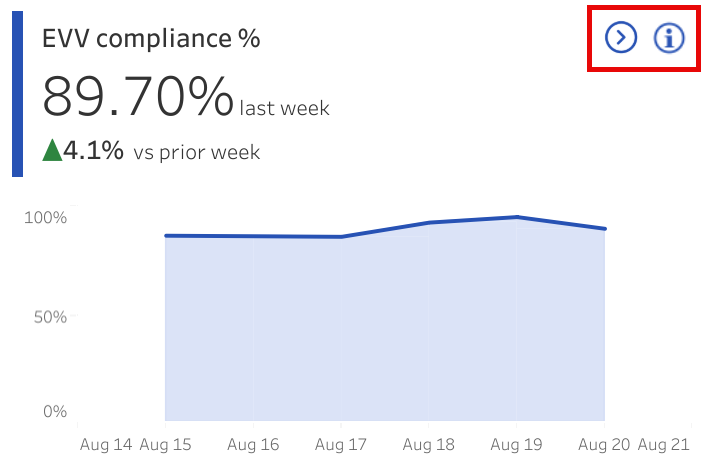
Each card provides a set of functions allowing users to access specific information within the widget.
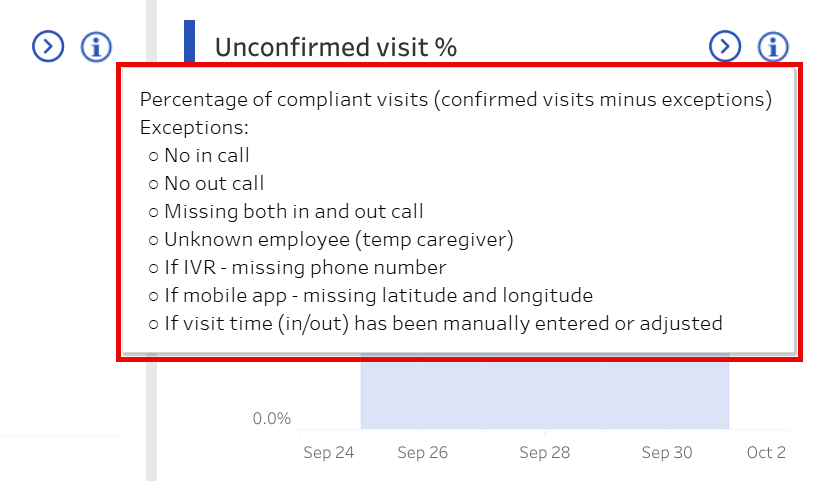
Click or hover over the Information icon  to view the tool tip providing details on the displayed figure and how the figure is calculated.
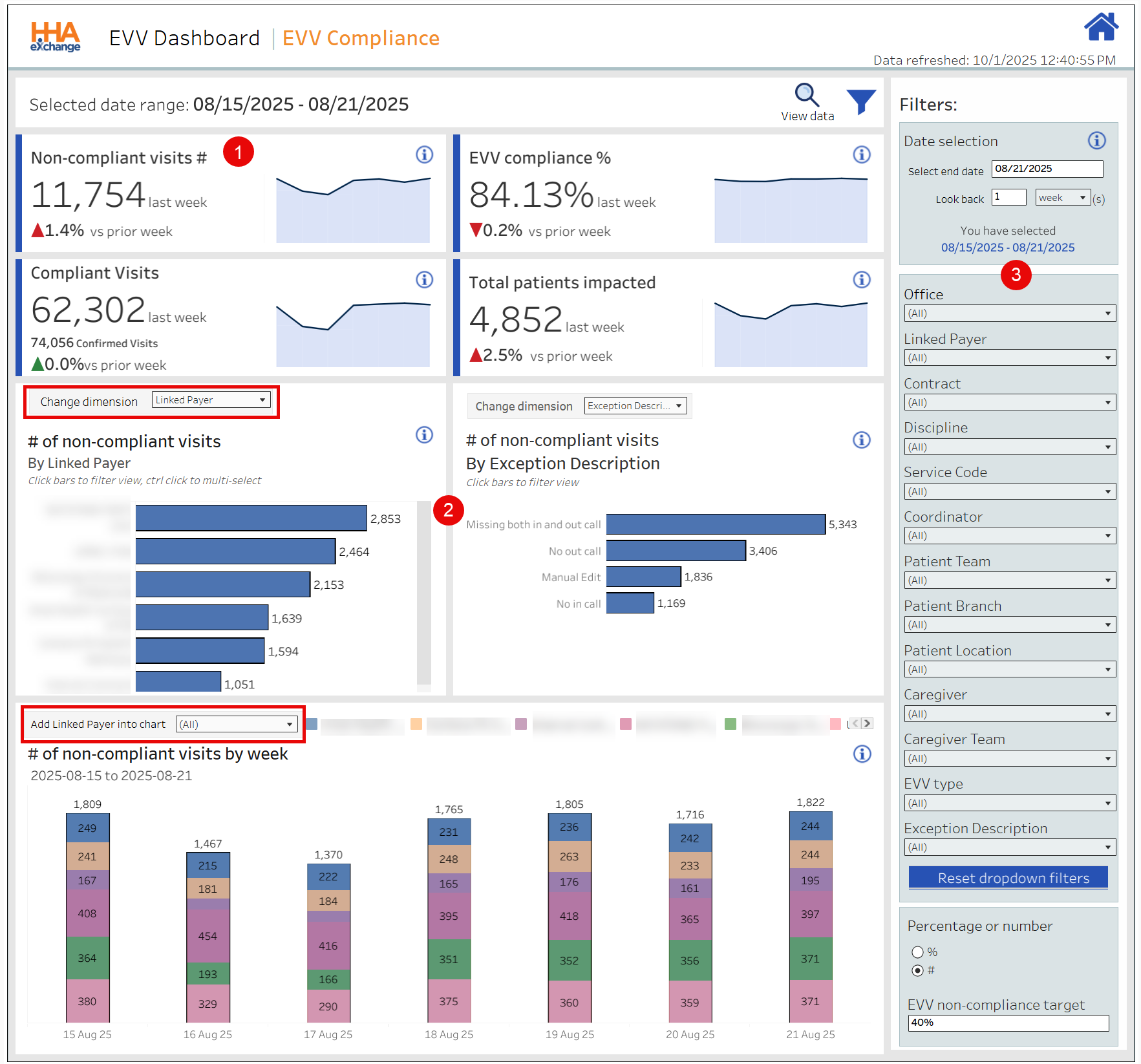
Click the Navigation icon to view details for this specific card. In this example, the EVV Compliance dashboard opens. Similar to the home layout, this dashboard also includes cards with high-level KPIs (1), interactive widgets (2) allowing users to customize (Change Dimension, Add Payers to) the particular chart rather than changing all displayed charts and (3) filters, used to generate specific data across all cards and widgets for this dashboard.
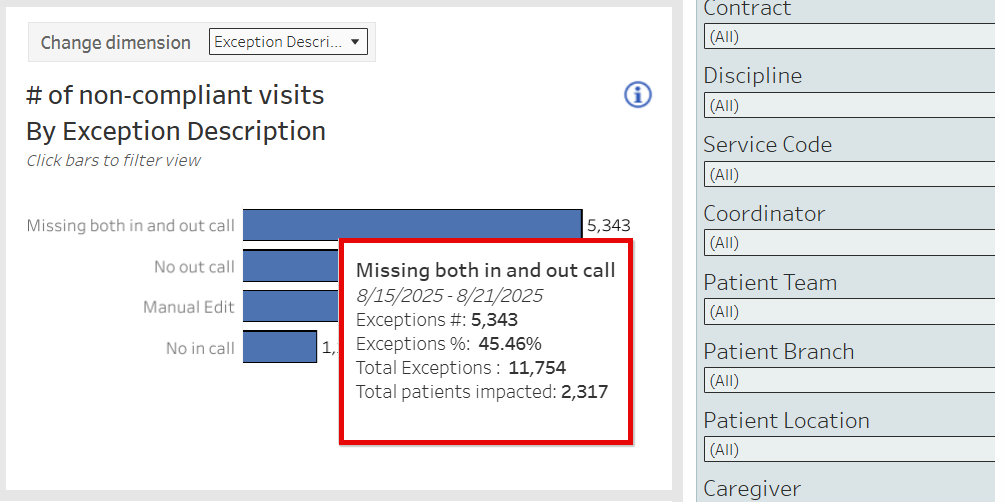
Hover over any graph or chart to see calculations for a specific component on a tool tip pop-up, as seen in the following image. In this example, the Timesheet Received topic in this performance graph shows the calculations for the exceptions in the Reasons for Non-Complaint Visits widget.
Click the View Data Magnifying glass icon  to view source data for the dashboard. Refer to the View Data section for more details.
Click the Filter icon  to open and hide the filter pane.
Click the Home icon  at the top-right of the page to return to the selected dashboard homepage.
Users can create multiple custom views from the EVV Homepage dashboard under Data Insights and set one as default to always open to the selected custom view. The system defaults to Original View to show all details for all dashboards. Click the View tab to open the Custom Views window to toggle between views, as needed.
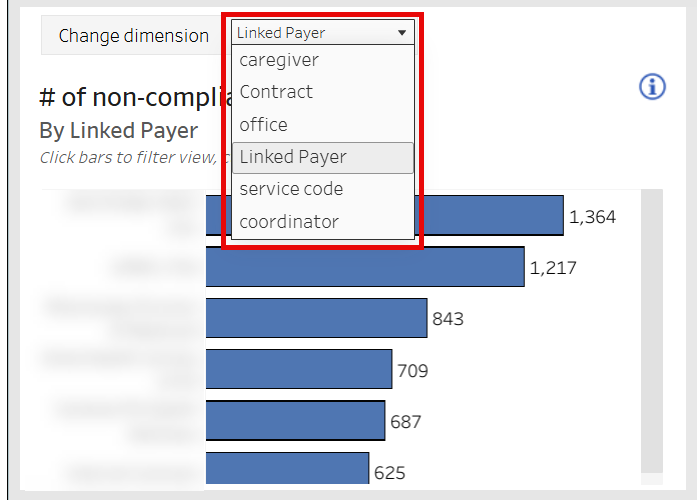
Some widgets on the EVV Homepage dashboard under Data Insights have a Change Dimension dropdown menu used to select a particular data set such as Linked Payer, Caregiver, or Contract to generate results for that particular card. In the example below, Linked Payer is selected in the # of Non-Compliant Visits widget. The results in this widget are specific to Linked Payers.
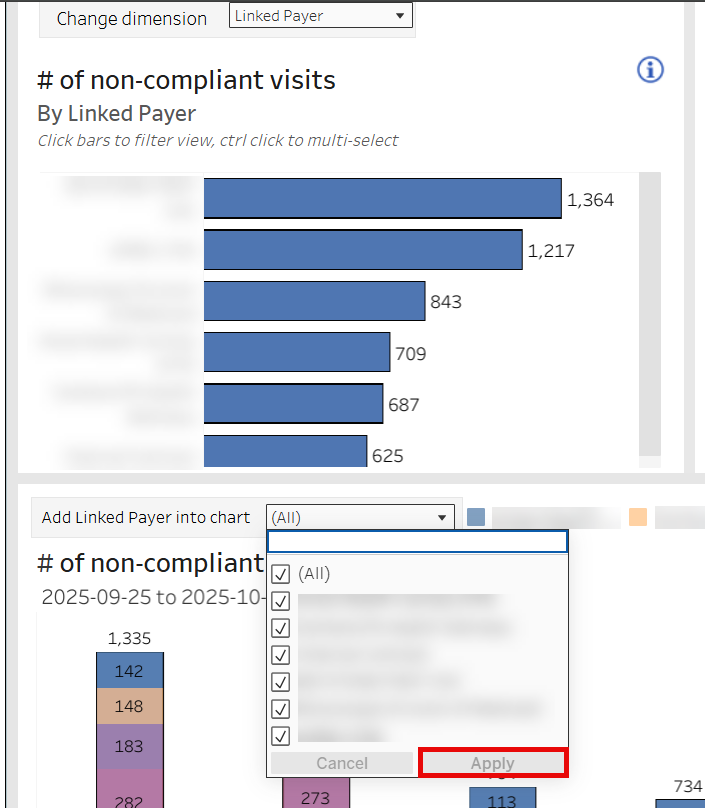
Other Dimension fields may be available to add specific Contracts or Payers to generate results. The image below shows a selection of Payers using the Add Linked Payer Into Chart dimension field, to apply to the # of non-compliant visits by week widget.
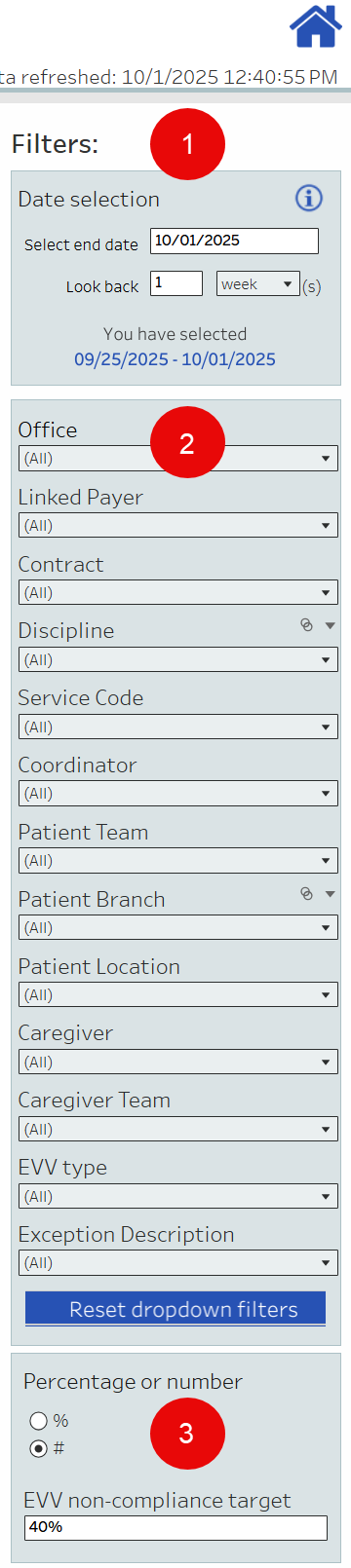
The filter pane, on the right side of the screen of the EVV Homepage dashboard under Data Insights, is used to select criteria and generate specific data to display on the cards and widgets. The filter pane is made up of three sections to include the Date/Date Range (1), Data Selection (2), and Data Display (3) preferences.
Filter selections vary by dashboard, depending on the information. For example, a Date Type filter is available in the Billing Dashboard to select if viewing data by Invoice or Visit date. Refer to a specific Dashboard for further details.
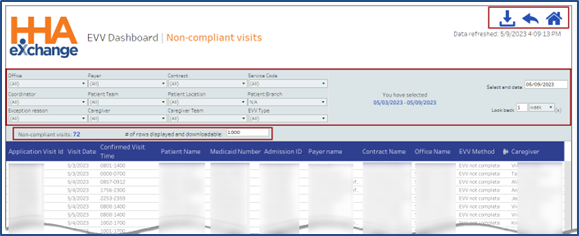
When clicking on the View Data magnifying glass icon on the EVV Compliance dashboard under Data Insights, the system generates the source data in report format.
Selection filters are available to modify the information displayed. Below the filters, the results indicate the total number of Non-Compliant Visits (in this example), and a # of rows displayed and downloadable text box is available for users to adjust, as preferred; the default value is set to 1000.
Maximum download limit is 500,000 rows.
Various options are available at the top-right section of the page.
-
Click the Download icon
 to export the displayed data in CSV or Excel format.
 -
To return to the Dashboard, click the return icon
 (back arrow).
 -
To return to the main dashboard, click the home icon
next to the return icon.