Enable Chat Services

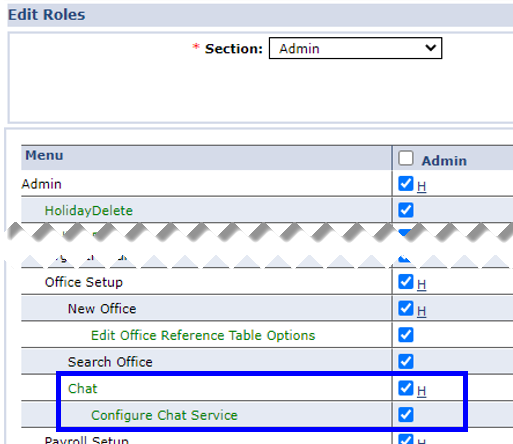
Permissions for the Chat Services feature are role-based and granted via the Edit Roles page under Admin > User Management > Edit Roles.
On the Edit Roles page, select Admin in the Section field, select the Role(s) from the dropdown and Click Search.
From the Menu, select Chat and Configure Chat Service under the Office Setup category.
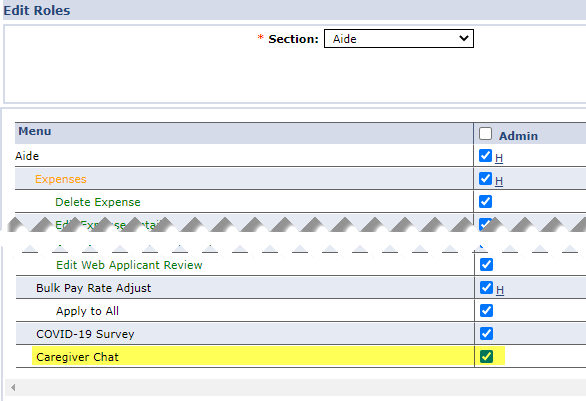
Permissions must also be enabled for roles to access and manage the Caregiver Chat page from the Caregiver module.
To enable, navigate to the Edit Roles page under Admin > User Management > Edit Roles.
On the Edit Roles page, select Aide from the Section field. From the Roles field, select all desired roles (such Admin, Coordinator, etc.) from the dropdown and Click Search.
From the Menu, select Caregiver Chat checkbox for all each role selected to participate in chat conversations with Caregivers.
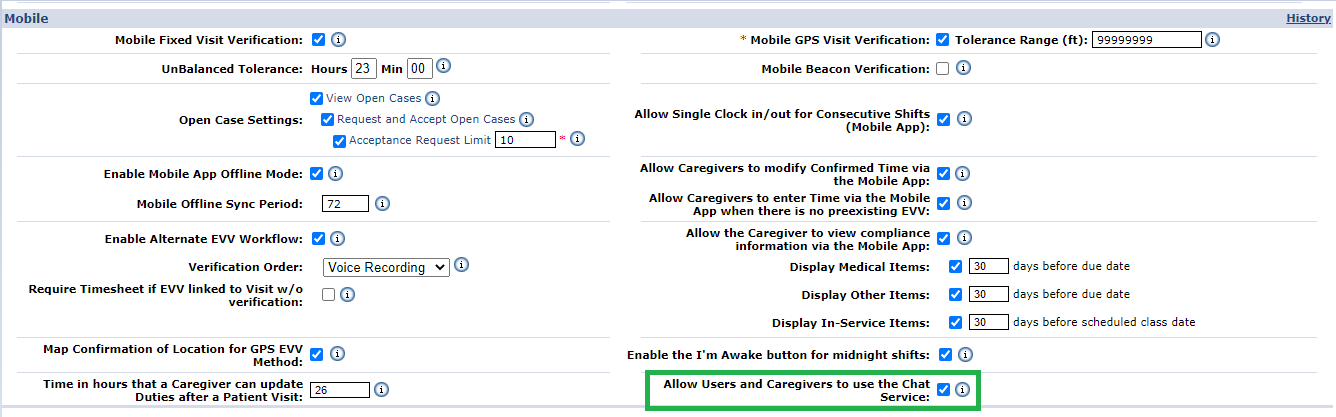
Configuration is seen at the Office level on the Edit Office page under Admin > Office Setup, in the Mobile App section. To activate the Chat Service feature, select the Allow Users and Caregivers to use the Chat Service checkbox.
When the feature is activated at the Office level, all Agency users with role-enabled permissions as well as Active mobile-enabled Caregivers can use the Chat Service. This also applies when a New User (with role-enabled permission) is created in the system.
When the feature is activated at the Office level, the Enable Mobile Chat checkbox is automatically checked in the Caregiver Profile page under Caregiver > Profile for existing mobile-enabled Caregivers with an Active status.
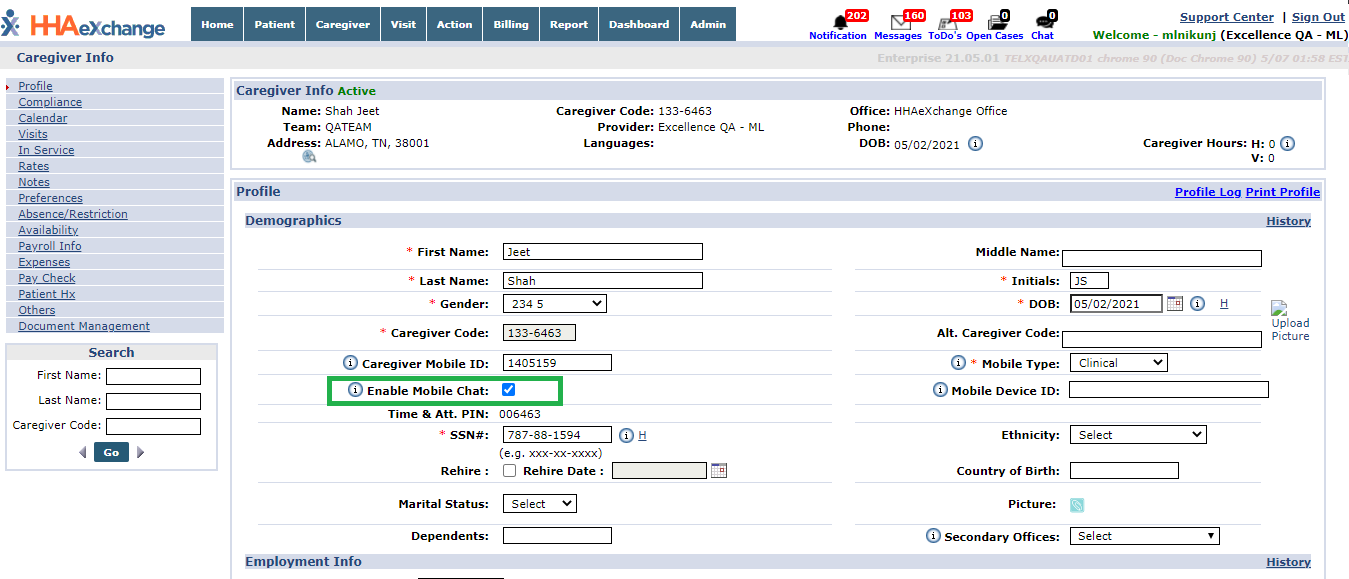
This feature is automatically enabled for newly created Caregivers who have provided a Mobile ID with an Active status. The Enable Mobile Chart checkbox can be deselected if a Caregiver abuses the Chat Services privilege.
The Chat feature is not available to Caregivers with no Mobile ID or an Inactive status (to include Hold, On Leave, or Terminated).