Manage a Topic Chat

To view and manage chats in a Topic, select the Topic from the left navigation bar. Only Topics that the Agency user is assigned to appear in the menu. The example below illustrates a Chat thread from the General Topic.
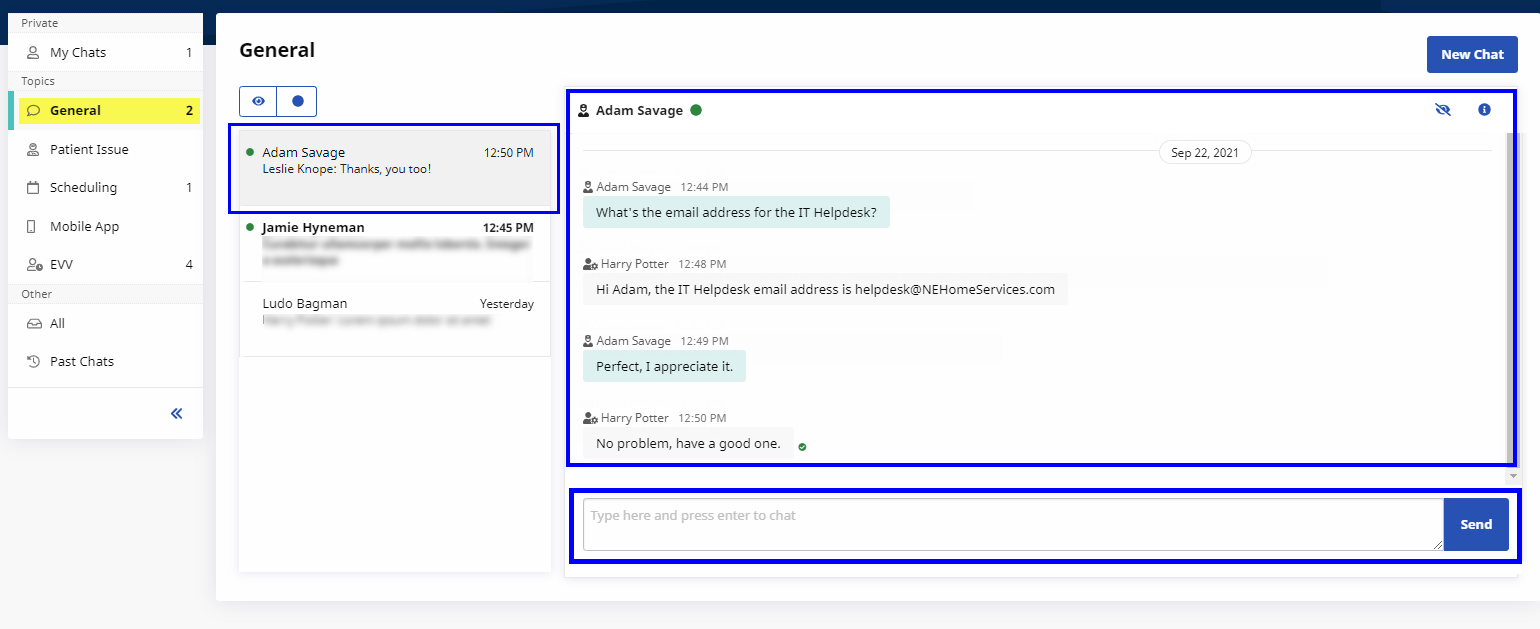
As previously explained, unread incoming messages from a Caregiver are denoted in bold in the Sessions pane. On the Conversation pane, the Caregiver’s name appears as the header. Messages from the Caregiver are highlighted in light blue. A green dot with a checkmark to the right of the message indicates a read receipt.
When a new user is added to a chat Topic and logs in to the system, all previous existing chat sessions are displayed for the user as Unread, making it difficult for a new user to identify new messages. To facilitate this issue, the user can Click the Mark all as read link that appears on the Topics screen.
Once all messages are marked as Read, the user can identify new messages, denoted in bold.
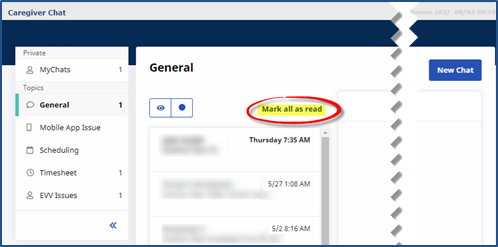
The Mark all as read link only displays if there are unread messages within a Topic.