Authorizations
Authorizations are rules that dictate the type, duration, and frequency of the service your Agency can provide a Patient.

The Authorization Type refers to the period used to designate the total number of service hours your Agency can schedule.
It also contains the actual number of permitted hours and the time frame in which those hours may be scheduled (if specified by the Payer).
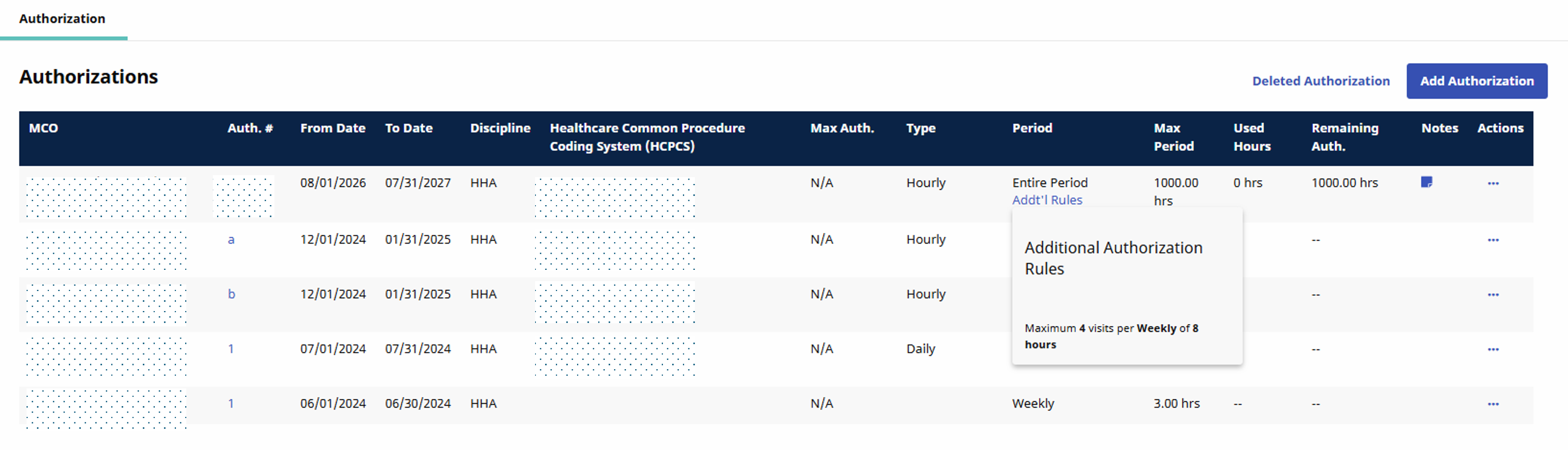
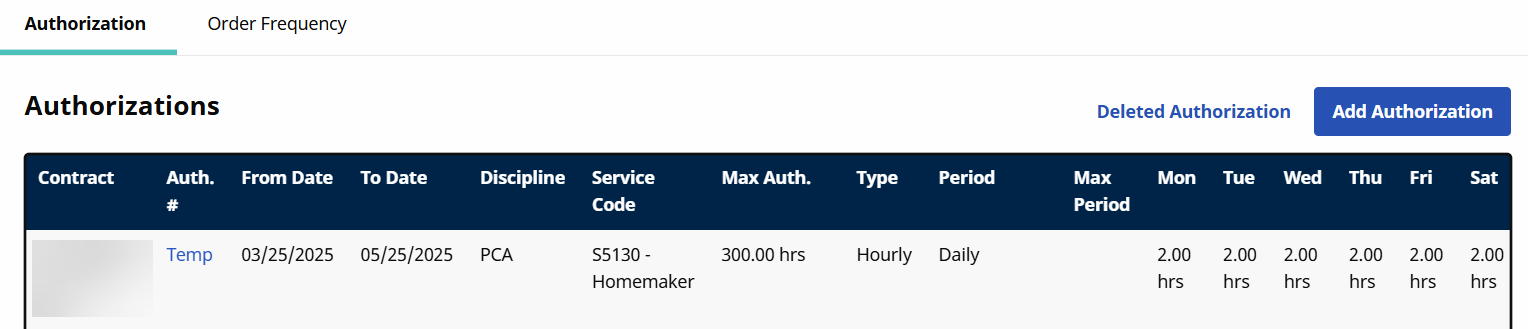
If the Payer included Additional Rules, a link appears in the Periodcolumn. Hover the cursor over the link to view any additional rules.
To view a full summary of an Authorization, including any Additional Rules and Notes, select View/Edit under the Actions dropdown at the end of the Authorization row.
Follow the steps outlined below to add a Patient Authorization in the system.
Contracts must be applied to the Patient Profile prior to adding an Authorization. For more information, see Assign a Contract.
-
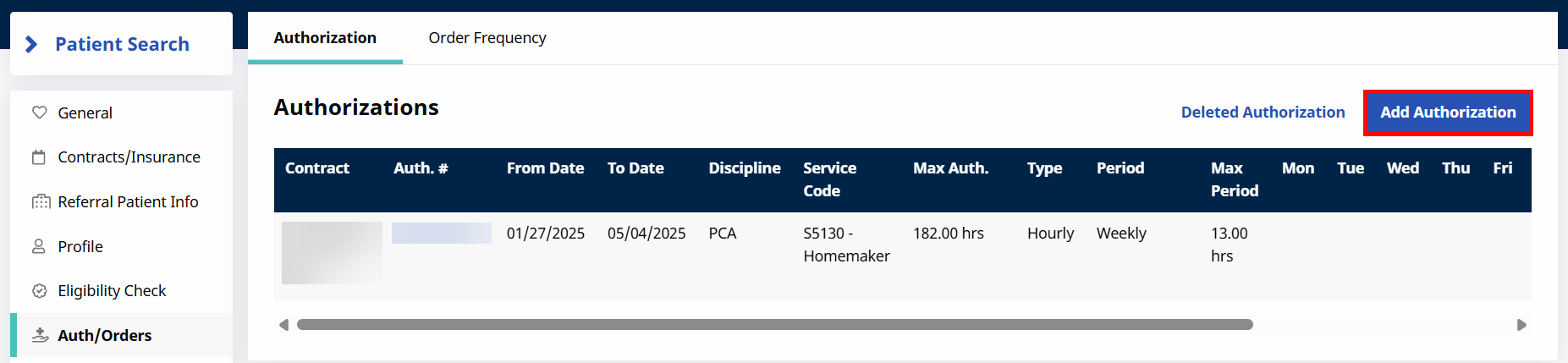
Go to Patient > Authorizations/Orders and click the Add Authorization button.
-
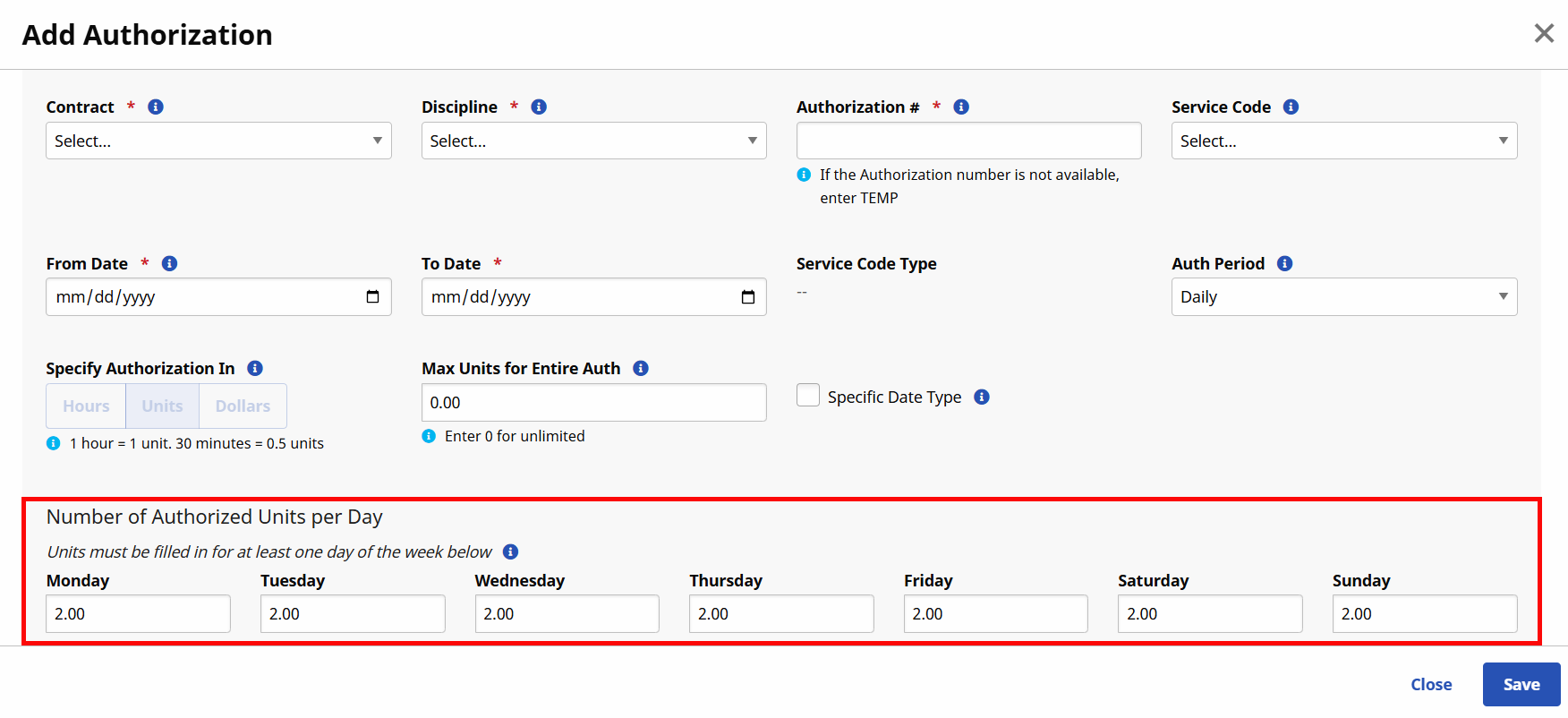
The Authorization window opens. Complete the required fields to include Contract, Discipline, Authorization Number, and From/To Date. Select a Service Code as well as the Period type (Daily, for this example).
-
For a Daily Period, set the maximum number of hours for a Visit for each day of the week.
-
Continue to complete additional optional fields such as:
-
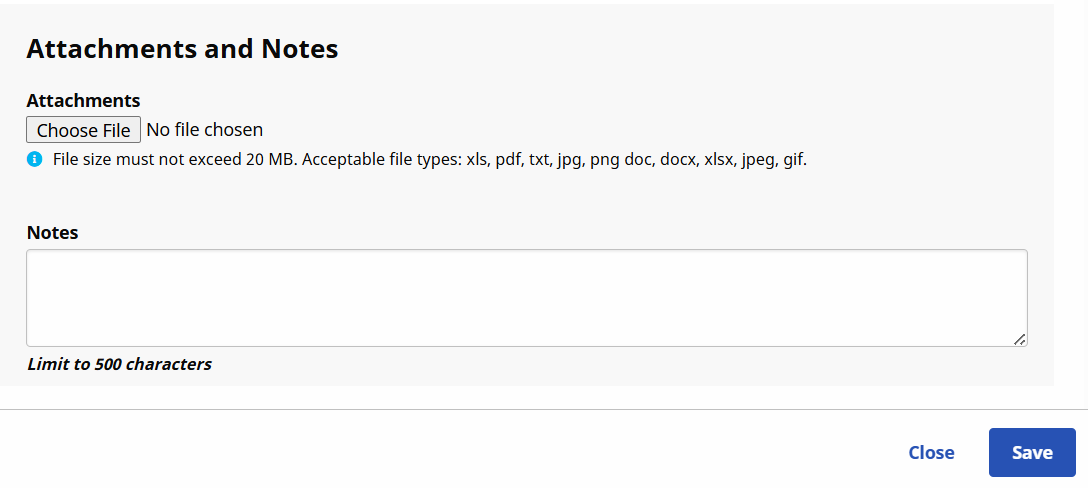
Attachments - click Choose File to attach supporting documentation.
-
If the Authorization is tied to a specific ICD Code, enter it using the Billing Diagnosis Code(s) field. If the Patient, or selected Contract, already has a set Billing Diagnosis Code, the system alerts that one exists. Click the Add button to add other Billing Diagnosis Codes.
-
Make any further comments under the Notes field.
-
-
Click Save.
-
Review all Authorizations on the Authorizations/Orders page.
This feature is activated by HHAeXchange System Administration. Contact HHAeXchange Support Team for details, setup, and guidance.
Once the feature is activated, a Program Code field appears.
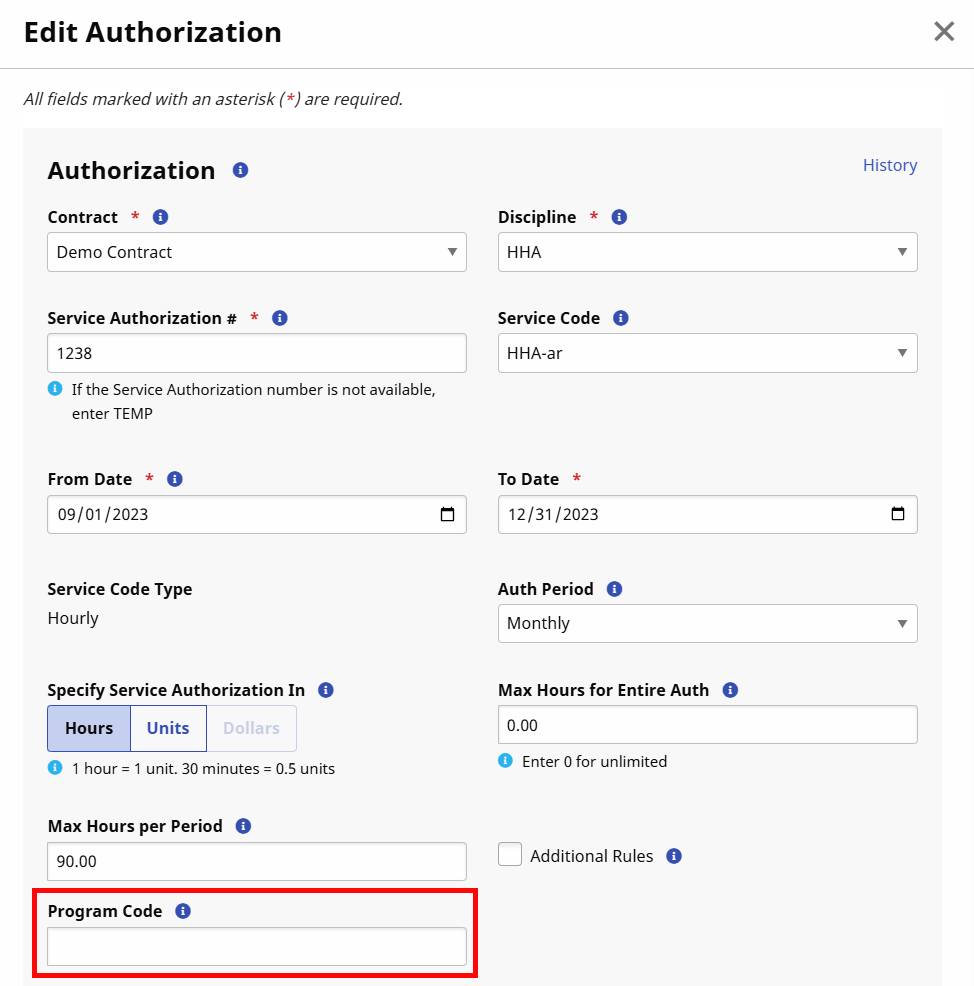
This is a free text field for informational purposes only. During setup, you can also request that this field be mandatory. This request is made at the Contract level.
The state of Arizona requires Contingency Plans for Missed Visits. These are entered at the Authorization level.
When entering the Authorization details, enter one of the following codes in the Program Code field:
|
To use this Contingency: |
Enter this Code: |
|---|---|
|
CP01 – Reschedule within 2 Hours |
1 |
|
CP02 – Reschedule within 24 Hours |
2 |
|
CP03 – Reschedule within 48 Hours |
3 |
|
CP04 – Next Scheduled Visit |
4 |
|
CP05 – Non-Paid Caregiver |
5 |
Blackout Dates are cancellations of specific days in an existing Authorization. When a Payer issues a Blackout Date, the specified day(s) turn pink on the Patient’s Calendar indicating that it is no longer authorized and Visits cannot be scheduled. There are two ways to verify if a Blackout Date has been applied to an Authorization, as follows:
-
In the Notes column of the Authorization line, hover the cursor over the notepad icon. A pop-up notification appears if a Blackout Date has been applied indicating the cancellation dates with associated notes.

-
Open the Authorization window by selecting View/Edit under the Actions dropdown at the end of the Authorization row. The Authorization window contain a section for all Blackout Dates.

|
Period |
Description |
|---|---|
|
Daily |
Enter the specific allowed hours per day. If the visit is scheduled on a different day, or for more hours on these days is flagged. |
|
Weekly |
Enter the allowed hours per week. Visits scheduled after this weekly limit is reached are flagged. |
| BiWeekly | Allows for biweekly period authorization types, to allocate units on biweekly basis. |
|
Monthly |
Enter the allowed hours per month. Visits scheduled after this monthly limit is reached are flagged. |
|
Entire Period |
Enter the allowed hours that are between the Authorization Start and End Dates. Visits scheduled after this limit is reached are flagged. |
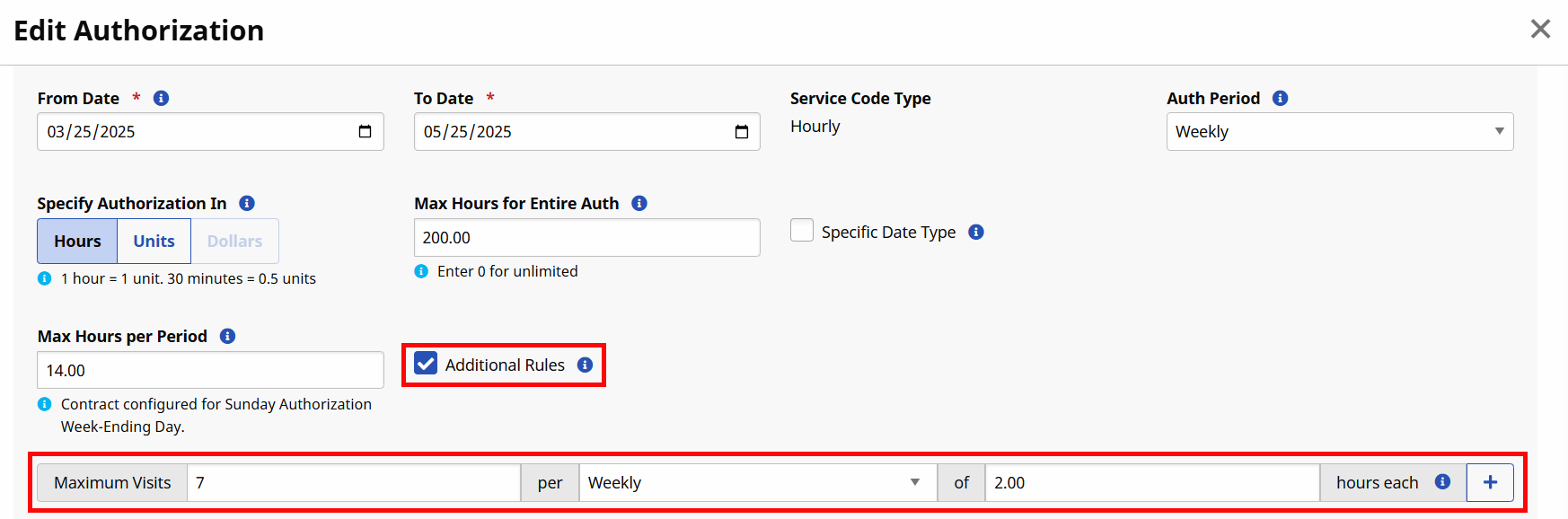
If the Weekly, BiWeekly, Monthly, or Entire Period value is selected for Period, set the Max Units for Period. The image below illustrates an Entire Period as the authorization period. In this case, the Additional Rules checkbox has been selected allowing the user to add rules to the Period and specify the rule parameters using the Maximum Visits / per / of fields. Click the Add Row button to create more rules.
Key Features
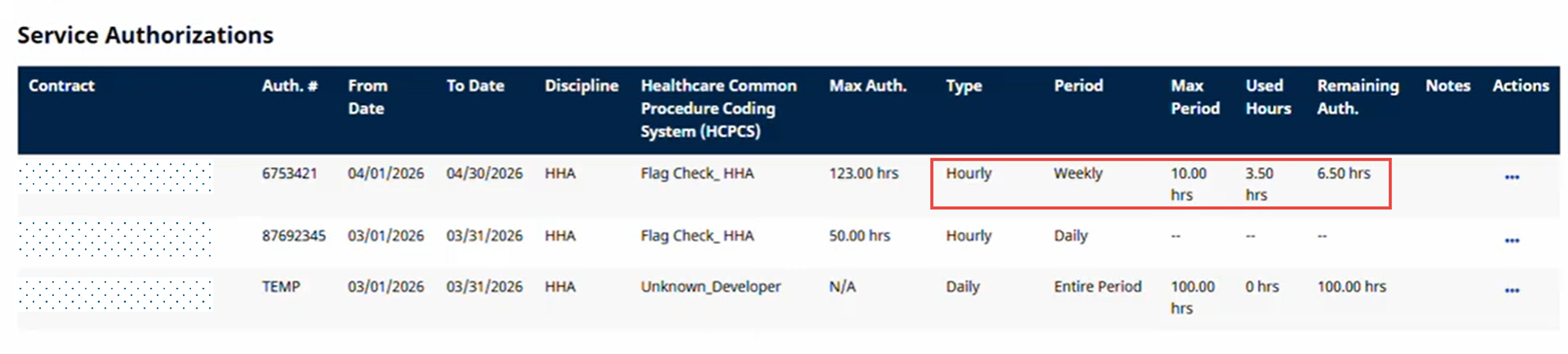
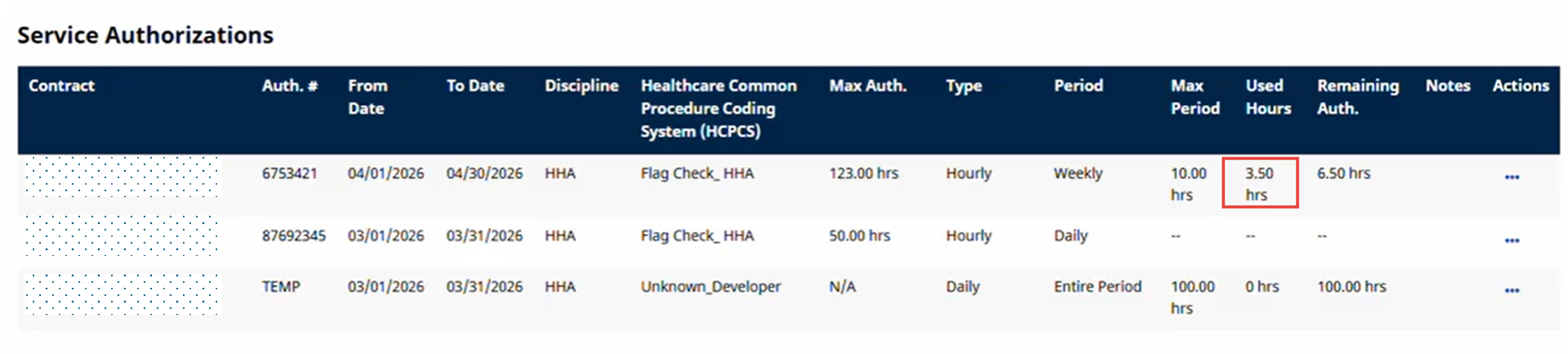
The Service Authorizations (Auth) grid displays a Used Hours column and a Remaining Auth column that provides automatic calculation of how many hours have been used and how many hours remain in a given Auth period.
Service Authorizations Grid
Why It Matters
Automatic calculation of the number of hours used (“Used Hours”) and the number that remains (“Remaining Auth”) removes the need for manual calculations.
How it works
The Remaining Auth column shows how many authorized hours are available, instead of using only the total authorized hours. The system also considers the current Auth period in which those hours are meant for (like a week or month).
How It Calculates
-
If an Auth period is set (e.g., weekly or monthly limits): Remaining Auth shows how many hours are left for the current period only. Past or future periods don't affect what you see today.
-
Example: If 50 hours are approved per week and 20 have been used this week, Remaining Auth = 30.
-
-
If no Auth period is set: It falls back to the total authorized hours minus what's been used overall.
-
If both an Auth period and total hours are set, the Auth period takes priority.
Special Cases
-
No visits yet? Remaining Auth shows the full available hours for that period.
-
Expired or future-dated authorization + provider guardrails ON: Remaining Auth shows "--" (not applicable).
-
Expired or future-dated authorization + provider guardrails OFF: Remaining Auth also shows "--".
Good to Know
-
Hours are always displayed in 15-minute increments (multiples of 0.25).
-
This applies to pages where we show the Auth grid today — Calendar, Auth/Orders, and Master Week.
-
If an authorization has an Auth Period set, the Remaining Auth column will reflect the remaining hours. No action is needed — the updated column and calculated hours will appear automatically.