Discharge Contracts

Follow the steps below to Discharge the Internal Contract from the Member record.
-
Search for the Internal Contract for the Patient.
-
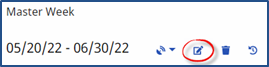
Click Master Week (on the left navigation panel) to access the Patient’s Master Week. On the Master Week page, click the Edit icon (on the right-most corner of the Master Week section).
-
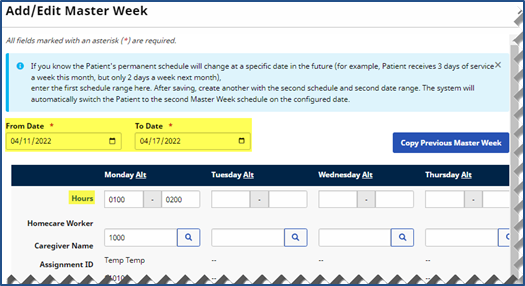
Update the To Date field to the date before the linking is scheduled to begin. For example, if the linking date is 05/26/2022, then update the To Date field to 05/25/2022.
-
Click Save.
Follow the steps below to Discharge the Patient from a Contract.
-
In the Patient Profile, go to the Contracts page (on the left navigation panel).
-
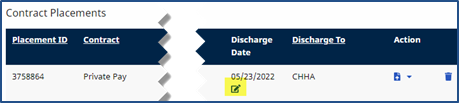
Locate the Contract that the Provider is linking and select the Edit icon under the Discharge column.
-
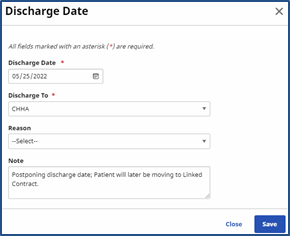
The Discharge Date window opens. Select the applicable date in the Discharge To field. In the Notes field, add a comment to explain the discharge; for example: The Contract is now a Linked Contract.
-
Click Save.
-
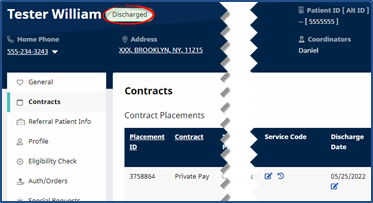
If the Patient only has a single Contract, receiving only Non-Skilled authorizations, and the Discharge Date is entered, then the Status changes to Discharged (on midnight, the day of). As a result, the Linked Contract Patient is the Active record.
-
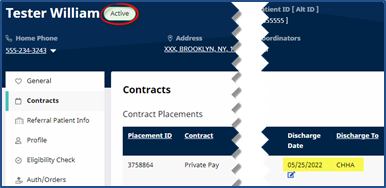
If the Patient has more than one Contract (Payer) and the Provider is only linking with one, or the Payer is only sending Non-Skilled authorizations (via the linking), then the Patient Status remains Active (for the other Contracts).
-