MD Orders Feature
MD Orders under Patient > Search Patient > MD Orders, is a comprehensive feature containing a Patient’s clinical information such as medications, diagnosis, surgeries, prognosis, mental state and the homecare regimen prescribed by the Physician. Each MD Order must have a Certification and a Med Profile completed in the system.

An MD Order pulls information entered in the Info, Med Profile, and Certification pages.
Any changes to these pages after an MD Order is created is not reflected in the order. Likewise, information edited in the MD Order does not affect the corresponding data on the Clinical pages.
The MD Order is comprised of 5 sections Demographics, Medications, Other, Order/Goal, Review MD. To ensure all information is included, it is advised to review, add, and verify the information within.
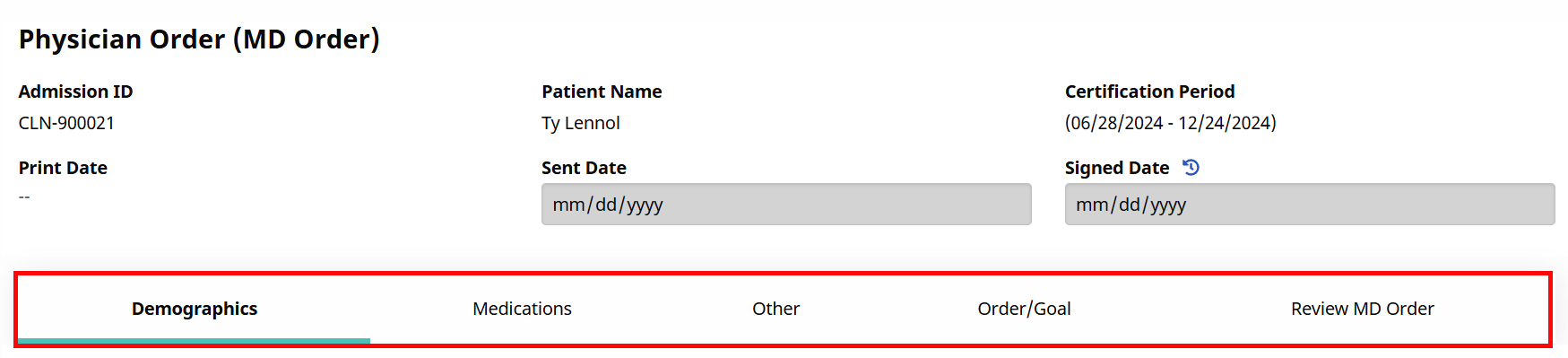
HHAeXchange advises users to review and verify the information on each page and select the Save & Next button to go to the next section or toggle between tabs to access the various pages.
To create an MD Order in the system, follow the steps provided below.
-
Go to Patient > Search Patient and select a Patient.
-
Select the MD Orders link from the Index.
-
Click the Add button to create the MD Order for a Patient.

-
Select the applicable Certification Period for the MD Order when prompted by the system.
Optional: Select an Associated Document from the dropdown.
Select the Yes radio button, if the same medication and care regiment (from a previous MD Order) applies to the new MD Order. Click the link provided to verify what was included in a previous order before copying the information.
Click the Save button to proceed.
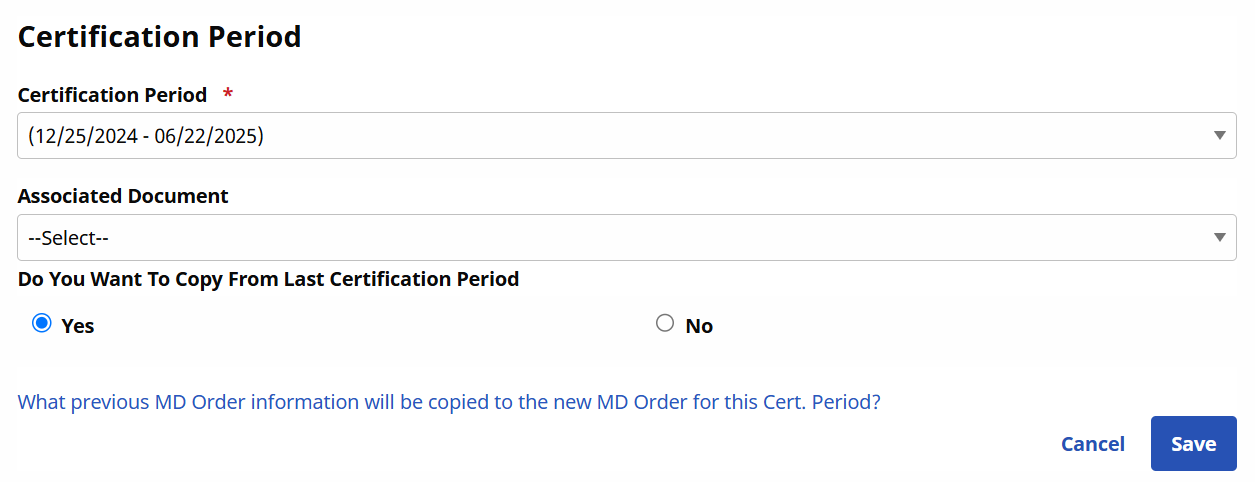
Only one Certification Period can be selected that is not associated or linked to another MD Order.
-
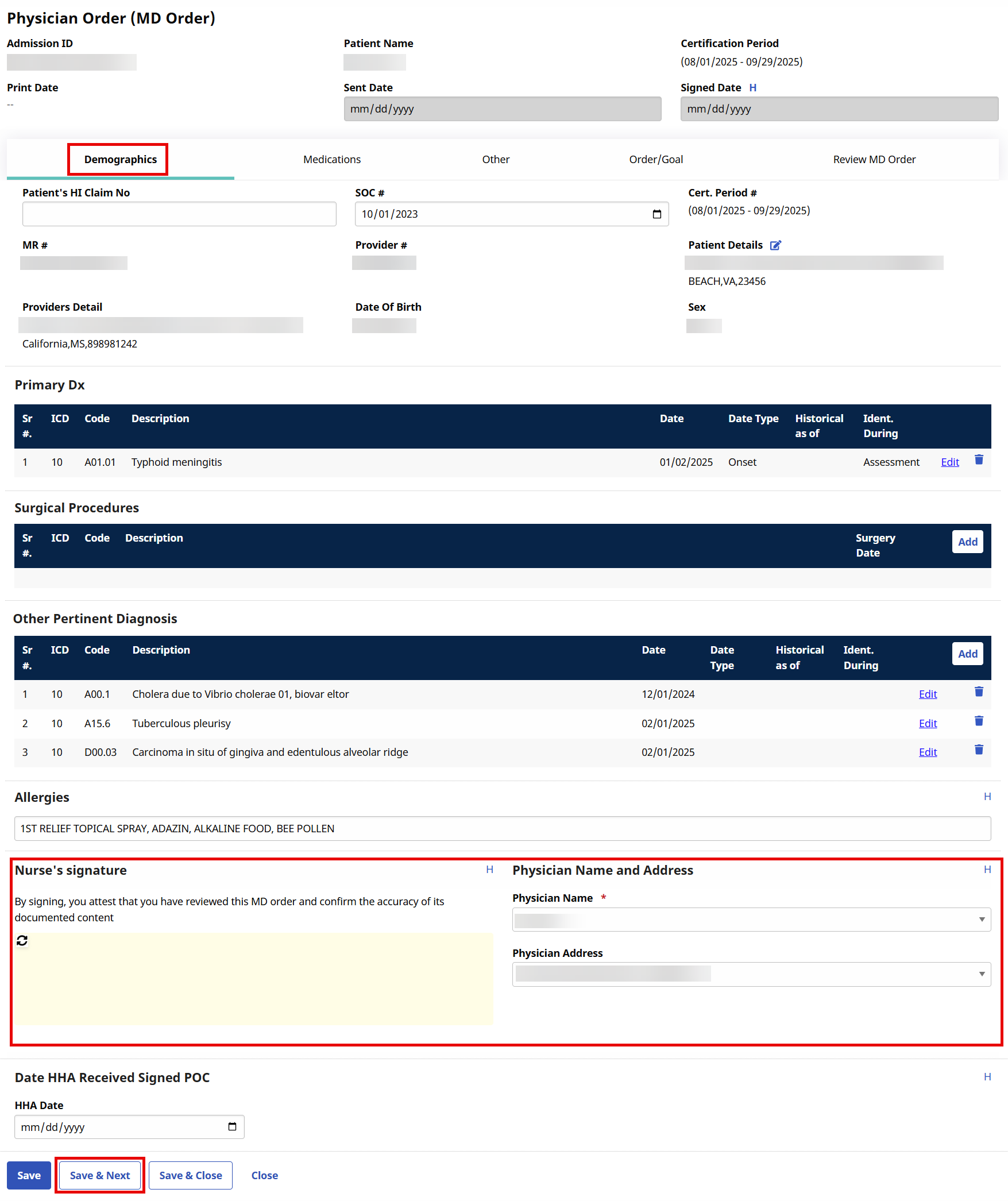
The Physician Order (MD Order) window opens to the Demographics section. The Demographics page primarily consists of the information entered on the Info page, such as the Primary DX and Surgical Procedures. If required, users may edit this information, add or remove diagnosis.
The Nurse Signature field is required as well as the Physician Name associated with the Order.
Click the Save & Next button to continue to the next page.
-
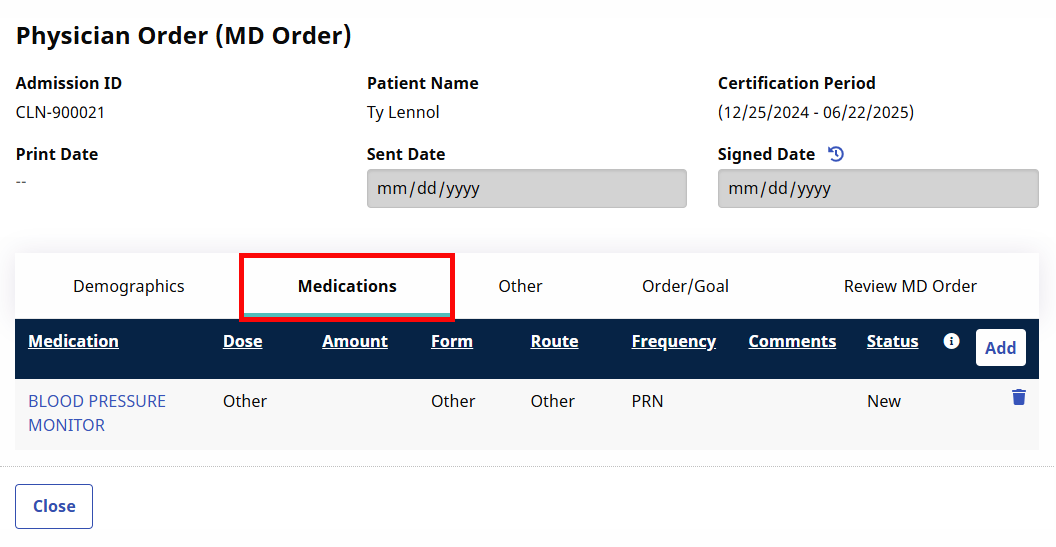
Medications entered on the Med Profile page automatically appear on the Medications section. Review the information. Remove or add medications as applicable to the Order.
Click the Other tab to continue.
-
The Other page is used to record further information such as supplies, safety measures, limitations, and activities as recommended by the Physician. Refer to the table below the image for further details.
Complete each section as applicable and click the Save & Next button to continue.
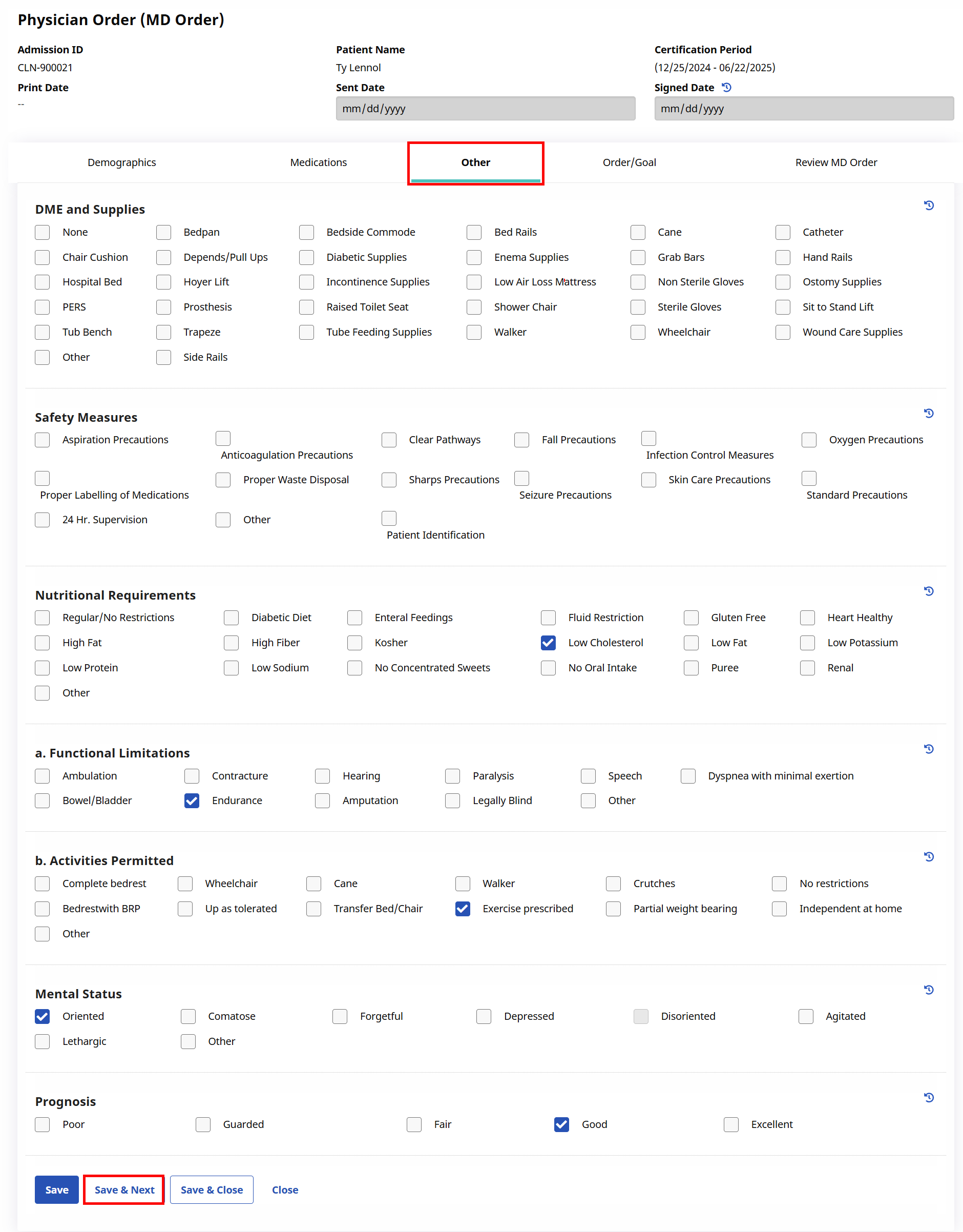
Section
Description
DME and Supplies
Durable Medical Equipment (DME) includes items such as canes, wheelchairs, and bedpans. Values/options are entered in the Reference Table Management functionality under Admin > Reference Table Management.
Safety Measures
Precautionary orders in place to prevent a Patient’s accident (such as 24-hour supervision, fall precaution, or Face Mask requirements). Values/options are entered in the Clinical Safety Measures Reference Table under Admin > Office Setup > Search Office > Edit Office > Office Option Setup.
Nutritional Requirements
Select the Patient’s nutritional requirements as prescribed by the Physician. Values/options are entered using the Clinical Nutritional Requirements Reference Table in the Office Option Setup.
Functional Limitations
Record the Patient’s functional limitations such as hearing issues or speech problems.
Activities Permitted
Indicate activities the Patient is permitted to engage in.
Mental Status
Indicate the Patient’s mental status.
Prognosis
Indicate the Patient’s prognosis.
-
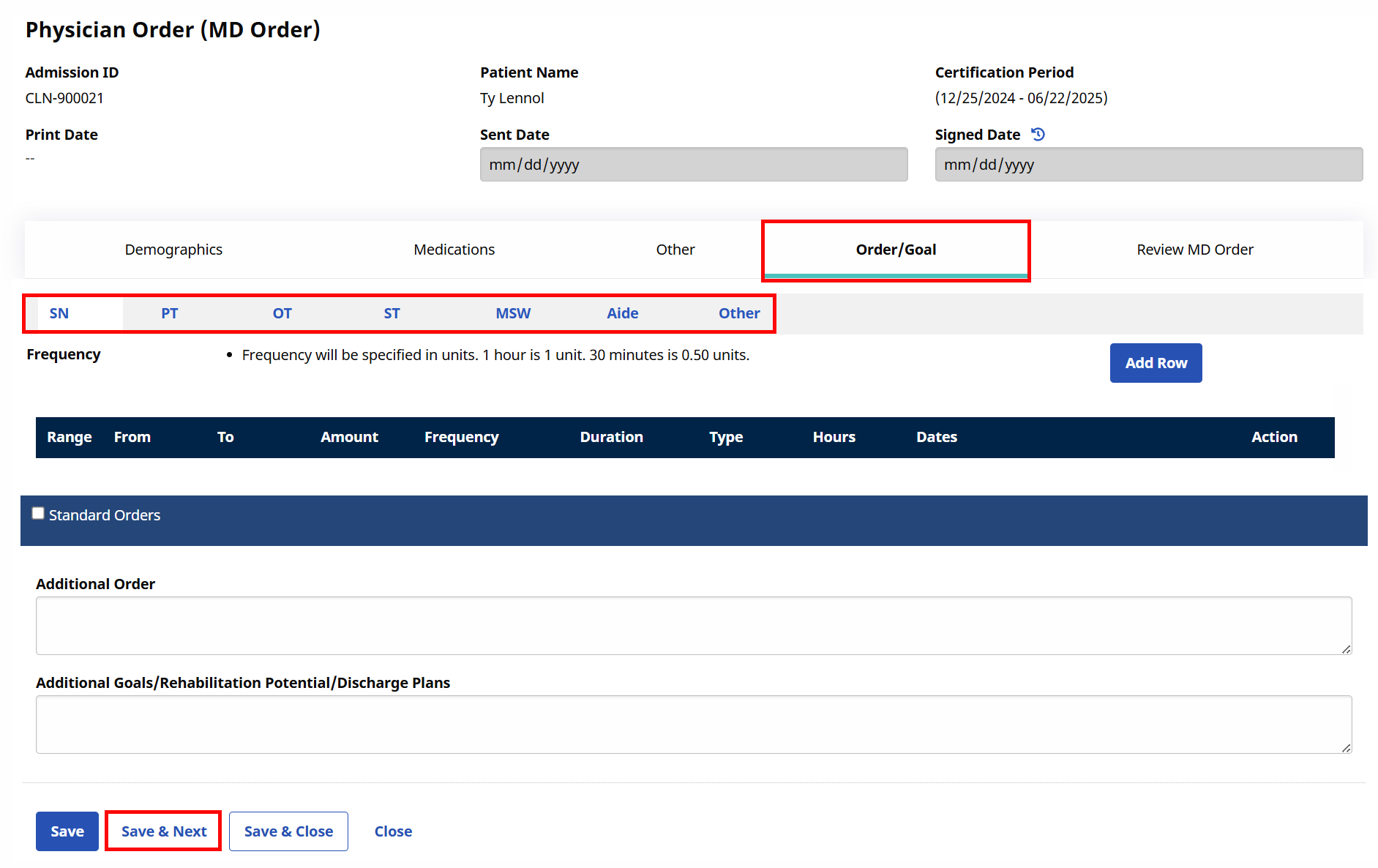
The Orders and Goals section defines the type of therapy a Skilled Caregiver is to provide containing rehabilitative milestones for the Patient to achieve, as prescribed by the Physician. Orders and Goals are unique to each Skilled Caregiver discipline.
Select the applicable discipline and make notes. Click the Save & Next button to continue.
-
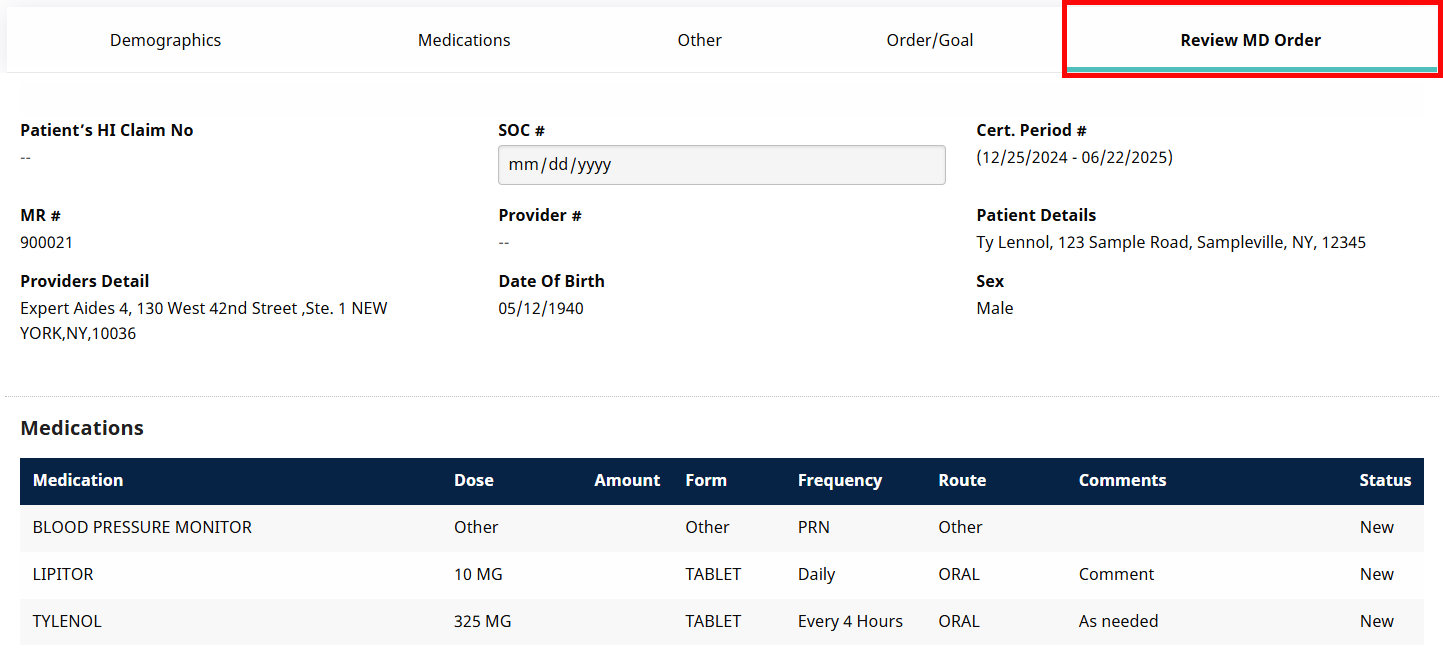
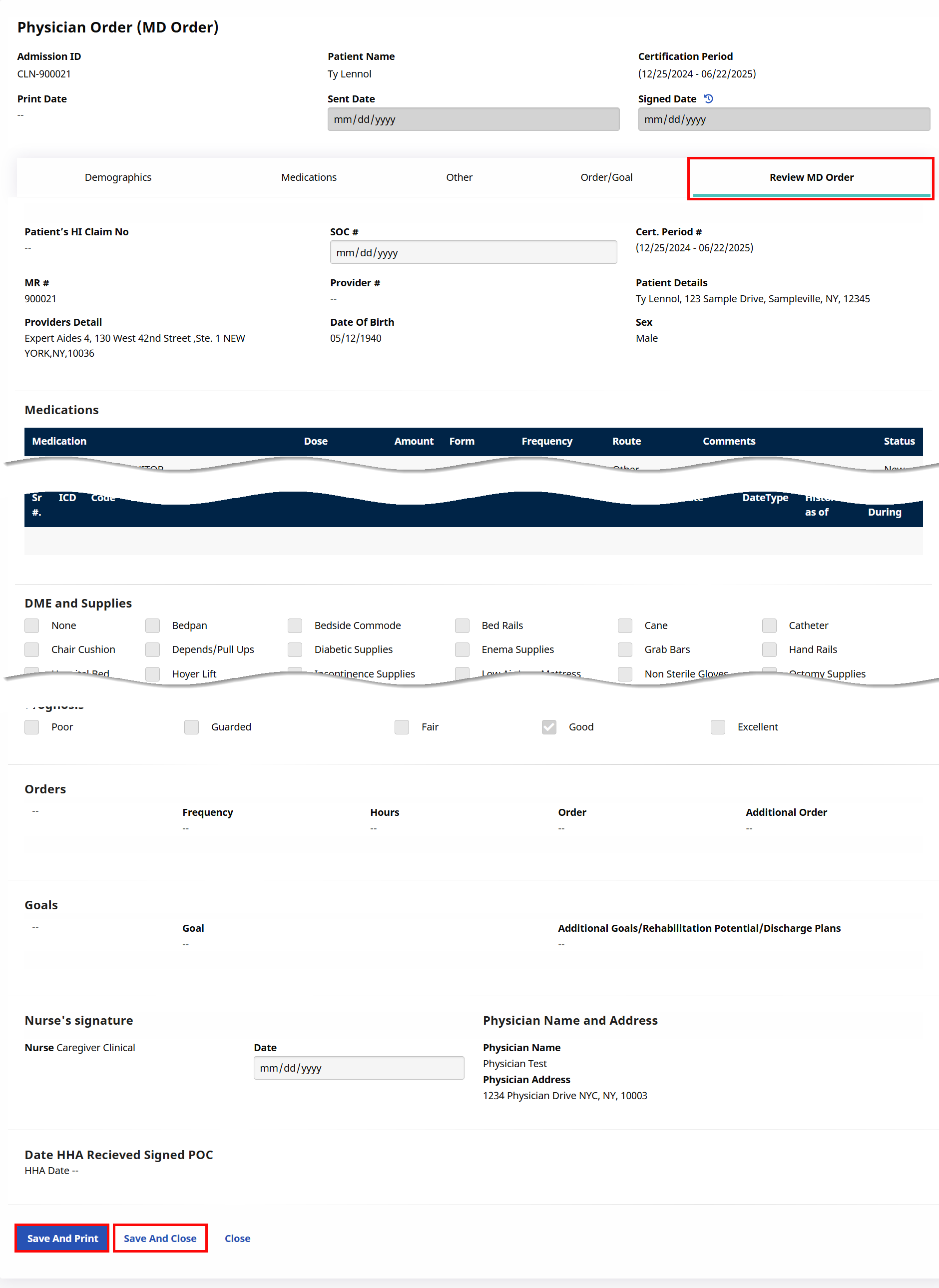
The Review MD Order page provides an overview of the entire MD Order, allowing users to verify the information entered in the previous sections before saving the order.
Click the Save and Print button or the Save and Close button to finalize.
-
Selecting Save & Close allows you to choose whether the MD Order is Complete or In Progress. Once the window is closed, the new MD Order record displays.

Selecting the Save and Print button initiates a download, creating a PDF copy of the MD Order.
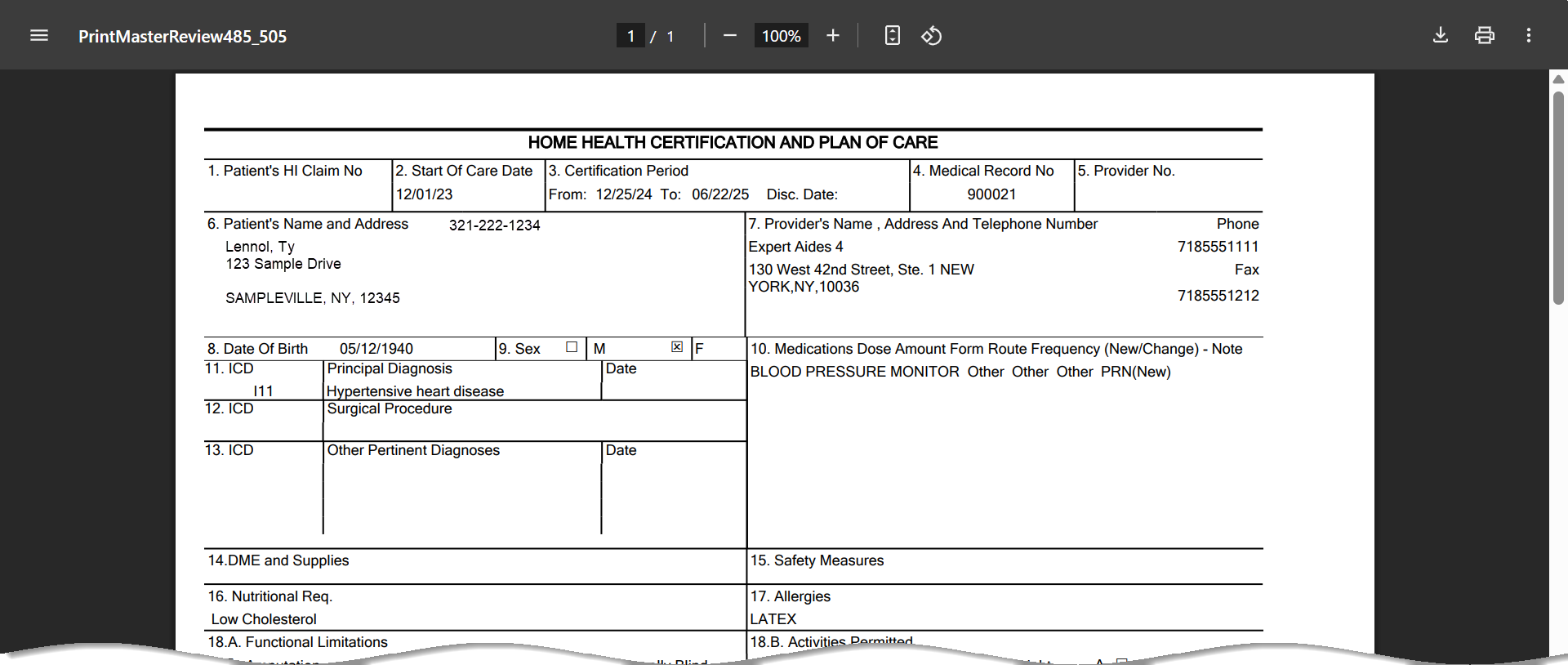
Once Printed, the MD Order Status changes to Printed.

Assessment and Reassessment eDocs can be integrated with an MD Order to reduce duplicate documentation. As nurses complete their Patient visit assessments, they have the option to create an MD Order directly from within the eDoc. The assessment entered in the eDoc then flows into the MD Order. After the integrated MD Order is created, information continues to flow as the assessment is edited.
HHAeXchange does not support MD Order integration with revisits (such as post-hospitalization follow-ups).
On the eDoc page under Patient > Calendar > Visit Info, the following five new tabs are now available to integrate newly entered information into an integrated MD Order: Certification, MD Order-Demographics, MD Order-Others, MD Order-Order/Goal, and Review MD Order. Each of these tabs is covered in sections below.

As for all MD Orders, a Certification Period is required. When creating an MD Order via eDocs (Certification tab), a Certification Period can be created directly (click Add to apply a new one) or an existing Certification Period can be selected from this page.

To create a Certification Period, enter the Start Date and End Date fields (required, as denoted by the red asterisk) on the Patient Certification window.
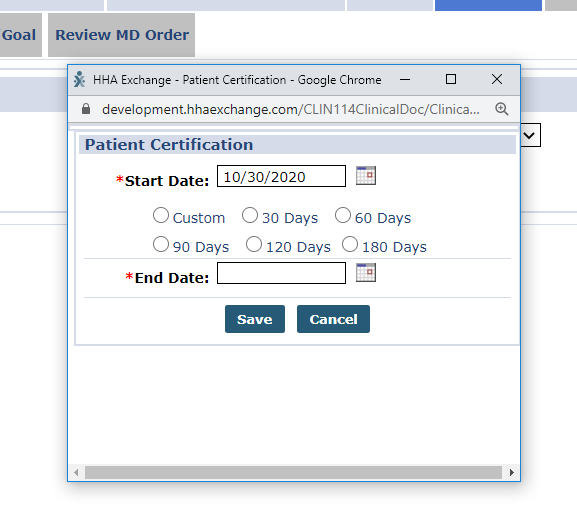
Once saved, the Certification Period can be applied to an MD Order via the eDoc assessment. This Certification Period and the MD Order are then displayed in both the eDoc assessment as well as in the Patient Profile under Patient > MD Orders.
Consequently, the new MD Order tabs on the eDoc assessment are enabled and values from the assessment populate the MD Order.
The MD Order-Demographics tab is available on the eDoc assessment under Patient > Calendar > Visit Info as part of the Integrated MD Order feature. Nurses can enter information as needed via the eDoc assessment functionality. Details on this tab are pulled in from the Patient Profile when the integrated MD Order is created.
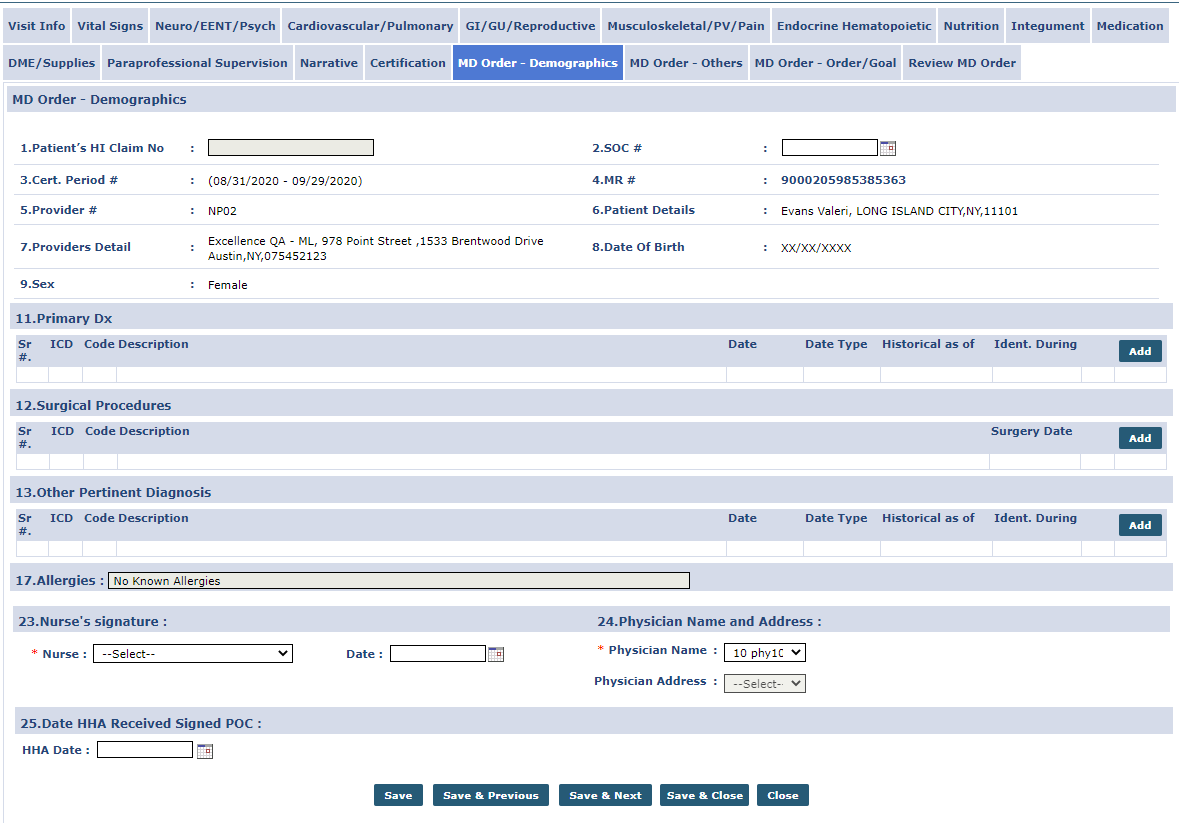
Details on the integrated MD Order–Others tab are populated based on details entered via the eDoc assessment. To ensure the consistency of information between the two documents, any value that is present on the eDoc assessment is disabled on the integrated MD Order (even if not selected in the e-Doc assessment). The nurse must always go back to the eDoc assessment to modify any MD Order value that is disabled.
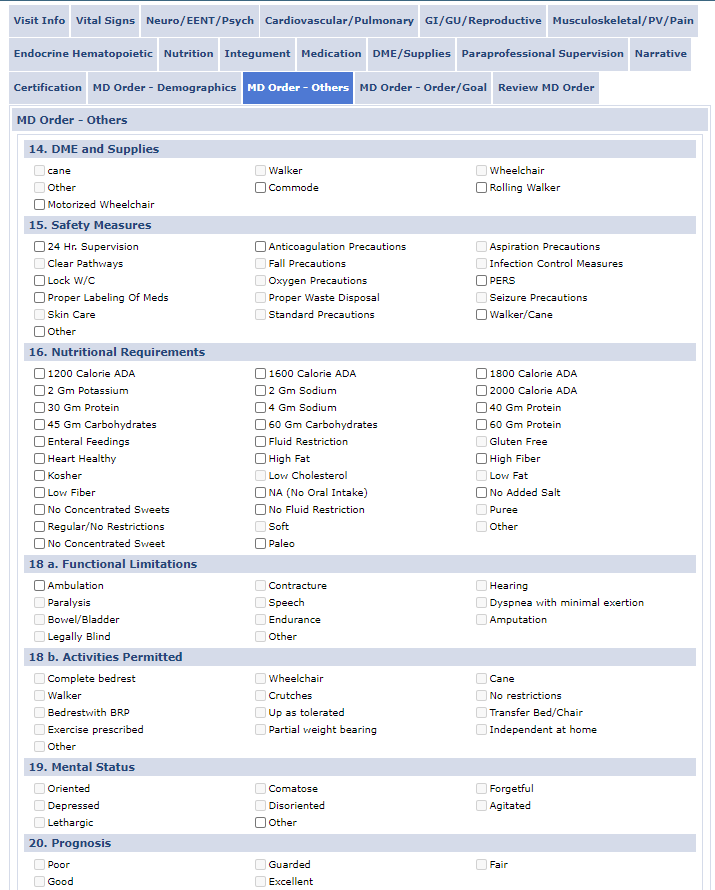
For example, documenting the Prognosis on the Narrative tab of the eDoc, the same value is added to the MD Order.

On the MD Order, the fields are all disabled because the Prognosis section is updated via the eDoc assessment.

As with the MD Orders-Others tab, details in the MD Order-Order/Goal tab are populated based on the information entered in the eDoc assessment. Any Order/Goal values that are present on the eDoc assessment are disabled on the integrated MD Order (even if not selected).
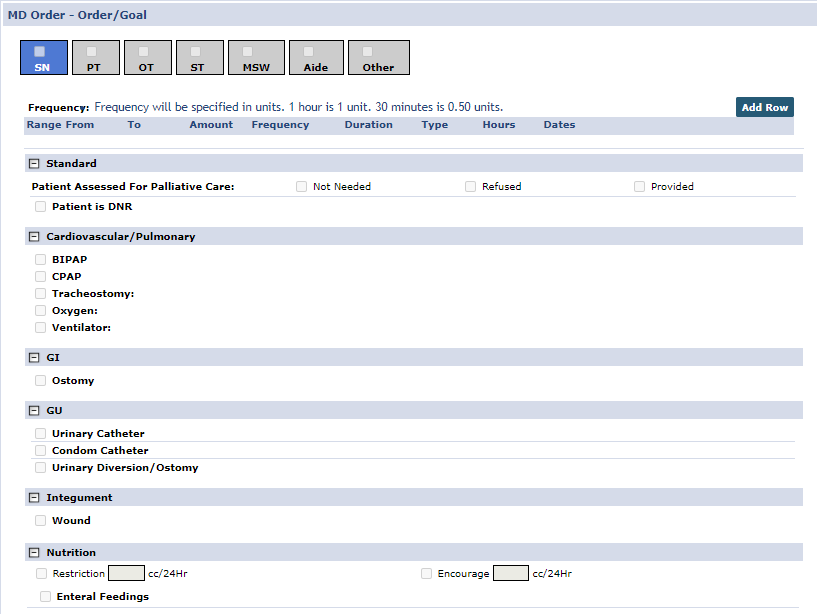
Any custom-created sections on the MD Order-Order/Goal tab are available on the integrated MD Order; however, information does not flow from the eDoc assessment.
Providers can turn off the Orders/Goals mapping for Integrated MD Orders (primarily a configuration for LHCSAs) via the Agency Profile under Admin > Agency Profile. To disable the Orders/Goals integration with the eDoc, select the Turn off Orders and Goals Integration checkbox.
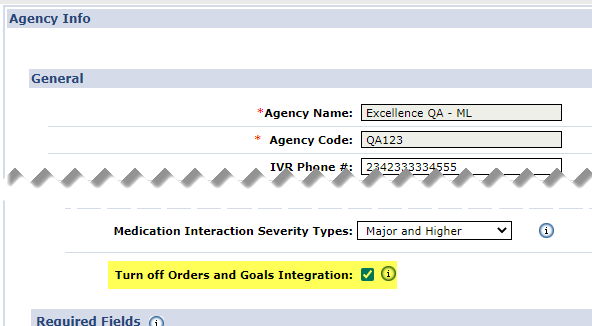
When this configuration is selected at the Agency level, the information from the eDoc does not sync to the Order/Goal tab of the MD Order.
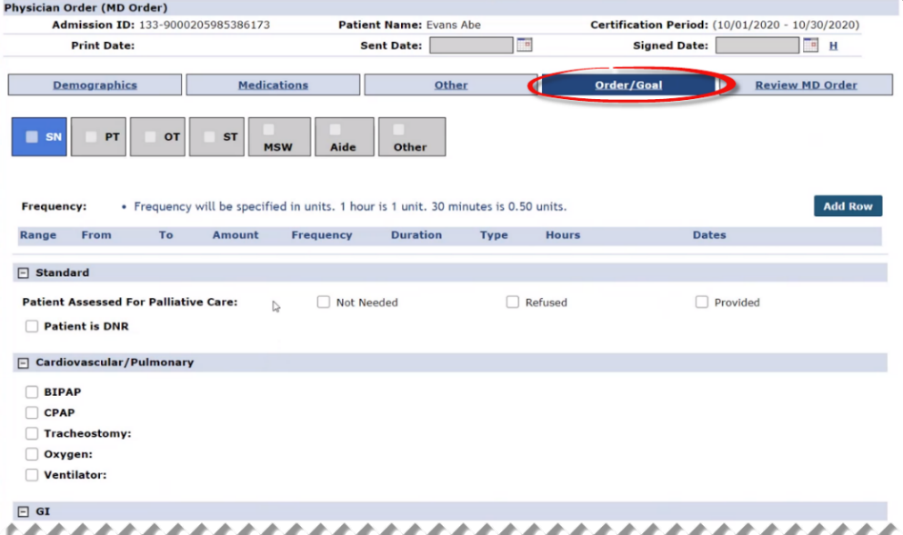
Because the Medications tab on the MD Order and the eDoc assessment are so closely matched, only one version exists in the integrated MD Order. The Medications tab on the eDoc assessment continues to be available and syncs to the Review tab on the integrated MD Order.
The Medications tab on the eDoc assessment syncs to the MD Order Review tab, even after the MD Order is created. This behavior differs from what happens when a medication is added or edited in the Patient Profile after creation of the MD Order, in which case the modifications do not sync.
As stated previously, when a Patient’s medication is added, edited, discontinued, or deleted in the eDoc or MD Order, the change syncs displaying in the Patient Med Profile page under Patient > Med Profile. When a medication is changed to a different one, then the new medication information replaces the older one. If deleted, then the medication is deleted from the Med Profile.
Information only syncs from the Patient’s Med Profile to the eDoc/MD Order one time; when created. If information is added or changed on the Patient’s Med Profile (after the eDoc or the MD Order is created), then it does not sync to either the eDoc or MD Order.
The following table provides the various Status types and descriptions for MD Orders.
|
Status |
Description |
|---|---|
|
In Progress |
The MD Order has been created pending completion. but has not yet been completed or printed. |
|
Complete |
The MD Order is completed but not yet Printed. |
|
Printed |
The MD Order has been completed and downloaded to the user’s workstation as a PDF. |
|
Sent |
The printed MD Order has been sent to the Physician for review and approval. |
|
Signed |
The MD Order has been signed by the Physician. |
Several sections of the MD Order are configurable such as Clinical Category Goals, Clinical Category Orders, Clinical Discipline Category, Clinical DME and Supplies, Clinical Nutritional Requirements, and Clinical Safety Measures. The system uses exact (matching) text for the information to flow from the eDoc assessment to the MD Order in these sections.
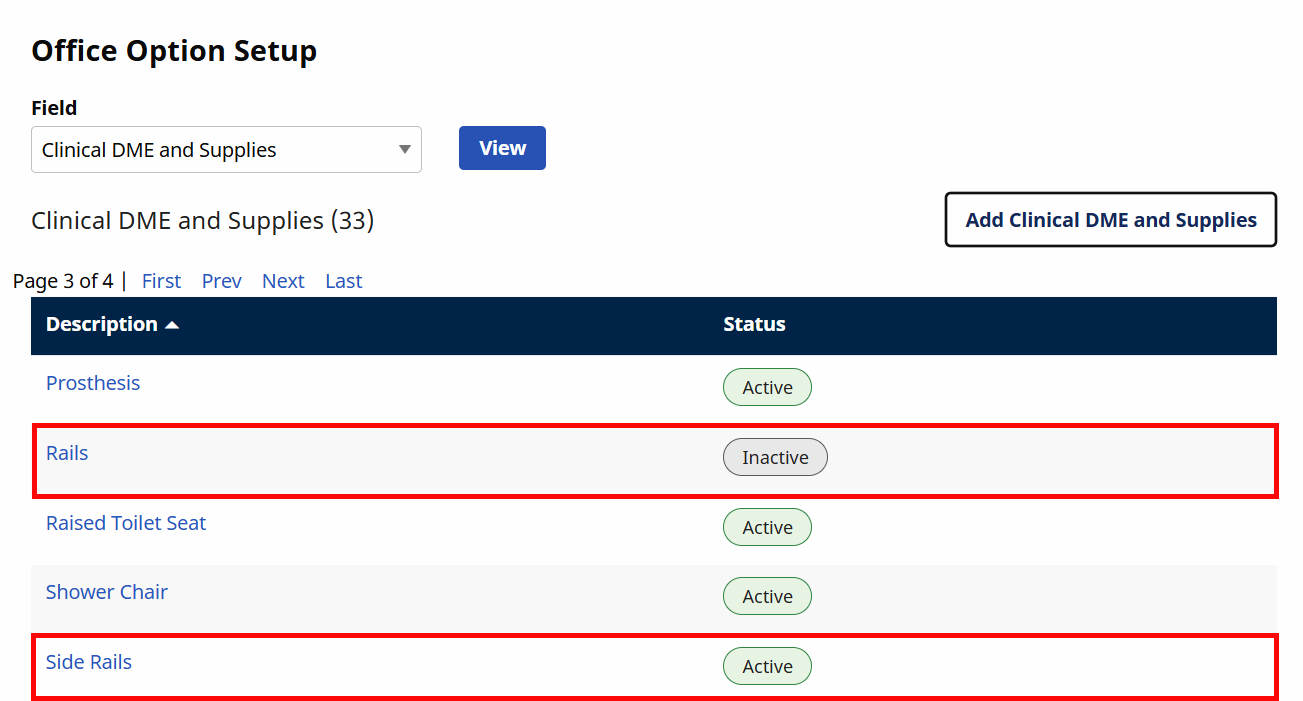
Values can be set to inactive in the Office Option Setup section under Admin > Office Setup > Office Edit. A field that does not match the corresponding field in the assessment, can be inactivated and then replaced with a label that matches.
For example, in the following image, Rails is set to Inactive and replaced with Side Rails. Once saved, the custom MD Order field matches the text on the eDoc assessment DME and Supplies tab.
Several columns on the Patient MD Order under Patient > MD Orders in the Medication and Review MD Order tabs provide better visibility for a physician or nurse to view to include a Comments column in the Medication tab.
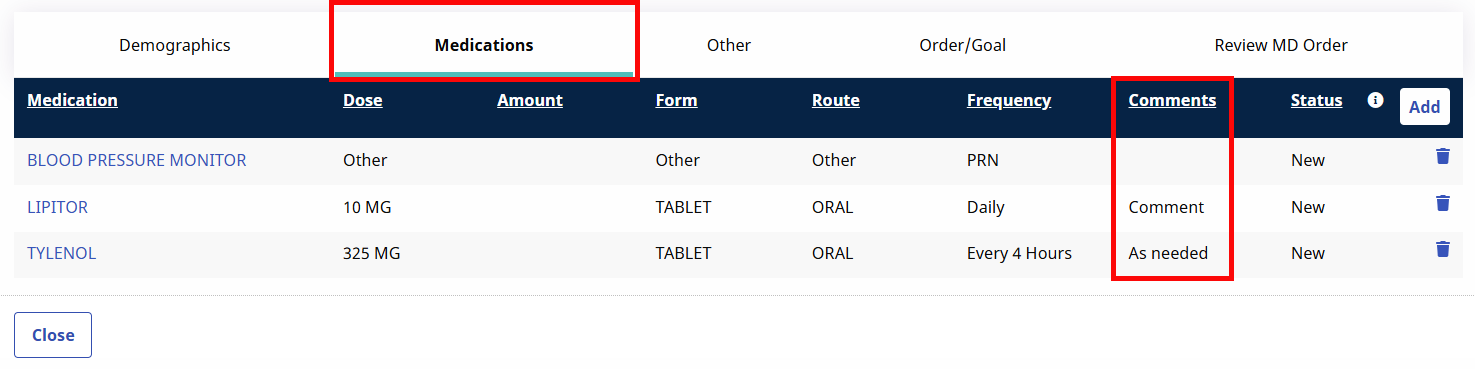
Amount, Form, and Comments columns are displayed on the Review MD Order tab.