Med Profile
The Med Profile page on the Patient Profile is a record of every medication used by the Patient. From the Med Profile, you can add new medications, edit existing records, or delete entries that are no longer relevant.
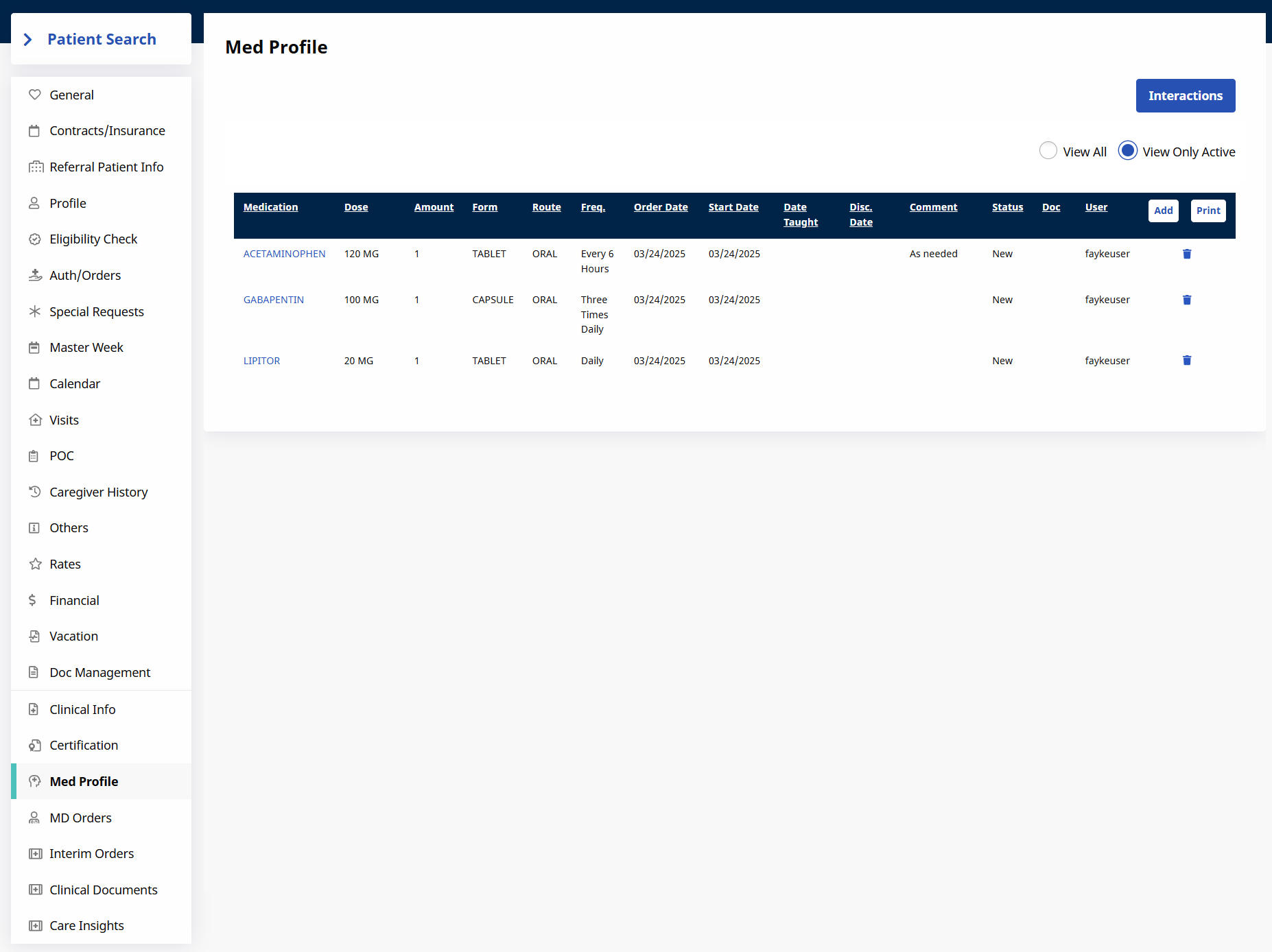

To add a new medication to the Patient's record:
-
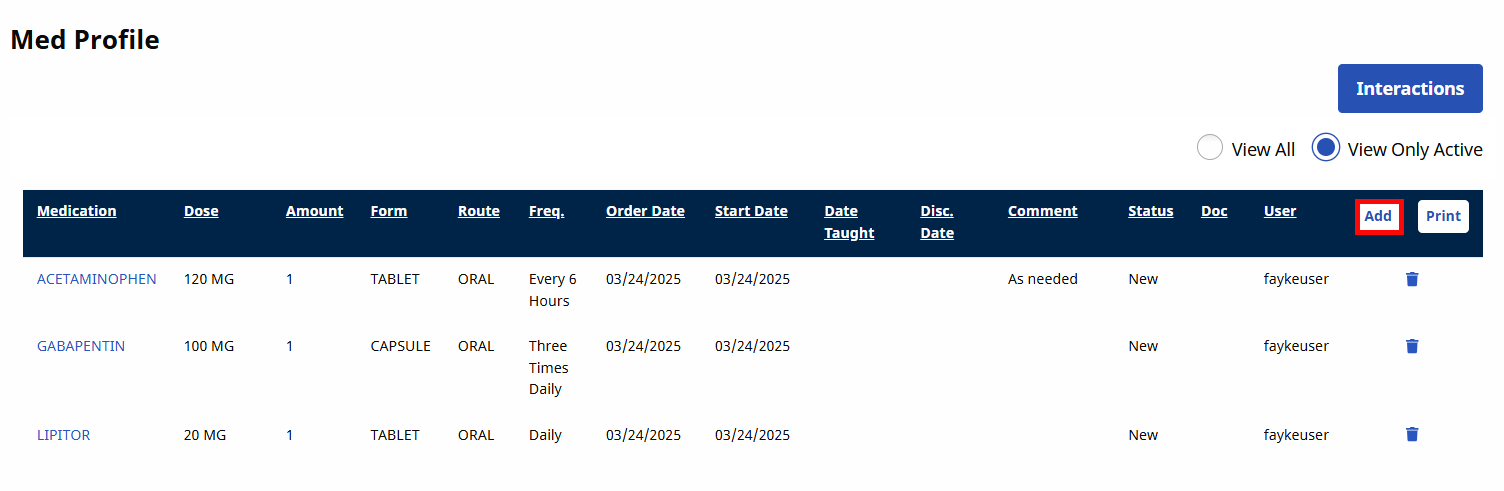
Click the Add button in the rightmost column to open the Patient Medication Info window.
-
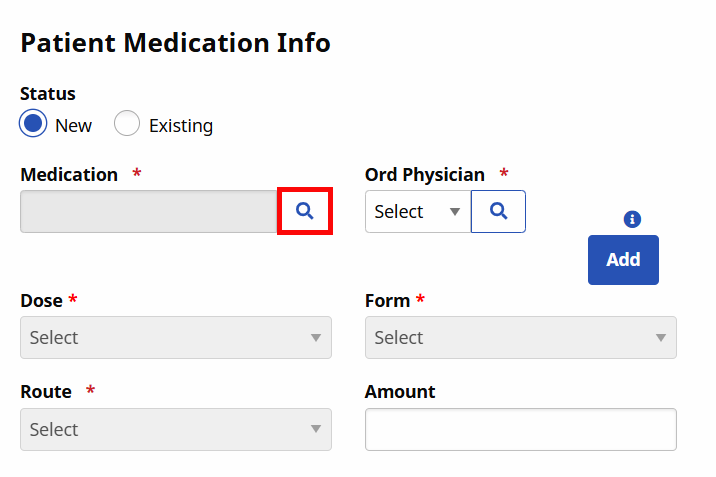
Click the Search icon to the right of the Medication field to search the HHAeXchange medication database.
-
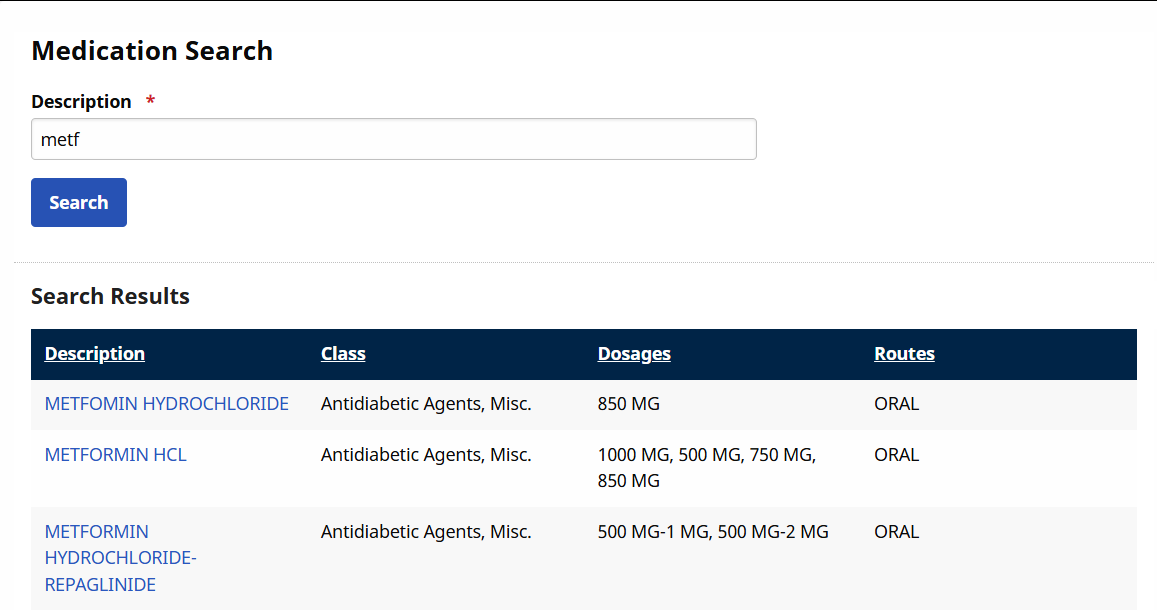
The Medication Search window opens. Type in the medication name in the Description field. The first few letters can generate results if the medication name is not fully known.
-
Click the name of the medication to apply it to the Medication field. Fields marked with a red asterisk are required. Enter the Ord Physician, Dose, Form, and Route. The values in these dropdowns correspond to the specified Medication.
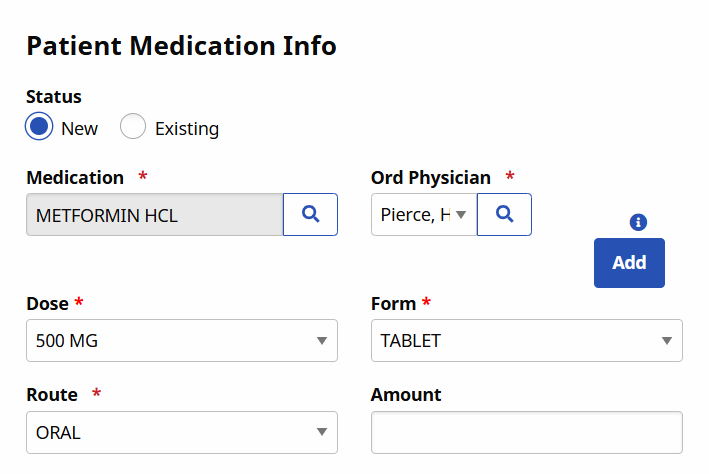
-
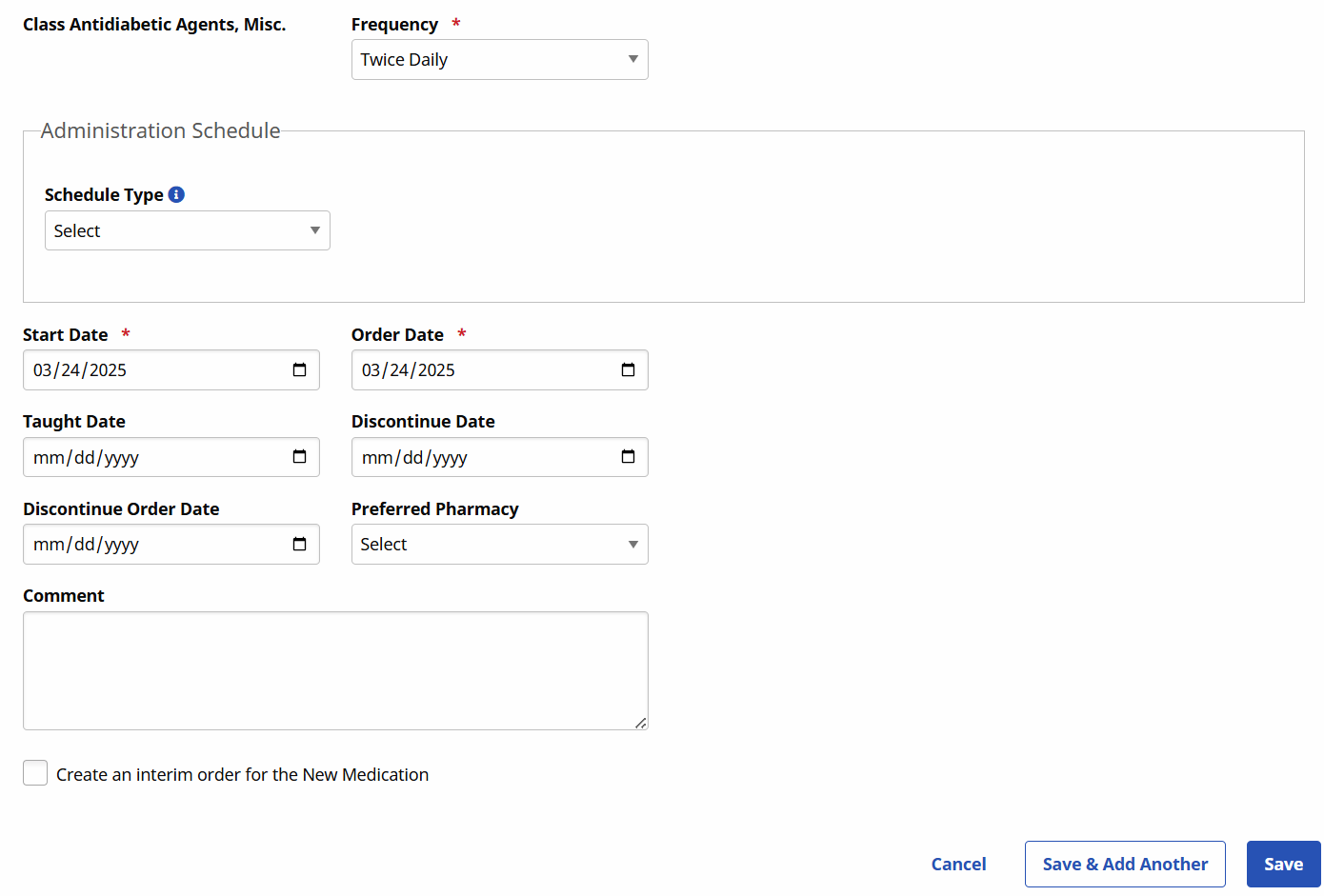
Select the Frequency, Start Date, and Order Date.
Field
Description
Ord Physician
The Physician ordering the medication.
Dose
The prescribed dosage.
Form
The medication form (pills, liquid, etc.)
Route
How the medication is administered (oral, injection, etc.)
Frequency
How often the medication is administered.
Start Date
The date when the Patient started/is to start the medication
Order Date
The date the Physician prescribed the medication.
The Patient Medication Info window also includes optional fields including Amount, Taught Date, Discontinue Order Date, Discontinue Date, Preferred Pharmacy, and Comment.
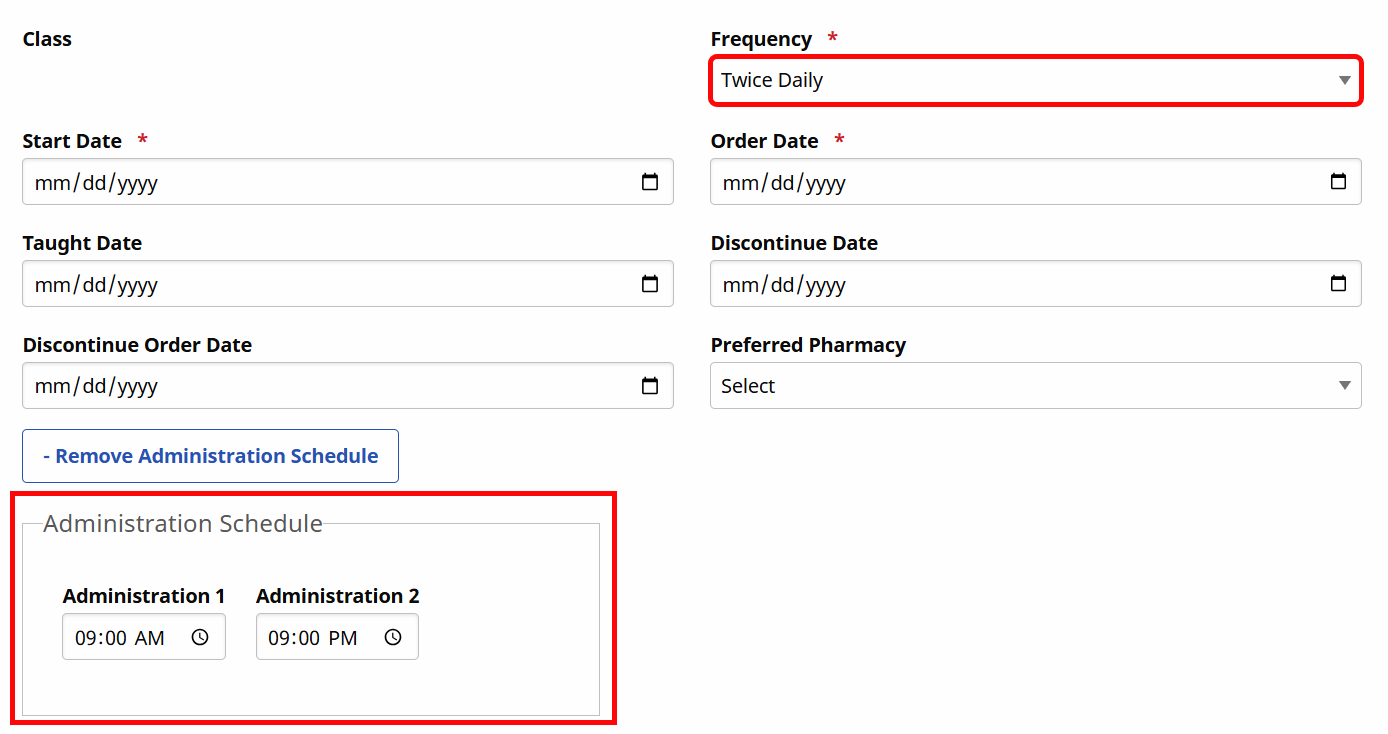
When selecting Frequency, the Administration Schedule section appears with default times entered. To adjust the time, click on it and type in a new value.
-
Complete all other optional fields as needed.
-
Select the Include New Medication in the MD Order checkbox if the medication is to be considered in the Patient’s MD Orders. When an MD Order is created for the selected Certification Period, the medication is automatically added.
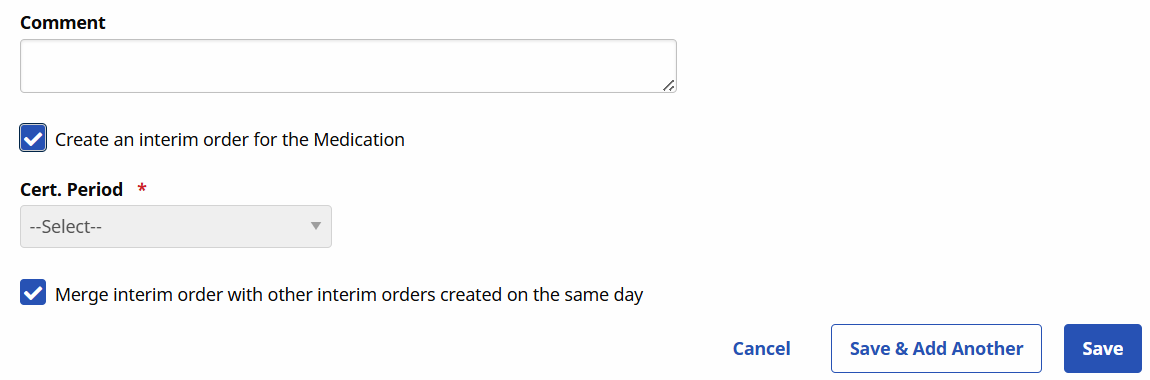
If the medication was prescribed after the MD Order was issued, or the medication dosage was Changed, select the Create an interim order for the New Medication checkbox to generate an Interim Order for the medication change.
-
Click Save.
To update an existing medication:
-
Click the medication name.
-
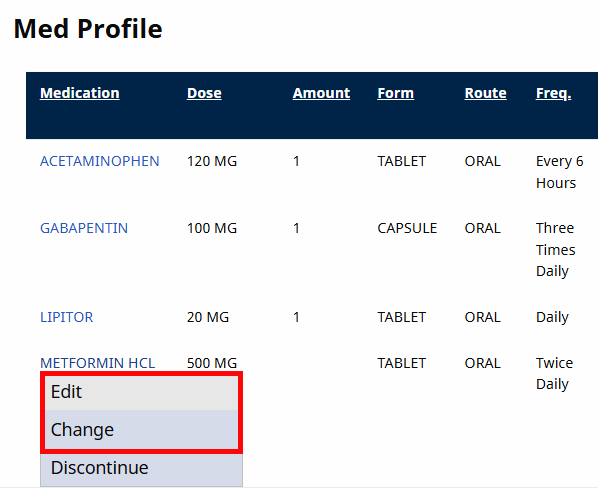
Select an option from the dropdown menu to either Editor Change.
Select…
To…
Edit
Update the record to reflect the changes.
Note: This option should only be selected if a clerical mistake was made when the Medication was originally entered.
Change
Create an entirely new active entry and Discontinue the previous record.
-
The Patient Medication window opens. Make the necessary updates to the record.
-
Click Save.
Discontinuing a medication will make it inactive, but keep the record for reference.To discontinue a current medication:
-
Click the medication name.
-
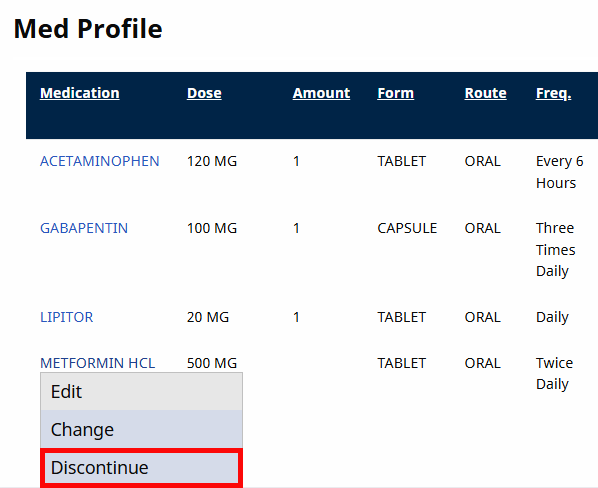
Select Discontinue from the dropdown menu.
-
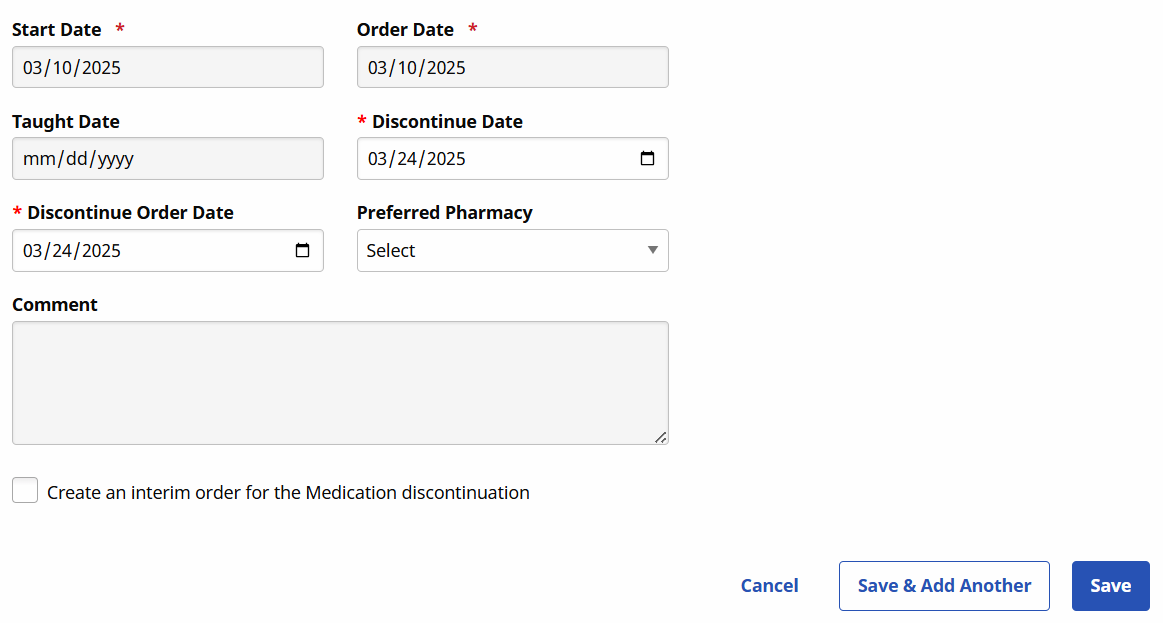
The Patient Medication window opens with most of the fields grayed out. Scroll down and enter the Discontinue Date and Discontinue Order Date.
-
Click Save.
-
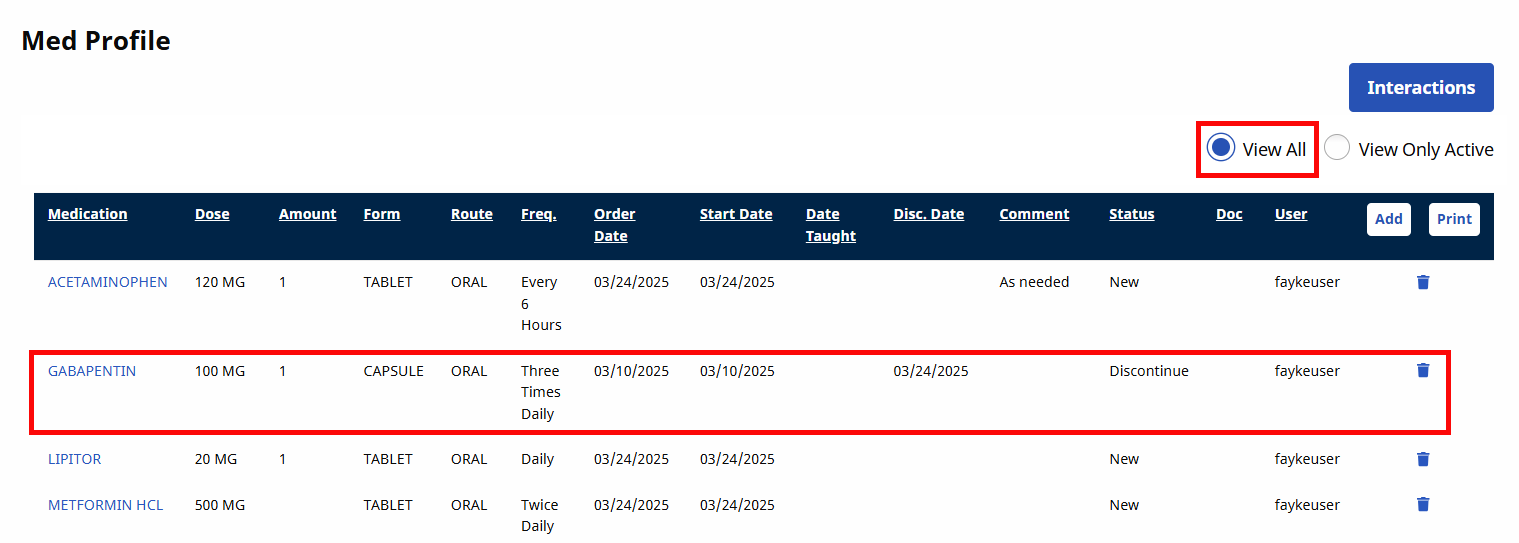
The medication is now removed from the Active view. Click the View All radio button to view all medications, both current and discontinued.
-
Clicking on the discontinued medication will now open the Patient Medication window, where none of the fields is editable.
Deleting a medication removes it completely from the Patient's record. For this reason, we recommend only deleting a medication if it was added by mistake.
To delete a medication:
- Click the Trash Icon at the end of the medication's row.
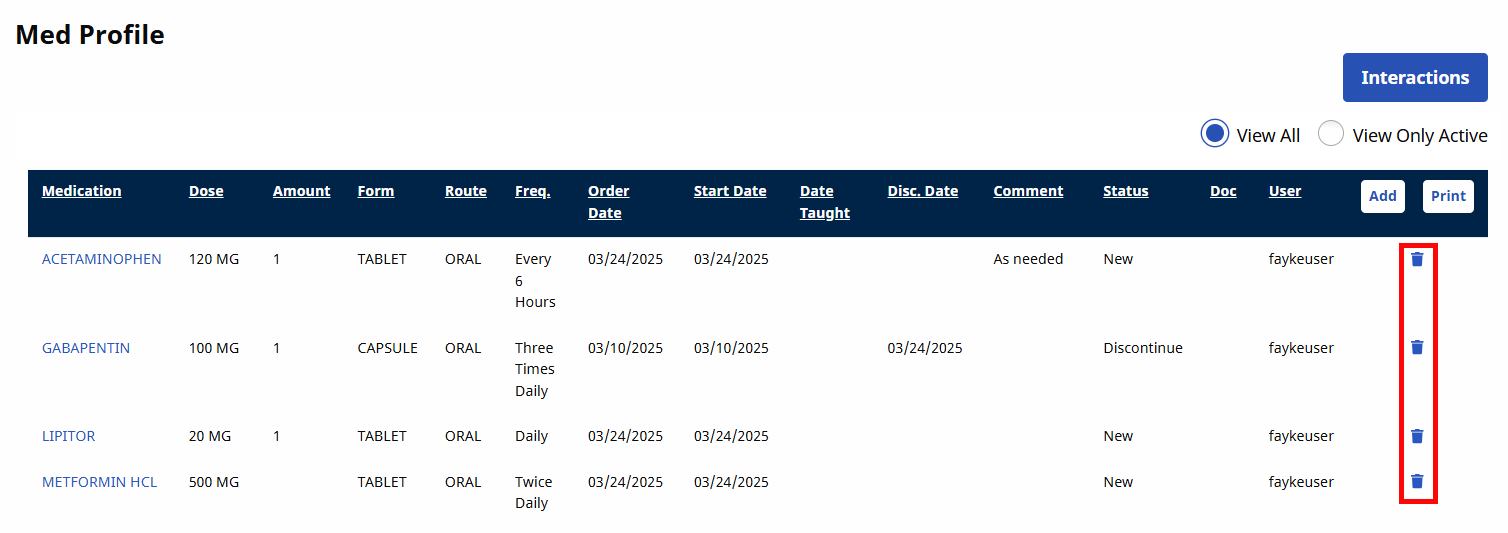
- A confirmation window opens to make sure you do want to completely delete the record. Click OK.