Schedule Types
This feature is activated by HHAeXchange System Administration. Contact HHAeXchange Support Team for details, setup, and guidance.
Several Schedule Types are available to accommodate diverse scheduling needs, such as unfixed schedule times measured in hours and minutes. In the application, the following Schedule Types exist to support different scheduling procedures:
-
Daily Fixed
-
Daily Variable
-
Weekly Variable
-
No Schedule

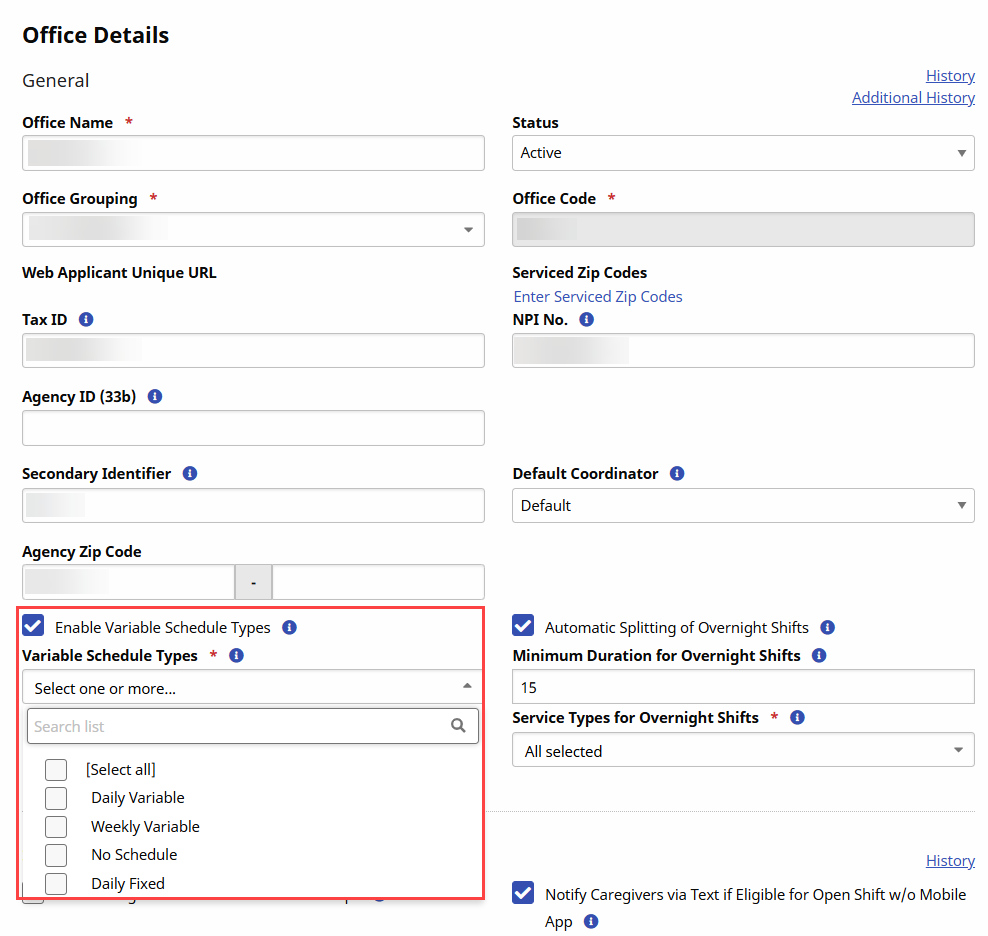
Providers can enable functional Schedule Types in the Provider application at the Office level. Search for the desired Office under Admin > Office Setup > Search Office, and select the Enable Variable Schedule Types checkbox field in the Office Details section.
Select the following options from the Variable Schedule Types field:
-
Daily Variable
-
Weekly Variable
-
No Schedule
-
Daily Fixed
A Daily Fixed Schedule Type establishes a static start/end schedule time for one or more past, present, or future daily visit(s).
EVV is not linked for Daily Fixed visit(s) that have a combined Call In/Out time that precedes or exceeds 7 minutes of the start/end schedule time.
Complete the following steps to create a visit with a Daily Fixed Schedule Type.
-
Go to the desired Patient, and click the Calendar page on the Index.
-
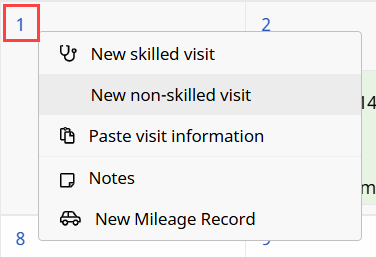
Click the date number at the top-left of the Calendar cell and select a Skilled or Non-Skilled Visit from the options.
-
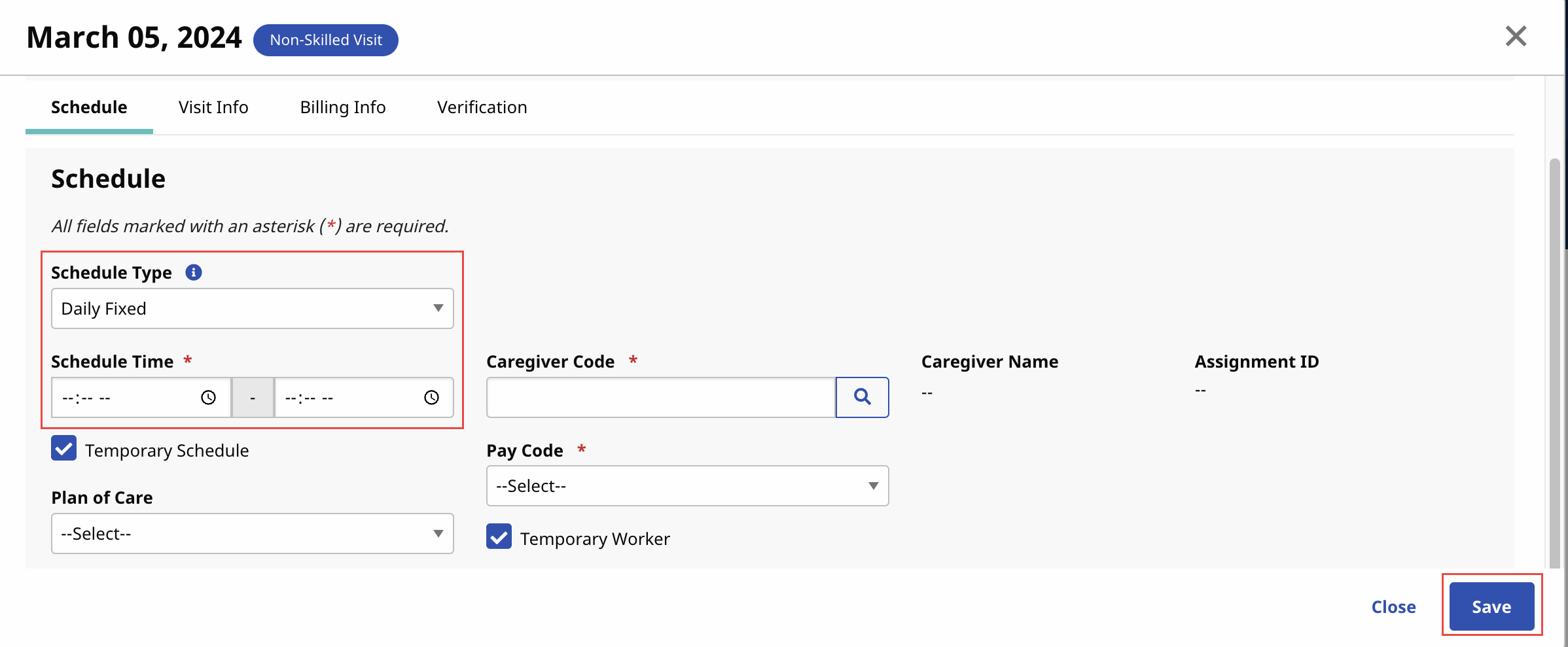
The Skilled or Non-Skilled Schedule window opens on the visit Schedule tab. Complete the required fields. Select the Schedule Type as Daily Fixed. Enter the start/end time to define the Schedule Time.
-
Click the Save button to schedule.
A Daily Variable Schedule Type establishes a schedule time duration measured in hours and minutes rather than a specific start/end schedule time for daily visit(s).
EVV is not linked for Daily Variable visit(s) that have a combined Call In/Out time that precedes or exceeds 7 minutes of the start/end schedule time.
Complete the steps to create a visit with a Daily Variable Schedule Type.
-
Go to the desired Patient and click the Calendar page on the index.
-
Click the date number link at the top-left of the Calendar cell and select a Skilled or Non-Skilled Visit from the options.
-
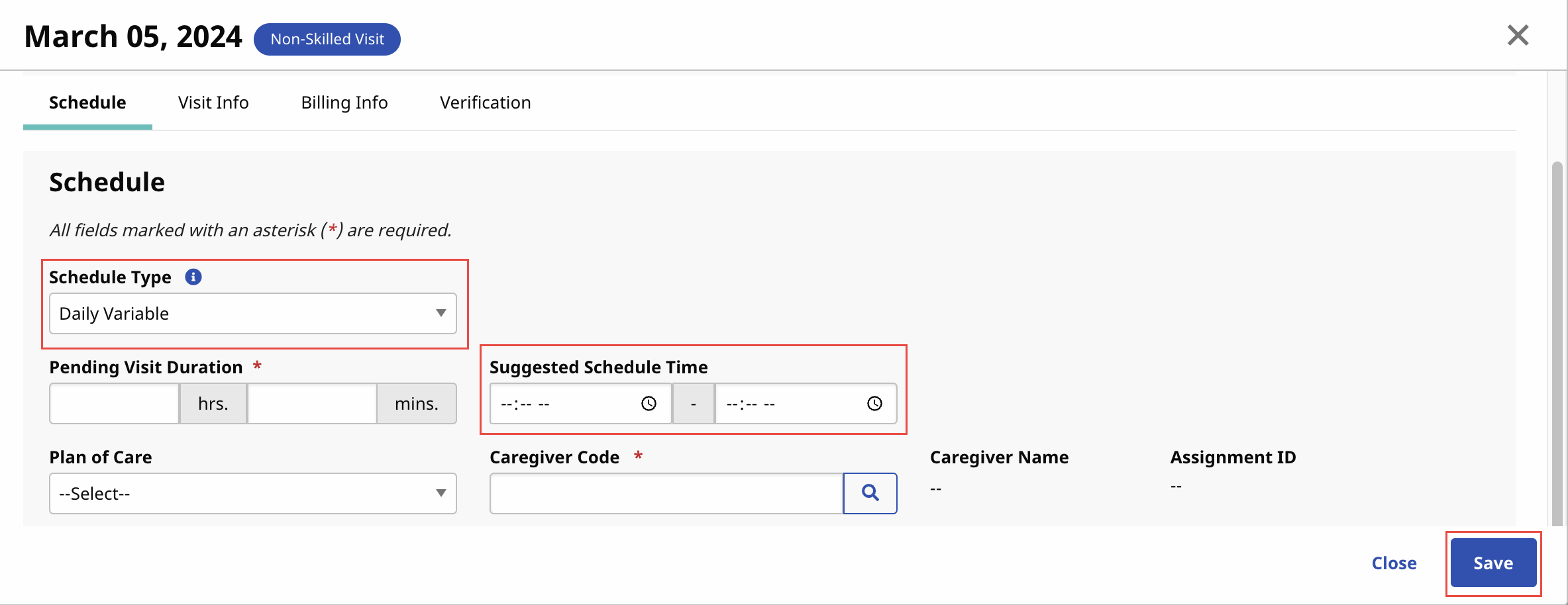
The Skilled or Non-Skilled Schedule window opens on the visit Schedule tab. Complete the required fields. Select the Schedule Type as Daily Variable. Enter the number of hours and minutes to define the Scheduled Visit Duration.
The Suggested Schedule Time field allows the provider or agency to enter a suggested start and end time for the service to occur. This field is optional and does not affect auto-verification of a visit.
-
Click the Save button to schedule.
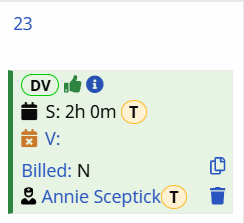
Upon successful scheduling, the visit displays a DV label on the top-left of the cell to represent a Visit with a Daily Variable Schedule Type. The Visit cell displays the Scheduled Visit Duration (such as 6 hours).
Providers can create one or more Weekly Variable Schedule(s) within any given or selected month on the desired Patient Calendar.
Complete the steps to add a Weekly Variable Schedule on the desired Patient calendar month.
-
Go to the desired Patient, and click the Calendar page on the Index.
-
On the Calendar page, click Add a Weekly Variable .

-
On the Add Weekly Variable Schedule page, find the week where you want to add hours and click Add Hours at top right of the week header.
Select the Payer and Service Code, and enter the Weekly Allotted Visit Time.
At bottom left, click Save.
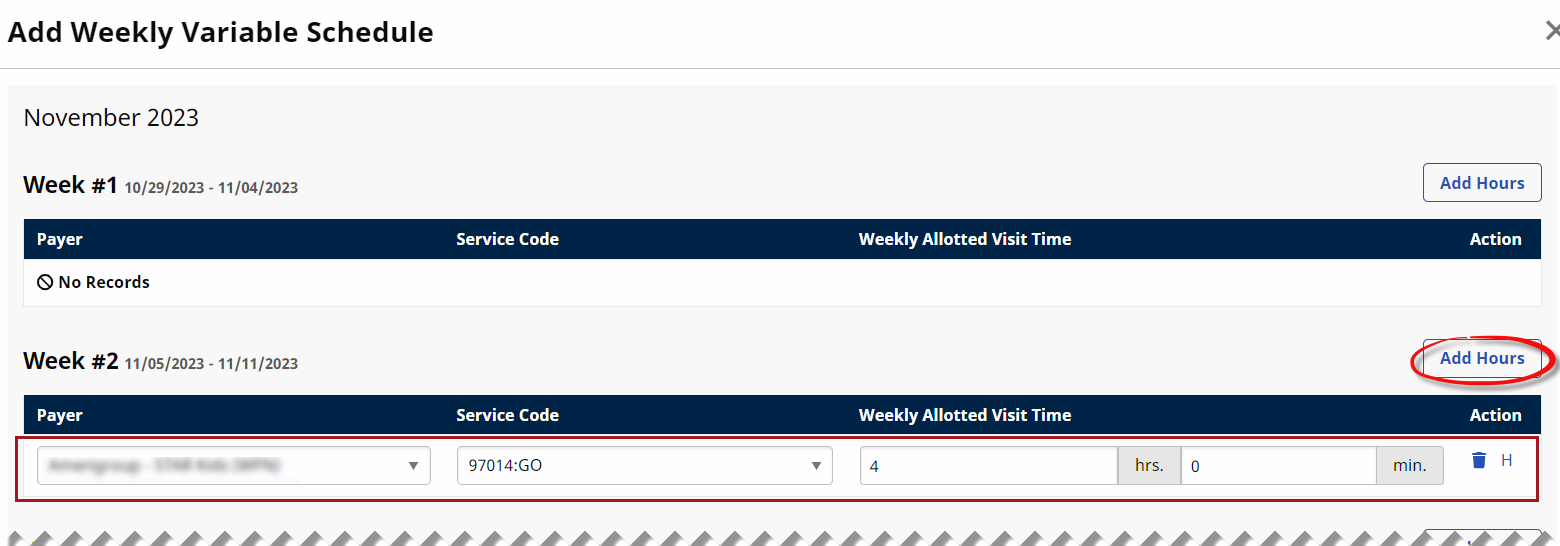
Caregivers must select a matching Service Code for their Weekly Variable visit(s) to automatically populate onto the Patient Calendar based on their Clock In/Out times.
-
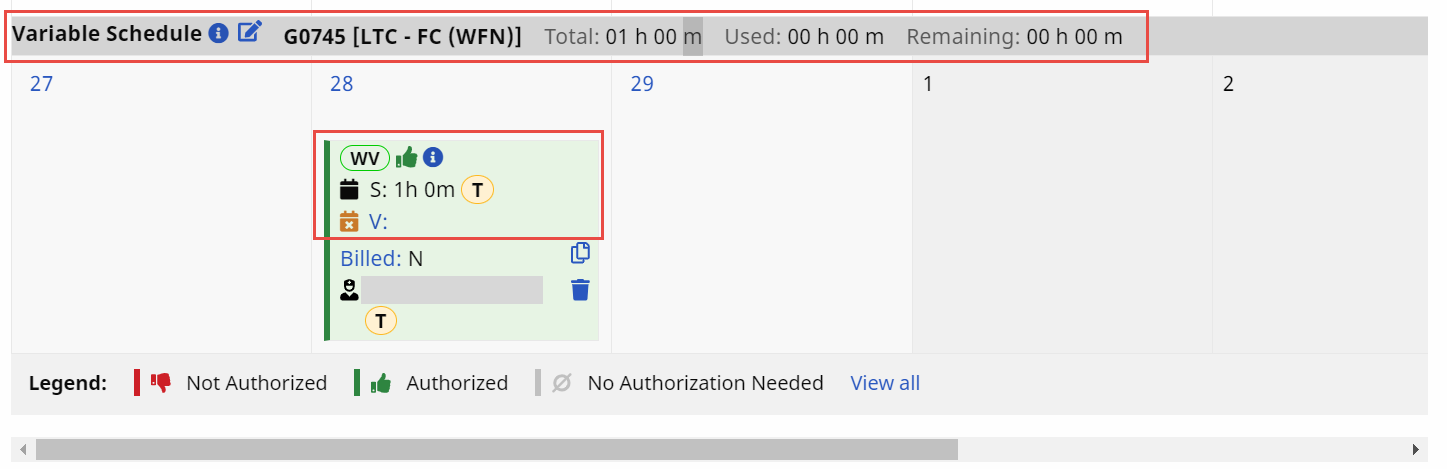
After saving the schedule, the Variable Schedule label is displayed above the selected Week in the Patient Calendar. The label indicates the selected Payer and Service Code. Review the tool tips and use the Edit icon to adjust the variable schedule as needed. The label also displays the Total, Used, and Remaining hours.
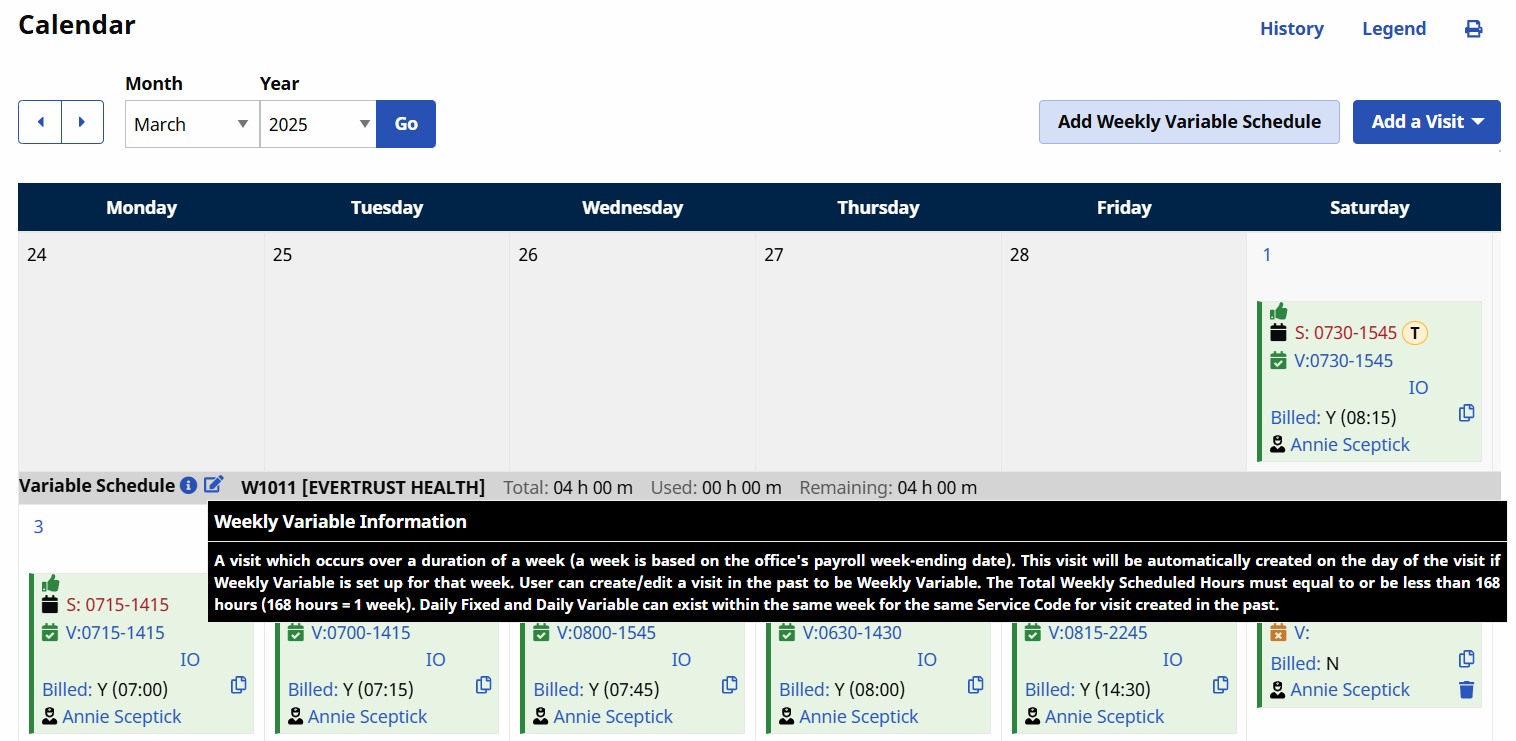
Providers cannot create a Weekly Variable visit unless there are available Total Weekly Scheduled Hours. To schedule a Weekly Variable visit, the Total Weekly Scheduled Hours must first be added to the system, along with the corresponding Payer and Service Code.
The total rounded billable duration for each visit throughout the week is recorded as the Used time for Variable schedules.
A Weekly Variable Schedule Type establishes a specific number of hours and minutes to be allotted to visit(s) corresponding to an associated Contract and Service Code per the corresponding week.
Complete the steps to create a visit with a Weekly Variable Schedule Type.
-
Go to the desired Patient and click the Calendar page on the Index.
-
Click the date number link at the top-left of the Calendar cell and select a Skilled or Non-Skilled Visit from the options.
-
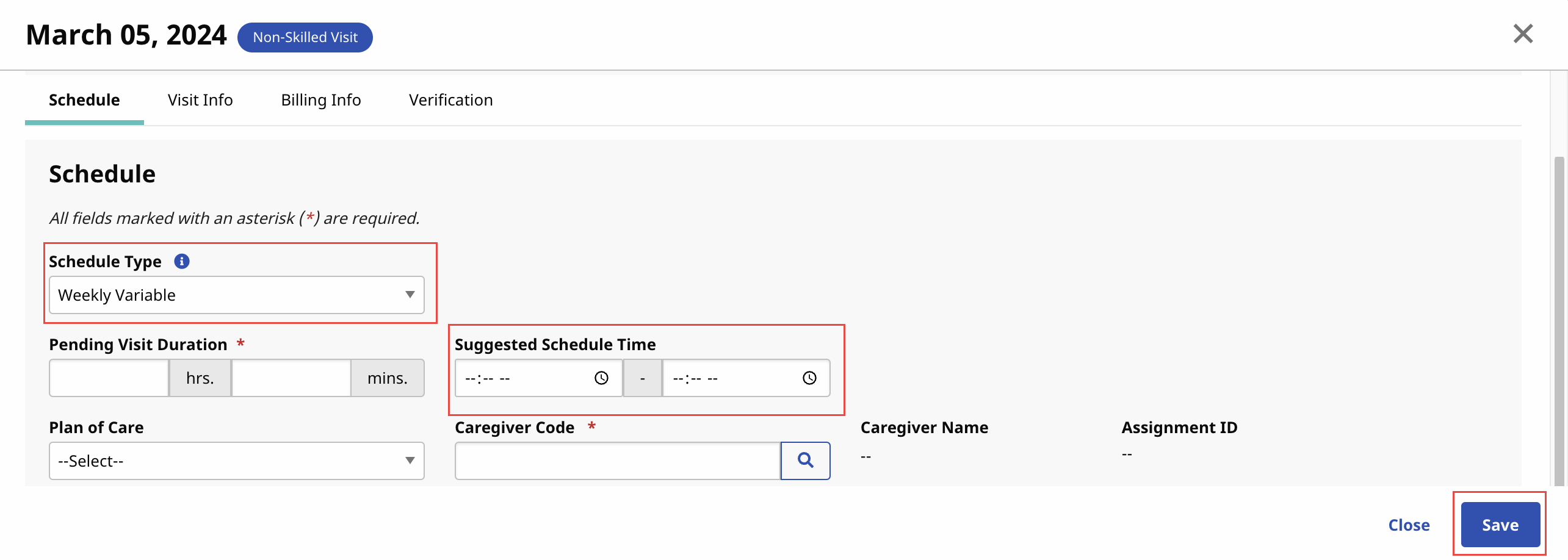
The Skilled or Non-Skilled Schedule window opens on the visit Schedule tab. Complete the required fields. Select the Schedule Type as Weekly Variable. Enter the number of hours and minutes to define the Scheduled Visit Duration.
The Suggested Schedule Time field allows the provider or agency to enter a suggested start and end time for the service to occur. This field is optional and does not affect auto-verification of a visit.
-
Click Save to schedule.
After the visit is successfully scheduled, it displays a WV label on the top-left of the cell to represent a visit with a Weekly Variable Schedule Type. The visit cell displays the Scheduled Visit Duration (such as 20 hours) and the visit start/end time.
When a Caregiver performs and confirms the visit (such as a 4-hour visit), the Variable Schedule label fields are updated to reflect the schedule time changes, such as the Total, Used, and Remaining times in relationship to the Weekly Variable Schedule.
A No Schedule Type defines a visit with no schedule (i.e., an Unscheduled Visit). Unlike the Daily Fixed and Daily Variable Schedule Types, the No Schedule Type does not establish a fixed schedule start/end time or fixed duration.
A No Schedule Type visit is populated on the Calendar based on the Caregiver's performance of a visit (such as 10 completed hours on a particular day). Visits are then created through the Automatic Creation of Schedules (ACS) process in order to be displayed on the applicable Patient Calendar.
On the Prebilling Review page under Billing > Prebilling, certain existing Prebilling rules must be bypassed to support the proper billing of Daily Variable and Weekly Variable Schedule Types in the application. The following Prebilling rules are bypassed to support the variable schedule types as follows:
-
Overlapping Shifts
-
Patient Overlapping
-
Insufficient Duty Minutes
-
Unbalanced Visits