Update Master Week when Adding a New Contract
Existing Master Week schedules can be directly updated from the Patient Contract setup page under Patient > Contracts > Add allowing for the information to update automatically once the Contract is saved. Select the Update Master Week checkbox on the Contracts window to expand/display an active or upcoming Master Week schedule(s).
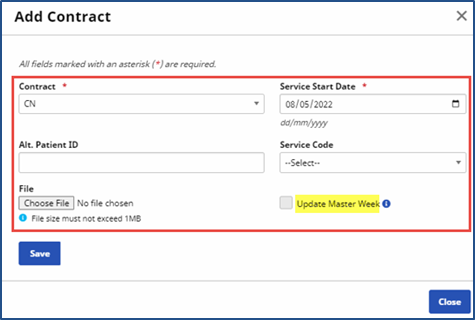
The current or upcoming Master Week(s) automatically updates based on the entered Contract details. Subsequent Master Week schedules may be updated when selecting the Update Master Week checkbox. The Service Code is applied to the Patient’s Master Week schedule only if the Export Code and Discipline match the current Service Code on record for the Master Week.
Once the Contract is saved, the primary Master Week is automatically updated with the new Contract details including the Bill To field and the selected Service Code. The Master Week schedules are updated and a rollover is performed based on the Service Start Date. Visits are created based on the Master Week rollover following the new Contract rules.
The Update Master Week checkbox and functionality is controlled by the existing Master Week permissions. If the Patient does not have a saved Master Week, then this checkbox appears as unavailable.

The Service Code automatically populates based on whether a single matching Service Code for the New Contract can be found. The system uses the Discipline and Export Code to match the existing and new Service Code. If no (or multiple) matches occur, then the user must manually select the Service Code.
The following features have been removed when editing the schedule from the Contract page:
-
Hours link has been replaced with a Schedule field.
-
Option to search and change an assigned Caregiver.
-
Alt function
-
Include In-Mileage checkbox
-
Copy Master Week link.