View a Patient’s Documentation History
Complete the following steps to view or edit an existing E-Document from the Patient’s Documentation page.
-
Go to the Patient > Clinical Documents page to view a history of e-Docs for a Patient.
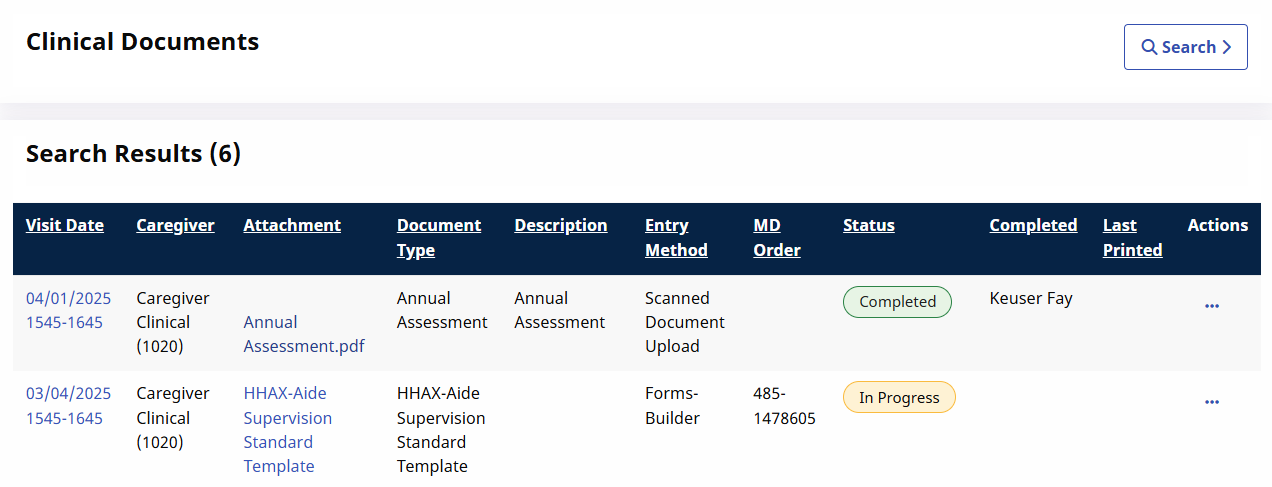
-
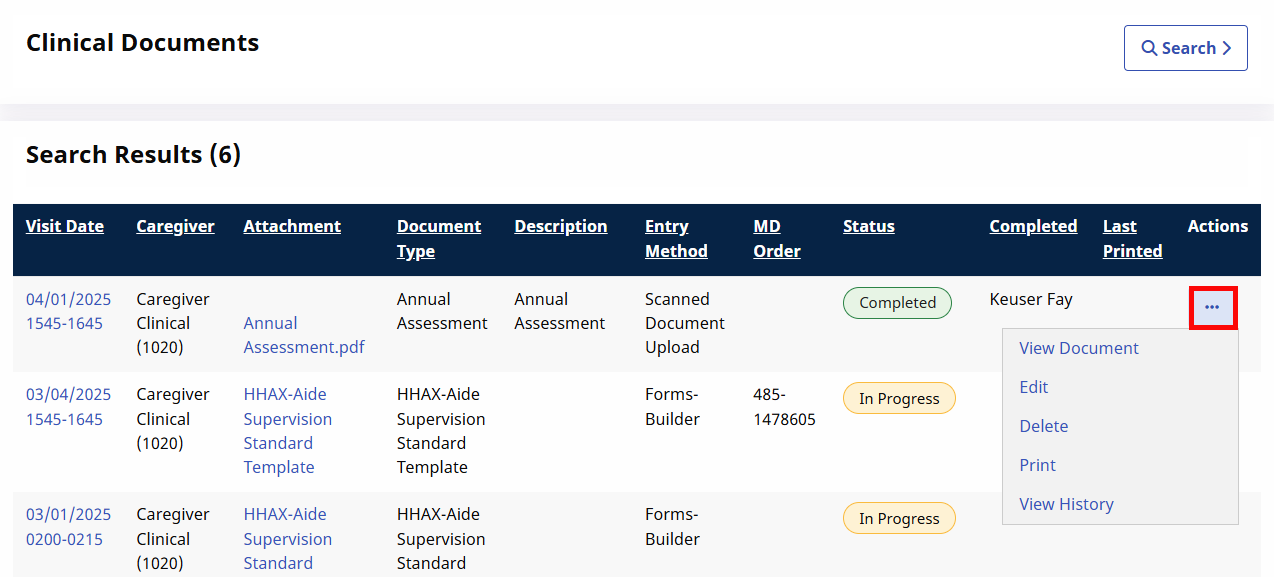
Locate the specific e-Doc for a visit and click the Elipses link under the Actions column. Select View Document to view the document or Edit to edit. You can also Delete, Print or View History.
Select…
To…
View Document
View the existing e-Doc and navigate from section to section.
Edit
Update the existing e-Doc. The Save options become available with this option. Select Save & Close once all updates are applied.
Delete Delete the existing e-Doc. Print Create a download of the e-Doc. View History View a history of edits and changes to the e-Doc.