System Login and User Interface
All HHAeXchange platforms are web-based applications that require an internet connection to access the system. Any disruptions to internet service ends a user’s session, as the HHAeXchange Enterprise platform does not support an offline mode. If the system does not detect any activity for 20 minutes, the user is logged off for security purposes. Refer to the 15-Minute System Session Timeout section for details.

Complete the following steps to access the HHAeXchange portal:
-
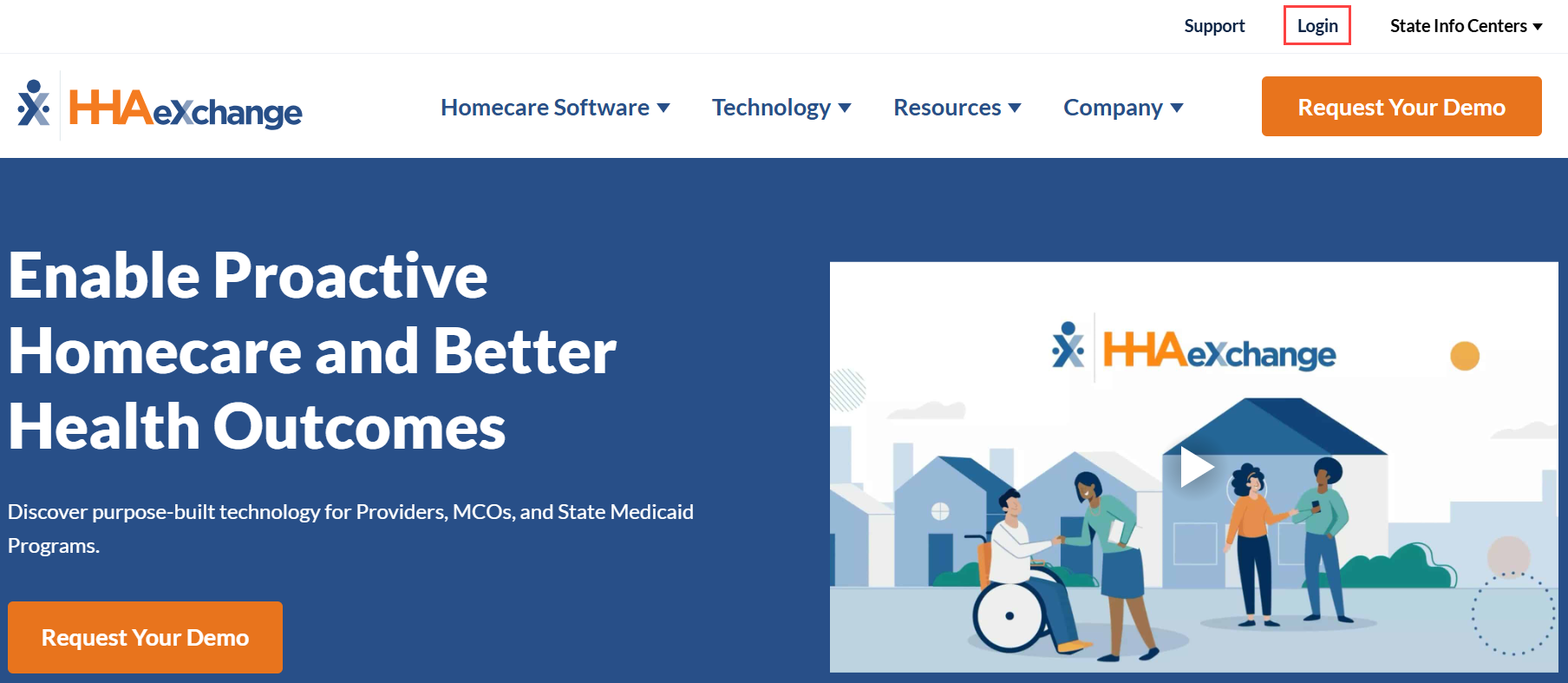
Open Google Chrome or Microsoft Edge internet browser and go to https://hhaexchange.com.
-
On the HHAeXchange home page, click Login.
-
On the Login page, enter your user credentials and click Log In.
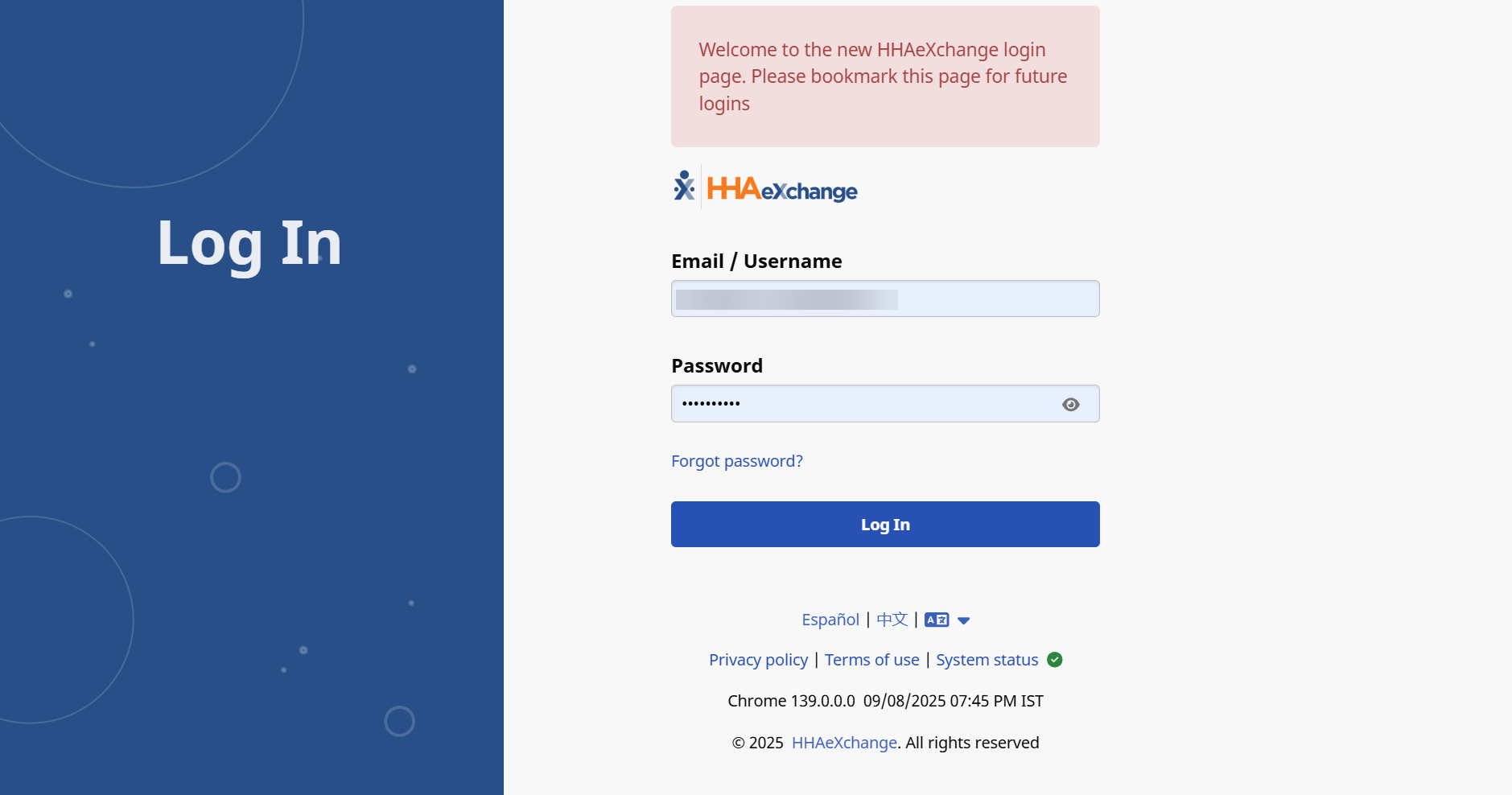
If your email address is linked to multiple usernames, use your username to log in instead of your email address.
An error displays warning you to use your username to login if you use your email address to login and it is tied to multiple usernames.
Click Forgot Password? and follow the system prompts to reset your password. Refer to the Self-Service Password Reset for further details.
-
After you log in, the Home page displays several tabs that act as internal communication tools for users with the corresponding permissions.
-
The Navigation Panel is permanently located at the top of the screen to allow for easy navigation between features and access to the User Profile Menu.

-
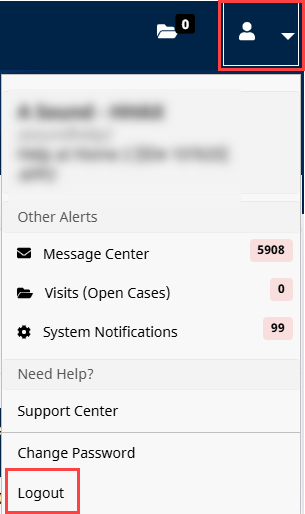
The User Profile Menu, located at the top right of the Navigation Panel, provides access to Alerts, Support options, and the Logout function.
-
The Home page provide access to Placements, Events, Notifications, Messages, Tasks and Linked Communication.

-
Some users may be required to acknowledge a Privacy and Confidentiality statement before accessing the HHAeXchange system. Click Continue to acknowledge the statement and proceed to the home page.
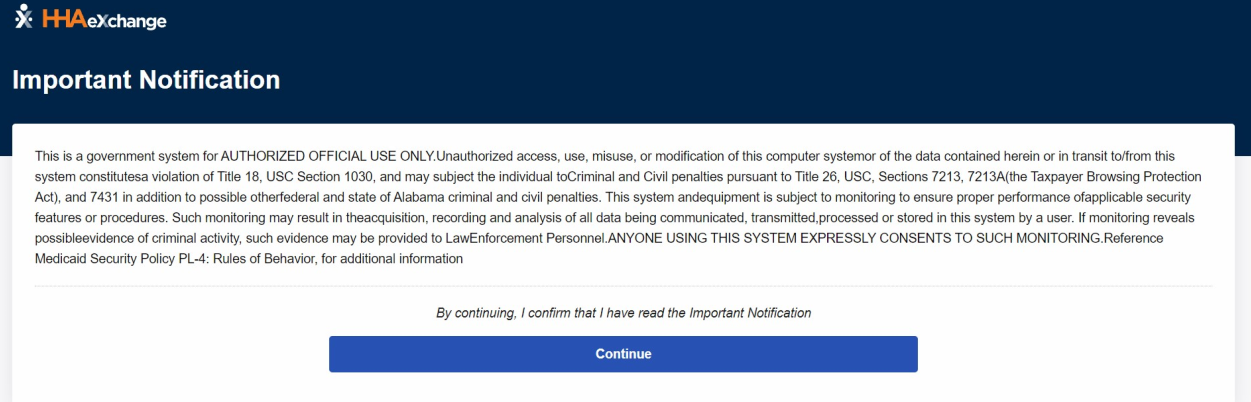
This setting can be adjusted by HHAeXchange System Administration at an Office level for Providers who have multiple offices. Contact the HHAeXchange Support Team for assistance.