Adjust Billable Hours
This feature is activated by HHAeXchange System Administration. Contact HHAeXchange Support Team for details, setup, and guidance.
The Provider uses the Adjusted Hours field to adjust billable hours.

To adjust the billable hours from the Visit,
-
Go to Visit > Visit Search.
-
Enter Search criteria and then select Search.
-
Click the Member name to open the Member Calendar page.
-
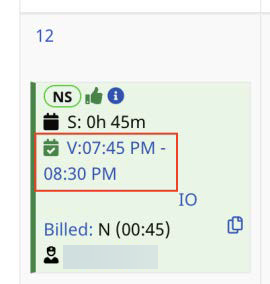
From the Calendar, select the Visit Verification to open the Visit window.
-
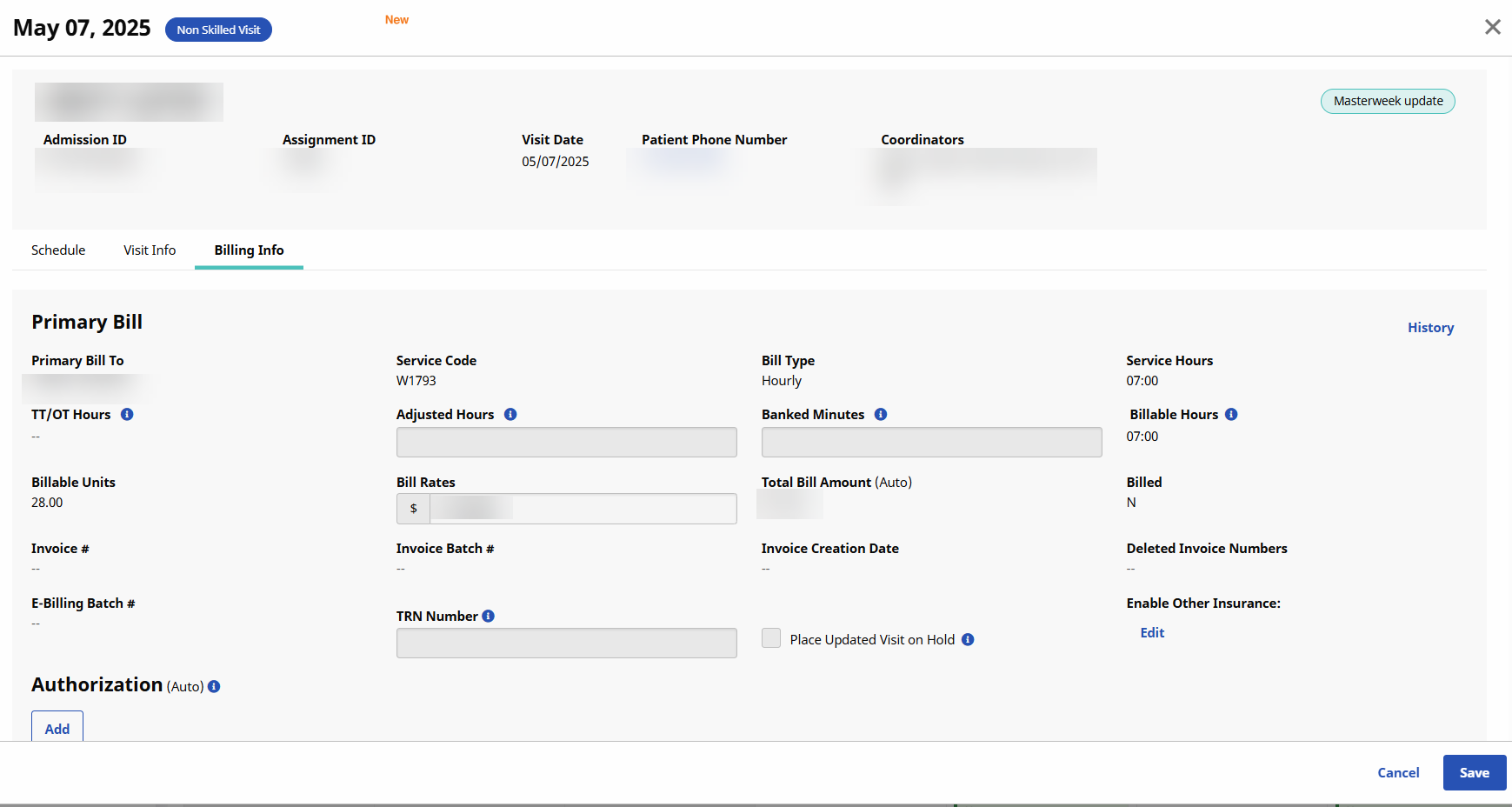
Select the Bill Info tab on the Visit window.
-
Enter the time change in the Adjusted Hours field in the hhmm Format. Enter a - sign in front of the time to reduce the hours. E.g., -0015.
Texas providers can only decrease billable hours. Billable hours can never be greater than the visit time worked.
-
Click Save. The EVV Reason Code Number/ Reason Code field is required when the Adjusted Hours field is updated.
-
Enter a reason for the change in the EVV Reason Code Number/ Reason Code field. E.g., 110-B, Downward adjustment of Bill Hours
-
Click Save.
To adjust the billable hours from the Bulk Visit Maintenance feature:
-
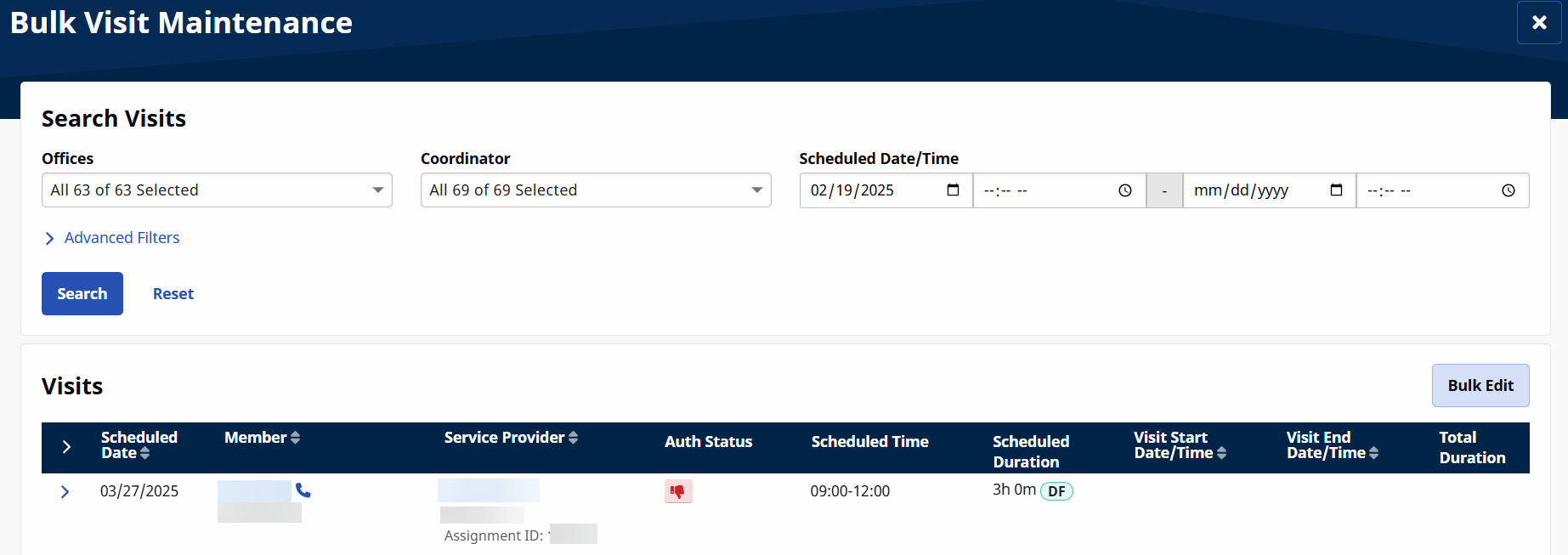
Go to Visit > Bulk Visit Maintenance.
-
Enter Search criteria and then select Search.
-
Select the Bulk Edit button. All visits open additional fields to edit.
-
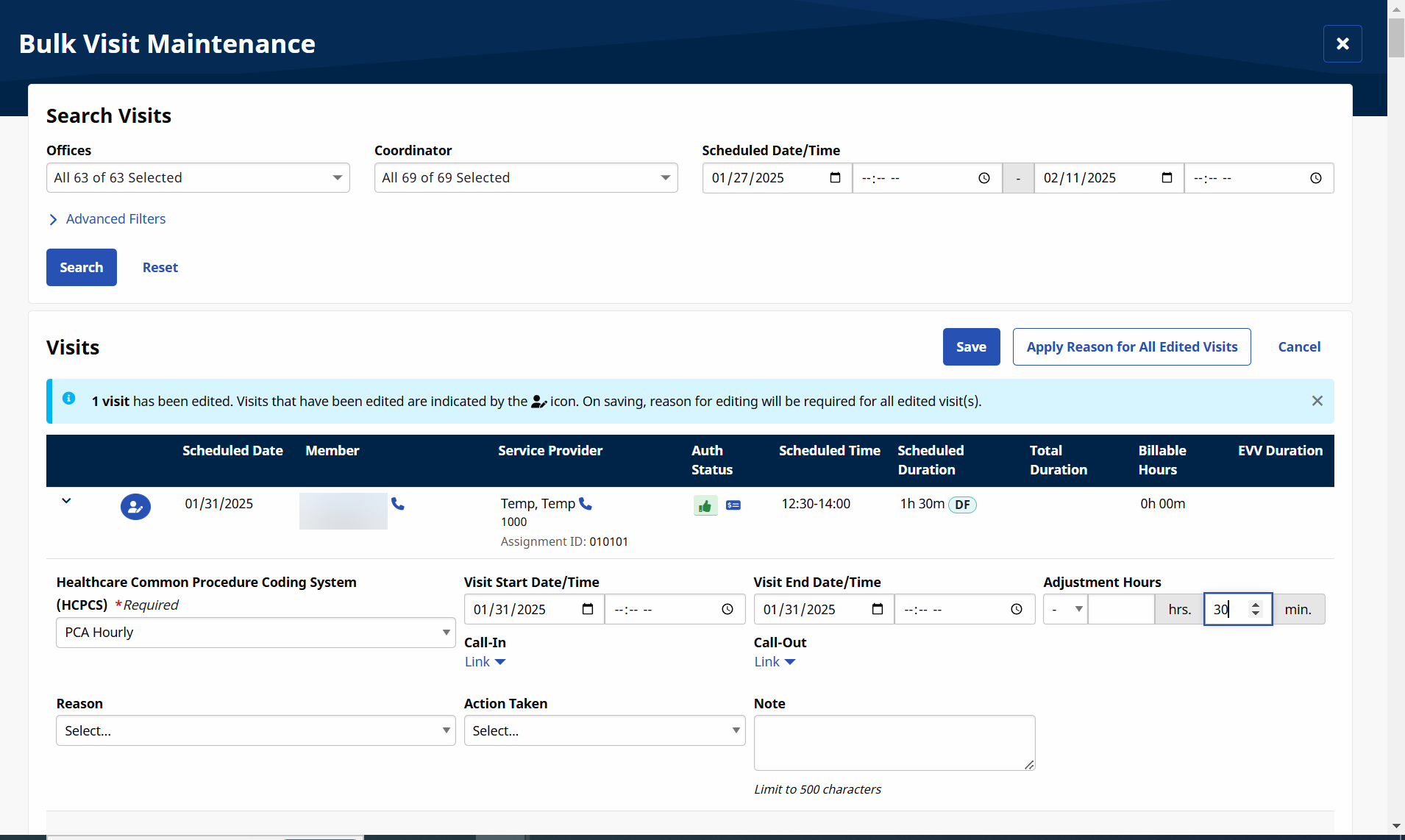
In the Adjustment Hours field, select the plus or minus and then enter the amount of time needed to adjust the Scheduled Duration of the visit up or down.
-
Enter a reason for the change in the Reason field.
You can edit multiple Visits at a time. Use the Apply Reason For All Edited Visits button to apply the reason entered to all edited Visits.
-
Select Save to save all changes.