Client Support Portal
Use the Client Support Portal to submit requests to the Support Team.
HHAeXchange (HHAX) Client Support Portal Best Practices:
-
Provider Agencies can identify multiple staff to include as collaborators on each ticket. This will provide coverage if the staff member who originally creates the ticket is out of the office.
-
In order to be added as a collaborator, each staff member needs to register for their own Client Support Portal account. The instructions can be found here - Client Support Portal.
-
Once Client Support Portal accounts have been confirmed, provider agency staff may be added as collaborators to tickets, allowing staff to view tickets and any updates from HHAeXchange Support Team.
-
There will be times when provider agencies using Third Party EVV Vendors may also want to add vendor representatives as collaborators on Client Support Portal tickets. Please work with your EVV Vendor to identify who should be added to tickets and ensure the vendor representative follows the instructions in the first bullet to create Client Support Portal accounts.
-
-
Once you have created a ticket the Client Support Portal, please ensure you respond to updates to the tickets from HHAeXchange Support Team in a timely manner. Tickets will be automatically closed if there is no response in 5 (five) days from the update. You will receive daily reminders that a response is needed.

Start by creating an account. After you sign in, you can submit support tickets, monitor ticket progress, and communicate with support.
To register for a Support account:
-
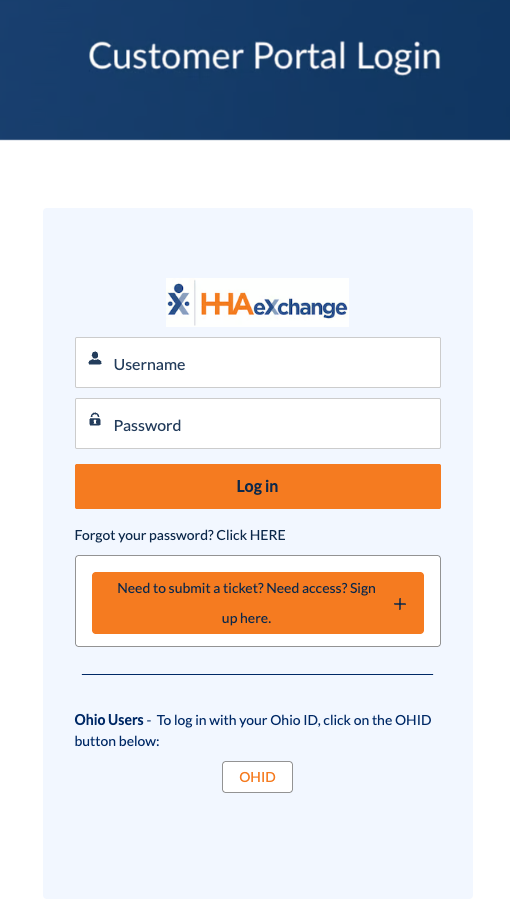
On the Customer Portal Login page, click the Sign Up Here button:
-
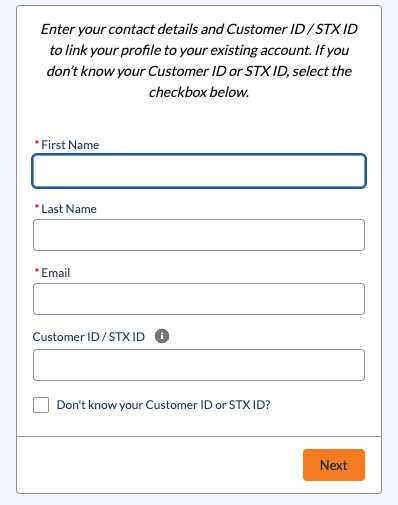
A form opens below the login screen. Complete all fields, and then click Next.
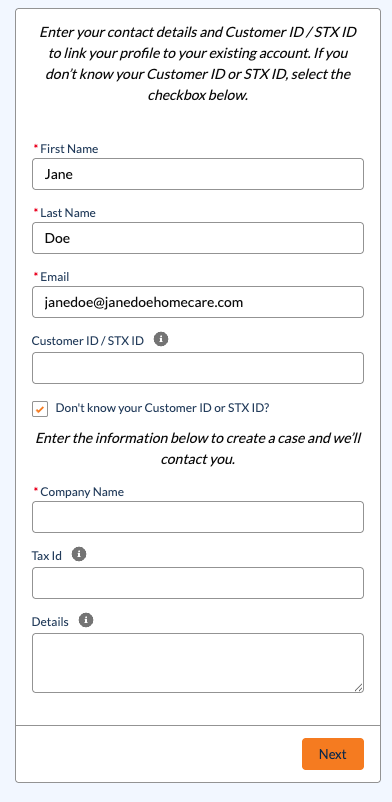
If you do not know your Customer ID or STX ID number, select the check box and additional fields display. Complete the new fields, and then select Next.
A ticket is submitted to Customer Support. A Technical Support Representative will contact you by email to complete your registration. Check your spam folder if you do not receive the email.
-
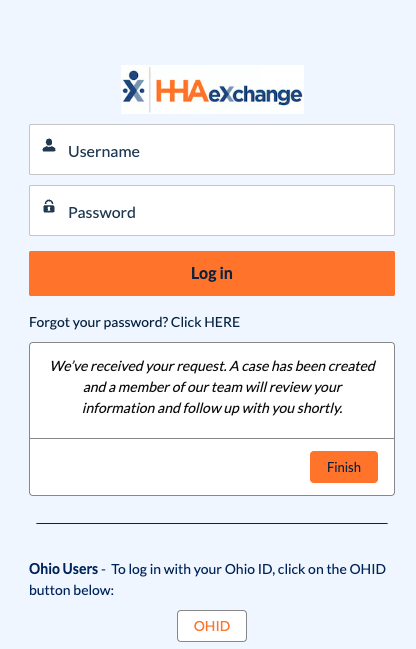
Once your request has gone through, a confirmation screen displays.
-
For accounts that are immediately approved, an email is sent to your email with instructions to set your passwords.
A confirmation screen displays if your account is created immediately.
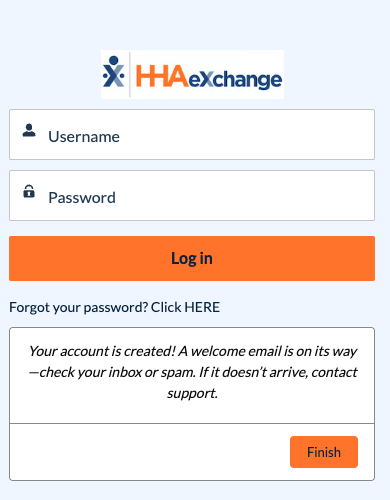
-
For accounts that need further approval, a Technical Support Representative will contact you by email to complete your registration. Check your spam folder if you do not receive the email.
A confirmation screen displays if your account is created immediately.
-
- Click Finish.
Navigate the Support Portal using the toolbar at the top:

-
Announcements contains important system-wide messages.
-
Quick Links (Cases) allows you to view your support cases.
-
Help Resources contains links to the Knowledge Base, FAQs, and the ability to open a new support case.
-
The Search icon allows you to search through all elements of the Support Portal.
-
The Bell icon allows you to view notifications specific to your support cases.
-
The Profile icon allows you to view your Profile, adjust your Settings, and Log Out of the Support Portal.
To create a new support request:
-
Open the Support Portal and log in.
-
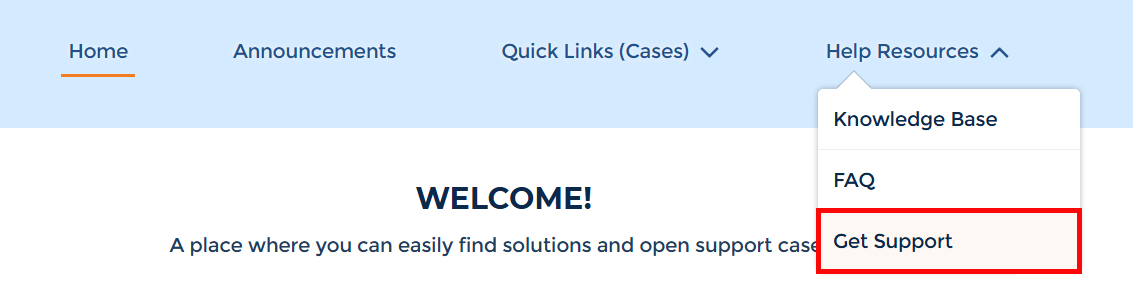
In the top navigation menu, click the Help Resources dropdown, and then select Get Support.
-
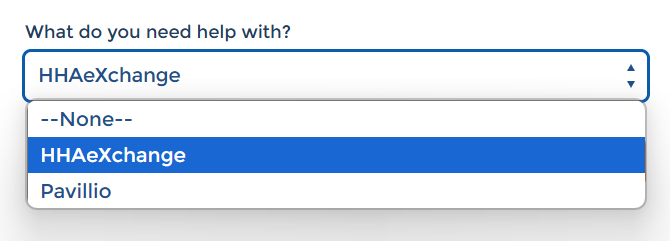
On the following page, select your product from the dropdown, and then click Next.
-
Select the main category of your request, and then click Next.

-
Enter the details of your request. Fields marked with a red asterisk are required. Click Upload Files to attach any relevant files. When finished, click Submit Case.

-
The confirmation screen shows your case is submitted and reviewed shortly by the Support Team. An email is sent to confirm receipt of the ticket.
To view your open support cases:
-
Open the Support Portal and log in.
-
In the top navigation menu, click the Quick Links (Cases) dropdown, and then select My Open Cases.
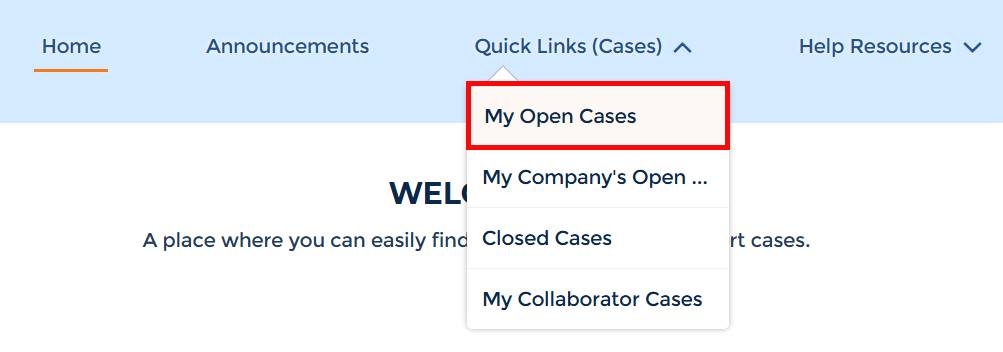
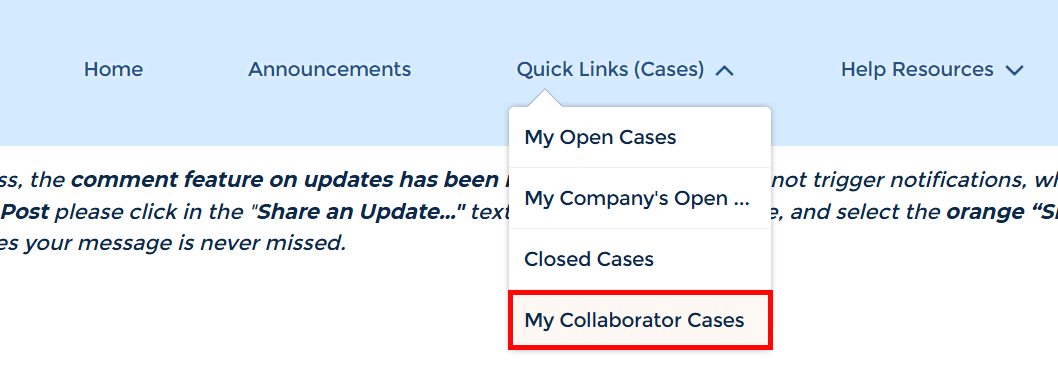
You can view all open cases for your Agency by selecting My Company's Open Cases, and closed cases by clicking Closed Cases. You can also view cases that someone outside of your organization may need insight into under My Collaborator Cases.
-
On the My Open Cases page, click the Case Number of your request to view more information.
-
The Case page opens to display the status of your case. To open a communication with the Support Team in the ticket, enter your message in the Share an update area marked below and then click the Share button.
If you no longer need assistance, click Close Case to close the case.
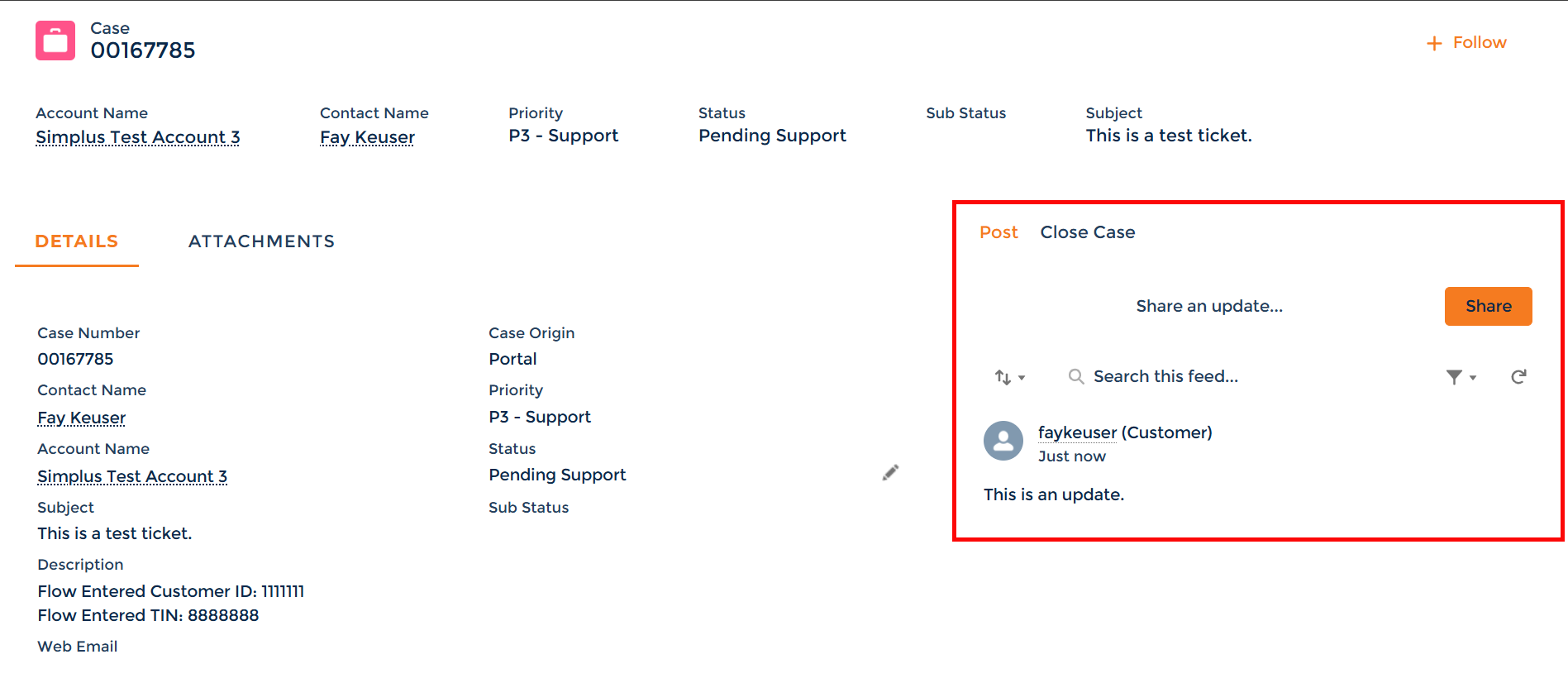
See the following table for an explanation of the Status field:
Status
Status Definition New The case has been created and is awaiting assignment. Assigned The case is assigned to a Technical Customer Care Representative to address. Waiting For Customer The case has been updated and is awaiting a response from you. The case remains in this status for 4 days, and reminders are sent out via email. On the 5th day, the ticket is marked as Resolved. Waiting For
The case is awaiting a response from the entity listed within the Sub Status.
Pending Support You have written an update in the case, and it has been sent to Technical Customer Care for review. Resolved Your request has been addressed to the best extent possible. The case will remain in this status for 3 days before it is automatically closed. An email reminder is sent before the case is closed. If you share any updates during this time, the case returns to Pending Support so further assistance can be provided. Closed This case is now closed and will no longer be addressed by our Technical Customer Care team. If you share an update in this case, a new case will be automatically created. You may also choose to create a new case and reference the closed case for continuity.
The Case Collaborator feature allows you to provide users from outside your organization with visibility into your case(s).
To add a collaborator to your case:
-
Open your case.
-
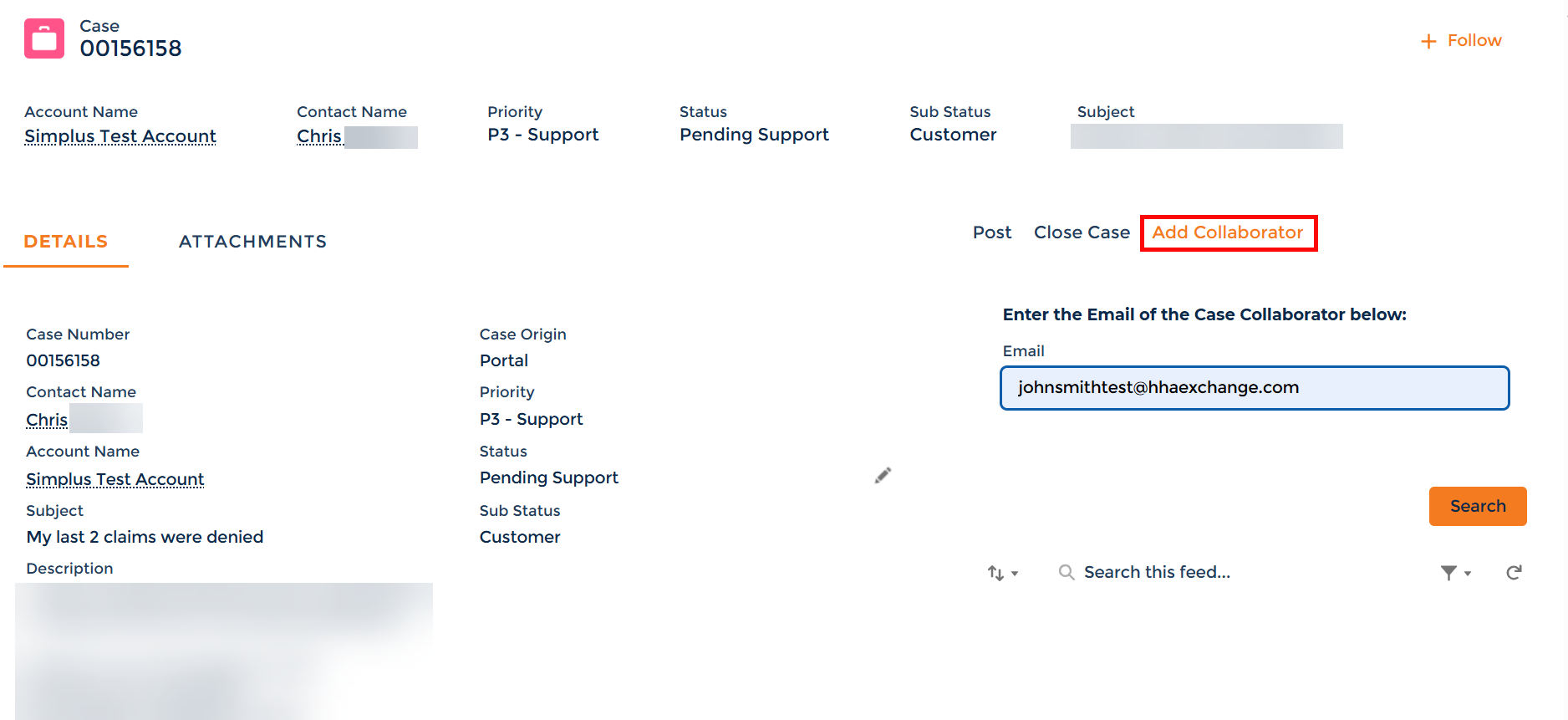
On the right hand side of the screen, click on Add Collaborator.
-
In the Email field, enter the email address of the user you want to share visibility with. Click the Search button.
-
Select the radio button next to the name of the contact you want to share visibility with. Click the Next button.
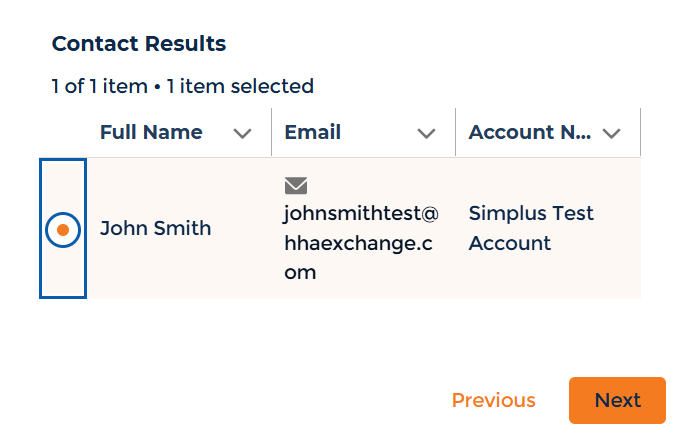
You have successfully shared your case with a collaborator. You can view all cases with collaborators by going to Quick Links (Cases) > My Collaborator Cases.
Other Resources